


Use the price update window to change unit prices on the Prices tab of item records. You can also change an item pricing method, for example from Manual to Company Cost. Open Items > Update Prices. The window contains these fields:
.
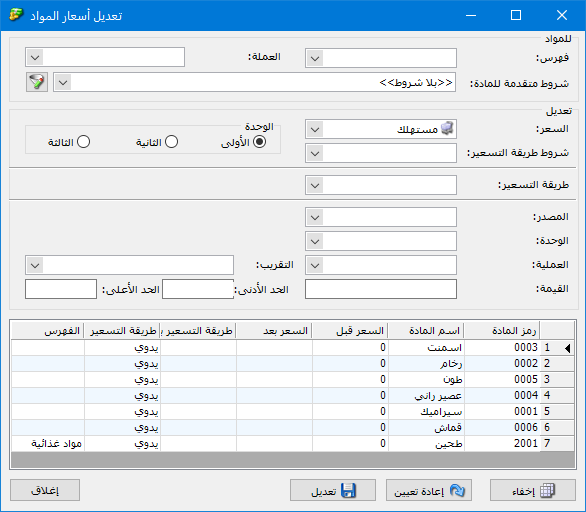
.
Category: Select a category to update prices for its items.
Currency: Select items by their record currency. For example, retrieve all items whose record currency is the dollar.
Advanced Item Conditions: Select items for price changes using conditions such as specifications, class or source.
There are three fields here:
Update: #
- Price: Select the price type to update, such as Retail, Special Retail or Semi-Wholesale.
- Pricing Method Conditions: Select the current pricing method if you want to restrict or change it.
- Unit: Select the unit whose price should be updated.
Pricing Method: #
Select the new pricing method if you want to change how the item is priced.
Source: #
Select the source value on which the price update will be based. For example, to raise the retail price by 10%, select Retail in Price and also select Retail as the source, so the increase is calculated from the existing retail price.
Unit: Select the unit whose price should be updated.
Operation: Select the operation used to obtain the new price: addition, subtraction, multiplication, division or replacement of one value with another.
Value: This value depends on the operation. For addition, enter the amount to add. For multiplication, enter the multiplier, and similarly for the other operations.
Rounding: Set how the resulting price should be rounded. Rounding increments range from 0.01 to 10,000 currency units, with rounding up, down or to the nearest increment.
Minimum: If the calculated price is below this limit, the minimum is used instead. For example, if the calculation gives 450 currency units and the minimum is 500, the final price is 500.
Maximum: If the calculated price exceeds this limit, the maximum is used instead.
Hide: Hide the table showing items and their prices before and after the update.
Reset: Use this button to start another update and clear the conditions from the previous operation.
Update: Click this button to apply the updated prices to the item records.
.


