


This statistical report summarizes customer transactions and ranks customers in descending order of activity. Flexible settings provide reports on the highest sales by value, quantity or invoice count, customers with the most returns, suppliers with the highest purchase activity, and similar measures.
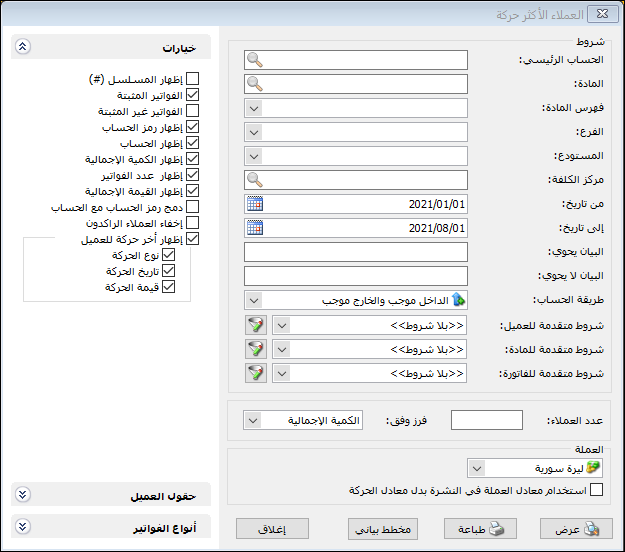
Choose Most Active Customers from Reports / Statistical Accounting Reports to open the following criteria window:
.
Conditions: #
- Parent Account: Select a parent account, such as Customers or Suppliers.
- Item: Select an item to rank customers based only on transactions involving that item.
- Item Category: Select an item category to rank customers based only on that category.
- Branch: Select a branch to include only invoices issued in its warehouses.
- Warehouse: Select a warehouse to include only invoices issued in that warehouse.
- Cost Center: Select a cost center to include invoices involving that cost center.
- From Date / To Date: Specify the report date range.
- Description Contains: Enter text to include invoices whose description contains that text.
- Description Does Not Contain: Enter text to exclude invoices whose description contains that text.
Calculation Method: #
Three calculation methods are available:
- Incoming Positive / Outgoing Positive: Add the results of receipt and issue invoices, combining transactions that increase and decrease quantities.
- Incoming Positive / Outgoing Negative: Subtract issue invoice results from receipt invoice results, subtracting quantity decreases from quantity increases..
- Outgoing Positive / Incoming Negative: Subtract receipt invoice results from issue invoice results, subtracting quantity increases from quantity decreases.
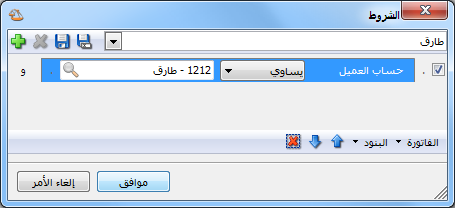
Advanced Customer FiltersSet filters using customer record fields, such as name, mobile number, telephone number or city. Only matching customers are included.
.
- Advanced Item Conditions: Use item record fields to filter the items included in the report. For example, to rank customers for items with size M, set an advanced filter where Size equals M.
- Advanced Invoice Conditions: Set advanced invoice filters based on invoice fields, such as payment method or date. Only matching invoices are included.
- Number of Customers: Set the number of customers to display. Entering 10 displays the ten most active customers.
Sort By: #
Choose the ranking criterion: Total Quantity, Invoice Count or Total Value.
Currency: #
Select the currency in which the report should be displayed.
Exchange Rate: Specify the exchange rate relative to the base currency. This is available only for a secondary currency and offers two choices.
- Use the Exchange-Rate Schedule: Retrieve exchange rates automatically from the schedule, using the rate applicable on each transaction date.
- Use a Specified Exchange Rate: Enter a rate in the field that appears and use it to display the report.
- Use the Scheduled Currency Rate Instead of the Transaction Rate: This option uses the rate from the exchange rate table instead of the rate recorded in the original transaction.
Options: #
The options section contains:
- Show Sequence Number: Enable this option to display a sequential number for each customer in the report.
- Finalized Invoices: Enable this option to include finalized invoices.
- Unfinalized Invoices: Enable this option to include invoices that have not yet been finalized.
- Show Account Code: Enable this option to display the customer account code.
- Show Account: Enable this option to display the customer account.
- Show Total Quantity: Enable this option to display the total quantity of items on customer invoices.
- Show Invoice Count: Enable this option to display the number of invoices.
- Show Total Value: Enable this option to display the total value of items on customer invoices.
- Combine Account Code and Name: Enable this option to combine the customer account code and name in one field.
- Hide Inactive Customers: Enable this option to hide customers with no transactions in the invoice types selected for the report.
- Show the Customer’s Last Transaction:
Transaction Type: #
The invoice type of the customer’s most recent transaction: sale, purchase, sales return or purchase return.
Transaction Date: Displays The date of the customer’s most recent transaction.
Transaction Value: Displays The value of the customer’s most recent transaction.
Customer Fields:
Use this section to display details from the customer record, such as telephone, fax, mobile number or city.
Invoice Types:
Select invoice types in the Invoices section. Choose sales invoices to rank customers by sales activity, or purchase invoices to rank suppliers by purchases.
- Show: Display the report.
- Print: Print the report.
- Chart: Display report information as a chart.
- Close: Close the report.
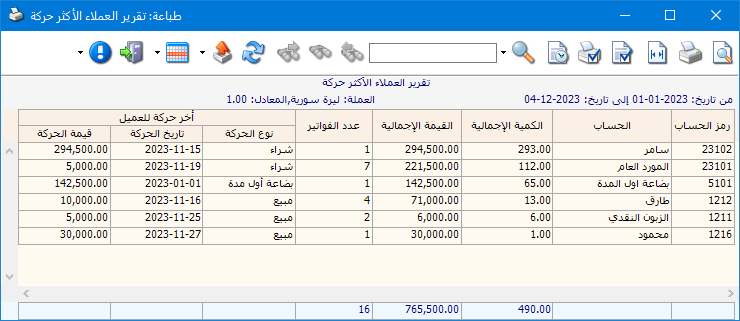
The following image shows an example of the Most Active Customers report:
.
Important Note:
This is a statistical report rather than an inventory balance report. Interpret the results according to the selected calculation method.
Practical examples of information available from the Most Active Customers report:
- The top ten customers by sales quantity, value or invoice count.
- The top ten suppliers by purchase value, invoice count or quantity.
- The top ten customers based on wholesale sales invoices.
- The top ten customers based on finalized invoices, unfinalized invoices or both.
- The customers with the highest sales during the first three months or another specified period.
- The customers with the highest sales within a specified parent account.
- The customers with the highest sales for a particular item.
- The customers with the highest sales for a particular item category.
- The customers with the highest sales for a particular branch, based only on its warehouse transactions.
- The customers with the highest sales for a particular warehouse, based only on its transactions.
.


