


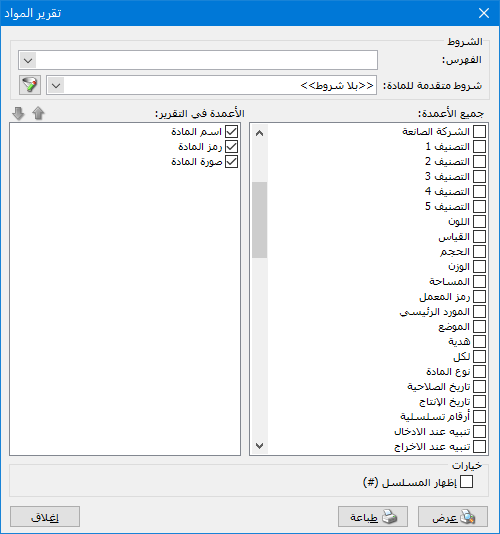
Print a list of items defined in the database and include any relevant information from their item records. Choose Reports > Item List to open the conditions window containing the following fields:
.
The window contains these options:
Conditions: #
- Category: Select an item category to display items within it.
- Advanced Item Conditions: Specify an advanced condition to display matching items.
All Columns: #
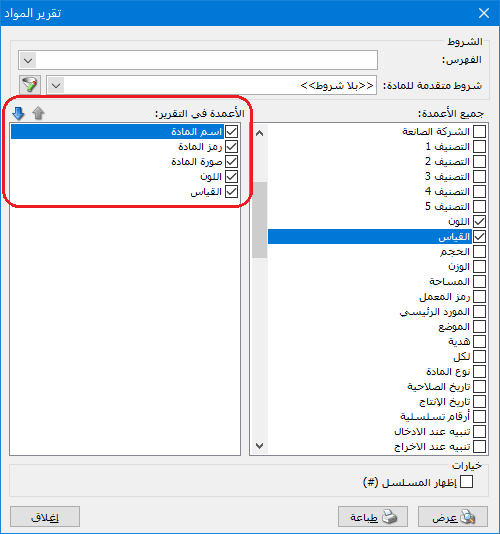
Available fields, such as Item Code, Item Name and Specifications, appear on the right. Enabling a field adds it to Report Columns on the left. Arrange the selected fields using the blue arrows in the left corner, as shown below:
.
Options: #
Show Sequence Number: Enable this option to display sequential numbers for items in the report.
- Show: Display the report.
- Print: Print the report.
- Close: Close the report.
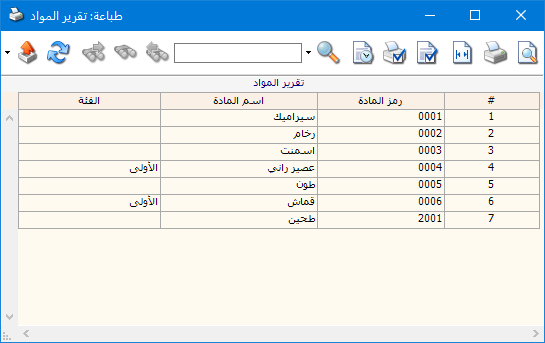
The following example shows information displayed in this report:
.
Examples of Information Available from the Item List Report:
- All defined items showing each item name, code, first unit and retail price for that unit.
- A list of defined item names with sequential row numbers.
.


