


The Sales Representatives window calculates commissions using general or specific rules and can link representatives to customers. The following methods describe the main ways to manage sales representatives in Al Mizan .NET.
Method 1: Define Sales Representatives Using the Program’s Dedicated Fields #
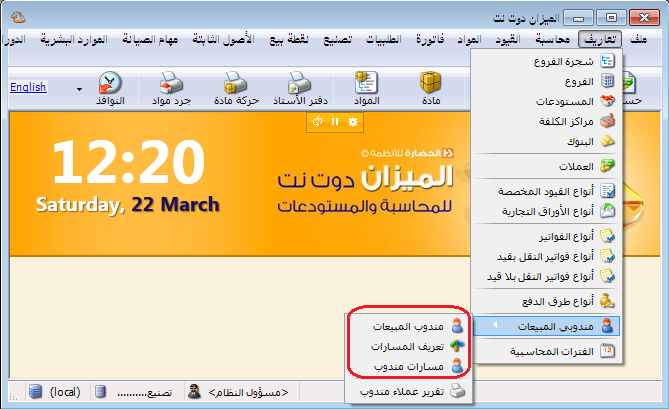
Link sales invoices to defined representatives using the Representative field. This enables reports by representative. Use this method when goods remain in the company’s stock, or when goods are with a representative but their physical stock is not tracked separately. Its main purpose is to identify the representative for each sale and report their sales or profit. Follow these steps: #
.
.
Sales Representative: #
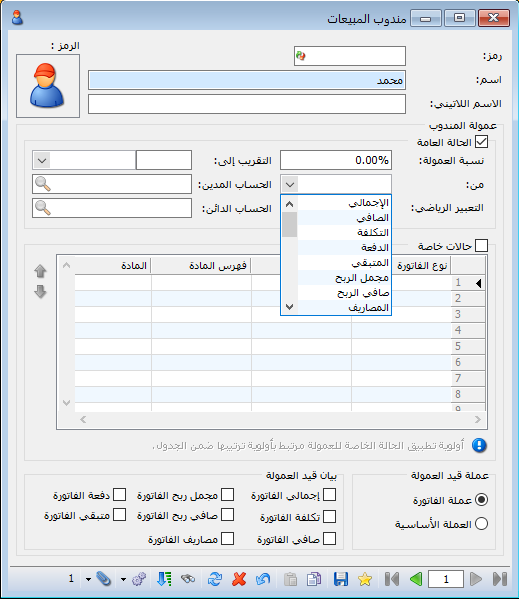
If the company has multiple sales representatives, define each and link them to their invoices, particularly when compensation depends on sales. Open Definitions and Sales Representative, then enter the representative’s name and commission rules in the following window.
.
.
General Rule: #
Enable this option to calculate invoice commission using Commission Percentage and one of the following bases selected in From:
Gross Total : Calculate commission on the invoice total before discounts or additions.
Net Total : Calculate commission on the invoice value after discounts and additions.
Cost : Calculate commission on the cost of the invoice items.
Payment : Calculate commission on the amount paid by the customer.
Outstanding Amount : Calculate commission on the invoice balance remaining after the payment.
Gross Profit : Calculate commission on invoice gross profit before deducting related expenses.
Net Profit : Calculate commission on invoice net profit after deducting related expenses.
Expenses : Calculate commission on expenses recorded in the invoice.
Other Commission Bases: #
Other available fields include first-unit quantity, unit price, free units, independent quantity, length, width, height, area, volume, discount percentage and value, addition percentage and value, added-tax percentage and value, size factor, color factor and class factor.
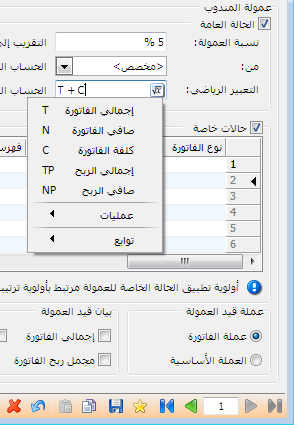
Custom : If the predefined bases are unsuitable, calculate commission on a custom value using a mathematical expression. Selecting this option enables the Mathematical Expression field. Click the
Example : To calculate five percent of invoice total plus cost, click the
Invoice Total: T
Invoice Net Total: N
Invoice Cost: C
Gross Profit: TP
Net Profit: NP
Choose T+C to calculate commission as a percentage of invoice total plus cost.
Round To: Configure how the commission is rounded.
.
.
Example : If the rounding increment is 10, three rounding modes are available.
- Up: Round the commission upward to the next multiple of 10 pounds.
- Down: Round the commission downward to a multiple of 10 pounds.
- Nearest: Round the amount to the nearest multiple of 10 pounds, upward or downward.
Debit Account : Enter the account Representative Commission.
Credit Account : Enter the account Representative.
Other available bases include quantity, unit price, length, width, height, area, volume, discount percentage and value, and addition percentage and value.
Special Rules: #
The company may use different commission percentages according to:
Invoice Type : Select the invoice type to which the special commission applies, or leave blank if it is not restricted to a particular type.
Customer Account : Select the customer account to which the special commission applies, or leave blank if it is not restricted to a particular customer.
Item Category : Select the item category to which the special commission applies, or leave blank if it is not restricted to a particular category.
Item : Select the item to which the special commission applies, or leave blank if it is not restricted to a particular item.
Debit Account : Enter the account Representative Commission.
Credit Account : Enter the account Representative.
Commission Percentage : Enter the commission percentage for the special rule defined by invoice type, customer account, item category or item.
From : Gross Total / Net Total / Cost / Gross Profit / Net Profit / <Custom>
These are explained under General Case for representative commissions.
Mathematical Expression : This is explained under the commission’s General Rule.
Round To and Rounding Type : This is explained under the commission’s General Rule.
Disable : Temporarily disable the commission rule and enable it again later.
Notes : Enter notes.
From Date / To Date: Enter the date range during which the representative commission rule and its conditions apply.
Note: Special rules follow their order in the table and take priority over the General Rule.
Commission Entry Currency: #
- Invoice Currency: Calculate commission in the invoice currency.
- Base Currency: Calculate commission in the base currency even if the invoice uses another currency.
Commission Entry Description: Select a description appropriate to the selected commission basis, such as Gross Total, Net Total, Cost, Gross Profit or Net Profit.
Click Save, then Open New Record to add another representative.
Define Routes: #
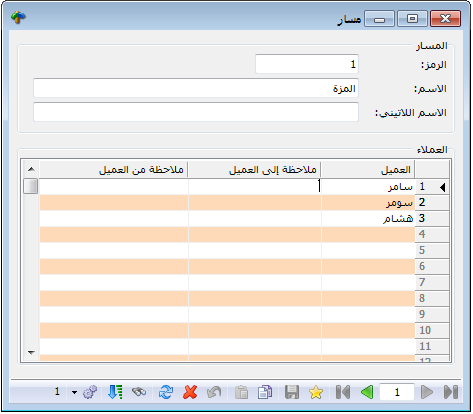
Routes group customers to make assigning or reassigning them to representatives easier.
Define the route name, typically a geographic area served by one representative, and list the customers belonging to it. The following illustration shows route setup.
.
.
Representative Routes: #
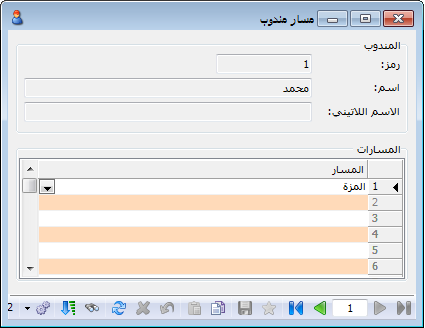
Link routes to representatives in this window. A separate record is created automatically for each defined representative. Assign one or more routes to that record; their customers are then assigned to the representative. In the example below, the Mezzeh route is assigned to Mohammad.
.
.
Routes also simplify transferring customers temporarily, such as during leave or illness, or permanently when a representative leaves. Reassign the route rather than changing each customer individually.
Link the Representative to an Invoice: #
Without assigned routes, the representative must be selected manually for each new customer sales invoice. This becomes difficult when many customers and representatives exist.
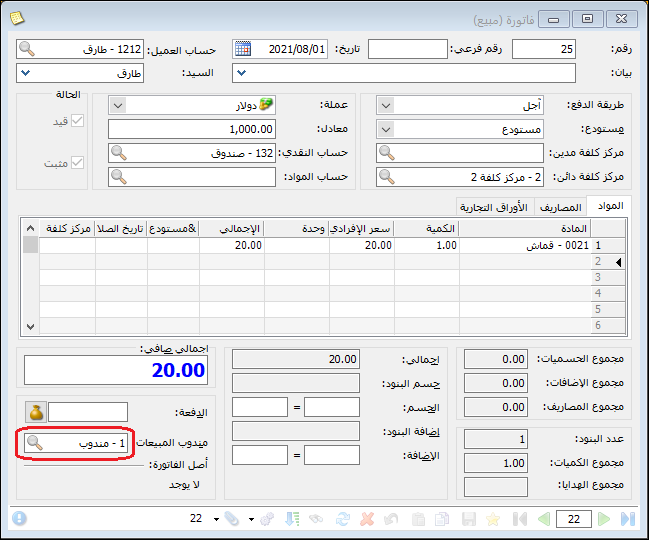
With routes linked to representatives, entering the customer account in a new sales invoice selects the representative automatically, provided the customer belongs to a route assigned to that representative.
The following illustration shows a sales invoice linked to a representative.
.
.
Request Reports Containing Representative Information: #
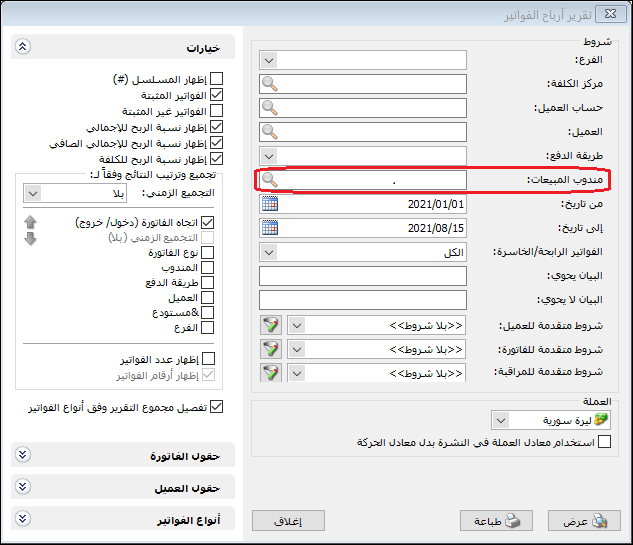
Several reports include representative sales and profit information. Invoice Profits is particularly useful because Representative is one of its main filters, as illustrated below.
.
.
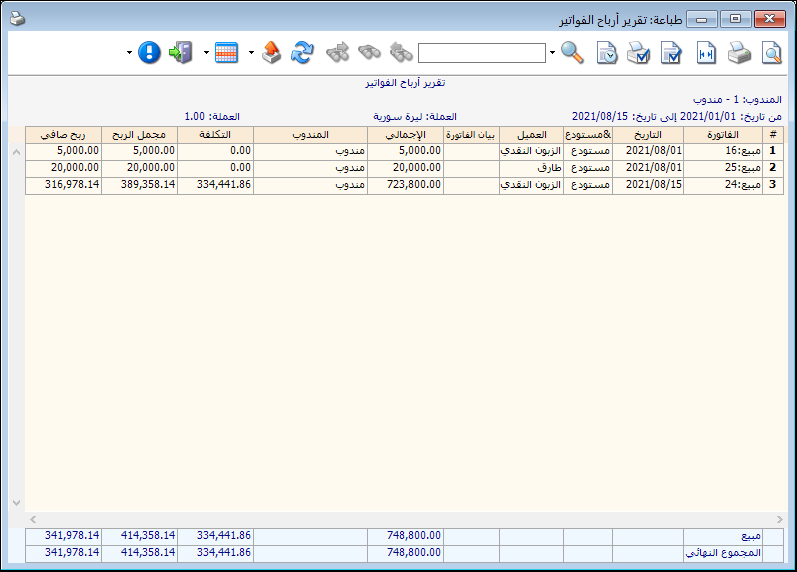
The report can show the representative’s gross sales, net sales and generated profits, as illustrated below.
.
.
Method 2: Treat Each Sales Representative as a Warehouse to Track Their Stock #
Use this method when the company wants to track goods held by representatives, as in food or dairy distribution. A representative delivers goods using a company or personal vehicle. As an employee, the representative is accountable for received goods and collected payments without purchasing the goods from the company. Treating each representative as a warehouse tracks received, returned and sold quantities. Request an inventory report for that warehouse to see the stock still held by the representative. Follow these steps:
Open Definitions and Branch Tree, then create warehouses named after the representatives, as shown below.
.
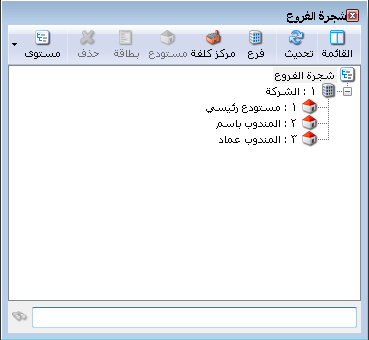
.
Deliver goods using Transfer Without Price. Enter the items and quantities, with the company warehouse as the issuing warehouse and the representative’s warehouse as the receiving warehouse, as illustrated below.
.
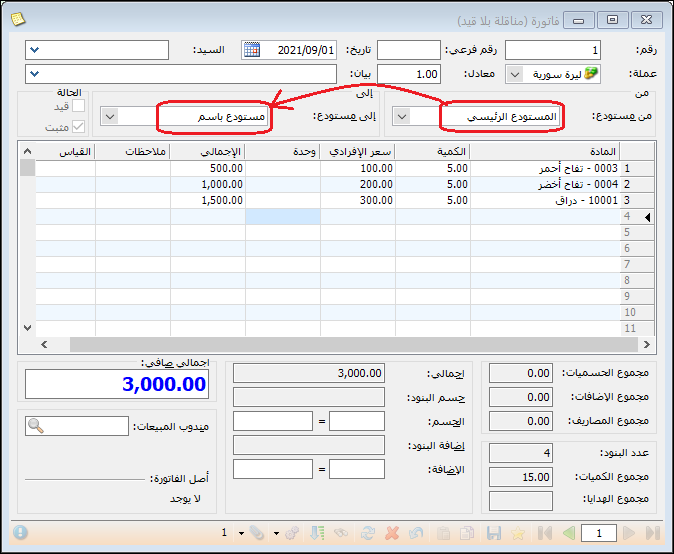
.
When recording a customer sales invoice, select the warehouse of the representative who made the sale, as shown below.
.
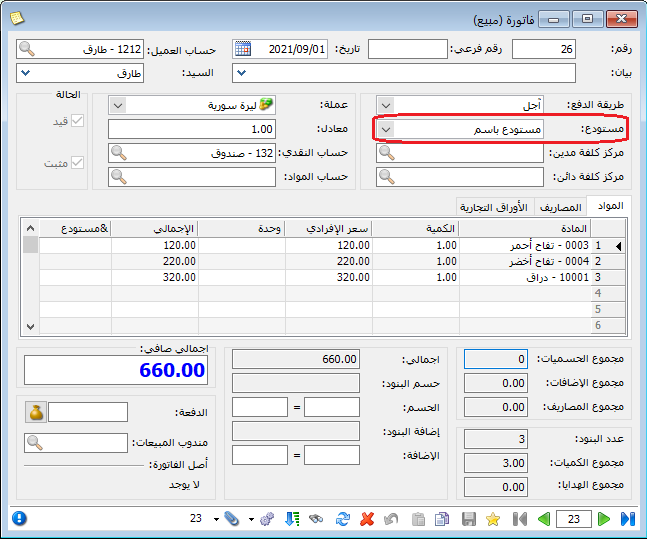
.
If goods are returned to the company warehouse, record a reverse Transfer Without Price from the representative’s warehouse to the company warehouse.
Request Item Inventory and select a representative’s warehouse to obtain the following report.
.
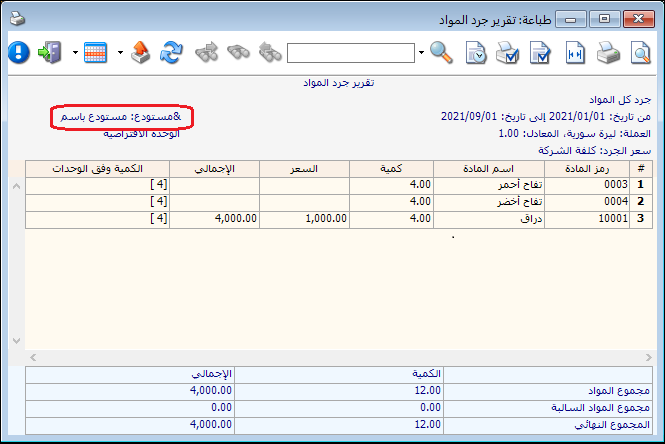
.
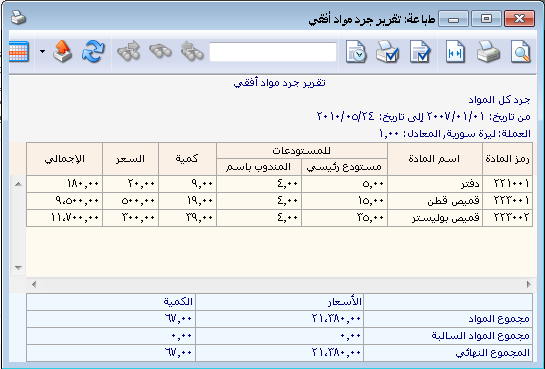
Horizontal Item Inventory can also show company inventory broken down by warehouse, including representative warehouses, as illustrated below.
.
.
Representative Customers Report: #
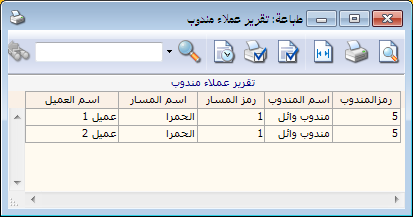
Display representatives, their assigned routes and the customers on each route.
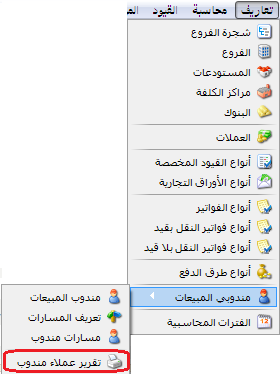
Open Definitions, Sales Representatives and Representative Customers Report.
.
.
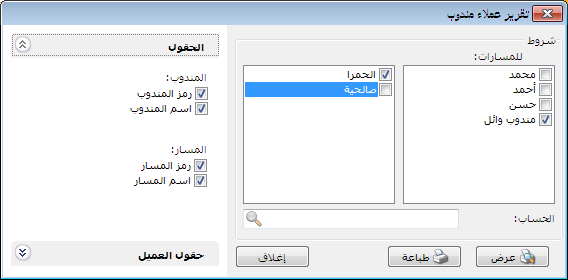
In the report criteria, representatives appear under Routes and defined routes appear in the adjacent field. Select a representative and their route.
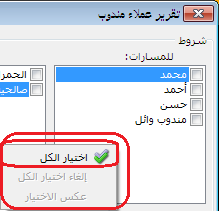
Account : To find the representative and route assigned to a customer among many records, right-click an empty area of the representative list to open the following menu.
.
.
Choose Select All for representatives and do the same for routes. Enter the customer in Account and click Show to display their representative and route. Leave Account blank to show all customers linked to the selected representatives and routes.
.
.
Fields: Enable the report columns you want, including representative code and name, and route code and name.
Customer Fields: Select details from the customer card, such as telephone, mobile, fax or area.
Show: Display the Representative Customers Report.
Print: Print the Representative Customers Report.
Close: Exit the Representative Customers Report.
.
.
Note : This report requires routes to be linked to representatives. If representatives and routes exist but are not linked, the report is empty because it displays representatives, assigned routes and their customers.


