


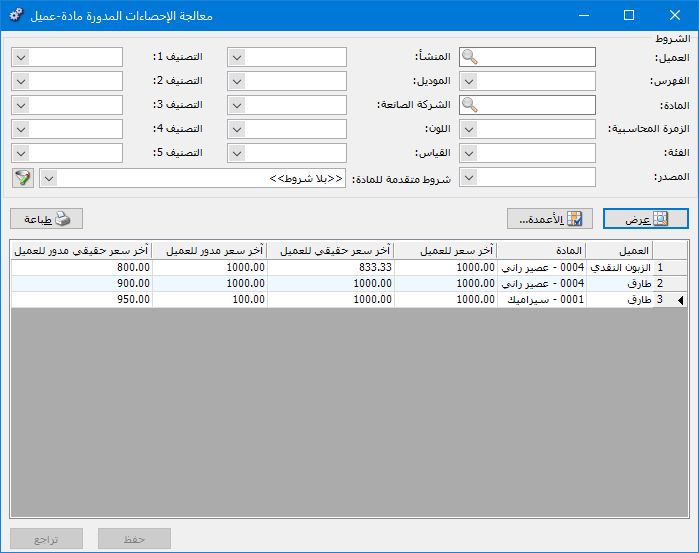
This window displays the last price for each item sold to a customer in a rolled-forward database and lets you edit the customer carried-forward last price.
Open Items > Manage Carried-Forward Item–Customer Statistics. The window contains these options:
.
.
Conditions: #
- Customer: Select the customer whose purchased items should be displayed.
- Category: Select a category to display customers who bought items from that category.
- Item: Select an item to display the customers who bought it.
- Accounting Group: Select an accounting group for an item, category or group of items to display the customers who bought those items.
- Class: Select an item class to display customers who bought matching items.
- Source: Select an item source to display customers who bought matching items.
- Origin: Select an item origin to display customers who bought matching items.
- Model: Select an item model to display customers who bought matching items.
- Manufacturer: Select an item manufacturer to display customers who bought matching items.
- Color: Select an item color to display customers who bought matching items.
- Size: Select an item size to display customers who bought matching items.
- Classification 1 , Classification 2 , Classification 3 , Classification 4 , Classification 5: Use these fields to display items belonging to a selected classification.
- Advanced Item Conditions: Use these conditions to select items appearing in sales invoices based on information in their item records.
Show: #
Display the report using the preceding conditions.
Columns: #
Choose and arrange report columns using the two blue arrows at the upper left of the window. Some columns are read-only; others, such as the customer carried-forward last price, can be edited.
Print: Print the report information.
Save: Click Save to keep changes made to the rows.
“Undo: Click Undo to discard changes made to the rows.
.


