


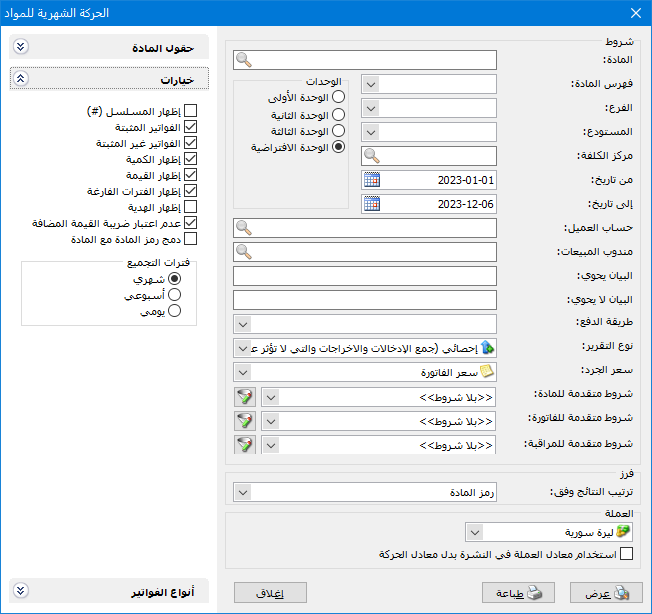
This report compares item transactions across months, weeks or days. For example, compare sales or purchases across multiple periods by quantity, value or both. The criteria window shown below contains the following options:
.
Conditions: #
- Item: Select an item to display its transactions by period.
- Item Category: Select an item category to display transactions for items in that category.
- Branch: Select a branch to include item transactions in its warehouses.
- Warehouse: Select a warehouse to include item transactions in that warehouse.
- Cost Center: Select a cost center to include item transactions associated with it.
- Units: Select the unit used to display the report.
- From Date / To Date: Specify the report date range.
- Customer Account: Select a customer or supplier account to include item transactions from that account’s invoices.
- Sales Representative: Select a sales representative to include item transactions from invoices associated with that representative.
- Description Contains: Enter text to include invoices whose description contains that text.
- Description Does Not Contain: Enter text to exclude invoices whose description contains that text.
- Payment Method: Select a payment method to include invoices using that method.
Report Type: #
Two options are available:
Statistical (Add Receipts and Issues): #
Statistical mode adds receipt and issue quantities to measure transaction activity. For example, purchasing 3 units at 100 lira each and selling 1 unit at 200 lira produces a statistical quantity of 4 units. Their reported value is calculated using the price selected in the Inventory Valuation Price field.
Inventory (Subtract Issues from Receipts): #
Inventory mode subtracts issues from receipts. For example, purchasing 3 units at 100 lira each and selling 1 unit at 200 lira produces an inventory quantity of 2 units. Their value is calculated using the inventory valuation price selected in the next field.
- Inventory Valuation Price: Select the price method used to value the quantities displayed in the report.
- Advanced Item Filters: Filter results using fields from the item record.
- Advanced Invoice Conditions: Filter results using fields from the invoice header or invoice lines.
- Advanced Audit Conditions: Filter results using recorded user actions, such as additions or edits.
Sort: #
Sort Results By: Choose the order for item rows using these options:
- Item Code
- Item Name
- Category Code, Then Item Name
- Quantity: Ascending.
- Quantity: Descending.
- Category Code, Then Quantity Ascending
- Category Code, Then Quantity Descending
Currency: #
Select the currency in which the report should be displayed.
Exchange Rate: Specify the rate relative to the base currency. This field is available only for a secondary currency and offers two choices:
- Use the Exchange-Rate Schedule: Retrieve exchange rates automatically from the schedule, using the rate applicable on each transaction date.
- Use a Specified Exchange Rate: Enter a rate in the field that appears and use it to display the report.
- Use the Scheduled Currency Rate Instead of the Transaction Rate: Use the rate from the exchange-rate schedule instead of the rate entered in the original transaction. This option is used when requesting the report in the base currency.
- Item Fields: Choose which item record fields to display in the report.
Options: #
The options section contains:
- Show Sequence Number: Display sequential row numbers in the report.
- Finalized Invoices: Enable this option to include transactions from finalized invoices.
- Unfinalized Invoices: Enable this option to include transactions from unfinalized invoices.
- Show Quantity: Enable this option to display the quantity of item transactions for each period.
- Show Value: Enable this option to display the value of item transactions for each period.
- Show Empty Periods: Enable this option to display periods without transactions. Disable it to hide those periods.
- Show Free Units: Enable this option to display quantities entered in the Free Units field separately from the main invoice quantity.
- Exclude Value Added Tax: Enable this option to exclude VAT when calculating values.
- Combine Item Code and Name: Enable this option to combine the item code and name in one report field.
- Period: Choose daily, weekly or monthly reporting periods. The report is not restricted to monthly periods.
Invoice Types: #
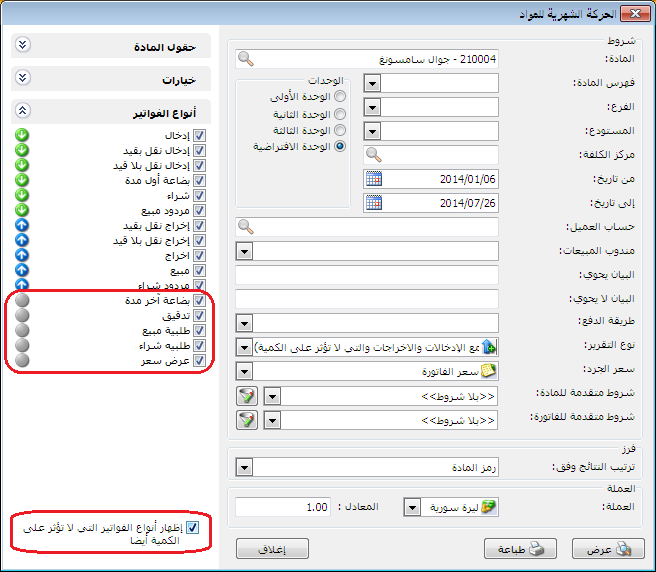
Select the required invoice types. Select only sales invoices for sales transactions, or only purchase invoices for purchase transactions.
Enable Also Show Invoice Types That Do Not Affect Quantity to include both quantity-affecting and non-quantity-affecting types. When disabled, non-quantity-affecting types are omitted, as shown below:
.
Show: Use this button to display the report using the selected criteria.
- Print: Click this button to print the final report.
- Close: Close the report conditions window.
Practical examples of information available from the Monthly Item Transactions report:
- Monthly sales for the Clothing category during the first six months, by value, quantity or both.
- Daily sales for the Clothing category during the first week of July, by value, quantity or both.
- Monthly item transactions in statistical mode, adding receipts and issues.
- Weekly item purchases from finalized invoices only.
- Monthly item sales made by the sales representative Imad.
- Monthly sales for the Household Goods category from the Main Showroom warehouse.
- Monthly item sales to the customer Tareq.
- Monthly item purchases from invoices whose description includes “Al Sham Shipping”.
- Monthly sales of items whose names contain “Screen”.
.


