


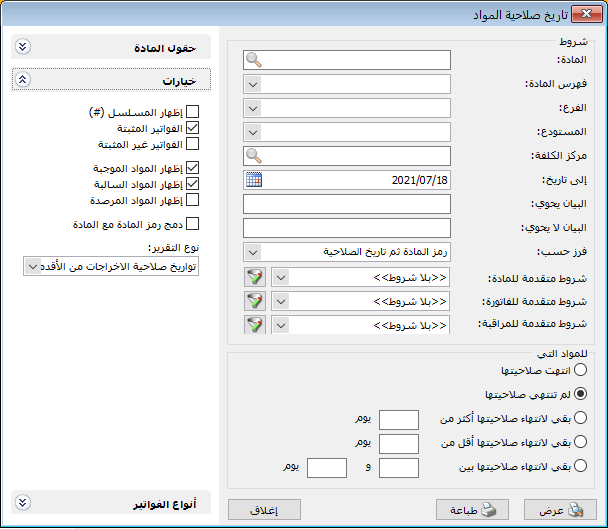
This report identifies expired items, items approaching expiry and items with sufficient remaining shelf life. Its criteria window contains the following options:
.
Conditions: #
- Item: Select an item to view its expiry information.
- Item Category: Select a category to view expiry information for its items.
- Branch: Select a branch to include invoices involving its warehouses.
- Warehouse: Select a warehouse to include expiry information only from invoices involving that warehouse.
- Cost Center: Select a cost center to include expiry information only from invoices associated with it.
- To Date: Set a cutoff date to include expiry information from invoices dated before that date.
- Description Contains: Enter text to include invoices whose description contains that text.
- Description Does Not Contain: Enter text to exclude invoices whose description contains that text.
Sort By: #
Two sorting options are available:
- Item Code, then Expiry Date: Sort primarily by item code.
- Expiry Date, then Item Code: Sort primarily by expiry date, using item code where expiry dates match.
- Advanced Item Conditions: Set advanced item filters to include expiry information only for matching items. See the earlier report guide for instructions on creating advanced item filters.
- Advanced Invoice Conditions: Set advanced invoice filters to include expiry information only from matching invoices. See the earlier report guide for instructions on creating advanced invoice filters.
- Advanced Audit Conditions: Set advanced audit filters to restrict results according to the user who created or modified the relevant invoices.
For Items That: #
Filter items using the following expiry options:
- Have Expired: Include only items whose expiry date has passed.
- Have Not Expired: Include items whose expiry date has not yet passed.
- Have More Than … Days Until Expiry: Include items with at least the specified number of days remaining before expiry.
- Have Fewer Than … Days Until Expiry: Include items with no more than the specified number of days remaining before expiry.
- Have Between … and … Days Until Expiry: Include items whose remaining shelf life falls within the specified range.
- Item FieldsSelect the fields to display and use the up and down arrows to change their order. Most come from the item record, such as item code, item name and source.
Options Section: #
The following options are available:
- Show Sequence Number: Display sequential row numbers in the report.
- Finalized Invoices: Enable this option to include finalized invoices.
- Unfinalized Invoices: Enable this option to include unfinalized invoices.
- Show Positive Quantities: Enable this option to display items with positive quantities.
- Show Negative Quantities: Enable this option to display items with negative quantities.
- Show Zero Balances: Enable this option to display items whose quantity is 0.
- Combine Item Code and Name: Enable this option to combine item code and name in one field.
Report Type: #
Two issue allocation methods are available:
1. Allocate Issues to the Earliest Expiry Date: #
With this option, issues are allocated first to the oldest available expiry date. You do not need to specify an expiry date for each issued unit for this report allocation method.
2. Use Manually Specified Expiry Dates for Issues: #
With this option, specify the expiry date when issuing items. The report deducts quantities from the expiry date selected on the issue transaction.
The following historical example illustrates the difference between these methods:
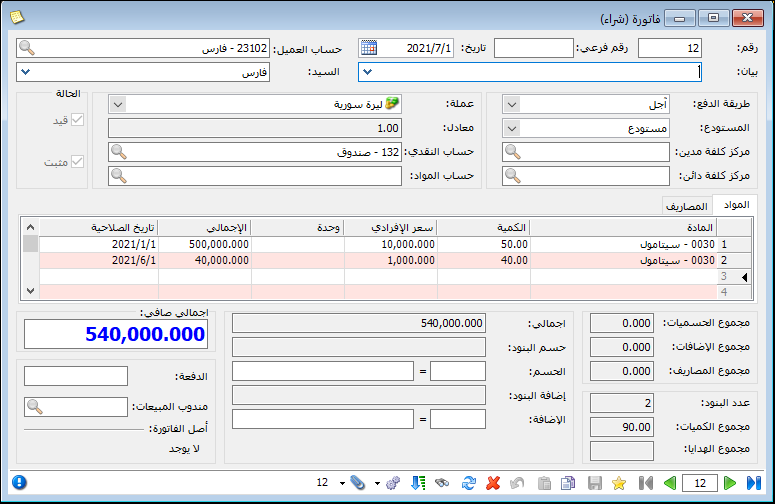
Assume two quantities of paracetamol were purchased with the following expiry dates:
50 units expiring on 1 January 2021
40 units expiring on 1 June 2021, as shown below:
.
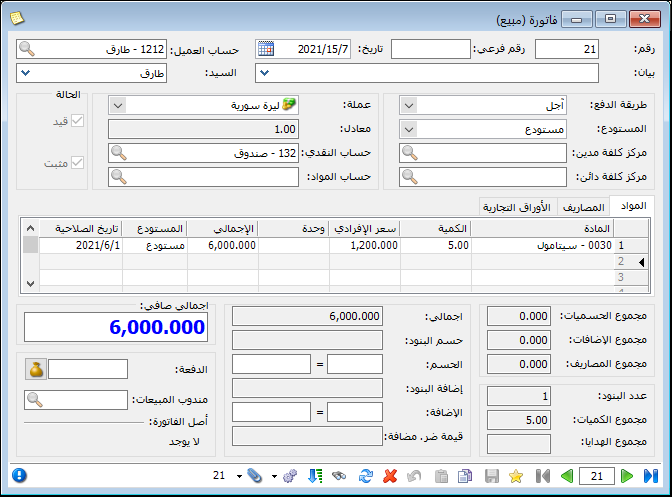
Assume 5 units were sold with the expiry date set to 1 June 2021, as shown below:
.
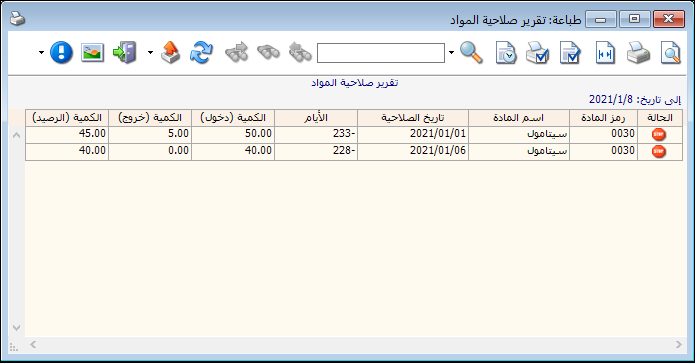
If the report is requested using “Allocate Issues to the Earliest Expiry Date”, the expiry date selected on the sales invoice is ignored for allocation. The five units are deducted from the earliest date, 1 January 2021, and the report appears as follows:
.
If the report is requested using the second method, “Use Manually Specified Expiry Dates for Issues”, the five units are deducted from the date specified on the invoice, 1 June 2021, and the report appears as follows:
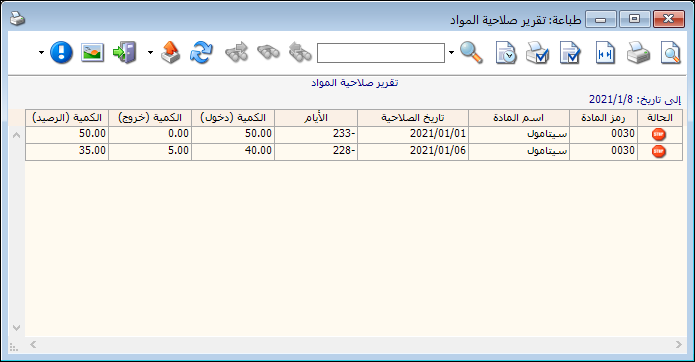
.
Invoice Types: #
Select the invoice types included in the expiry report. Selecting only purchase invoices, for example, includes expiry dates from item receipts on purchase invoices only.
Show: #
Display the report using the preceding conditions.
Print: #
Click this button to print the final report.
Close: #
Close the report conditions window.
Practical examples of information available from the Item Expiry Dates report:
- Items that have expired.
- Items that have not yet expired.
- Items with more than 60 days remaining before expiry.
- Items with fewer than 15 days remaining before expiry.
- Items with between 7 and 25 days remaining before expiry.
- Expiry dates and remaining quantities for each expiry date, using finalized invoices only.
- Expiry dates for items purchased from the supplier Samer.
- Expiry dates for items whose names contain “Medicine”.
- Expiry dates for items held in the company’s Main Warehouse.
.


