


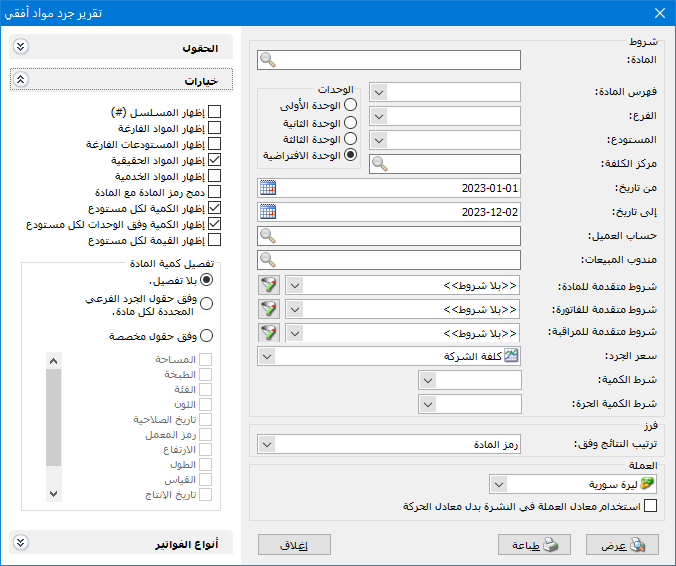
This report provides the same inventory information as the standard Item Inventory report but changes how warehouse quantities are displayed. Instead of repeating an item on separate rows for each warehouse, it shows one row per item, with warehouse quantities in separate horizontal columns.
.
Conditions: #
- Item: Select the item to inventory.
- Item Category: Select the category whose items you want to inventory.
- Branch: Select a branch to include item transactions within that branch.
- Warehouse: Select a warehouse to inventory its items.
- Cost Center: Select a cost center to inventory items allocated to that cost center.
- From Date / To Date: Specify the date range for the item transactions included in the inventory report.
- Customer Account: Select a customer account to report items sold to that customer, or a supplier account to report items purchased from that supplier.
- Sales Representative: Select a sales representative to include invoices associated with that representative.
Advanced Conditions: #
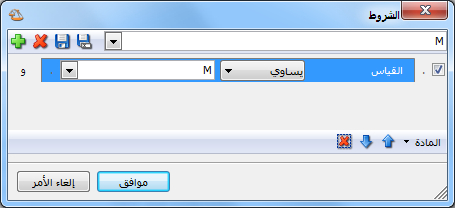
- Advanced Item Conditions: Use item record fields to filter the items included. For example, to inventory items with size M, set an advanced filter where Size equals M, as shown below:
.
- Advanced Invoice Conditions: Set advanced invoice filters to include only matching invoices.
- Advanced Audit Conditions: Use audit filters such as the invoice creator’s username or computer name, or the user who last modified the invoice.
Other Criteria: #
Inventory Valuation Price: Select the price used to value item quantities. Company Cost is commonly used.
Quantity Filter: Available operators are All, Equal To, Not Equal To, Greater Than, Greater Than or Equal To, Less Than, Less Than or Equal To, and Between. Results are filtered accordingly.
Independent Quantity Filter: Available operators are All, Equal To, Not Equal To, Greater Than, Greater Than or Equal To, Less Than, Less Than or Equal To, and Between. Results are filtered accordingly.
Sort: #
Sort Results By: Select how to sort the report results. The available options are:
- Item Code
- Item Name
- Category Code, Then Item Name
- Quantity Ascending
- Quantity Descending
- Category Code, Then Quantity Ascending
- Category Code, Then Quantity Descending
Currency: #
Select the currency in which the report should be displayed.
Exchange Rate: Specify the rate relative to the base currency. This field is available only for a secondary currency and offers two choices:
- Use the Exchange-Rate Schedule: Retrieve exchange rates automatically from the schedule, using the rate applicable on each transaction date.
- Use a Specified Exchange Rate: Enter a rate in the field that appears and use it to display the report.
- Use the Scheduled Currency Rate Instead of the Transaction Rate: Use the rate from the exchange-rate schedule instead of the rate entered in the original transaction. This option is used when requesting the report in the base currency.
Units: #
The following unit options are available:
- First Unit.
- Second Unit.
- Third Unit.
The report is displayed using the selected unit.
- Default Unit: This option uses the unit marked Default on the Units tab of the item record. It can be the first, second or third unit.
Fields: #
Select the columns to display in the Fields section.
Options: #
The options section contains:
Show Sequence Number: Enable this option to display a sequential number for each item.
- Show Zero-Balance Items: Enable this option to include items with zero warehouse stock in the inventory report..
- Show Empty Warehouses: Enable this option to display a warehouse column even when it holds no units of the items being reported.
- Show Physical Items:Enable this option to include records whose Item Type is Item, representing physical warehouse stock.
- Show Service Items: Enable this option to include records whose Item Type is Service, representing services without physical warehouse stock.
- Combine Item Code and Name: Combine item code and name in one report field.
- Show Quantity for Each Warehouse: This option displays a separate quantity column for each warehouse. Disable it to hide those quantity columns.
- Show Quantity by Units for Each Warehouse: This option expresses quantities using unit names, beginning with the largest unit and then the remaining smaller units.
- Show Value for Each Warehouse: This option displays separate value columns for each warehouse. Disable it to hide those value columns.
Item Quantity Breakdown: #
- No Breakdown: Display each item without breaking its inventory down by subinventory keys.
- Use the Subinventory Fields Defined for Each Item: Break down inventory using the subinventory keys selected in the item record, such as color, size, batch, area, item class, expiry date, factory code, height, length, production date, volume or width.
- Use Custom Fields: This option provides the same type of breakdown but lets you select the subinventory keys manually rather than using those selected in the item record. Available keys include color, size, batch, area, item class, expiry date, factory code, height, length, production date, volume and width.
Invoice Types: #
Select the invoice types whose transactions should be included in inventory calculations.
- Show: Display the report using the preceding conditions.
- Print: Click this button to print the final report.
- Close: Close the report conditions window.
Practical examples of information available from the Horizontal Item Inventory report:
- Inventory across all company warehouses, with warehouse quantities shown horizontally on one row per item.
- Total company inventory valued at cost.
- Inventory of the Cotton item.
- Inventory restricted to positive quantities, negative quantities or both.
- Inventory in the Main Warehouse only.
- Inventory of the Clothing category only.
- Quantities sold to the customer Tareq.
- Quantities purchased from the supplier Samer.
- Inventory of the Clothing category, broken down by each item’s color and size.
- Inventory of red clothing items in size 38.
.


