


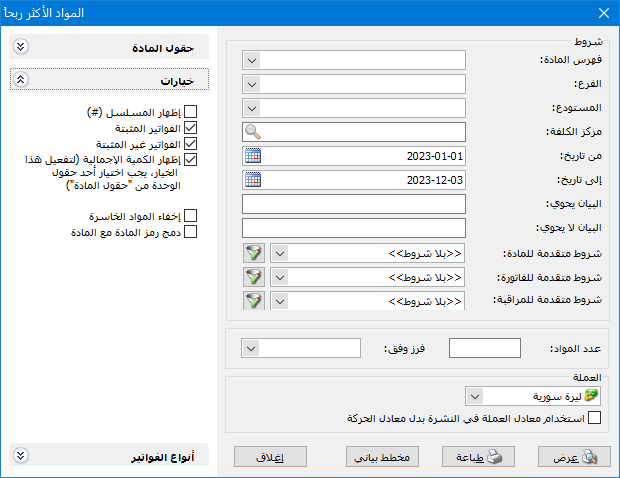
Review total item profits and compare profit with selling price and cost to obtain profitability ratios. The report conditions window contains these fields:
.
Conditions: #
- Item Category: Select a category to include total profits for its items.
- Branch: Select a branch to include transactions from its warehouses.
- Warehouse: Select a warehouse to include its transactions.
- Cost Center: Select a cost center to include invoice transactions recorded for it.
- From Date / To Date: Specify a date range to include invoices dated within it.
- Description Contains: Enter text to include invoices whose descriptions contain it.
- Description Does Not Contain: Enter text to include invoices whose descriptions do not contain it.
Advanced Conditions: #
- Advanced Item Conditions: Specify advanced item conditions to include profits for matching items.
- Advanced Invoice Conditions: Specify advanced invoice conditions to include profits from matching invoices.
- Advanced Audit Conditions: Specify audit conditions such as invoices added or modified by a particular user.
- Number of Items: Specify the number of items to display. For example, enter 10 to show the company ten most profitable items.
Sort By: #
Sort results in descending order using one of these options:
- Total Profit: Rank items by total profit, highest first.
- Profitability Relative to Selling Price: Rank items by their profit-to-selling-price ratio, highest first.
- Profitability Relative to Cost: Rank items by their profit-to-cost ratio, highest first.
Currency: #
Select the currency in which the report should be displayed.
Exchange Rate: Specify the rate relative to the base currency. This field is available only for a secondary currency and offers two choices:
- Use the Exchange-Rate Schedule: Retrieve exchange rates automatically from the schedule, using the rate applicable on each transaction date.
- Use a Specified Exchange Rate: Enter a rate in the field that appears and use it to display the report.
- Use the Scheduled Currency Rate Instead of the Transaction Rate: Use the rate from the exchange-rate schedule instead of the rate entered in the original transaction. This option is used when requesting the report in the base currency.
Item Fields: #
Choose report fields, mainly from item records, together with Total Profit and profitability ratios relative to selling price and cost.
Invoice Types: #
Select invoice types whose item profits should be included. For example, select only Retail Sales when separate Wholesale Sales and Retail Sales types exist.
Note:
Only invoice types with Affects Profits enabled appear here, principally Sales and Sales Returns.
Options: #
The options section contains:
- Show Sequence Number: Display a Sequence field with sequential item row numbers.
- Finalized Invoices: Include item profits from finalized invoices.
- Unfinalized Invoices: Include item profits from unfinalized invoices.
- Show Total Quantity: Display Total Quantity, representing the sold quantity that generated total profit.
- Hide Loss-Making Items: Hide items sold below cost with negative total profit.
- Combine Item Code and Name: Combine item code and name in one report field.
Show: #
Display the report using the preceding conditions.
Print: #
Click this button to print the final report.
Chart: #
Display the results as a chart instead of numbers. See the chart section of the reports guide.
Close: #
Close the report conditions window.
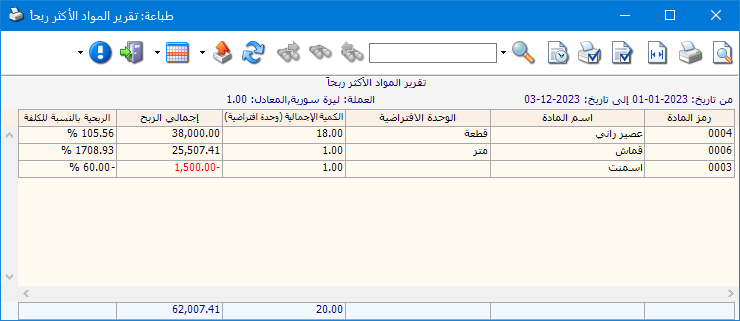
The following illustration shows an example report:
.
Examples of Information Available from the Most Profitable Items Report:
- Item profits ranked by total profit, profit-to-selling-price ratio or profit-to-cost ratio.
- The company ten most profitable items.
- Item profits from finalized invoices only.
- The five most profitable items in Canned Goods.
- The ten most profitable items sold from the main warehouse.
- The ten most profitable items sold to customer Tarek.
- The ten most profitable items whose names contain Shirt.
- The ten most profitable items of Chinese origin.
- The ten most profitable items during the first month.
- Item profits with the quantity sold that generated each profit.
- Item profits with selling-price and cost profitability ratios.
- Item profits from wholesale sales invoices only.
- The ten most profitable items from invoices whose descriptions contain Al Haram Company Shipping.
- The ten most profitable items in Clothing with French origin, size Large and color Yellow.
- A chart showing the ten most profitable items.
.


