


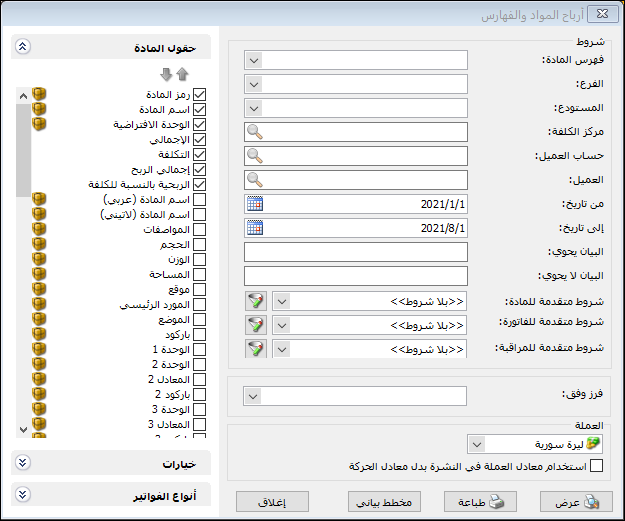
This report provides profit information by item and by the categories in which items are grouped. Its conditions window contains these fields:
.
Conditions: #
- Item Category: Select an item category to display profits only for that category.
- Branch: Select a branch to include transactions in warehouses within that branch.
- Warehouse: Select a warehouse to include transactions in that warehouse.
- Cost Center: Select a cost center to include invoices linked to it.
- Customer Account: Select a customer account to display item and category profits for that account.
- Customer: Select a customer to display item and category profits for that customer.
- From Date / To Date: Specify a date range to display profits from transactions within that period.
- Description Contains: Enter text to include transactions whose descriptions contain it.
- Description Does Not Contain: Enter text to include transactions whose descriptions do not contain it.
- Advanced Item Conditions.
- Advanced Invoice Conditions
- Advanced Audit Conditions
Sort By: #
Sort results using one of these options:
- Total Profit
- Profitability Relative to Selling Price
- Profitability Relative to Cost
Currency / Exchange Rate: Select the report currency and its exchange rate relative to the base currency.
Item Fields: #
Choose fields from item records to include in the report.
Options: #
The options section contains:
- Show Sequence Number: Display sequential numbers for report rows.
- Finalized Invoices: Include item and category transactions from finalized invoices.
- Unfinalized Invoices: Include item and category transactions from unfinalized invoices.
- Show Item Categories: Display item categories in the report.
- Show Items: Display item-level details in the report.
- Show Total Quantity: Add a quantity column showing the quantity sold that generated the reported profit. Enable a unit field in Item Fields before enabling Show Total Quantity.
- Hide Loss-Making Items: Display only profitable items and exclude loss-making items.
- Combine Item Code and Name: When both fields are selected, display item code and name together in one report field.
- Show Gifts: Subtract gift quantities from the total quantity and display them in a separate column.
Invoice Types: #
Select the invoice types to include. Only invoice types with Affects Profits enabled in Invoice Types appear in this selection.
Show:
Display the report using the preceding conditions.
Print: #
Click this button to print the final report.
Chart: #
Display the report as a chart.
Close: #
Close the report conditions window.
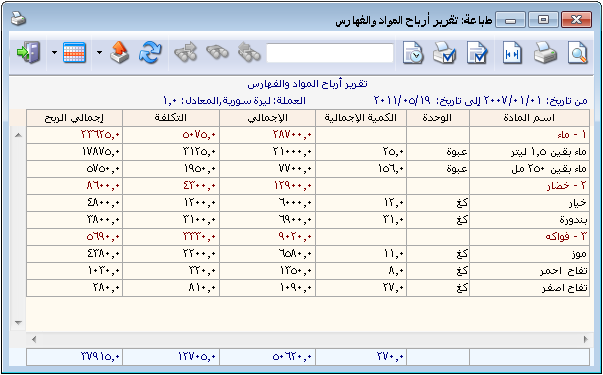
The following illustration shows an example of this report:
.
Examples of Information Available from the Item and Category Profit Report:
- Profits for each item category separately.
- Category profits with profit details for each item within the category.
- Category profits from finalized invoices only.
- Item and category profits from wholesale sales invoices only.
- Profits for the Clothing category with separate profits for each item.
- Profits for the Canned Goods category, including the total quantity sold that generated those profits.
- Item and category profits from sales by the representative Imad.
- Item and category profits from cash invoices.
- A chart comparing Clothing category item profits over a month.
.


