


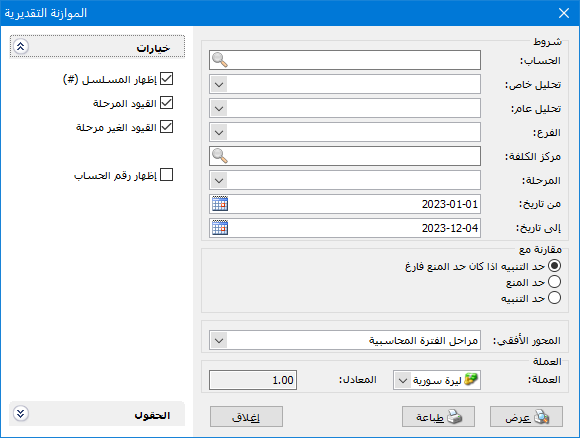
Compare the account budget entered in the Budget window with actual amounts from account transactions. The report conditions window contains these fields:
.
Conditions: #
- Account: Select an account to display its budget.
- Account-Specific Analysis: Select an account-specific analysis item to display its budget.
- General Analysis: Select a general analysis item to display its budget.
- Branch: Select a branch to include account budgets based on entries belonging to that branch.
- Cost Center: Select a cost center to display budgets for account transactions involving it.
- Stage: Select an accounting-period stage defined in Accounting Period Stages. Include transactions dated between that stage start and end dates.
- From Date / To Date: Specify a date range to include account transactions within it.
Compare With: #
- Alert Limit When Block Limit Is Blank: Compare actual amounts with the alert budget when an alert limit was entered but no block limit was defined for the account.
- Block Limit: Compare actual amounts with the blocking budget value.
- Alert Limit: Compare actual amounts with the alert budget value.
- Horizontal Axis: The following options are available:
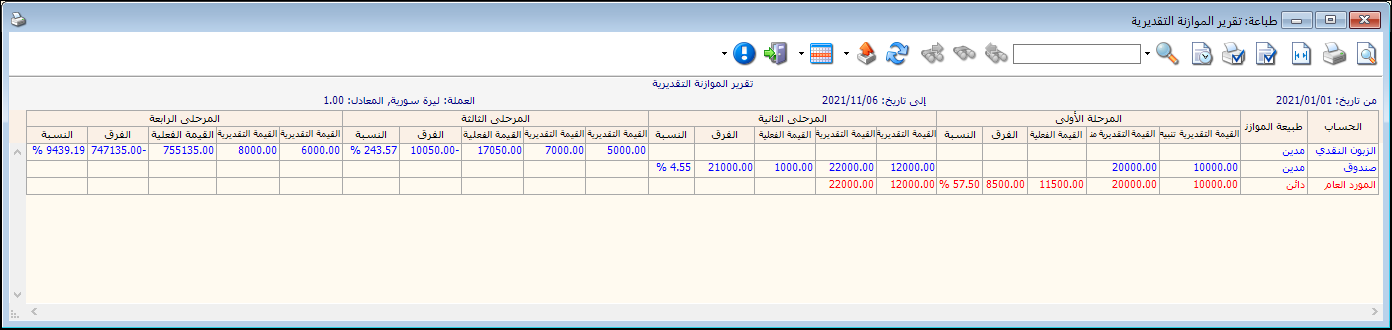
- Accounting Period Stages: Display each budgeted account on one row with its stages shown horizontally, as illustrated below.
.
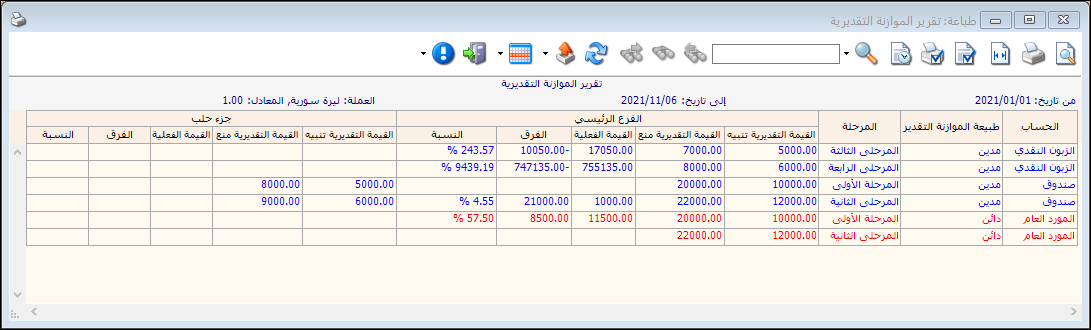
- Branches: Display each account budget by branch on one horizontal row, as shown below.:
.
- Cost Centers: Display account budgets by cost center horizontally in the same way.
- General Analysis: Display account budgets by general analysis horizontally in the same way.
- Account-Specific Analysis: Display account budgets by account-specific analysis horizontally in the same way.
Currency: #
- Currency: Select the currency in which the report should be displayed.
- Exchange Rate: Specify the rate relative to the base currency. This field is available only for a secondary currency and offers two choices:
- Use the Exchange-Rate Schedule: Retrieve exchange rates automatically from the schedule, using the rate applicable on each transaction date.
- Use a Specified Exchange Rate: Enter a rate in the field that appears and use it to display the report.
Use the Scheduled Currency Rate Instead of the Transaction Rate: Use the rate from the exchange-rate schedule instead of the rate entered in the original transaction. This option is used when requesting the report in the base currency.
Fields: #
Choose the columns to include in the final report:
- Branch
- Cost Center
- Stage
- Account-Specific Analysis
- General Analysis
- Alert Budget Value
- Block Budget Value
- Actual Value
- Difference: The difference between the budgeted and actual values.
- Ratio: The actual value as a proportion of the budgeted value.
Options: #
The options section contains:
- Show Sequence Number: Display sequential report row numbers.
- Posted Entries: Calculate the account Actual Value from posted entries.
- Unposted Entries: Calculate the account Actual Value from unposted entries.
- Show Account Number.
- Show: Display the report using the preceding conditions.
- Print: Click this button to print the final report.
- Close: Close the report conditions window.
Examples of Information Available from the Budget Report:
- Expense account budgets showing actual balances, budget balances and the difference.
- Customer account budgets showing actual balances and estimated
credit limits, together with the difference. - Differences between actual and budgeted expense balances during the first six months.
- Manufacturing expense budgets for the Cutting cost center.
- Sales budgets showing actual and planned sales by branch, their differences and actual-to-planned ratios. For example, 65% means that 65% of planned sales has been achieved.
.


