


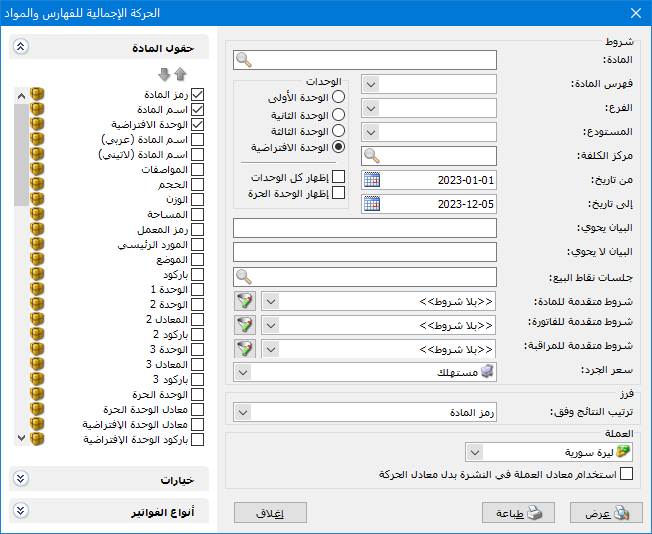
This report summarizes transactions by individual item, by category, or by both. The main criteria window contains the following fields:
.
Conditions: #
- Item: Select an item to display its total transactions.
- Item Category: Select an item category to display total transactions for that category.
- Branch: Select a branch to include item and category transactions through its warehouses.
- Warehouse: Select a warehouse to include item and category transactions through that warehouse.
- Cost Center: Select a cost center to include invoices associated with that cost center.
- From Date / To Date: Set the date range for the total transactions.
- Description Contains: Enter text to include invoices whose description contains that text.
- Description Does Not Contain: Enter text to exclude invoices whose description contains that text.
- POS Sessions: Select a POS session to include item and category transactions from that session.
Advanced Conditions: #
- Advanced Item Conditions: Set item filters, such as specifications, class, source or origin, to include only matching items and categories.
- Advanced Invoice Conditions: Set invoice header or invoice line filters to include only matching transactions.
- Advanced Audit Conditions: Set audit filters, such as invoice creation date or creator, to include only matching transactions.
Inventory Valuation Price: #
Select the valuation method for quantities in the Balance column.
Note: The Receipts and Issues columns use the average prices of the actual item transactions.
Sort: #
Sort Results By: Choose how to sort the report results. The available sorting options are:
- Item Code
- Item Name
- Category Code, Then Item Name
- Quantity Ascending
- Quantity Descending
- Category Code, Then Quantity Ascending
- Category Code, Then Quantity Descending
Units: #
Select the unit used to display the report. The available options are:
- First Unit.
- Second Unit.
- Third Unit.
- Default Unit.
- Show All Units.
- Show Independent Unit.
Currency: #
Select the currency in which the report should be displayed.
Exchange Rate: Specify the rate relative to the base currency. This field is available only for a secondary currency and offers two choices:
- Use the Exchange-Rate Schedule: Retrieve exchange rates automatically from the schedule, using the rate applicable on each transaction date.
- Use Conversion Factor: enable this option to enter a factor and display the report using that value.
- Use the Scheduled Currency Rate Instead of the Transaction Rate: Use the rate from the exchange-rate schedule instead of the rate recorded in the original transaction.
- Item Fields: Select fields from the item record to display in the report and adjust their order.
Options: #
The following options are available in this section:
- Show Sequence Number: Display sequential numbers for report rows.
- Finalized Invoices: Enable this option to include finalized invoices.
- Unfinalized Invoices: Enable this option to include unfinalized invoices.
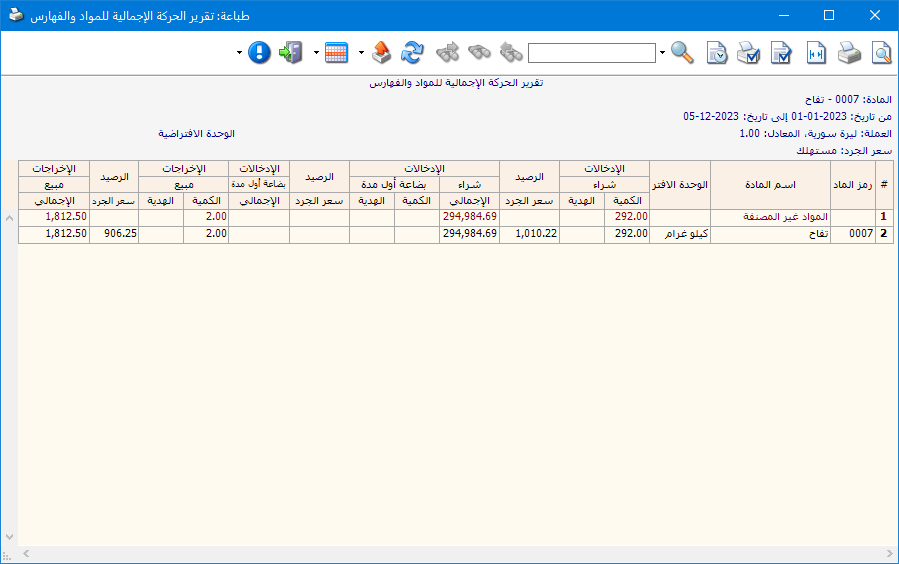
Break Down Invoice Types: #
Enable this option to show the defined invoice types separately, classified as receipts or issues, as shown below:
.
.
Separate Opening Inventory Invoices: #
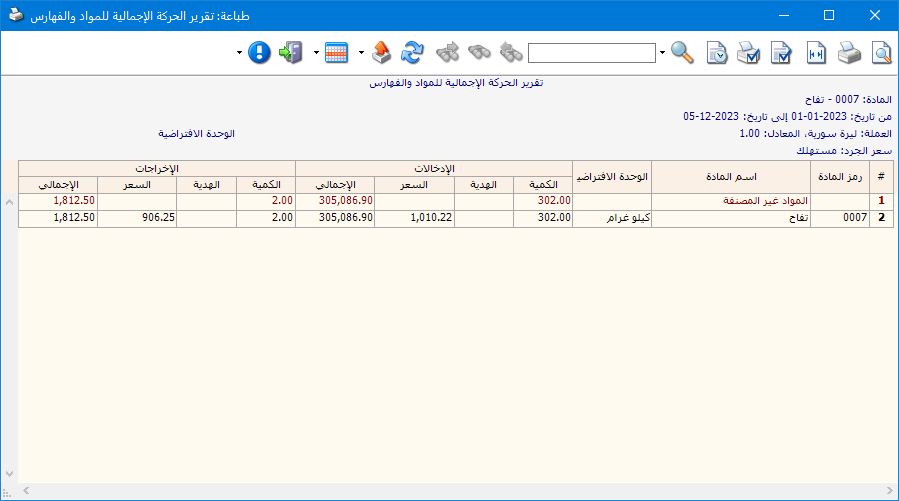
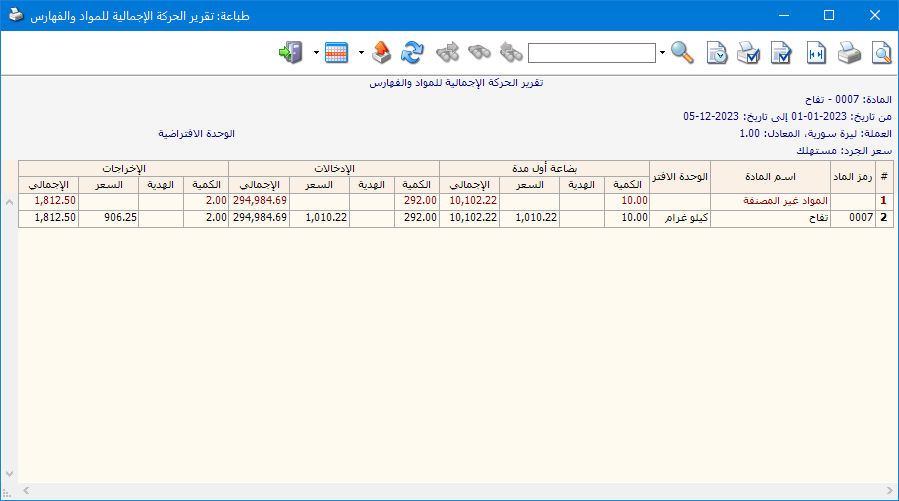
Enable this option to display opening inventory invoices in a separate field rather than combining them with other receipt invoices. The following images show the difference:
With the option disabled, the report appears as follows:
.
.
With the option enabled, the report appears as follows:
.
.
Display and Merge Options #
Show Item Categories: Display item categories in the report.
Hide Empty Categories: Enable this option to hide item categories without transactions.
- Show Items: Display item-level details in the report.
- Hide Items with No Transactions: This option controls the display of individual items in the category report.
- Combine Item Code and Name: When both fields are selected, display item code and name together in one report field.
- Show Balance: Enable this option to display an additional field showing the remaining quantity for items or categories.
- Exclude Value Added Tax: Enable this option to exclude VAT when calculating totals.
- Display Columns: Choose which transaction columns to display: Quantity, Price, Total and Free Units. You can enable one or more columns.
- Merge Quantity with Free Units: Enable this option to combine the main quantity and free units in one column.
Invoice Types: #
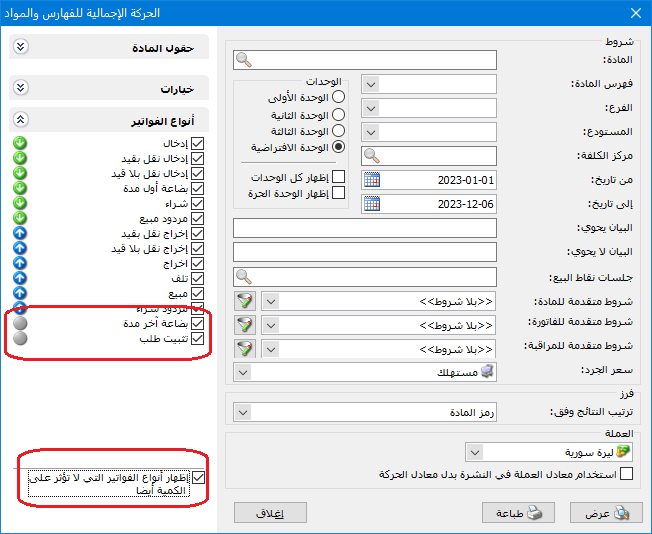
Use the Invoice Types section to select the invoices included in the report.
Enable Also Show Invoice Types That Do Not Affect Quantity to include both quantity-affecting and non-quantity-affecting types. When disabled, non-quantity-affecting types are omitted, as shown below:
.
.
- Show: Display the report using the preceding conditions.
- Print: Click this button to print the final report.
- Close: Close the report conditions window.
Practical examples of information available from the Total Transactions report:
- Total sales by item category, showing each category’s total sales quantity.
- Total transactions by category, breaking down quantities and totals by the invoice types defined in the database.
- Total purchases by category received into the Main Warehouse.
- Total sales by category, displaying the individual items within each category.
- Total sales for items and categories from finalized invoices only.
.


