


Using Subinventory #
Item subinventory is an important Al Mizan .NET feature for issuing or selling items with additional information such as expiry date, production date or batch number.
When subinventory is enabled for a field, adding the item to an outgoing invoice opens a helper window showing remaining quantities broken down by that field, such as expiry date.
Consider the following example:
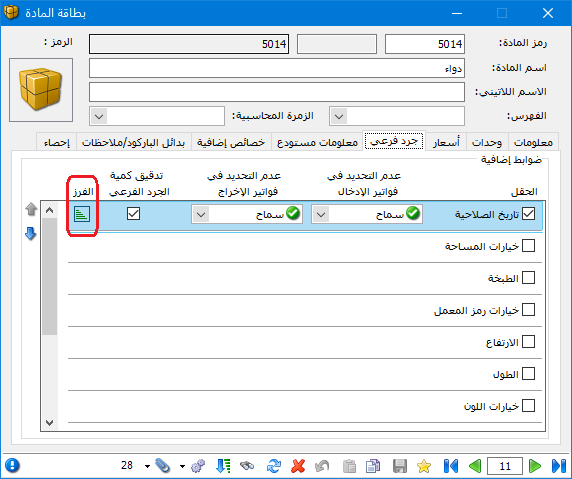
Suppose Subinventory is enabled for Expiry Date in a medicine item record, as shown below:
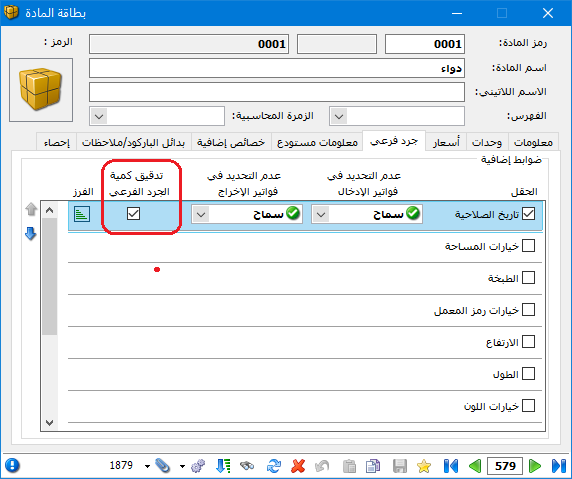
.
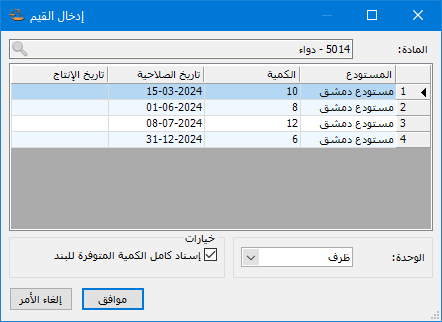
Suppose a purchase invoice contains that medicine with several expiry dates, as shown below:
.
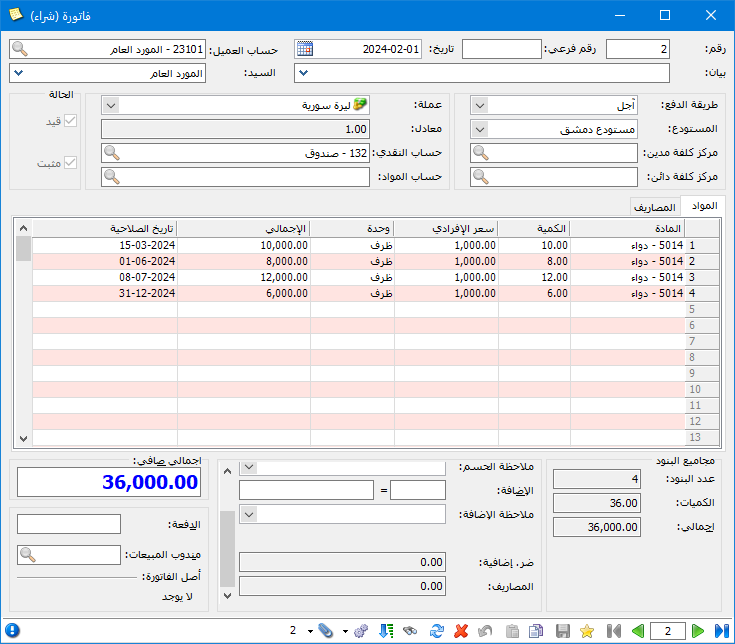
.
When you add the medicine to a sales invoice, its subinventory window displays the remaining quantity for each expiry date. Select the required date, as shown below:
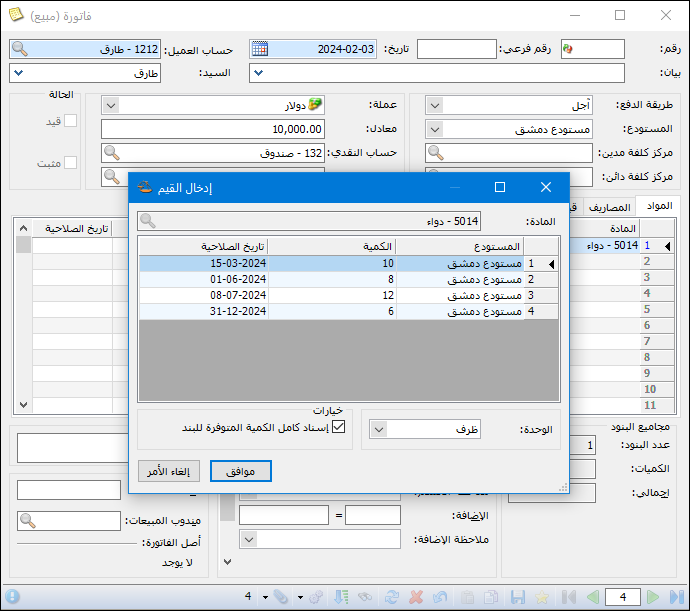
.
Important Notes about the Subinventory Window:
Note 1: #
A blank expiry date in purchase invoices is treated as a separate value and appears alongside other dates. This allows users to identify remaining quantities for which no expiry date was entered, as shown above.
Note 2:
Changing the item unit in the subinventory window changes the displayed quantities. For example, if the medicine second unit is Box and its conversion factor is 10, the window appears as shown below:
.
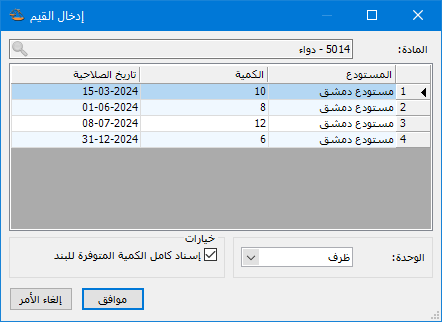
.
Note 3: #
Assign Quantity to Line inserts both the selected expiry date and its remaining quantity into the invoice line. When disabled, only the expiry date is inserted. This setting is remembered for the same Windows user and invoice.
Note 4: #
Sort expiry-date rows in ascending or descending order using Sort beside the Subinventory option in the item record, as shown below:
.
.
With descending expiry-date sorting, the window appears as follows:
.
.
Note 5: #
Enable multiple subinventory keys for one item, such as Expiry Date and Production Date. The window then breaks down quantities by both fields. Arrange their display order using the two blue arrows beside the fields in the item record, as shown below:
.
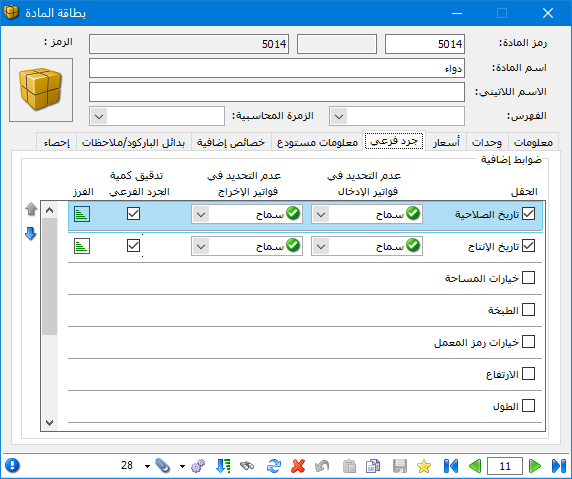
.
After enabling subinventory for both fields, the window appears as follows:
.
.
Note 6: #
Even when no subinventory field is enabled in the item record, the window can show item stock by warehouse. It does not open automatically in that case; press F6 on the item line to open it, as shown below:
.
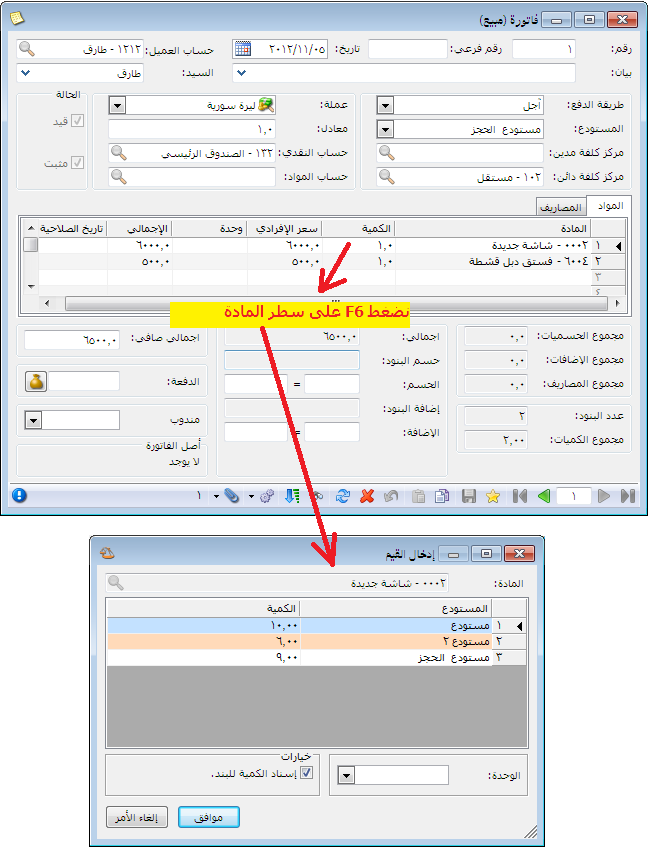
.
Note 7: #
If you enable subinventory after the item already has transactions, run Re-finalize Invoices, as shown in the next two illustrations, so the subinventory information appears correctly.
.
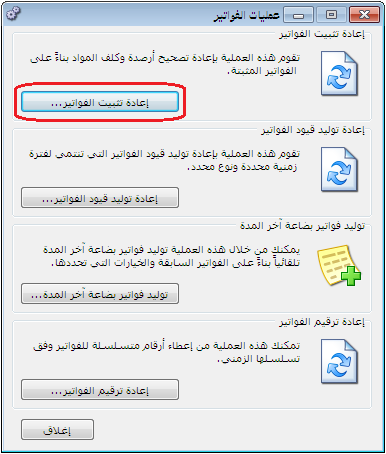
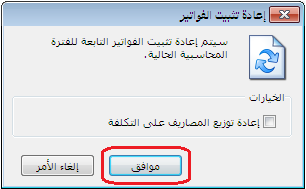
.


