


This report displays debit or credit balances, their age and the transactions to which they relate. Open Reports / Advanced Accounting Reports to request it.
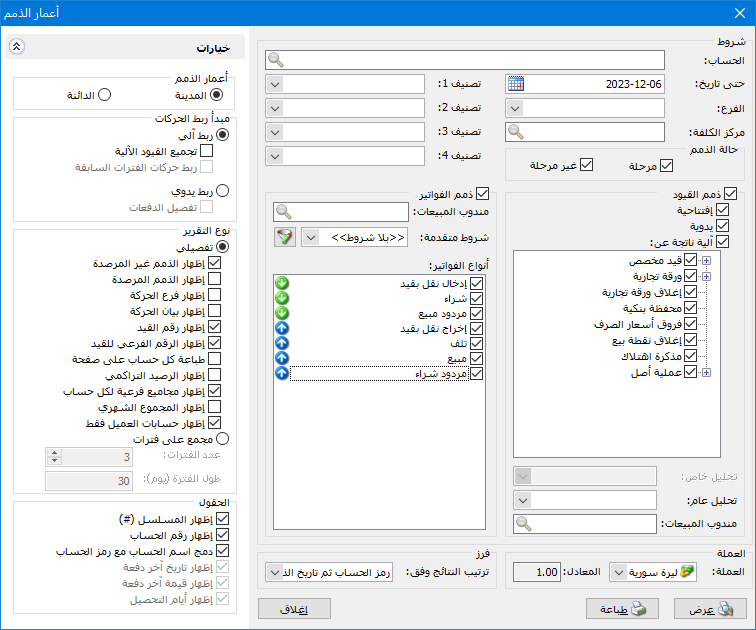
The main criteria window contains the following options:
.
Conditions: #
- Account: Select the account whose balance should be aged.
- As of Date: Set the cutoff date through which results are calculated.
- Branch: Select a branch to age transactions within that branch.
- Cost Center: Select a cost center to age transactions allocated to it.
- Classification 1, Classification 2, Classification 3, Classification 4Filter accounts by their classifications. For example, if Classification 1 represents Customer Location, selecting Damascus includes accounts classified as Damascus.
Balances from Journal Entries: #
Select the entry sources to include:
- Opening Entries.
- Manual Entries.
- Automatic Entries Generated by: Custom Vouchers, Commercial Papers, Paper Settlement, Bank Portfolio, Exchange Differences, POS Closing, Depreciation Notes, Manufacturing Transactions or Asset Transactions.
- Account-Specific Analysis: Select an account-specific analysis for the chosen account to age its balance.
- General Analysis: Select a general analysis to age balances assigned to it.
- Sales Representative: Select a sales representative to include balances whose journal entries include that representative.
Balances from Invoices: #
Use invoice criteria to restrict the report.
The following report-related options are available:
- Sales Representative: select a representative to include balances whose invoices include that representative.
- Advanced Filters: set invoice filters based on fields such as payment method or date. Only matching invoices are included.
Invoice Types: #
Select the invoice types whose customer balances should appear in the report.
Currency and Exchange Rate: #
Select the report currency and its exchange rate relative to the base currency.
Sort Results By: #
Select the ordering of report results. The available options depend on the report type:
Detailed Report: #
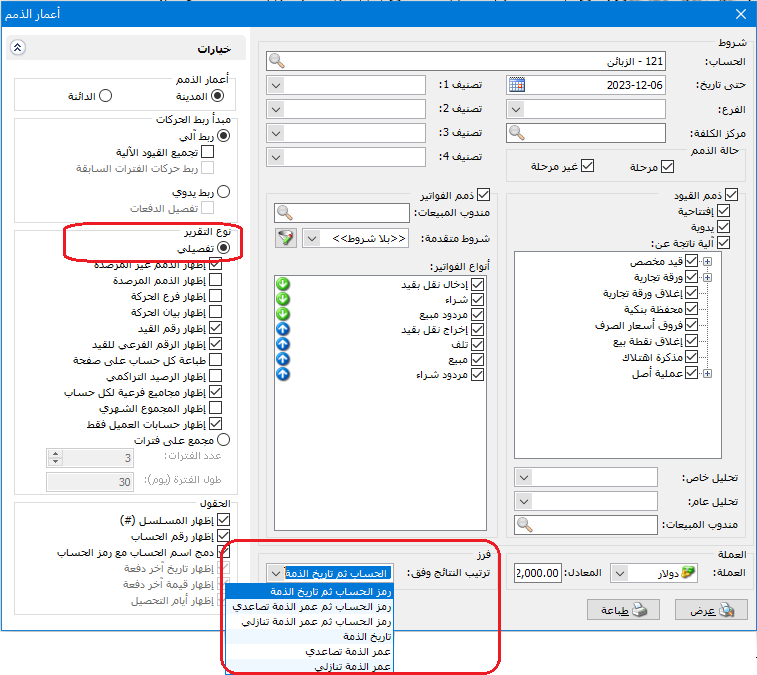
Six sorting options are available:
- Account Code, then Transaction Date: order by account code, then from oldest transaction date to newest.
- Account Code, then Age Ascending: order by account code, then from newest balance to oldest.
- Account Code, then Age Descending: order by account code, then from oldest balance to newest.
- Transaction Date: order from oldest to newest.
- Age Ascending: order from newest balance to oldest.
- Age Descending: order from oldest balance to newest.
The following image illustrates these options:
.
Options: #
This section contains the following settings:
Balance Aging: Two options are available:
- Debit Balances: Age accounts with debit balances.
- Credit Balances: Age accounts with credit balances.
Transaction Matching Method: #
Two methods are available:
Automatic Matching: #
By default, the program matches payments against invoices in first-in, first-out order. For example, Tareq’s payments are applied to his oldest invoices first.
Automatic Matching includes two options:
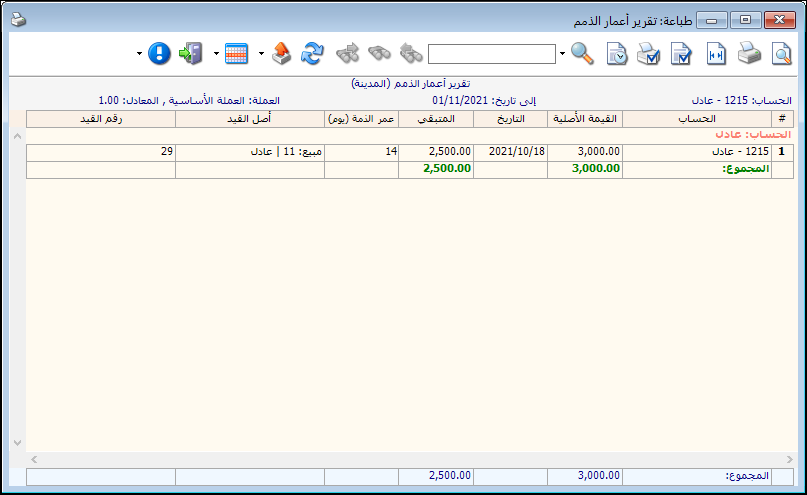
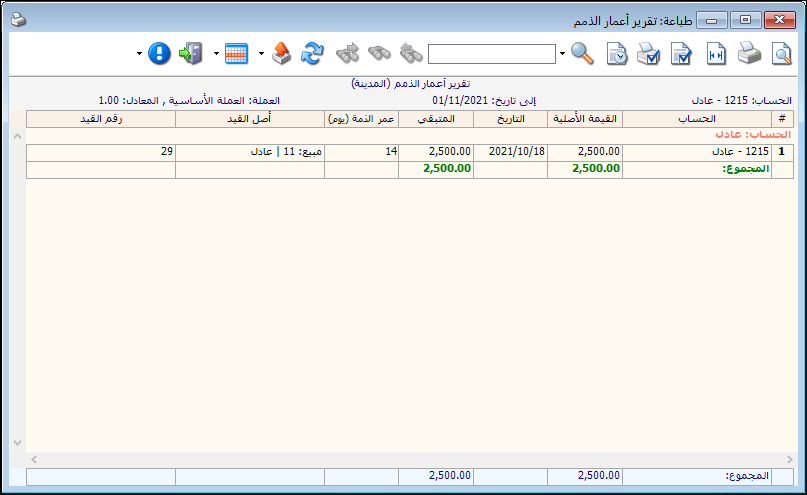
- Combine Automatic EntriesEnable this option to net the debit and credit entries generated for the account by an invoice. For example, a sale of SYP 3,000 with a SYP 500 discount produces a net receivable of SYP 2,500.
The report before enabling Combine Automatic Entries:
.
The report before enabling Combine Automatic Entries:
.
- Match Transactions from Previous PeriodsThis option matches invoices and payments from earlier accounting periods when accounts were rolled forward within the same database. It brings forward unmatched earlier invoices so they can be matched against payments in the current period.
NoteThis option appears only after accounts have been rolled forward within the same database.
To enable it, open Settings / Program Features and select Allow Matching Outside the Current Accounting Period.
The following image illustrates the setting:
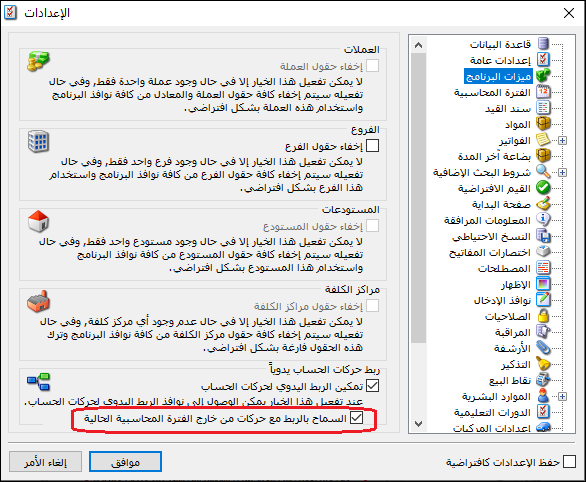
.
See the Configure Al Mizan Program Settings section.
Manual Matching: #
This method lets you assign payments to specific invoices. For example, Adel’s payment
may settle yesterday’s invoice rather than an older invoice from two weeks ago.
Manual Matching includes Break Down Payments, which displays individual payments and the invoices to which they are matched.
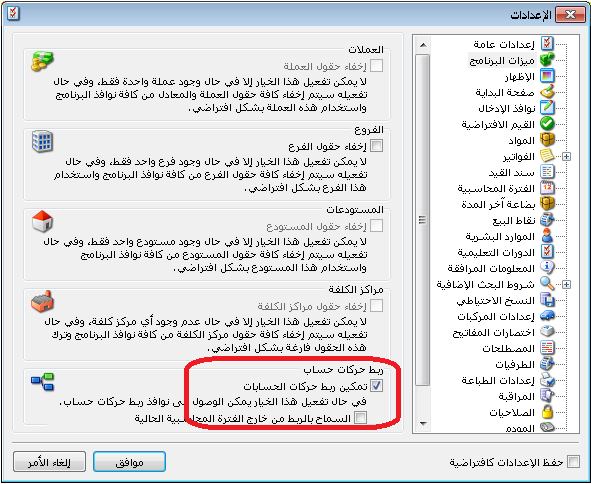
To enable transaction matching, open Settings / Program Features and select Enable Account Transaction Matching.
The following image illustrates the setting:
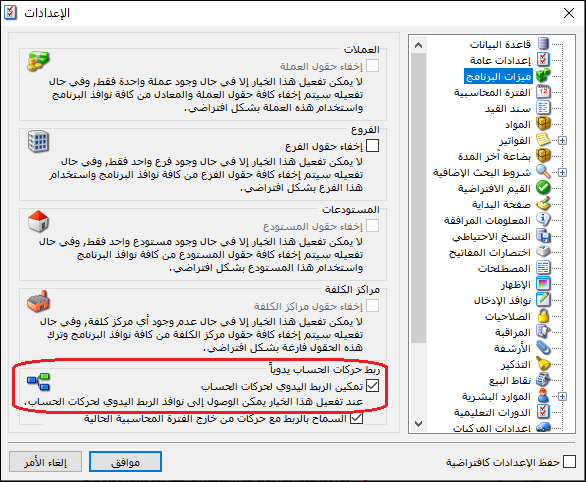
.
Report Type: #
Two methods are available:
Detailed: #
Display the balance as separate components according to its underlying transactions. The following options are available:
- Show Outstanding Balances: Include balances that are not zero.
- Show Settled Balances: Include balances that have been fully settled and are zero.
- Show Transaction Branch: Display the company branch associated with each transaction.
- Show Transaction Description: Display the transaction description in a detailed report.
- Show Entry Number: Add a column showing the journal entry number.
- Show Entry Subnumber: Add a column showing the journal entry subnumber.
- Print Each Account on a Separate Page: When aging a parent account such as Customers, the report includes every subaccount. Enable this option to print each account on a separate page rather than sharing pages.
- Show Running Balance: Add a column showing the cumulative balance for each account.
- Show Subtotals for Each Account: Add a subtotal row beneath each account for original amounts and remaining balances.
- Show Monthly Totals: Add monthly total rows for each account, as shown below:
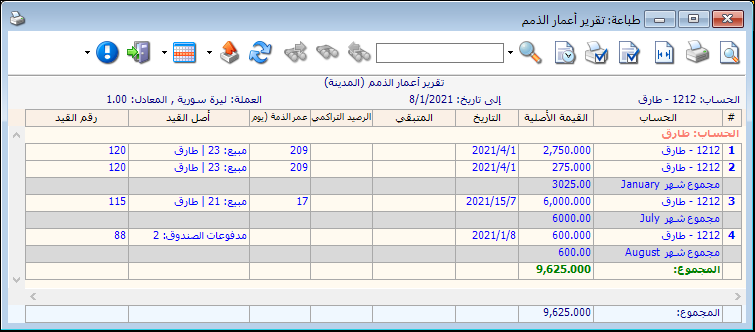
.
- Show Customer Accounts Only: Enable this option to include only accounts converted to customer-type accounts. Disable it to include all account types.
Grouped by Period: #
Divide each balance into aging periods according to the dates of its underlying transactions. The following settings are available:
- Number of Periods: Set the number of aging periods.
- Period Length: Set the duration of each aging period.
- Show Sequence Number: Display sequential numbers for report rows.
- Show Account Code: Add a column showing the account codes.
- Merge Account Name with Account Code: Show account code and name in one column.
- Show Last Payment Date: Add a column showing the most recent payment date for each account.
- Show Last Payment Amount: Add a column showing the most recent payment amount for each account.
- Show Collection Days: Add a column showing the elapsed time between the underlying transaction and its settlement.
A Practical Aging Example: #
Assume the customer Tareq has the following transactions:
Sales Invoice — 1 January 2021 — SYP 10,000
Payment — 3 January 2021 — SYP 1,000
Sales Invoice — 5 January 2021 — SYP 15,000
Payment — 10 January 2021 — SYP 6,000
Tareq’s remaining balance is SYP 18,000.
Two matching scenarios are possible:
Scenario One: #
Payments settle the oldest invoices first. Both payments are applied to the invoice dated 1 January, so the remaining balance is:
First Invoice − Both Payments + Second Invoice
= 10000 – ( 1000+6000 ) +15000
= 3,000 + 15,000 = SYP 18,000
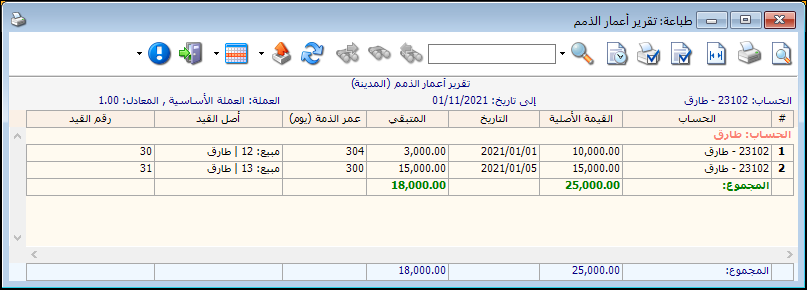
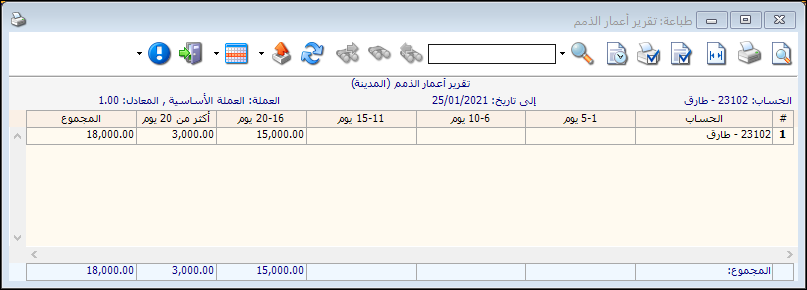
The aging report explains the SYP 18,000 balance as SYP 3,000 remaining on the 1 January 2021 invoice plus SYP 15,000 on the 5 January 2021 invoice.
To obtain this result, select Tareq as Account and choose Detailed without enabling other options, as shown below:
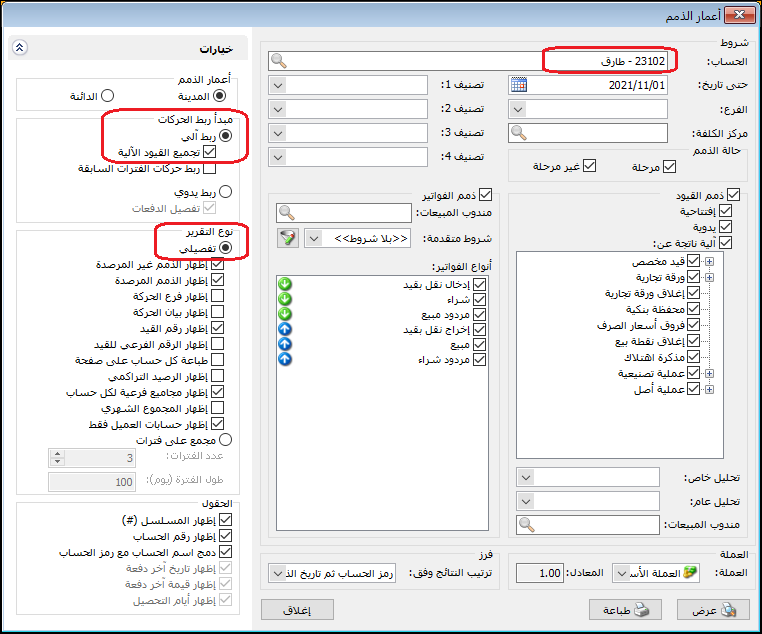
.
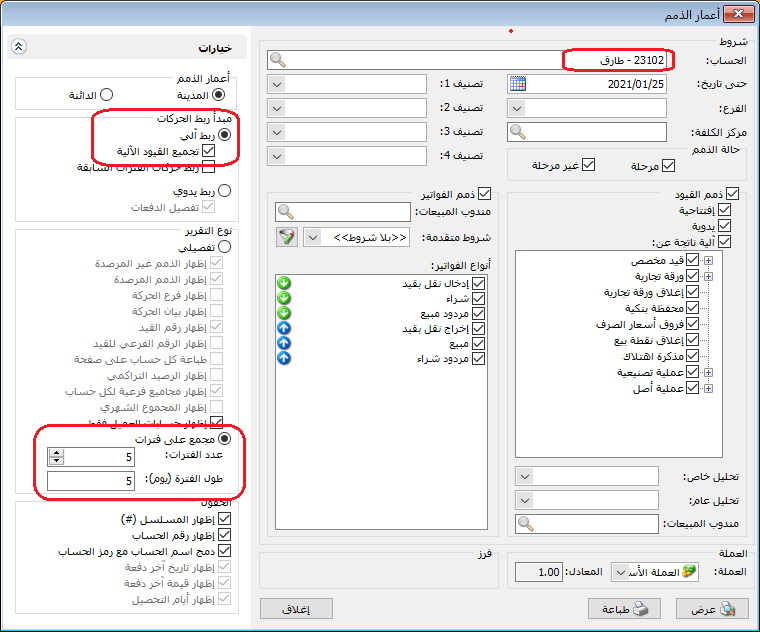
Alternatively, select Grouped by Period to divide Tareq’s balance by age using the chosen number and length of periods, as shown below:
.
Scenario Two (Manual Matching): #
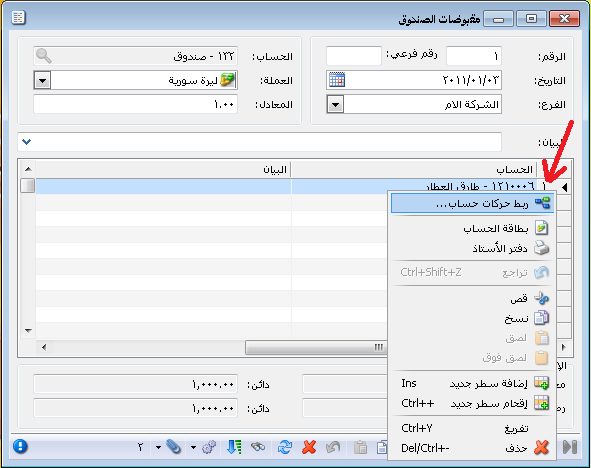
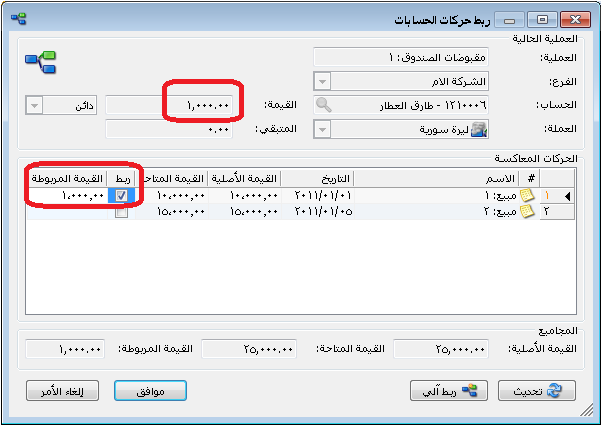
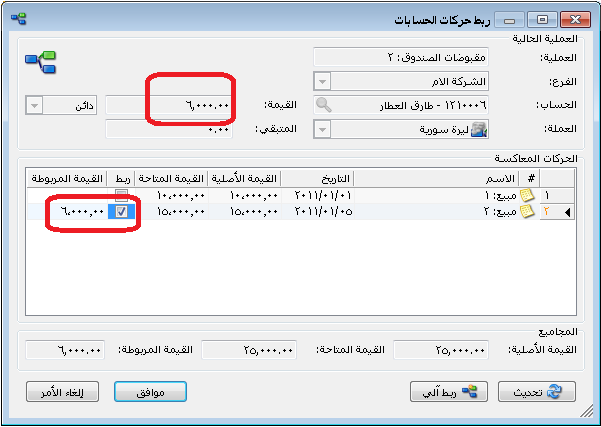
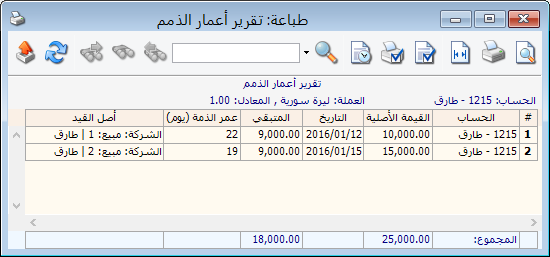
Payments are assigned to specific invoices rather than always settling the oldest first. Assume the first payment settles part of the first invoice and the second settles part of the second invoice. The remaining balance includes part of each invoice:
Balance = (First Invoice − First Payment) + (Second Invoice − Second Payment)
= ( 10000 – 1000 ) + ( 15000 – 6000 )
= 9,000 + 9,000 = SYP 18,000
To obtain this breakdown, match the first payment to the first invoice and the second payment to the second invoice in the Account Transaction Matching window. Enable this feature in Settings / Program Features, as illustrated below:
Enable the window through Tools / Settings:
.
Right-click the payment and open the matching window to assign it to an invoice:
.
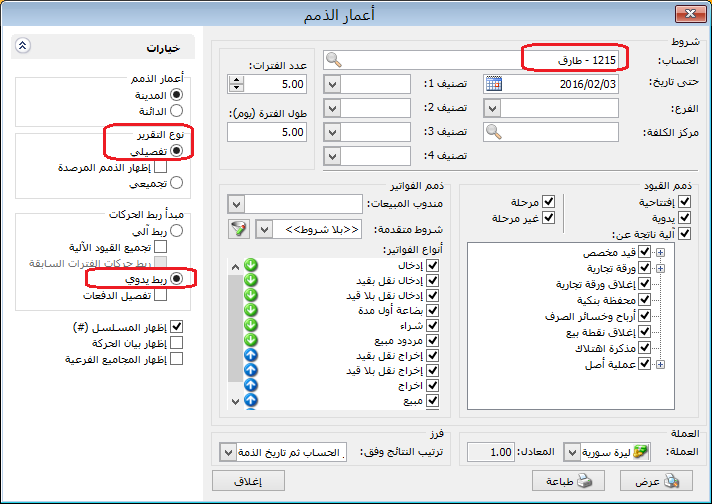
Request a Detailed report with Use Manual Matching enabled, as shown below:
.
The resulting report appears as follows:
.
Practical examples of information available from the Aging report:
- Unpaid customer sales invoices using automatic matching, applying payments to the oldest invoices first.
- Unpaid customer sales invoices using manual matching, assigning each payment to selected invoices.
- A breakdown of Tareq’s balance showing each unpaid invoice’s original amount, remaining amount and age.
- Tareq’s balance divided into three aging groups: 1–30 days, 31–60 days and more than 60 days.
.


