


This report is useful for businesses needing daily, weekly or monthly lists of amounts receivable from customers or payable to suppliers. Its flexible criteria window contains the following options:
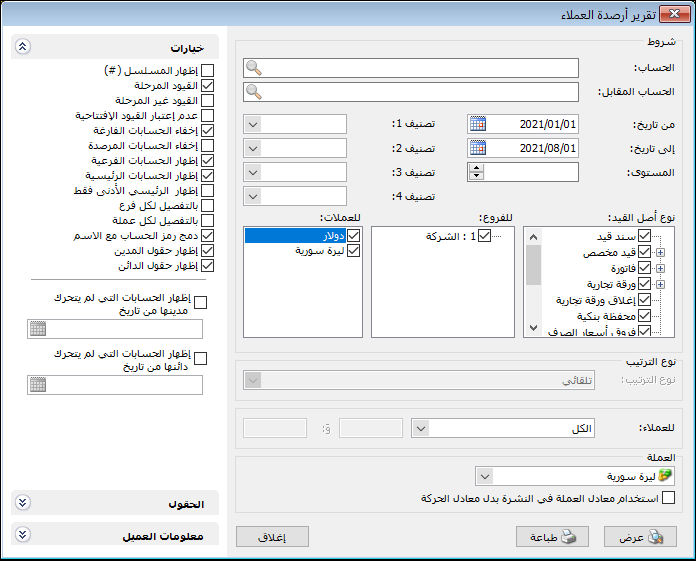
.
Conditions: #
- Account: Select a subaccount such as Tareq, a parent account such as Customers, or an aggregate account. A parent account summarizes its subaccounts and their combined totals. Leave the field blank to include all accounts in the chart of accounts.
- Counterpart Account: Use Counterpart Account to restrict the selected account’s transactions. For example, to summarize Tareq’s sales-related transactions, select Tareq as Account and Sales as Counterpart Account.
- From Date / To Date: Specify the report date range.
- Level: Set the account detail level using the levels shown in the Chart of Accounts, as explained in the Trial Balance guide.
- Classification 1, Classification 2, Classification 3, Classification 4: Filter accounts by their classifications. For example, if Classification 1 represents Customer Location, selecting Damascus includes only accounts classified as Damascus.
Entry Source Type: #
Select the data sources used to calculate customer balances., For example, selecting only Invoices calculates balances from invoices without including journal entries or other sources.
Branches: #
Select the branches whose account balances should be included.
Currencies: #
Select a transaction currency to include only transactions recorded in it. For example, selecting Syrian Pound excludes receipts recorded in Jordanian Dinar.
Sort Order: #
Sort accounts in descending order by measures such as ending debit or credit balance.
Note: Sort Order is unavailable when Show Parent Accounts is enabled.
For Customers: #
Filter customers by balance nature or amount. For example, include debit or credit balances, or balances greater than, less than or equal to a specified amount.
See the Define Customer Records section.
Currency and Exchange Rate: Select the reporting currency and its exchange rate against the base currency.
Customer Information: #
Enable Show Customer Information and select fields from the customer record to display them as report columns.
Enable Separate Customer Columns to display each field separately, or disable it to combine the fields in one column. Use the up and down arrows to change field order.
Fields: #
The following report fields can be enabled:
- Account Code: The account code defined in the Chart of Accounts.
- Account: The account name, such as Tareq or Customers.
- Transaction Totals: Display Total Debits and Total Credits for each account. Their difference is the ending debit or credit balance.
- Balance Totals: This option displays two columns:
Total Debit Balances and Total Credit Balances. These aggregate debit and credit balances separately; their difference is the net ending balance. - Ending Balances: This option displays two columns:
Ending Debit Balance and Ending Credit Balance display the accounts’ final net balances, as shown above.
Note: #
For subaccounts, Balance Totals and Ending Balances show the same amounts. For a parent such as Customers, Balance Totals separately adds customers’ debit and credit balances, while Ending Balances nets those totals into one debit or credit amount. See the Trial Balance report for an illustrated example.
Other Fields: #
- Debit-to-Credit Ratio: Display a column calculated by dividing total debits by total credits.
- Credit-to-Debit Ratio: Display a column calculated by dividing total credits by total debits.
- Show Last Debit Transaction: Display the date and amount of the account’s most recent debit transaction. For a supplier, this will often be the last payment made to that supplier.
- Show Last Credit Transaction: Display the date and amount of the account’s most recent credit transaction. For a customer, this will often be the last payment received from that customer.
- Show Previous Balance: Enable this field when transactions exist between the start of the accounting period and the report’s starting date. The previous balance can be displayed as transaction totals, balance totals or ending balances.
- Classification 1, Classification 2, Classification 3, Classification 4: Enable the required classifications to display each in a separate column beside the account.
- Show Last Receipt into Account: Display the most recent amount received from the customer into the account entered in the adjacent field.
- Show Last Payment from Account: Display the most recent amount paid to the supplier from the account entered in the adjacent field.
- Blank Column: Enable this option to add an empty column for later use. Enter its Arabic and Latin headings in the fields below.
Options: #
The options section contains:
- Show Sequence Number: Enable this option to display sequential account numbers.
- Posted Entries, Unposted Entries: Select which posting statuses should affect the report.
- Ignore Opening Entries: Enable this option to exclude opening entries from account transactions.
- Hide Accounts with No Transactions: Enable this option to hide zero-balance accounts with no transactions during the year.
- Hide Zero-Balance Accounts: Enable this option to hide accounts that have had transactions during the year but now have a zero balance.
- Show Subsidiary Accounts: Such as the accounts of Tareq or Hossam.
- Show Parent Accounts: Such as Customers or Suppliers.
- Show Only the Lowest Parent Level: See the Trial Balance report.
- Break Down by Branch: Enable this option in a company-wide report to display account balances separately for each branch.
- Break Down by Currency: Enable this option to display account information separately for each transaction currency.
- Combine Account Code and Name: Enable this option to combine account code and name in one field.
- Show Debit Fields: Enable this option to display debit fields.
- Show Credit Fields: Enable this option to display credit fields.
- Show Accounts with No Debit Transactions Since Date: Enter a date and enable this option to include accounts with no debit-side journal transactions from that date through today.
- Show Accounts with No Credit Transactions Since Date: Enter a date and enable this option to include accounts with no credit-side journal transactions from that date through today.
Show: #
Display the report using the preceding conditions.
Print: #
Click this button to print the final report.
Close: #
Close the report conditions window.
Practical examples of information available from the Customer Balances report:
- Balances for all accounts.
- Customer or supplier balances.
- Customer balances from sales invoices only or receipt vouchers only.
- Customer balances from posted entries, unposted entries or both.
- Supplier balances for a specified account classification.
- Supplier balances allocated to a specified cost center.
- Customers with balances above 150,000 currency units.
- Customers with balances between 30,000 and 50,000 currency units.
- Customer balances with the date and amount of each account’s most recent credit transaction.
- Customer balances with the date and amount of the last receipt, optionally restricted to a selected receiving account.
- Customers with no debit transactions since 1 June 2021.
.


