Skip to content
Contact Us
الميزان دوت نت للمحاسبة والمستودعات
  • Home
  • About the Software
    • About Us
    • Our Clients
  • Products
  • Services
  • Learning
    • Knowledge Base
    • Video Tutorials
  • Blog
  • Downloads
    • Al Mizan .NET
    • Updates
    • Utilities
  • العربية
  • Home
  • About the Software
    • About Us
    • Our Clients
  • Products
  • Services
  • Learning
    • Knowledge Base
    • Video Tutorials
  • Blog
  • Downloads
    • Al Mizan .NET
    • Updates
    • Utilities
  • العربية
  • Home
  • About the Software
    • About Us
    • Our Clients
  • Products
  • Services
  • Learning
    • Knowledge Base
    • Video Tutorials
  • Blog
  • Downloads
    • Al Mizan .NET
    • Updates
    • Utilities
  • العربية
Show Categories
  • Home
  • Knowledge Base
  • User Guide
  • Journal Entries Menu
  • Enter Journal Data and Configure Entry Settings

Enter Journal Data and Configure Entry Settings

Journal Voucher #

Open a standard journal voucher by clicking Journal Voucher on the main window toolbar, or choose Journal Entries > Journal Voucher. Enter data manually, including the entry date, account number, account description, credit and debit amounts. The window contains these fields:

.
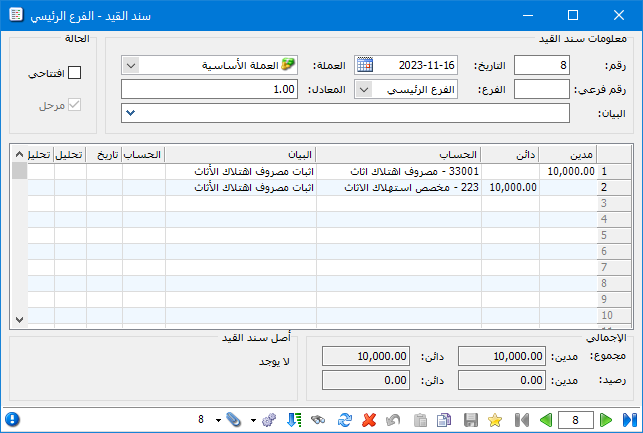
Illustration: the journal voucher

.

Number: Enter the number manually or let the software assign it sequentially.

Secondary Number: This optional number is usually the number of the source document.

Date: Enter the date manually or use the automatically generated current date.

Branch: When you define a new branch in the branch tree, a Branch Journal Voucher is added under that branch name. Its Branch field is locked to the relevant branch.

Currency and Exchange Rate: Select the currency in which voucher totals are calculated. The base currency is selected by default.

Status: Specify whether the entry is an opening entry. A separate read-only field indicates whether the entry has been posted.

You can enter an opening entry in two ways: #

  • Open a standard journal voucher, enter opening accounts and balances, then enable Opening in Status.
  • Choose Journal Entries > Opening Entry.

Journal Voucher Columns:

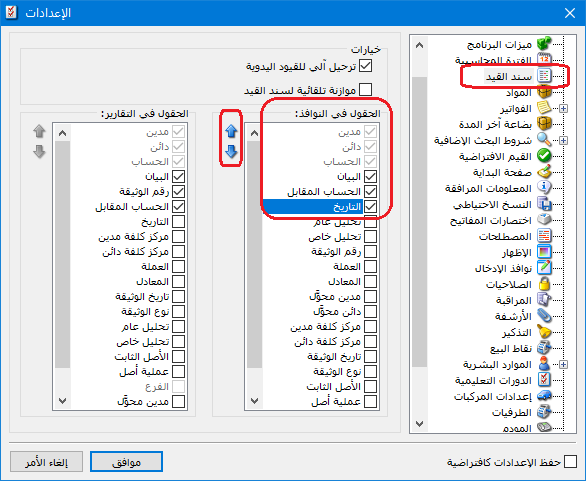
You can choose which columns appear in a journal voucher. Follow these steps:
Choose Tools > Settings from the upper toolbar, then open Journal Voucher settings.
The available fields have controls to enable or disable them. Select the fields to display and arrange them in the required order.
Selecting and arranging the fields lets you adapt the journal voucher columns to your needs, as shown below:

See the Settings Guide

.

Illustration: the two ways to enter an opening entry

.

The journal voucher then appears as follows:

.
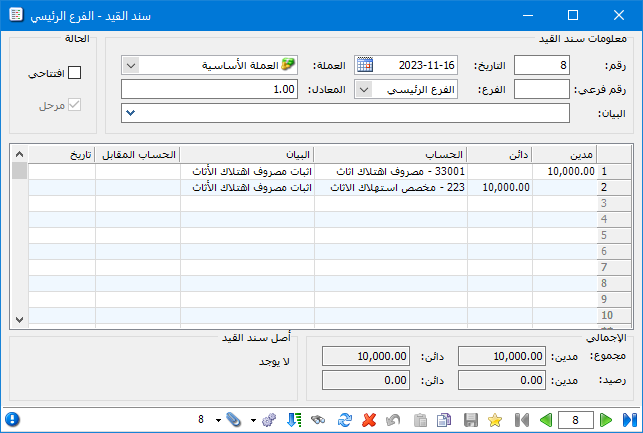
Illustration: the two ways to enter an opening entry

.

Follow our YouTube channel

Share This Article

  • Facebook
  • X
  • LinkedIn
  • Pinterest
Could not find what you need? Contact us

How can we help you?

Updated on October 2, 2026
Journal Operations in Al MizanUse Custom Journal Vouchers in Al Mizan

Powered by BetterDocs

Contents
  • Journal Voucher
  • You can enter an opening entry in two ways:
Mizan logo black1

Al Mizan .NET Accounting and Inventory: take the next step toward more effective business management

Quick Links

  • Knowledge Base
  • Privacy Policy
  • Terms and Conditions
  • Contact Us

Stay Informed

Get the latest news and offers from our website 

  • Abdurrahman Nafiz Gürman, No:05
    Güngören/İstanbul
  • +905360652643
  • info@hadarasoft.net
© 2026 Hadarasoft
Instagram Facebook-f Youtube Linkedin
Need help? Contact us