


Use this window to view commercial papers in your database and filter them by specific criteria. You can also perform operations such as settlement, endorsement, cancellation and sending papers to the bank for collection.
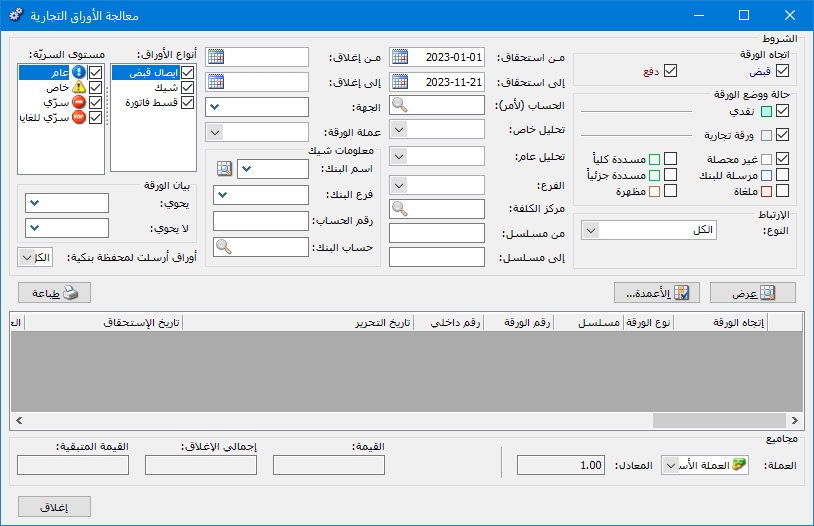
As shown below, this window contains the following:
Conditions: #
It includes the following criteria:
Paper Direction: #
It includes the following options:
Receipt: Enable this option to display receipt papers.
Payment: Enable this option to display payment papers.
Paper Status and Mode: #
Cash: Enable this criterion to display papers recorded in cash mode.
Commercial Paper: Enable this criterion to display papers recorded in commercial paper mode.
Uncollected: Enable this option to display uncollected commercial papers.
Sent to Bank: Enable this option to display commercial papers sent to the bank for collection.
Fully Settled: Enable this option to display commercial papers that have been settled in full.
Partially Settled: Enable this option to display commercial papers that have been partially settled.
Endorsed: Enable this option to display endorsed commercial papers.
Cancelled: Enable this option to display cancelled commercial papers.
From Serial Number / To Serial Number: Enter a number range to display commercial papers whose serial numbers fall within that range.
From Due Date / To Due Date: Enter a date range to display commercial papers whose due dates fall within that range.
Pay to the Order of Account: Select an account from the chart of accounts to display commercial papers recorded as payable to the order of that account.
Account-Specific Analysis: Enter an account-specific analysis for the selected pay-to-order account to display commercial papers using that analysis.
General Analysis: Enter a general analysis to display commercial papers using that analysis.
Branch: Enter a branch to display commercial papers recorded for that branch.
Cost Center: Enter a cost center to display commercial papers recorded against that cost center.
Party: #
Enter text to display commercial papers containing that text in the Party field.
Paper Currency: Select a currency to display commercial papers recorded in that currency.
Cheque Information: Use these fields to enter bank-related cheque information: Bank name, bank branch, account number and bank account. Results are filtered according to the values entered..
Paper Types: #
Select the commercial paper types you want to display.
Confidentiality Level: #
Select one or more confidentiality levels to display commercial papers with those levels.
Paper Description Contains: Enter text to display commercial papers whose descriptions contain that text.
Paper Description Does Not Contain: Enter text to display commercial papers whose descriptions do not contain that text.
Show: Click this button to display commercial papers that meet the criteria above.
Columns: Use this button to choose the columns shown in the window, which represent commercial paper details.
Print: Use this button to print the information displayed in the window.
Currency / Exchange Rate: Use these two fields to set the currency in which commercial paper information is displayed and its exchange rate against the base currency.
Value: This field shows the total value of the commercial papers displayed above.
Total Settlement: This field shows the total value of settlement operations performed on the displayed commercial papers.
Remaining Value: This is the difference between the two totals above.
Right-Click Options #
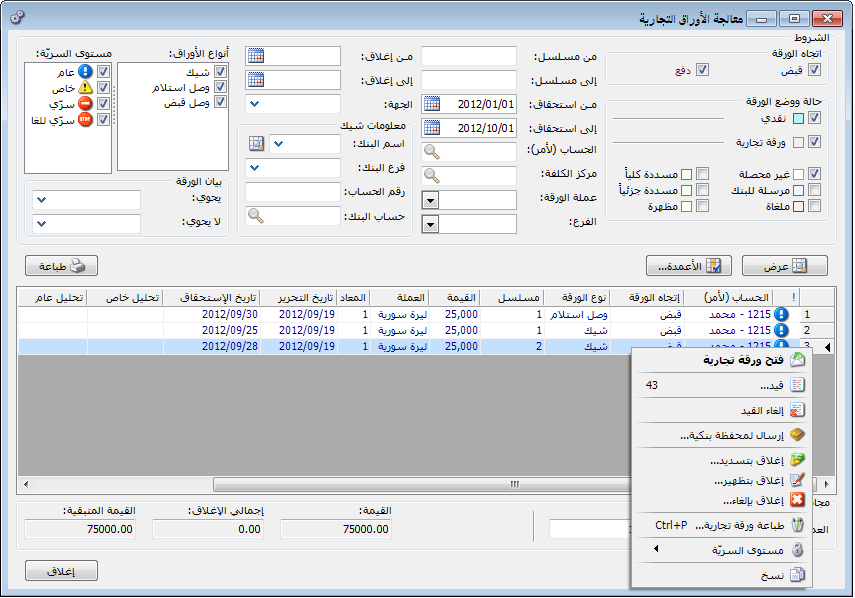
Select one or more commercial papers and right-click to display the menu shown below. It lets you perform the commercial paper operations described earlier and contains the following commands:
Open Commercial Paper: Click Open Commercial Paper to return to the original paper entered previously.
Entry: Click Journal Entry to open the entry generated by this commercial paper.
Delete Journal Entry: Use this button to delete the journal entry generated by the commercial paper.
Send to Bank Portfolio: #
You can send commercial papers to the bank for collection on behalf of the company in return for a collection commission. Click Send to Bank Portfolio to open the window shown below, which contains the following fields:
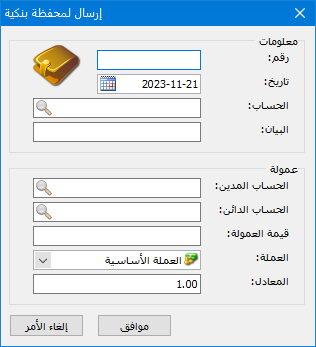
Number: This is the transaction number, generated automatically.
Date: This is the date the paper is sent to the bank.
Account: Enter the account to which the commercial paper sent to the bank will be posted. If no account is specified, the entry uses the default account configured in the Commercial Paper Type window.
Description: Enter a description for the sending transaction.
Commission — Debit Account: This is the commission account entered in the Commercial Paper Type window.
Commission — Credit Account: This is the account used to pay the commission, such as Cash or Bank.
Commission Amount: Enter the commission amount due.
Currency / Exchange Rate: Enter the transaction currency and its exchange rate against the base currency.
To return to the entry generated when the paper was sent, open Processing Commercial Papers, right-click the paper sent to the bank and select Bank Portfolio Entry.
Note:
After a paper is sent to the bank for collection, it appears in Processing Commercial Papers only if Sent to Bank is enabled under Paper Status in the filter criteria, as illustrated below.
Settle by Payment or Receipt: #
This command settles the commercial paper by paying or collecting its value in cash. It opens the window shown below, containing the following fields:
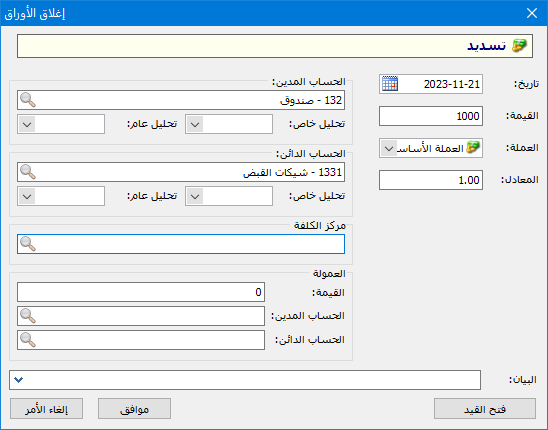
Date: This is the settlement date.
Value: This is the amount received or paid. It defaults to the paper value and can be reduced for a partial settlement.
Currency / Exchange Rate: Enter the settlement currency and its exchange rate against the base currency.
Debit Account: This is the account used for settlement, such as Cash or Bank.
Credit Account: This is the commercial paper account to be settled.
Commission: It includes the following:
Value: This is the settlement commission amount, if applicable.
Debit Account: This is the settlement commission account.
Credit Account: This is the account used to make the payment.
Description: Enter a description to be included in the journal entry generated when the commercial paper is settled.
Open Journal Entry: Use this button to open the entry generated by the settlement once the settlement has been completed.
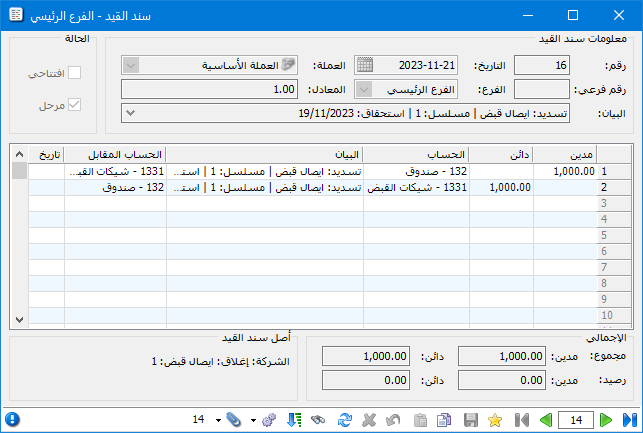
Assuming the settlement was completed as shown above, the resulting journal entry appears as illustrated below.
Settle by Endorsement: #
Endorsement transfers the amount due from one account to another. For commercial papers, the amount due on the paper is transferred to an account other than its original commercial paper account. Consider the following example:
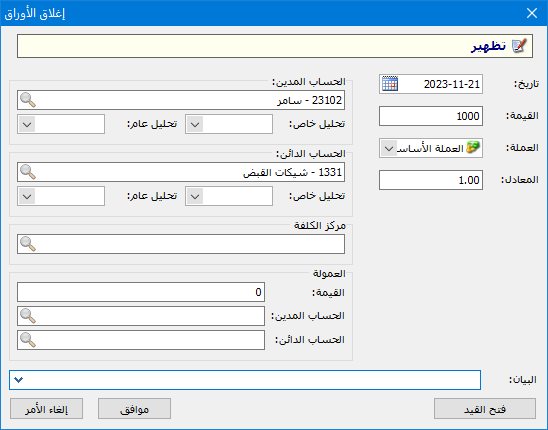
Suppose you create a commercial paper to record an amount owed by a customer named Tarek. Later, you decide to endorse this paper to a supplier named Samer in payment for goods purchased from him. Samer will collect the paper value when it becomes due. To endorse it, select the paper in Processing Commercial Papers and click Settle by Endorsement. In the window shown below, enter Samer’s supplier account.
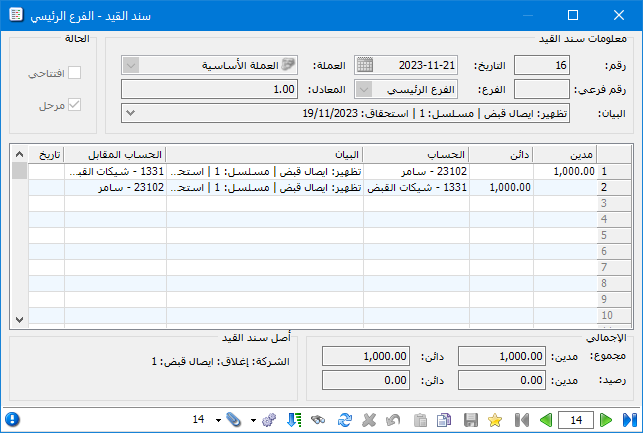
The journal entry generated by the endorsement is shown below.
Close by Cancellation: #
Click Close by Cancellation to cancel the selected commercial paper by reversing the entry recorded when the paper was created. Select the required paper and click Close by Cancellation to open the following window:
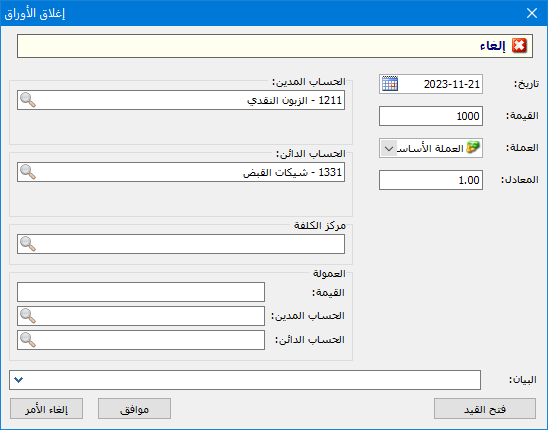
Enter the paper amount to cancel in the Amount field, then click OK. The paper is cancelled, and the resulting cancellation entry appears as shown below.
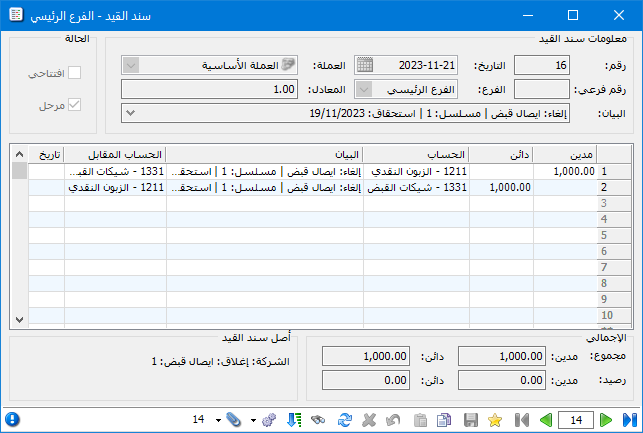
Important Note:
All the operations above, including settlement, cancellation and endorsement, can also be performed from the commercial paper window using its Operations button, as illustrated below.
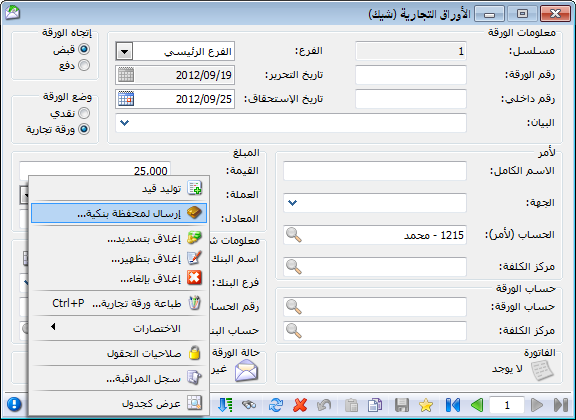
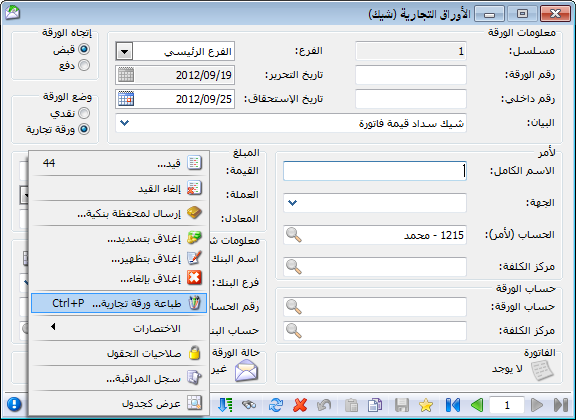
Print Commercial Paper:
To print a commercial paper, open the required paper, select Operations and click Print Commercial Paper, as shown below.
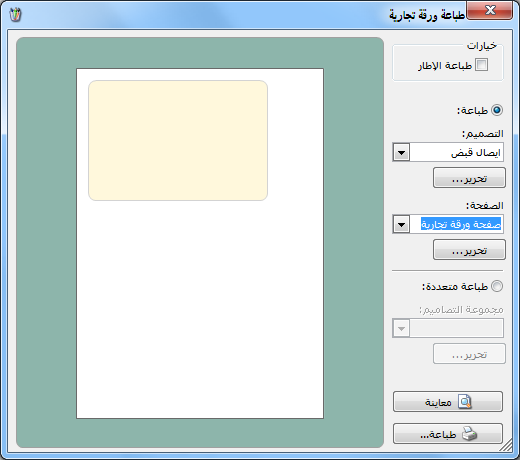
After you click Print Commercial Paper, a window lets you choose an existing print layout for the paper. Creating these layouts is explained in the Print Designer chapter. The following illustration shows the selection process.
Confidentiality Level: Select an available confidentiality level to use by default when a new commercial paper is created.
Copy: Click Copy to copy the information in the selected rows.


