


Item accounting groups let companies separate accounts for item transactions, including purchases, sales, returns and discounts, and analyze gross and net profit.
They support detailed financial reports on item usage, sales, stock, costs, revenue and profit.
.
.
Open Items and select Accounting Group. Enter the group name and save. The database’s default invoice types are displayed; assign the corresponding item accounts to each type.
Then open the required item card and link it to the accounting group.
The following three practical cases show different levels of detail, with examples.
First: A company wants detailed purchases, sales, returns and discounts while keeping one Trading Account. #
Suppose a company trades Hyundai and Kia vehicles. Its purchase, sales, return and discount accounts currently combine both brands. To separate Hyundai purchases and sales from Kia purchases and sales, use accounting groups as follows.
Step 1: Define Items in the Item Tree: #
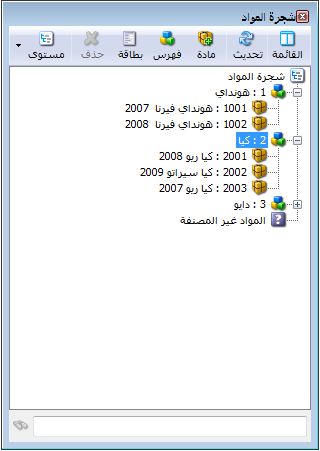
Define the items as explained earlier. The Item Tree initially appears as shown below.
Step 2: #
Separate Purchase and Sales Accounts for Each Type in the Chart of Accounts:
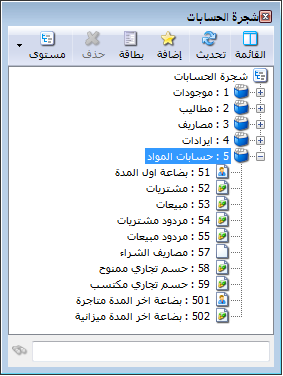
Before separation, the item accounts appear as illustrated below.
.
.
Under Item Accounts, click Add and create four new accounts:
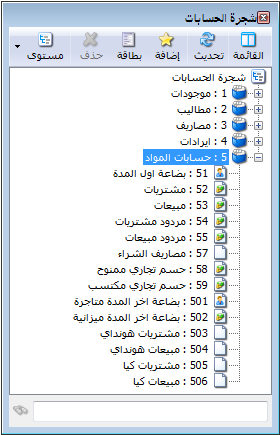
Hyundai Purchases, Hyundai Sales, Kia Purchases and Kia Sales. If the company handles no other items and the original accounts are no longer needed, remove the original general purchase and sales accounts. The chart then appears as follows.
.
.
Step 3: #
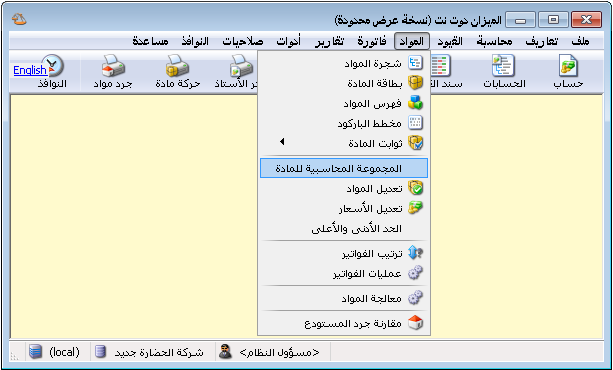
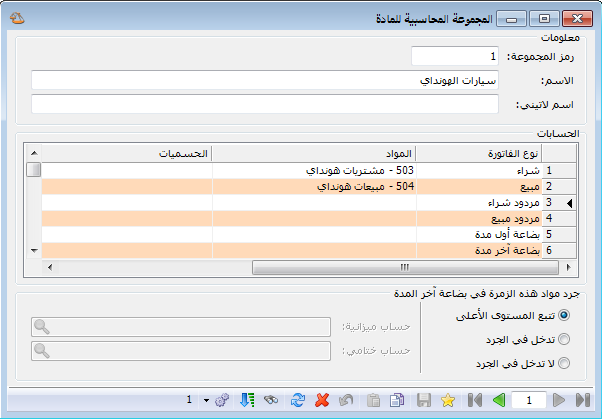
Define Accounting Groups for Both Item Types: Open Items and select Item Accounting Group to display the following window.
.
.
Define the Hyundai group by entering its name and assigning the Hyundai item accounts to their corresponding invoice types. Save, click Add and define the Kia group in the same way.
.
.
Step 4: #
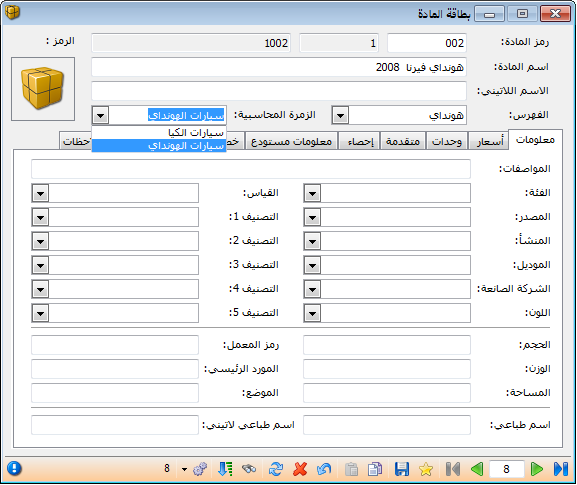
Link Items to Their Accounting Groups: In each item card, select the applicable accounting group in the header, as shown below.
.
.
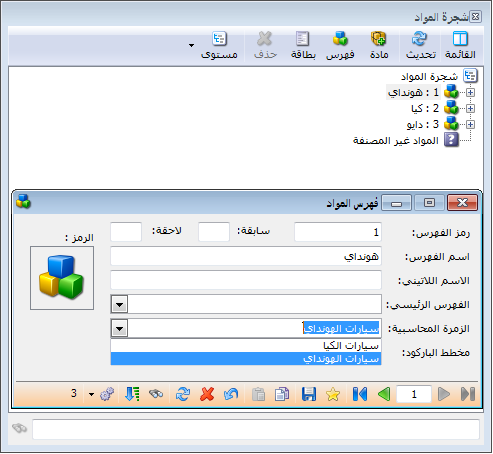
Alternatively, open Item Tree, right-click the category and select Card. Enter its Accounting Group. Items within the category inherit that group unless a different group is assigned directly in their item cards.
The following illustration shows linking an accounting group through the item category card.
.
.
After these changes, the entries generated by purchase and sales invoices change as illustrated below.
Purchase and Sales Entries Before the Change:
| Debit | Credit | Account |
| Purchase Entry | ||
| ××× | Purchases | |
| ××× | Cash | |
| Sales Entry | ||
| ××× | Cash | |
| ××× | Sales |
Purchase and Sales Entries After the Change:
| Debit | Credit | Account |
| Purchase Entry | ||
| ××× | Hyundai Purchases | |
| ××× | Kia Purchases | |
| ××× | Cash | |
| Sales Entry | ||
| ××× | Cash | |
| ××× | Hyundai Sales | |
| ××× | Kia Sales |
The Trading Account also changes, as shown in the following two illustrations.
Default Trading Account Before the Change
| Opening Inventory | Sales | ||
| Purchases | Closing Inventory | ||
| Discount Allowed | Discount Received | ||
| Sales Returns | Purchase Returns | ||
Trading Account After the Change
| Opening Inventory | Hyundai Sales | ||
| Hyundai Purchases | Kia Sales | ||
| Kia Purchases | Closing Inventory | ||
| Discount Allowed | Discount Received | ||
| Sales Returns | Purchase Returns |
Second: A company wants detailed purchases, sales, returns and discounts, and separate gross profit for each item type using two Trading Accounts. #
Using the same example, suppose the company wants to calculate gross profit separately for each vehicle brand by preparing a separate Trading Account for each. Follow these steps:
Step 1: #
Define Items in the Item Tree : Complete this as described in the previous case.
Step 2: #
Define Two Trading Accounts for the Vehicle Types:
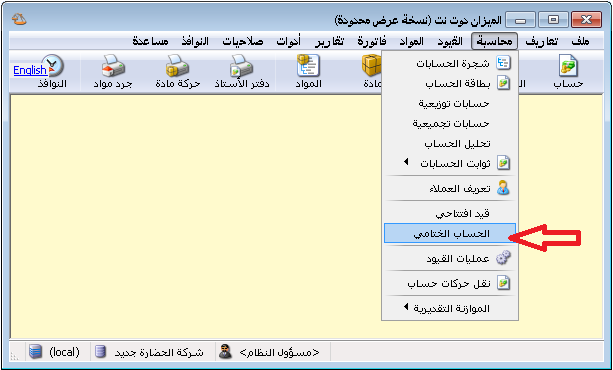
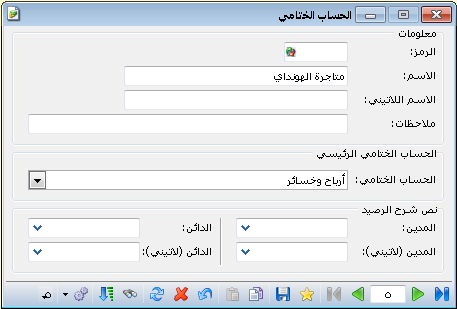
Open Accounting and Final Account, then click New. Add Hyundai Vehicle Trading and set its closing destination to Profit and Loss. Save, then add Kia Vehicle Trading in the same way, as illustrated below.
.
.
Step 3: #
Separate Item Accounts for Each Vehicle Type:
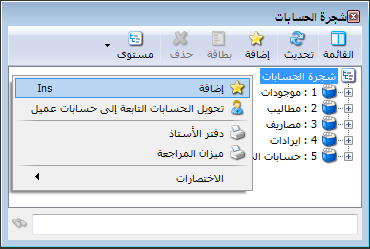
Define separate item account groups for Hyundai and Kia in the chart of accounts, as follows.
.
.
Select the root of the Chart of Accounts and click Add, as shown below.
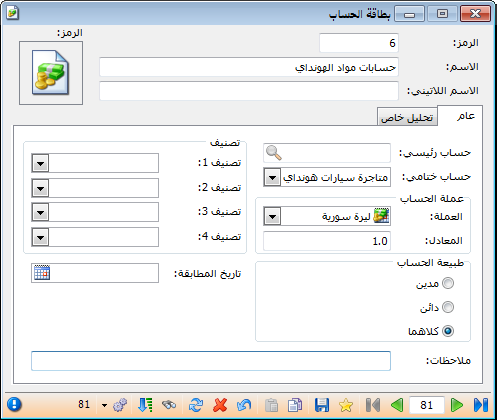
Define a parent account called Hyundai Item Accounts. Its final account
is Hyundai Vehicle Trading, as illustrated below.
.
.
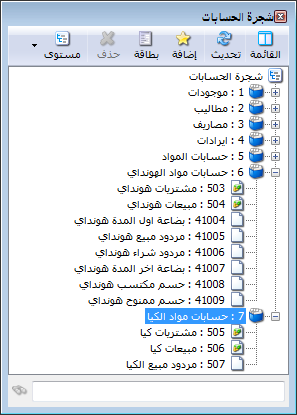
Under it, add Purchases, Sales, Purchase Returns, Sales Returns, Discount Allowed, Discount Received, Purchase Expenses, Opening Inventory, Closing Inventory — Trading, and Closing Inventory — Balance Sheet. Create Kia Item Accounts with the equivalent accounts in the same way. The resulting chart is shown below.
.
.
Step 4: #
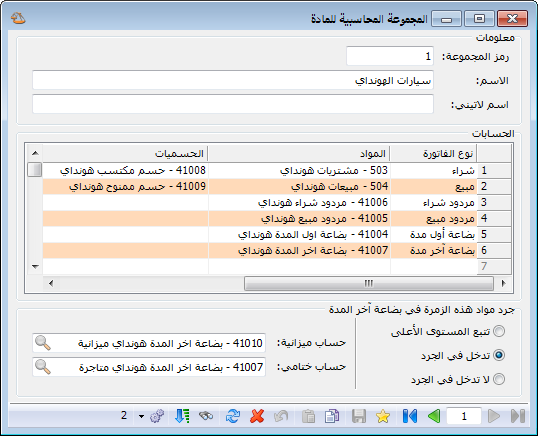
Define Accounting Groups for Both Item Types:
Define the accounting groups as in Step 3 of the previous case, but include all relevant item accounts for each vehicle type, as illustrated below.
.
.
Step 5: #
Link Items to Their Accounting Groups:
Link items through their item cards or category cards, as explained earlier.
After these changes, entries are separated by item account rather than combined across both vehicle types. The Trading Account changes as follows.
Default Trading Account Before the Change
| Opening Inventory | Sales | ||
| Purchases | Closing Inventory | ||
| Discount Allowed | Discount Received | ||
| Sales Returns | Purchase Returns | ||
| Purchase Expenses |
The two separate Trading Accounts now appear as illustrated below.
Hyundai Vehicle Trading Account
| Hyundai Opening Inventory | Hyundai Sales | ||
| Hyundai Purchases | Hyundai Closing Inventory | ||
| Hyundai Discount Allowed | Hyundai Discount Received | ||
| Hyundai Sales Returns | Hyundai Purchase Returns | ||
| Hyundai Purchase Expenses |
Kia Vehicle Trading Account
| Kia Opening Inventory | Kia Sales | ||
| Kia Purchases | Kia Closing Inventory | ||
| Kia Discount Allowed | Kia Discount Received | ||
| Kia Sales Returns | Kia Purchase Returns | ||
| Kia Purchase Expenses |
Third: A company wants detailed item transaction accounts, separate gross profit through two Trading Accounts, and separate net profit through two Profit and Loss Accounts. #
Using the same example, suppose each vehicle brand is sold in a separate showroom, allowing operating expenses to be distinguished between Hyundai and Kia. The company can calculate net profit for each brand separately with the following steps.
Step 1: #
Define Items in the Item Tree : Complete this as explained earlier.
Step 2: #
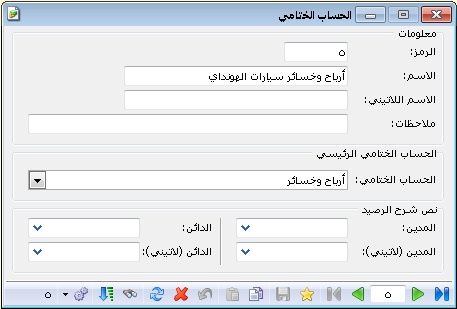
Define Two Profit and Loss Accounts for the Vehicle Types:
Open Accounting and Final Account and click New. Define Hyundai Vehicle Profit and Loss, with the general Profit and Loss Account as its closing destination. Save, then define Kia Vehicle Profit and Loss in the same way, as illustrated below.
.
.
Step 3: #
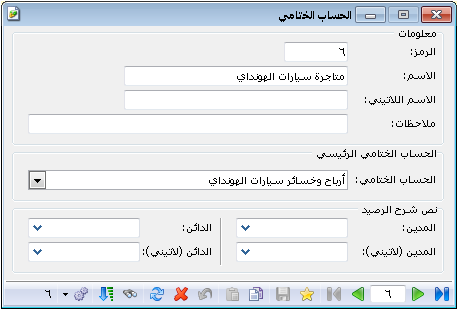
Define Two Trading Accounts for the Vehicle Types:
Open Accounting and Final Account and click New. Define Hyundai Vehicle Trading with Hyundai Vehicle Profit and Loss as its closing destination. Save, then define Kia Vehicle Trading with Kia Vehicle Profit and Loss as its destination, as illustrated below.
.
.
Step 4: #
Separate Item Accounts for Each Vehicle Type: Complete this as explained earlier.
Step 5: #
Define Accounting Groups for Both Item Types: Complete this as explained earlier.
Step 6: #
Link Items to Their Accounting Groups: Complete this as described in Step 5 of the previous case.
Step 7: #
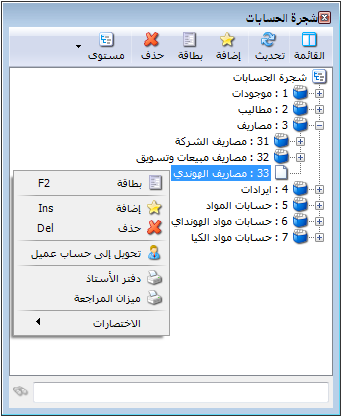
Separate Expense Accounts in the Chart of Accounts: Because Hyundai and Kia now have separate Profit and Loss Accounts, distinguish the expenses attributable to each.
For Example: If each brand has a separate showroom, its rent and staff salaries can be assigned to that brand. Split Building Rent into Hyundai Showroom Rent, classified under Hyundai Profit and Loss, and Kia Showroom Rent, classified under Kia Profit and Loss. The resulting accounts are shown below.
.
.
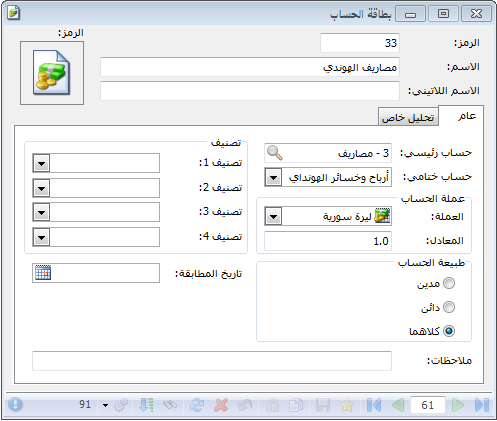
The Hyundai Showroom Rent account card appears as follows.
.
.
If an administrative building serves both showrooms, its rent and administrative salaries cannot necessarily be attributed directly to each brand. Such shared expenses can remain in the general Profit and Loss Account, which also receives the balances of the Hyundai and Kia Profit and Loss Accounts.
Note:
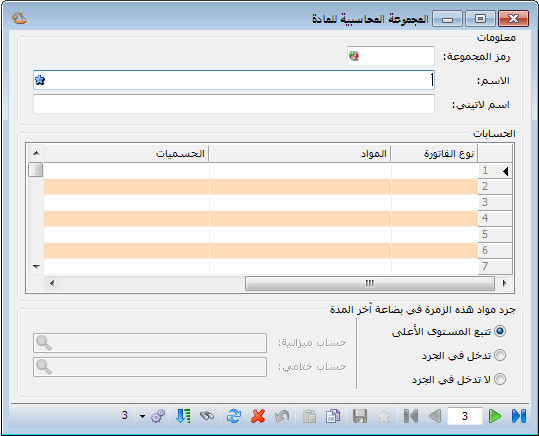
The Closing Inventory options in the item accounting group card also require attention, as shown below.
.
.
The following options are available:
Include in Inventory: #
Specify the Closing Inventory accounts used in the Balance Sheet and Trading Account. For Hyundai, these are Closing Inventory — Trading and Closing Inventory — Balance Sheet. When those final accounts are requested, this group’s inventory value appears under the specified accounts, as illustrated below.
.
.
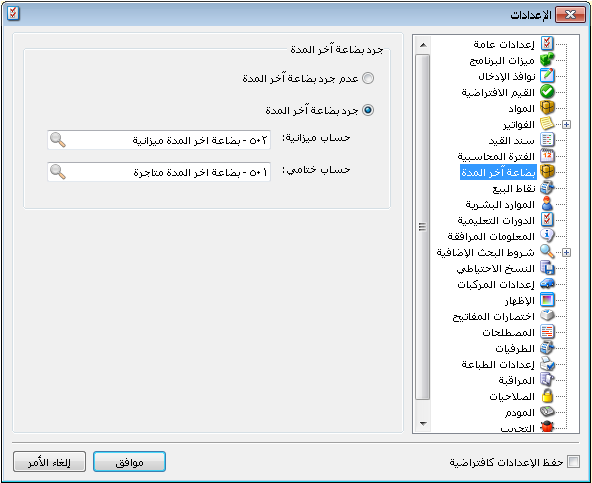
Inherit from Parent Level: #
The group does not specify its own closing inventory accounts. The item inherits them from a parent category’s accounting group. If none of its parent categories defines these accounts, the program uses Tools, Settings and Closing Inventory, as illustrated below.
.
.
Exclude from Inventory: #
The closing inventory value of items in this group is excluded from the Balance Sheet and Trading Account. This option is rarely used.
Important Note:
An accounting group assigned directly in an item card takes priority over groups on its parent or higher categories. If none is assigned to the item, it inherits its parent category’s group. If no group exists anywhere in that hierarchy, item accounts in generated journal entries follow the invoice type’s original account settings.
Consider the following example.
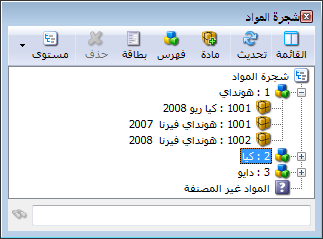
Suppose a Kia Rio 2008 is moved into the Hyundai Vehicles category. The Item Tree then appears as shown below.
.
.
Assume the second case, with separate accounting groups and Trading Accounts for both brands. The following possibilities apply:
- Kia Rio 2008 is assigned directly to Kia Vehicles, while its Hyundai category is assigned to Hyundai Vehicles. A purchase of Kia Rio vehicles uses the accounts in the Kia Vehicles accounting group, generating the entry shown below.
| Debit | Credit | Account |
| ××× | Kia Purchases | |
| ××× | Cash |
- Kia Rio 2008 has no directly assigned group, while its Hyundai category is assigned to Hyundai Vehicles. A purchase uses the accounts in the Hyundai Vehicles group, generating the entry shown below.
| Debit | Credit | Account |
| ××× | Hyundai Purchases | |
| ××× | Cash |
- Neither Kia Rio 2008 nor its Hyundai category has an accounting group. A purchase uses the accounts configured in the Purchase Invoice type, as shown below and explained in a later chapter.
.
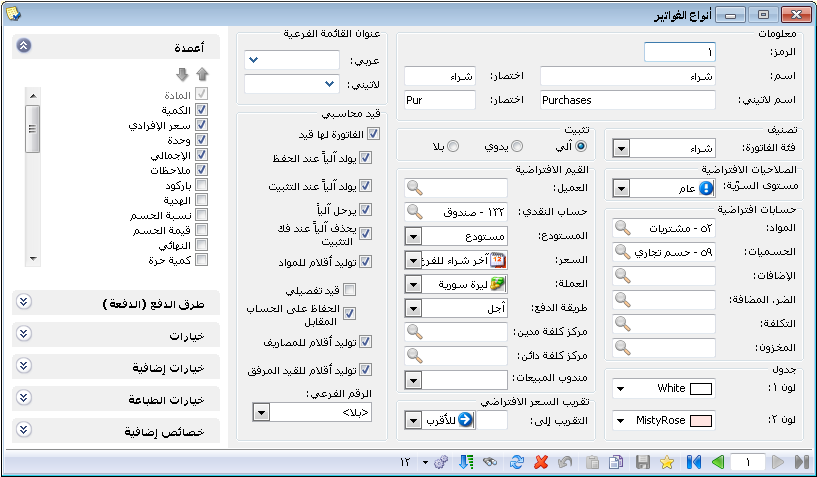
.
The resulting entry in this case is:
| Debit | Credit | Account |
| ××× | Purchases | |
| ××× | Cash |
.


