


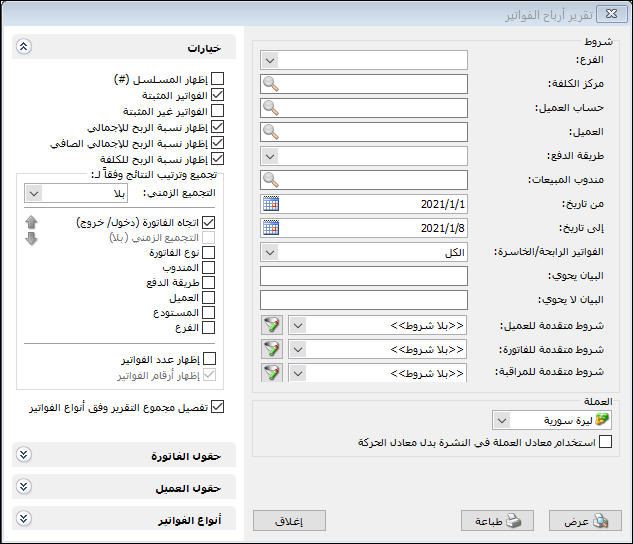
This report displays gross profit generated by each invoice. Choose Reports > Invoice Profits to open the conditions window with these fields:
.
Conditions: #
- Branch: Select the branch whose invoices should be displayed.
- Cost Center: Select a cost center to display invoices recorded for it.
- Customer Account: Select a customer account to display invoices carrying it in Customer Account.
- Customer: Select a customer to display invoices carrying that customer account.
- Payment Method: Select a payment method to display invoices using it.
- Sales Representative: Select a representative to display invoices sold by that representative and their profits.
- From Date / To Date: Specify a date range to include invoices dated within it.
Profitable / Loss-Making Invoices: #
Filter report results using these choices:
- All: Display profitable, loss-making and break-even invoices.
- Profitable Only: Display only profitable invoices.
- Loss-Making Only: Display only loss-making invoices.
- Break-Even: Display invoices whose selling price equals their cost.
Advanced Conditions: #
- Description Contains / Does Not Contain: Enter text to include or exclude invoices according to their descriptions.
- Advanced Invoice Conditions: Specify advanced invoice conditions to include matching invoices. These are explained in the Detailed Invoice Transactions report guide.
- Advanced Customer Conditions: Filter using information from customer records.
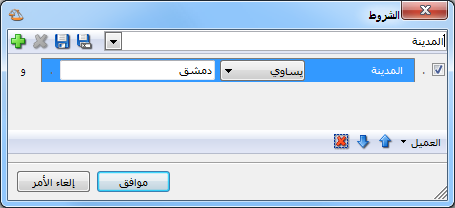
.
- Advanced Audit Conditions: Specify audit conditions such as invoices added or modified by a particular user.
- Currency and Exchange Rate: Select the report currency and its exchange rate relative to the base currency.
Options: #
The options section contains:
- Show Sequence Number: Display sequential report row numbers.
- Finalized Invoices: Include finalized invoices.
- Unfinalized Invoices: Include unfinalized invoices.
- Show Profit as a Percentage of Total: Display invoice net profit divided by invoice total.
- Show Profit as a Percentage of Net Total: Display invoice net profit divided by invoice net total.
- Show Profit as a Percentage of Cost: Display invoice net profit divided by invoice cost.
Group Results By: #
Group report results using one of the following options:
Time Grouping: None, Daily, Weekly, Monthly or Quarterly.
Invoice Direction
- Invoice Type
- Representative
- Payment Method
- Customer
- Warehouse
- Branch
- Show Invoice Count: Add a field showing the number of invoices in each group.
- Show Invoice Numbers: Add a field listing the invoice numbers in each group.
- Break Down Totals: Sum report fields below the report by invoice type. The following illustration separates the final total into Point-of-Sale Sales and Sales totals.
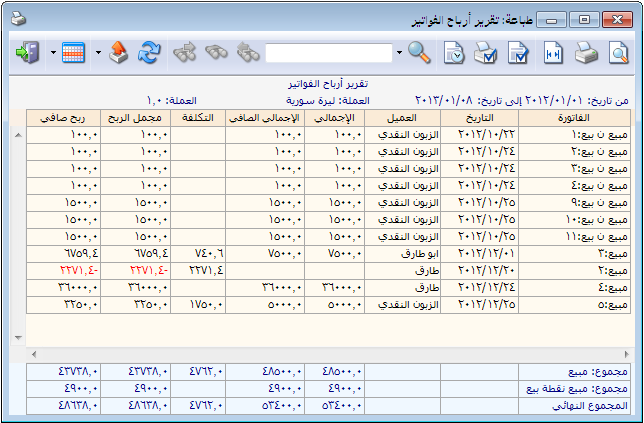
.
Invoice Fields: Choose invoice fields to display in the report.
Invoice Types: #
Only invoice types that affect profits appear in the type selection. More than one type may affect profits.
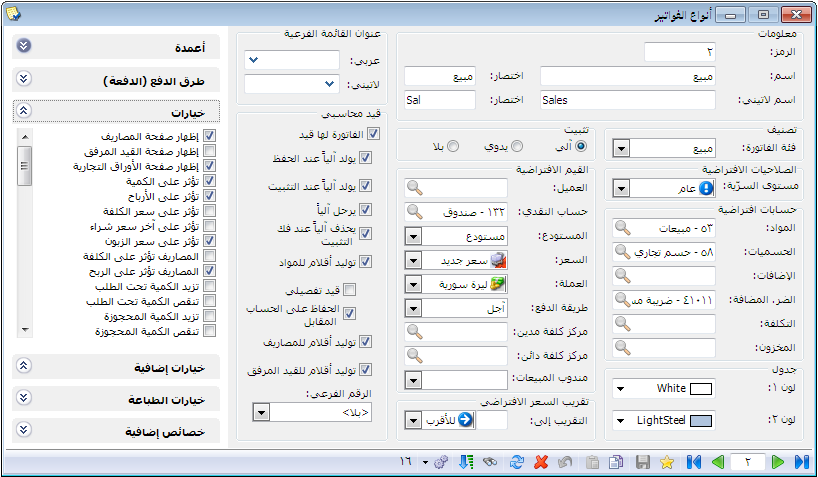
.
- Show: Display the report using the preceding conditions.
- Print: Click this button to print the final report.
- Close: Close the report conditions window.
Examples of Information Available from the Invoice Profit Report:
- Invoice profits showing total, net total, cost, gross profit, net profit and other selected fields.
- Profits from invoices sold by representative Imad.
- Profits from invoices sold to customer Hossam.
- Profits from cash invoices.
- Invoice profits with profit percentages relative to total, net total and cost.
- Profits from cash sales invoices during the first month whose Mr./Recipient field contains Ahmad.
.


