


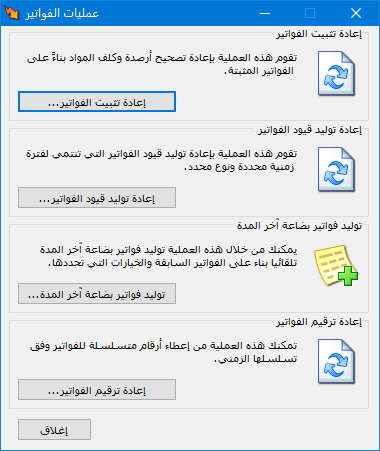
Open Items and select Invoice Operations. The window shown below contains the following operations:
.
.
Re-finalize Invoices #
This operation re-finalizes all invoices in the database. It recalculates item costs and updates item and invoice profit figures using the resulting costs. Cost inconsistencies can arise when invoices are entered out of sequence or saved invoices are changed. For example, changing an earlier purchase invoice does not automatically update item costs and profits in later transactions; Re-finalize Invoices is required to recalculate them. Run this operation periodically, or at least before requesting final accounts or reports on inventory valuation, item costs, and item or invoice profits.
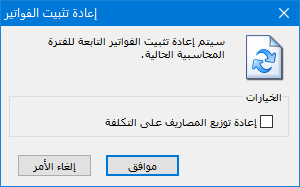
Click Re-finalize Invoices to open the following window, then click OK to run the operation. You can also enable Redistribute Expenses to Cost. These are expenses entered on the purchase invoice’s Expenses tab that affect item costs. The following illustration shows the Re-finalize Invoices window.
.
.
Regenerate Invoice Journal Entries #
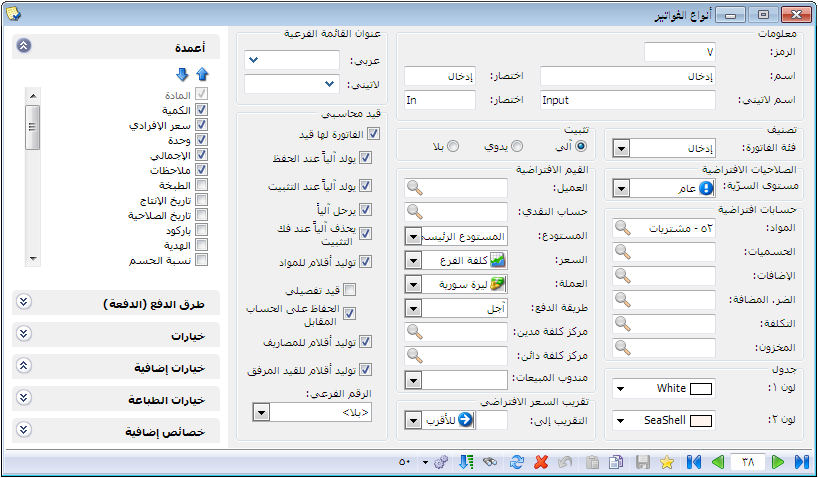
Use this window to regenerate invoice journal entries. You may need to change the accounting rules or structure applied to invoices. For example, an invoice originally used to receive goods without generating a journal entry can later be configured to generate one, as shown below.
.
.
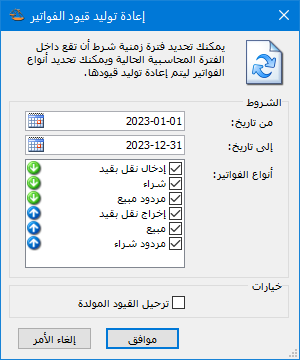
New journal entry settings apply automatically to invoices entered after the change, but not to invoices saved earlier. Use Regenerate Invoice Journal Entries to regenerate entries for those earlier invoices using the new settings. Select this operation from Invoice Operations to open the following window:
.
.
Conditions: #
From Date / To Date:
Set a date range to regenerate journal entries for invoices dated within that range.
Invoice Types: Select the invoice types whose journal entries should be regenerated, such as a goods receipt invoice.
Options — Post Generated Entries
Enable this option to post the entries generated by this operation.
Generate Closing Inventory Invoices #
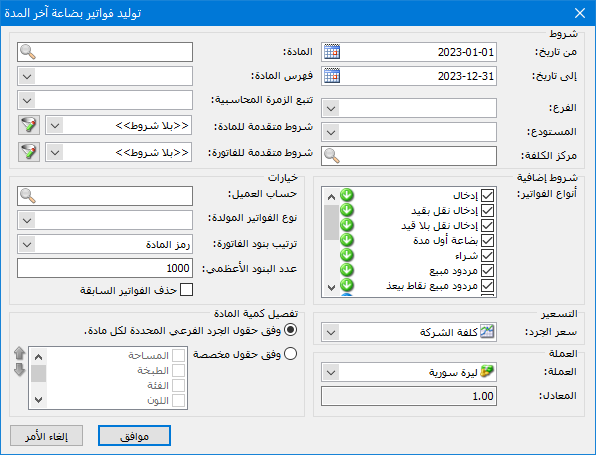
Use this window to generate an invoice representing closing inventory remaining in the warehouse. This is usually done at the end of an accounting period or financial year. When the database is rolled forward, the old database’s closing inventory invoice is automatically converted to an opening inventory invoice in the new database. Select Generate Closing Inventory Invoices from Invoice Operations to open the window shown below.
.
.
Conditions: #
From Date / To Date: Set a date range. Closing inventory is calculated from item movements in invoices dated within that range.
Branch: Select a company branch to generate closing inventory from invoices for warehouses belonging to that branch.
Warehouse: Select a warehouse to generate closing inventory from that warehouse’s invoices.
Cost Center: Select a cost center to generate closing inventory from invoices assigned to that cost center.
Item: Select an item to generate closing inventory for that item only.
Item Category: Select a category to generate closing inventory for items defined in that category only.
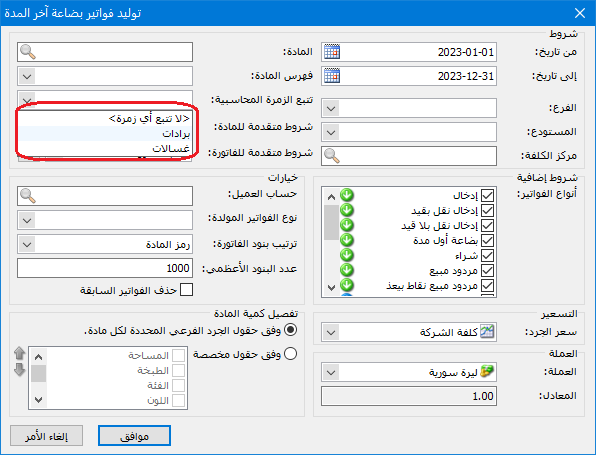
Accounting Group: If accounting groups are defined, the following options are available:
- No Accounting Group: Generate closing inventory invoices for items that do not belong to an accounting group.
- Defined Accounting Groups: Select a group to generate closing inventory invoices only for items belonging to that group.
The adjacent illustration shows these options.
.
.
Note: Leaving Accounting Group blank generates closing inventory invoices for all items, whether or not they belong to an accounting group.
Advanced Item Conditions: Set advanced item criteria to generate closing inventory only for items that meet those criteria.
Advanced Invoice Conditions: Set advanced invoice criteria to calculate closing inventory from invoices that meet those criteria.
Additional Criteria: #
Invoice Types: Select one or more invoice types. Closing inventory is calculated from items in those selected invoice types only.
Options: #
Customer Account: Enter an account, typically the Closing Inventory account classified under the Trading Account. This account is inserted into the Customer Account field of the generated invoice.
Generated Invoice Type: This is the type of invoice produced by the operation, typically Closing Inventory, with its final account classified under the Balance Sheet.
Invoice Line Order: #
Choose how items are sorted in the generated invoice. Three options are available.
- Item Code
- Item Name
- Category Code, Then Item Name
Maximum Number of Lines: Set the maximum number of item lines per generated invoice. For example, if the limit is 150 lines and there are 300 items, the operation creates two closing inventory invoices.
Delete Previous Invoices: Enable this option to delete previously recorded closing inventory invoices and retain only the invoices generated by this operation.
Inventory Valuation Price: Select the price used for the generated invoice, typically Company Cost.
Currency and Exchange Rate: Set the generated invoice currency and its exchange rate against the base currency.
Break Down By: Closing inventory can be broken down by area, batch, class, color, expiry date, factory code, height, length, size, production date, volume or width. For example, choosing Color creates separate lines for each item’s color breakdown.
Item Quantity Breakdown: #
Two options are available:
- Use the sub-inventory fields configured for each item to generate closing inventory according to the selections in its item card. These fields include area, batch, expiry date, factory code, height, length, color, size, production date, serial number, volume and width. For example, an item configured for sub-inventory by color and size is split into separate invoice lines for each color and size combination.
- Custom Fields: Select specific fields from the sub-inventory options configured in each item card, such as area, batch, class, color, expiry date, factory code, height, length, size, production date, volume or width. If an item uses color and size but only Color is selected here, separate lines are generated by color.
OK: Click this button to generate the invoice.
Cancel: Click this button to close the window without generating an invoice.
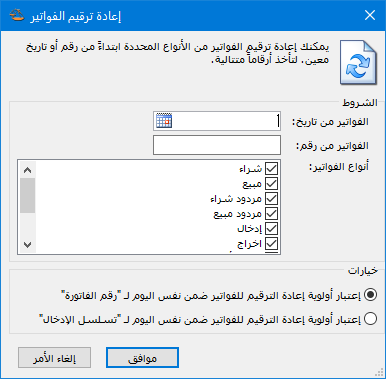
Renumber Invoices: #
Use this window to renumber invoices with the following settings:
- Invoices From Date: Select the start date for renumbering.
- Invoices To Date: Select the end date for renumbering.
- Invoice Types: Select the invoice types to renumber.
.
.


