


Before preparing closing accounts, companies commonly count warehouse stock to determine actual closing inventory. Differences can arise between recorded quantities and the physical count. The software supports inventory adjustments with or without generated accounting entries, according to the company process. Stock-in or stock-out invoices without entries adjust recorded quantities. An adjustment invoice that generates an entry, such as a purchase or sales invoice, records an accounting effect, for example when a relevant purchase or sale was omitted. Damage can also explain a difference. The illustrated damage invoice uses Damaged Goods as the item account, closing to Trading, and Damage Expense as the customer account, closing to Profit and Loss:
.
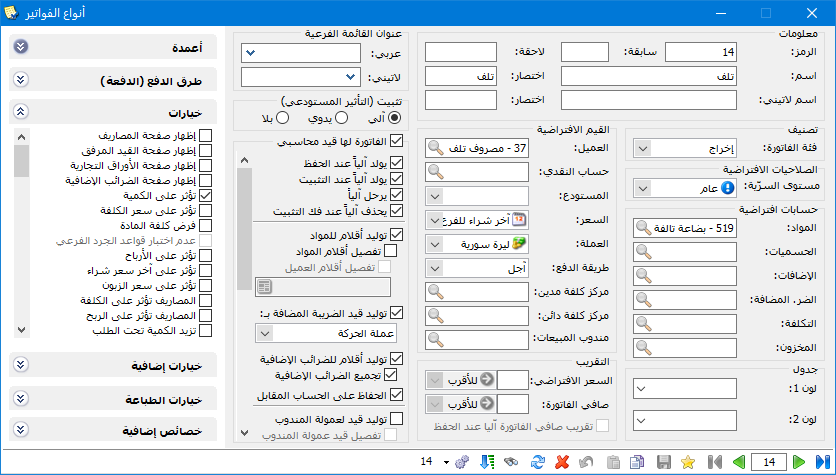
.
This invoice produces the following entry:
| Debit | Credit | Account |
| 10000 | Damage Expense | |
| 10000 | Damaged Goods |
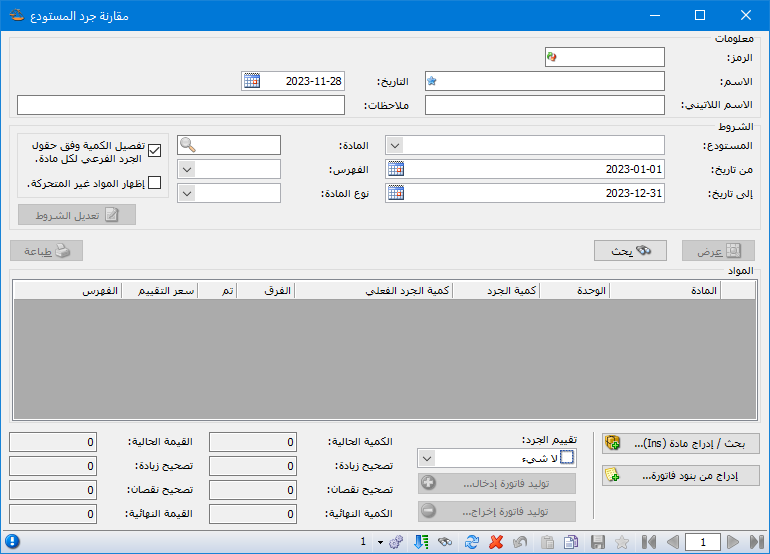
Automate the comparison through Items > Compare Warehouse Stocktakes. The following window contains these fields:
.
.
Information: #
- Code: A sequential code is assigned automatically if none is entered manually.
- Name: Enter the stocktake comparison name in Arabic.
- Latin Name: Enter the stocktake comparison name in English.
- Date: The date of the comparison.
- Notes: Enter general notes about the warehouse stocktake comparison.
Conditions: #
- Warehouse: Select the warehouse whose inventory should be reconciled.
- From Date / To Date: Specify a date range to display item stock based on transactions within that period.
- Item: Select an item if you want to reconcile only that item.
- Category: Select an item category to display only items within it.
- Item Type: Choose whether to display service items or physical items.
- Break Down Quantities by Each Item Subinventory Fields: Take into account the subinventory fields defined in each item record.
- Show Zero-Balance Items: Include items with a zero inventory balance.
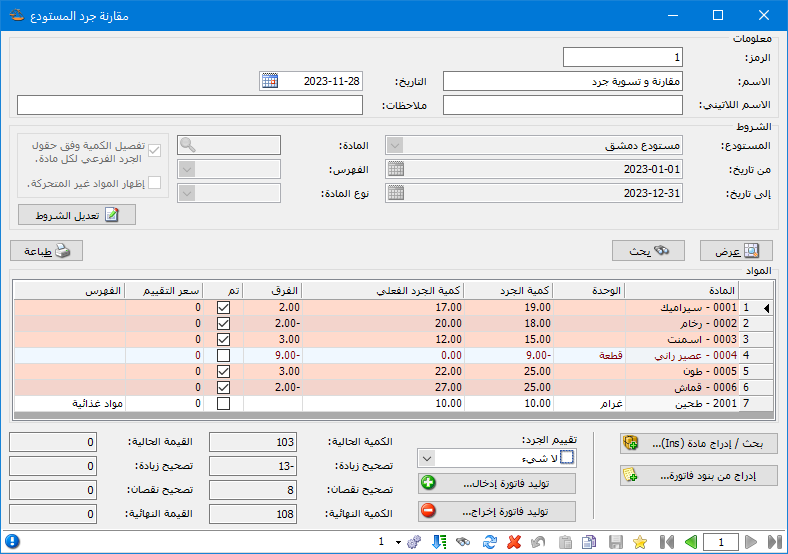
- Show Button:Click Show to display matching items and their recorded stock based on database transactions, as in the Stocktake Report. Enter the physical count in Actual Stock and mark the item as completed in Done. Then click Generate Stock-In Invoice when the actual count exceeds recorded stock, or Generate Stock-Out Invoice when it is lower, as shown below:
.
.
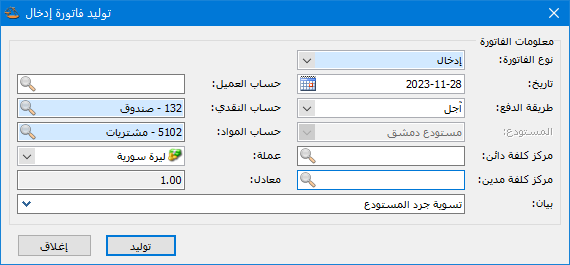
For example, Generate Stock-In Invoice opens a window where you select the invoice type used for reconciliation, invoice date, payment method, customer account, cash account and item account, as shown below:
.
.
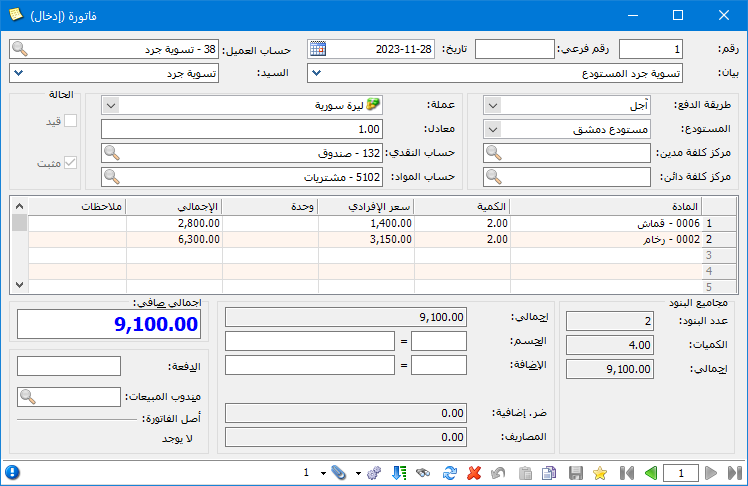
The following invoice is generated:
.
.
Search Conditions: #
- Find / Insert Item: Select a particular item to include in the warehouse comparison.
- Insert Lines from Invoice: Select an invoice type and number, then click Insert to add its items to the comparison table and compare their stock.
- Inventory Valuation: Select the price used to value the inventory being reconciled.
- Current Quantity: A read-only total of the current quantities in the window.
Table Values: #
- Increase Adjustment: The read-only quantity to add so that recorded stock matches the physical count.
- Decrease Adjustment: The read-only quantity to subtract so that recorded stock matches the physical count.
- Final Quantity: The read-only total of current quantity plus increase adjustments minus decrease adjustments.
- Current Value: A read-only total of the current values in the window.
- Increase Adjustment: The read-only value to add so that recorded inventory value matches the actual inventory value.
- Decrease Adjustment: The read-only value to subtract so that recorded inventory value matches the actual inventory value.
- Final Value: The read-only total of current value plus increase adjustments minus decrease adjustments.
.


