Fixed Asset Management defines and manages assets through purchases, acquisition costs, improvements, maintenance, disposal, sale, revaluation, damage and depreciation. It also organizes assets in a dedicated tree.
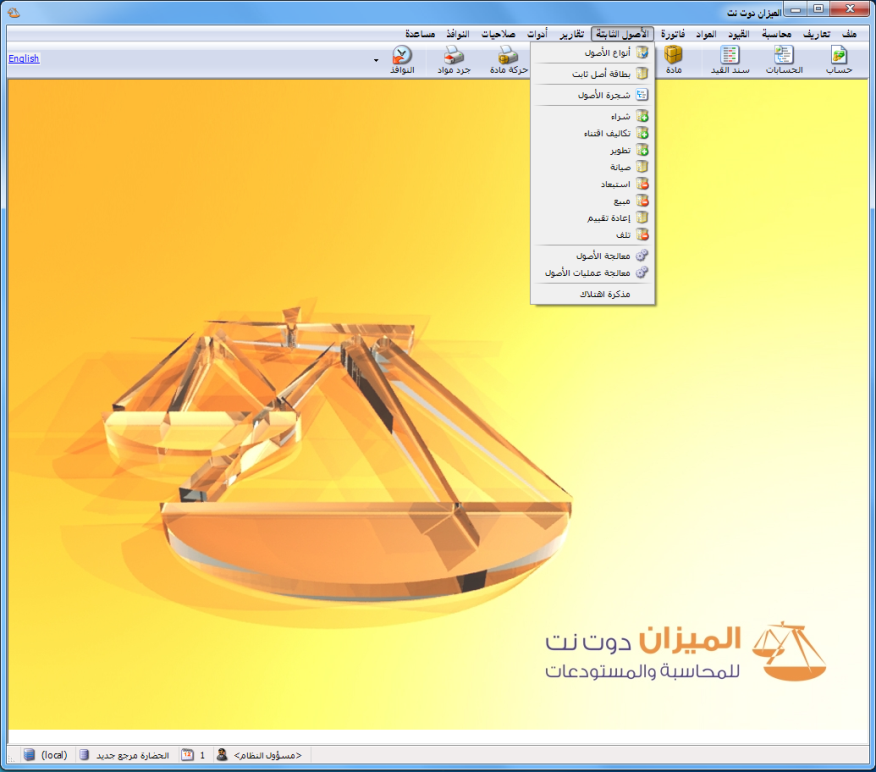
Open Fixed Assets to access the following tools, as illustrated below.
.
.
1Asset Types: #
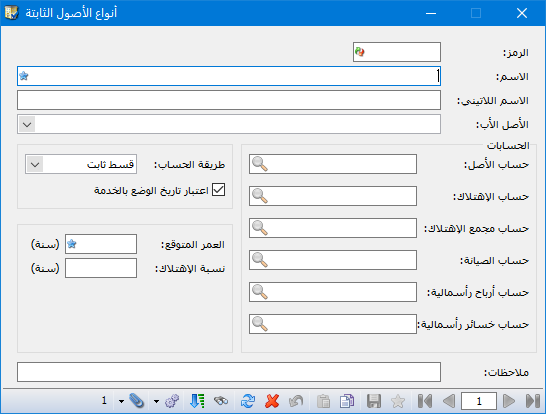
Define main asset categories, such as Buildings, Vehicles and Machines. Open Fixed Assets and Asset Types to display the following window.
.
This window contains the following fields:
Code: The asset type code, entered manually or assigned sequentially.
Name: The asset type’s Arabic name, such as Buildings.
Latin Name: The type name in Latin characters, such as Buildings.
Parent Asset: Select the parent account for the asset card.
Fixed Asset Accounts: #
Asset Account: The chart-of-accounts account for this asset type, such as Buildings.
Depreciation Account: The depreciation expense account for this type, such as Building Depreciation Expense.
Accumulated Depreciation Account: The account recording depreciation accumulated to date, such as Accumulated Building Depreciation. It is classified under the Balance Sheet and reduces the asset’s carrying amount; it does not itself represent cash reserved to replace the asset.
Maintenance Account: The expense account used for routine maintenance, such as Building Maintenance Expense.
Capital Gain Account: The account for gains on an asset’s sale or disposal.
Capital Loss Account: The account for losses on an asset’s sale or disposal.
Calculation Method: Select the depreciation method. The available method is Straight Line, spreading depreciation consistently over the asset’s estimated useful life. #
Estimated Useful Life: The period during which the asset is expected to be productive.
Use In-Service Date: When selected, depreciation begins on the in-service date rather than the purchase date. This allows an asset to be purchased before it is used. If the in-service date is earlier than purchase, the program uses the purchase date instead.
After entering these details, the window appears as shown below.
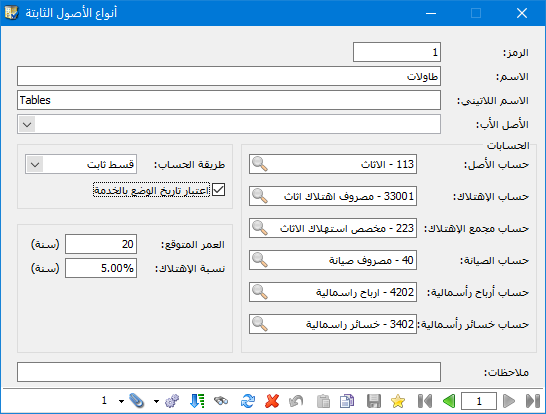
.
Save the asset type, then click New to add other types, such as Vehicles or Machines.
Alternatively, open Fixed Assets and Asset Tree, select the tree root and click Type on the toolbar to define a new asset type.
2. Fixed Asset Card #
After defining categories, add the individual assets within them. Buildings may include factory, marketing and administration buildings; Vehicles may include Mazda and Nissan cars; Machines may contain several named machines. Define a separate card for each asset.
Open Fixed Assets and Fixed Asset Card. Select the main asset type to retrieve its previously defined accounts automatically, as illustrated below.
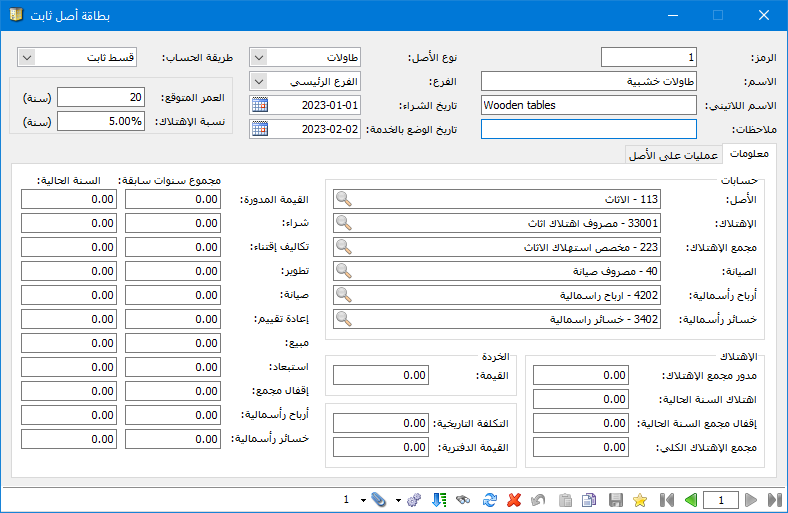
.
Alternatively, select the asset type in Asset Tree, such as Buildings, then click Asset on the toolbar or right-click the type and choose
Add Fixed Asset. The new card is prefilled with the selected type’s accounts, as illustrated below.
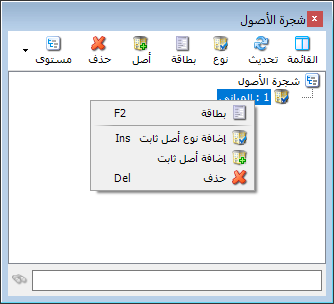
.
Complete the card using the following fields:
Code: The asset code, entered manually or assigned sequentially.
Name: The asset’s Arabic name, such as Administration Buildings.
Latin Name: The asset name in Latin characters, such as Administration Buildings.
Asset Type: Select the main type, such as Buildings. Its accounts, defined in Asset Types, are retrieved automatically. #
Calculation Method: Straight Line depreciation.
Branch: Select the branch containing the asset and responsible for its accounting.
Purchase Date: The date the asset was acquired.
In-Service Date: The date the asset becomes available for use and depreciation begins under the configured settings.
Estimated Useful Life: The period during which the asset is expected to be productive.
Depreciation Rate: Enter a percentage manually or derive it from the asset’s useful life.
Notes: Enter notes in this field.
The following illustration shows these fields.

.
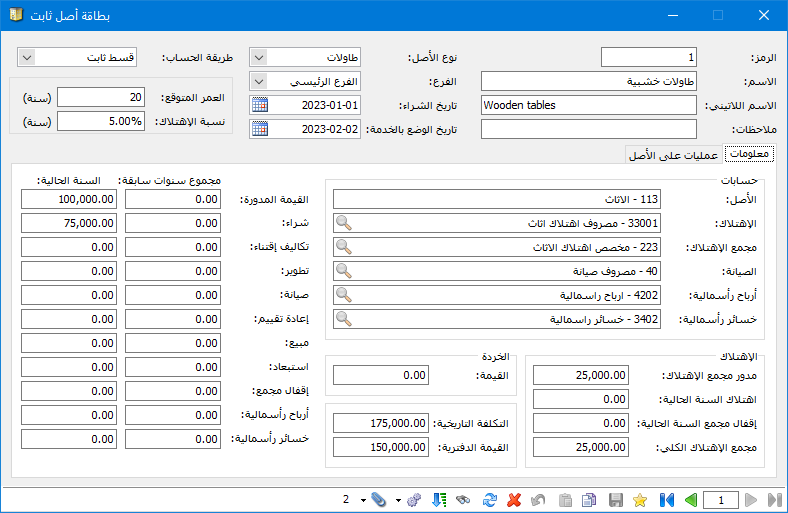
Information Tab: Contains the accounts used for asset operations. Selecting an asset type retrieves its accounts, but you can change any or all of them to track this asset separately from its type. The following illustration shows this.
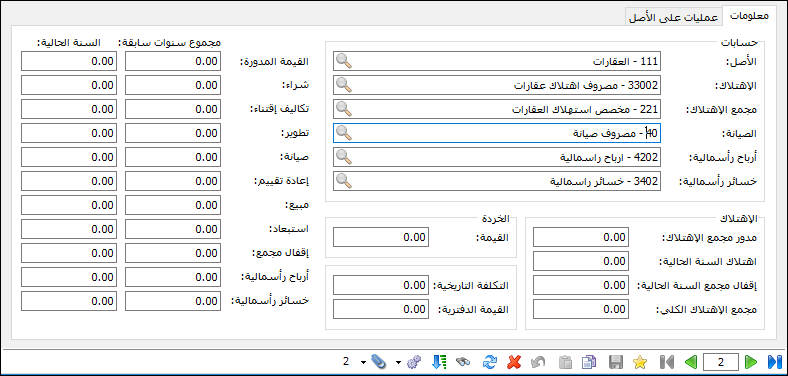
.
Enter the asset’s residual or scrap value, expected to remain at the end of its useful life.
This tab also contains automatically calculated statistics for asset operations, including purchases and sales. These fields are summarized below.
Depreciation Fields: #
- Carried-Forward Accumulated Depreciation: Depreciation from earlier years carried into the opening entry.
- Current-Year Depreciation: Depreciation expense calculated in the depreciation memo for the current accounting period.
- Current-Year Accumulated Depreciation Closed: Accumulated depreciation removed for assets sold, damaged or disposed of during the current year.
- Total Accumulated Depreciation: Carried-forward accumulated depreciation plus depreciation for the current accounting period.
- Residual Value: The asset’s expected remaining value at the end of its useful life.
- Historical Cost: The asset value recorded in its General Ledger account, or the balance resulting from movements in that account.
- Carrying Amount: The asset’s net book value after deducting accumulated depreciation.
Operation Fields: #
Carried-Forward Value: #
Current Year: The asset value carried into this year’s opening entry.
Previous Years Total: Asset values carried forward in previous years.
Purchase: #
Current Year: Asset purchases recorded this year.
Previous Years Total: Asset purchases recorded in previous years.
Acquisition Costs: #
Current Year: Costs incurred this year to acquire the asset.
Previous Years Total: Acquisition costs incurred in earlier years.
Improvement: #
Current Year: Costs incurred this year to extend useful life, increase production capacity or substantially improve output quality.
Previous Years Total: Such improvement costs incurred in earlier years.
Maintenance: #
Current Year: Costs incurred this year to maintain the asset’s output quantity and quality.
Previous Years Total: Maintenance costs incurred in earlier years.
Revaluation: #
Current Year: Increases or decreases in asset value recorded this year.
Previous Years Total: Revaluation amounts recorded in earlier years.
Sale: #
Current Year: Historical cost of assets or asset components sold this year.
Previous Years Total: Historical cost of assets or components sold in earlier years.
Disposal: #
Current Year: Historical cost of assets or components disposed of or damaged this year.
Previous Years Total: Historical cost of assets or components disposed of or damaged in earlier years.
Accumulated Depreciation Closure: #
Current Year: Accumulated depreciation removed for assets sold, disposed of or damaged this year.
Previous Years Total: Accumulated depreciation removed for such assets in earlier years.
Capital Gains: #
Current Year: Gains generated by asset operations, such as sales, this year.
Previous Years Total: Gains generated by asset operations in earlier years.
Capital Losses: #
Current Year: Losses from asset operations such as sale, damage or disposal this year.
Previous Years Total: Losses from asset operations in earlier years.
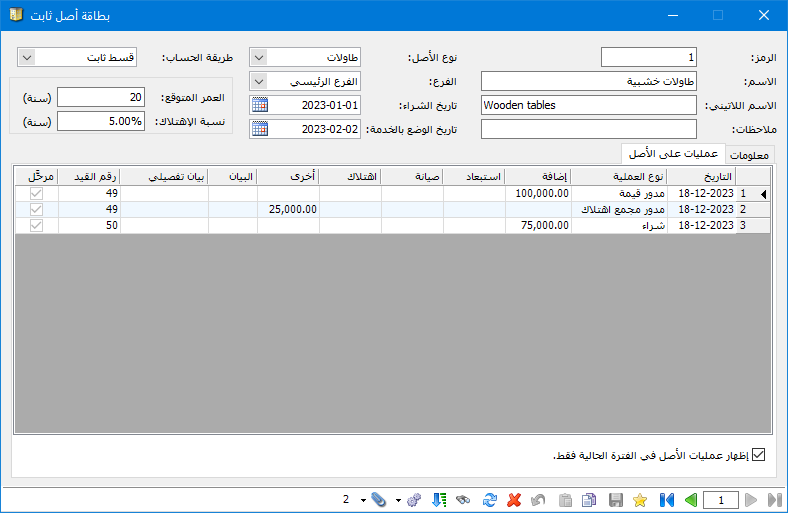
Operations Tab: Lists all asset operations from the first transaction to today, with the following fields.
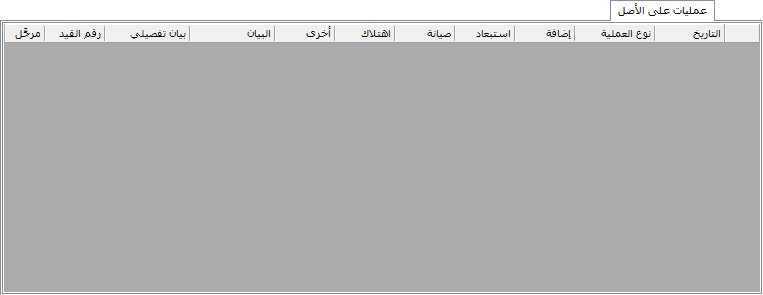
.
- Date: The asset operation date.
- Operation Type: Its classification, such as sale, purchase or damage.
- Addition: The amount for carried-forward asset value, purchase, acquisition costs, improvement or upward revaluation.
- Disposal: The amount for disposal, sale, damage or downward revaluation.
- Maintenance: The amount for a maintenance operation.
- Depreciation: The amount for a depreciation operation.
- Other: The amount for carried-forward accumulated depreciation, capital gains, capital losses or accumulated depreciation closure.
- Description: The description entered in the operation window, explained later.
- Detailed Description: The secondary description entered in the operation card.
- Code: The operation number from its card.
- Posted: Whether the operation’s journal entry has been posted.
Show Asset Operations in Current Period Only: Enable to exclude earlier periods; clear to show all periods.
- Asset Card Toolbar: Record navigation, New, Save, Copy, Paste, Undo, Delete, Refresh, Search, Filter and Sort.
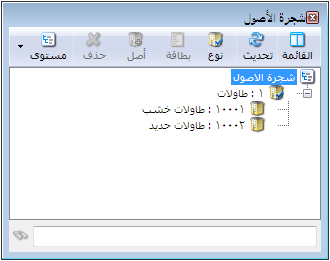
3. Asset Tree #
Displays the company’s asset types and their individual assets in a hierarchy similar to the Chart of Accounts or Item Tree, as illustrated below.
4-Main Asset Operations: #
Carried-Forward Asset Value: Carry asset value through the opening journal entry. Opposite the carried value, select the fixed asset and the Carried-Forward Asset Value operation. #
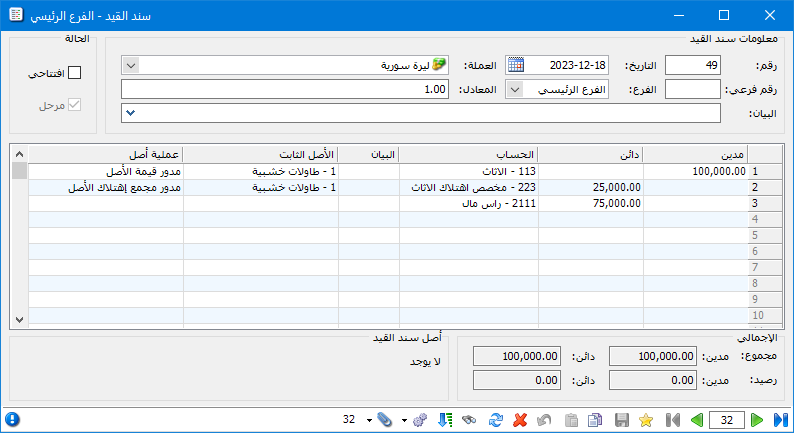
Carried-Forward Accumulated Depreciation: Carry accumulated depreciation through the opening entry as well. Opposite its balance, select the asset and Carried-Forward Accumulated Depreciation. #
For example, carrying forward Wooden Tables with a cost of 100,000 and accumulated depreciation of 25,000 produces the opening entry shown below.
.
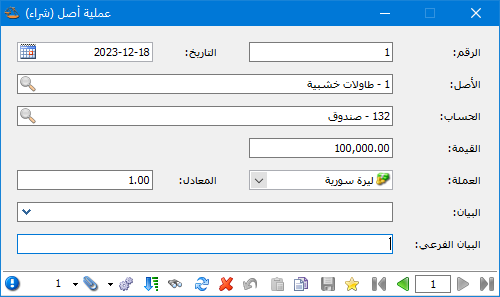
Purchase: To purchase an asset or an additional component, open Fixed Assets and Purchase, then enter the following details. #
Number: Enter the purchase operation code manually or let the program assign a sequential number. #
Date: The purchase date. #
Asset: Select the asset defined in Asset Tree or its card. #
Account: The payment counterpart, such as Suppliers, Cash or Notes Payable. #
Amount: The amount paid or payable to purchase the asset. #
Currency and Exchange Rate: Specify these when using a currency other than the base currency. #
Description and Secondary Description: Enter text relevant to this purchase. #
After entering the data, the purchase operation card appears as shown below.
.
Return to the asset card’s Information and Operations tabs to see the purchase value reflected there, as illustrated below.
.
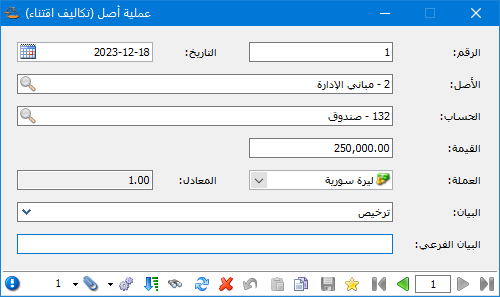
Acquisition Costs : Record costs incurred to acquire fixed assets through Fixed Assets and Acquisition Costs. Its fields follow the same approach as Purchase, as illustrated below. #
.
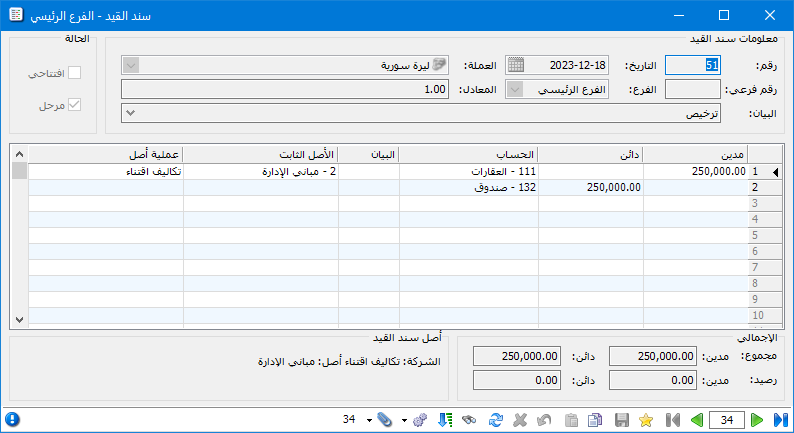
The resulting acquisition-cost entry is shown below.
.
Improvement : Record amounts spent to improve a fixed asset, extending its useful life, increasing capacity or substantially improving output quality. The following illustrations show the operation and its journal entry. #
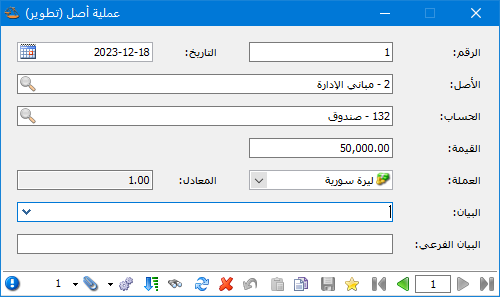
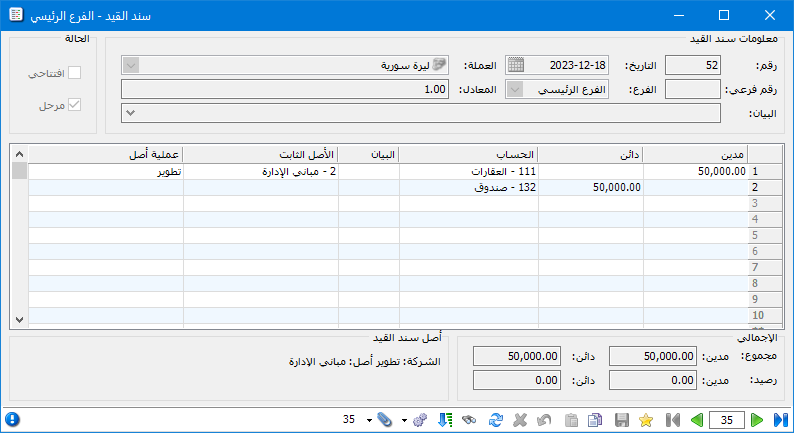
.
Maintenance: Maintenance costs preserve efficient asset operation. Open Fixed Assets and Maintenance and enter the details in the same manner described above. The operation and resulting journal entry are shown below. #
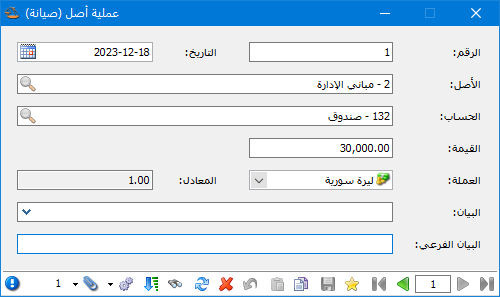
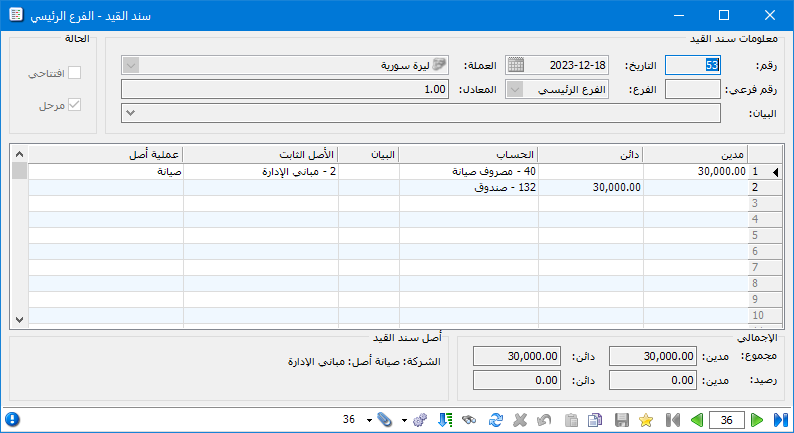
.
Disposal: Disposal removes part or all of an asset from the accounting records. Its value is transferred to the Disposed Assets clearing account for subsequent adjustment entries. Open Fixed Assets and Disposal and enter the asset, amount and notes. The operation and resulting entry are shown below. #
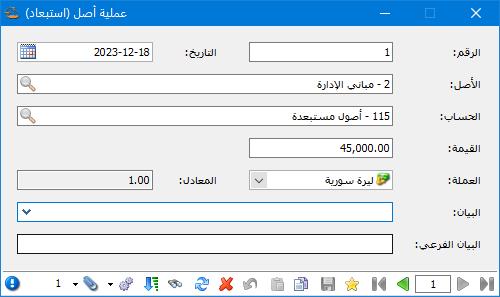
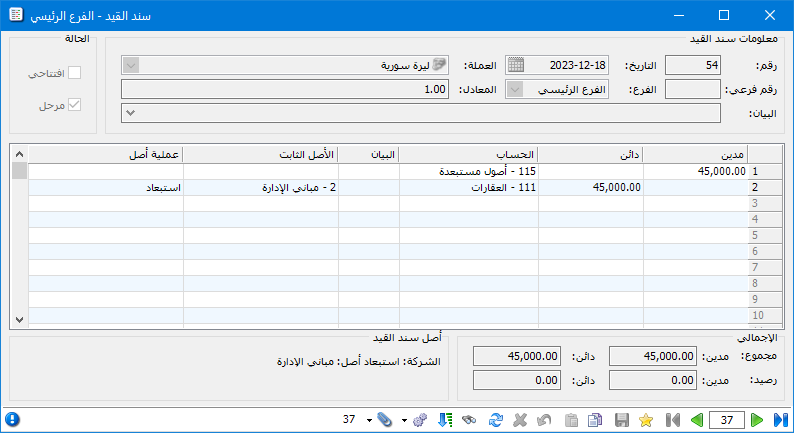
.
Sale:Record the historical cost of the asset or component sold, rather than the proceeds, in the operation window. The counterpart is a clearing account, Sold Assets. A subsequent entry records the related accumulated depreciation, sale proceeds and any gain or loss. The operation and entry are shown below. #
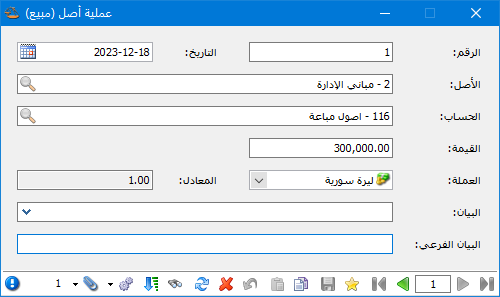
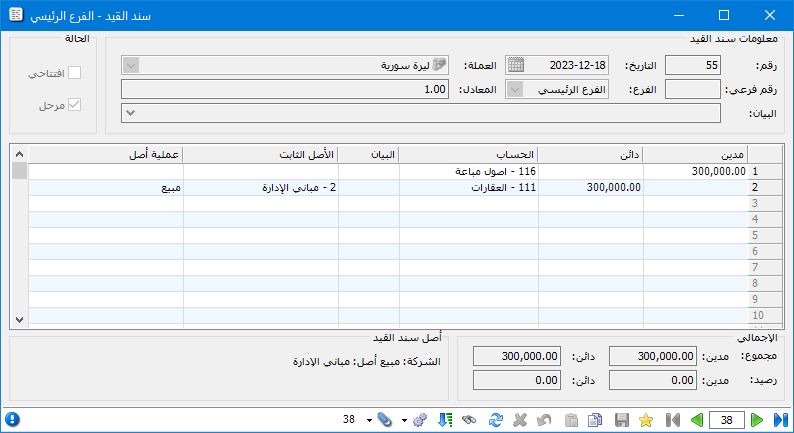
.
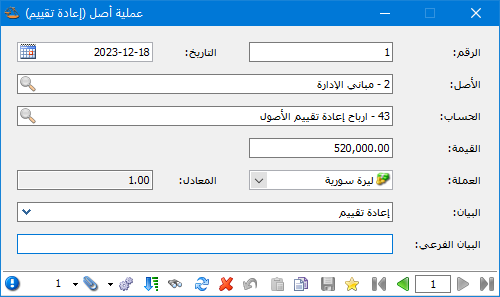
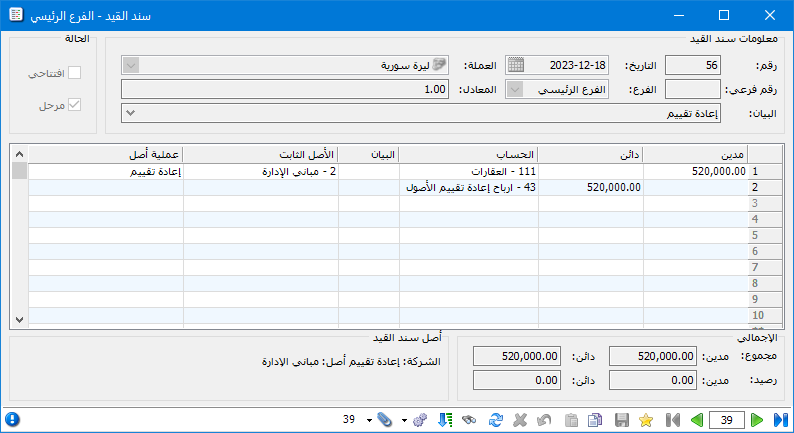
Revaluation: Increase or decrease the asset’s recorded value. #
An upward revaluation produces the following operation and journal entry.
.
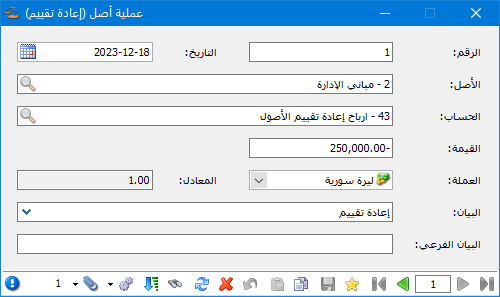
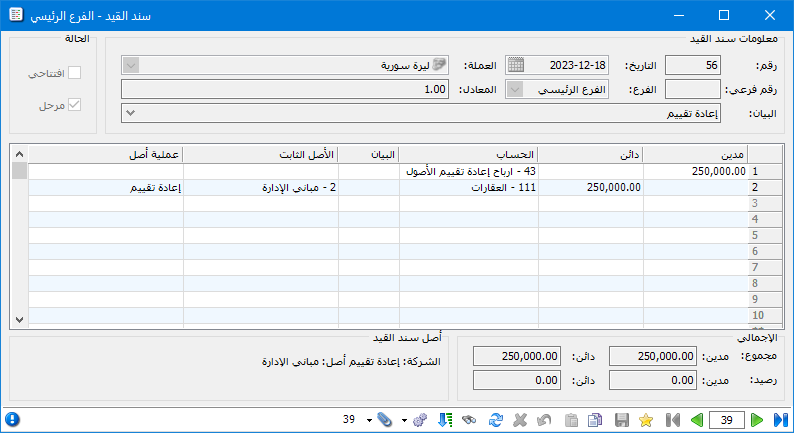
A downward revaluation produces the following operation and journal entry.:
Note:
For a downward revaluation, enter the amount as a negative number.
Damage: When an asset becomes unusable, transfer its recorded value to a Damaged Assets clearing account, then process the necessary adjustment entry. The operation and entry are shown below. #
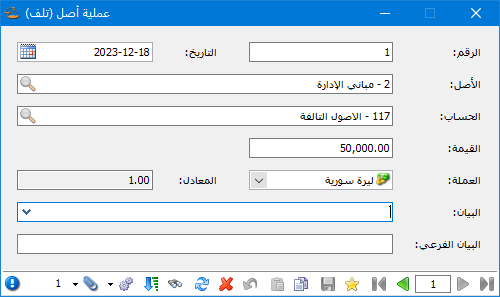
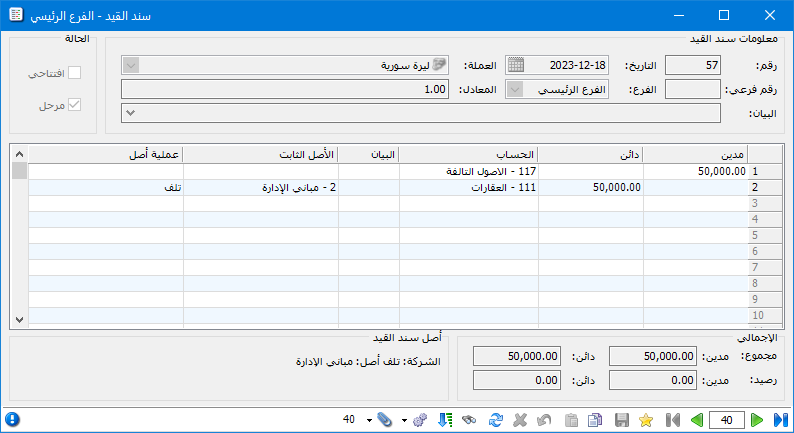
.
Close Accumulated Depreciation: Remove the related accumulated depreciation when an asset is sold, damaged or disposed of. Consider the following example. #
Suppose the component sold has a historical cost of 1,825 and accumulated depreciation of 65, and is sold for SYP 1,760. Record the following entry, selecting the asset and Close Accumulated Depreciation beside the amount being removed.
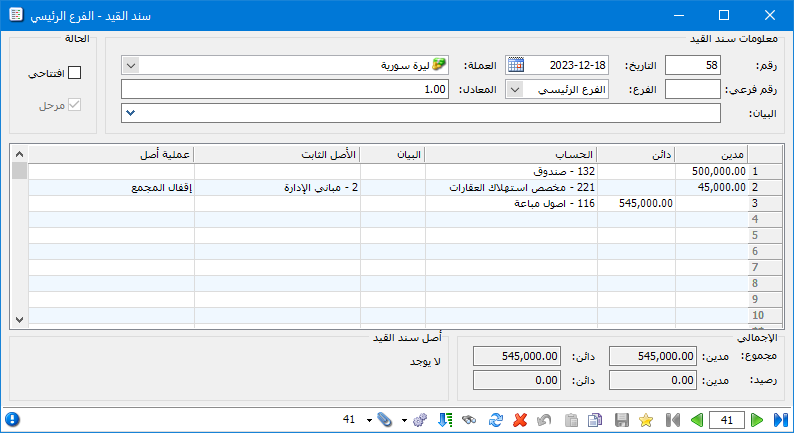
.
Capital Gains / Capital Losses : Gains or losses may arise when an asset is sold, damaged or disposed of. #
In the previous example, selling for 1,750 creates a loss of 10; selling for 1,780 creates a gain of 20. Record the gain or loss and select the corresponding asset and asset operation.
Important Note 1:
Carried-forward asset value, carried-forward accumulated depreciation and accumulated depreciation closure were recorded through Journal Voucher. Other operations used the dedicated Fixed Assets windows, which generate entries and populate Fixed Asset and Asset Operation automatically.
You can also enter these operations manually through Journal Voucher by recording the entry and selecting the fixed asset and operation.
Important Note 2:
For manually entered asset operations, the journal account must match the account configured in the asset card for that operation. For example, selecting a Kia Vehicle while using a Furniture purchase account triggers a mismatch warning. Correct the account or asset; the warning also offers to change the account to match the asset card, as illustrated below.
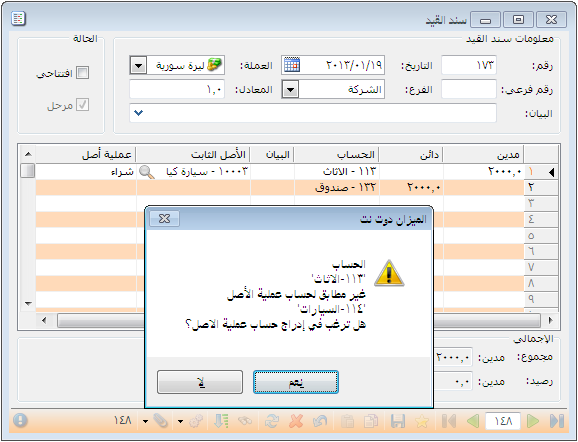
5. Process Assets #
This window summarizes operations on selected assets. Open Fixed Assets and Process Assets to display the following fields.
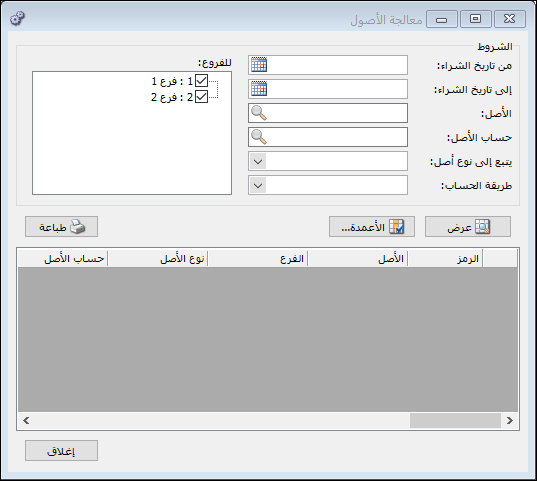
.
From Purchase Date / To Purchase Date : Set a date range for the assets to display.
Asset : Select an asset from Asset Tree or its card.
Asset Account: Select the asset account used in the Balance Sheet.
Belongs to Asset Type: Select the type containing the assets to display.
Calculation Method: The depreciation calculation method, here Straight Line.
Branches: Select the branch whose assets should be displayed.
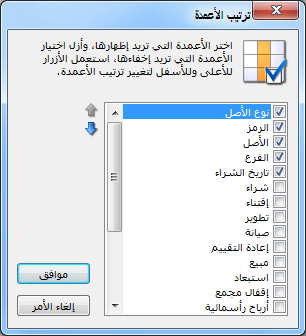
Columns: Open the columns window and enable the asset information columns required in Process Assets, as illustrated below.
Assets appear in the window as follows.
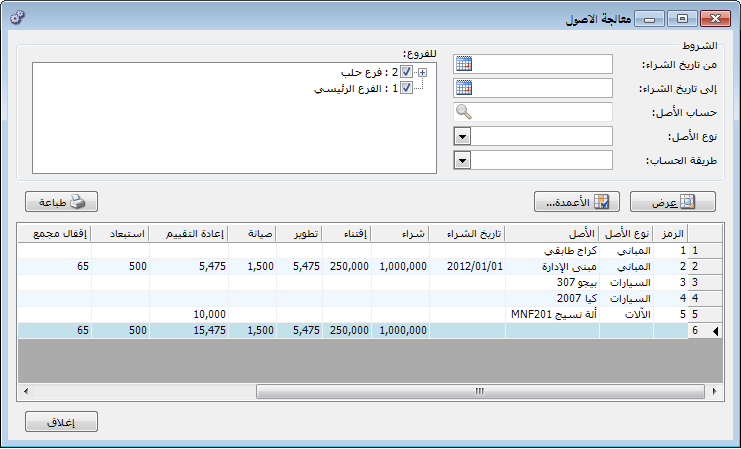
6. Process Asset Operations #
Display all fixed asset operations or filter them using the following criteria.
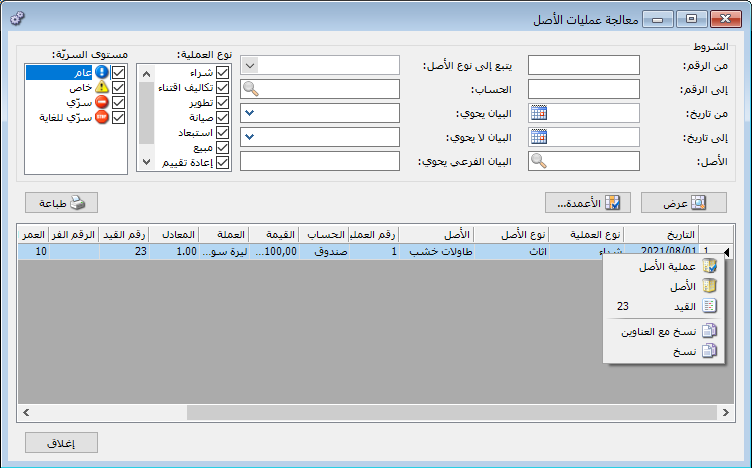
From Number / To Number: Set a number range to display operations numbered within it.
From Date / To Date: Set a date range to display operations dated within it.
Asset: Select the asset whose operations should be displayed.
Belongs to Asset Type: Select an asset type to display operations for assets belonging to it.
Account: Select the counterpart account used in operations, such as Cash. It appears as Account in the operation card.
Description Contains / Description Does Not Contain / Secondary Description Contains: Enter words to filter operations according to their main or secondary descriptions.
Operation Type: Select the types to display, such as Purchase or Depreciation.
Confidentiality Level: Select the confidentiality level of asset operations to display.
Columns: Choose the columns to display and their order.
After displaying operations, right-click a row to open its operation card, journal entry or associated asset card, as shown above.
7. Depreciation Memo #
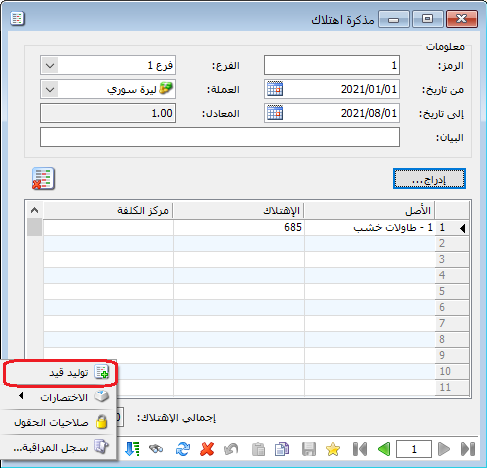
Calculate fixed asset depreciation with the selected options, taking account of dates and amounts from previous purchases, sales and carried-forward values. Open Fixed Assets and Depreciation Memo to display the following fields.
- Code: The memo code, entered manually or assigned sequentially.
- From Date / To Date: The period for which depreciation is calculated.
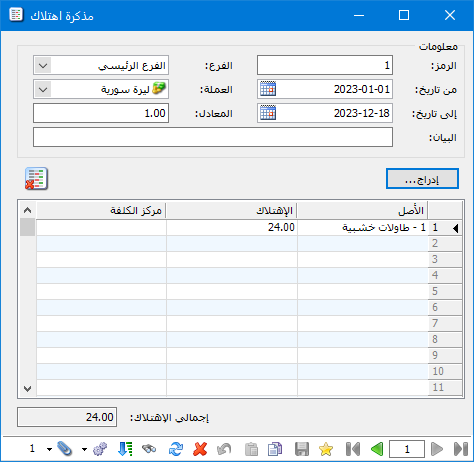
- Branch : The branch in which the depreciation entry is recorded.
- Currency and Exchange Rate : Set these to calculate depreciation in a currency other than the base currency.
- Description : Enter text relevant to this depreciation memo.
- Insert : Click to choose the assets to depreciate in the following window.:
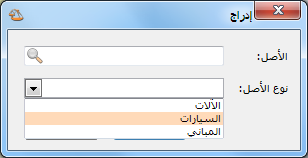
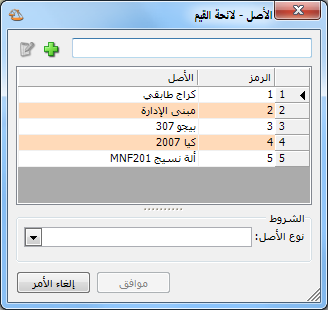
Select an asset type and click Insert to calculate depreciation for all its assets. Alternatively, press F4 or click the lookup icon in Asset, then select an individual asset, as illustrated below.
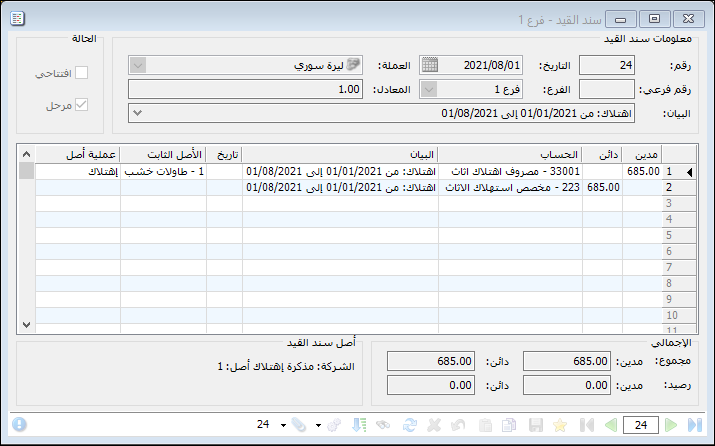
After adding assets and saving the memo, choose Operations and Generate Entry, then open and post the entry, as illustrated below.