


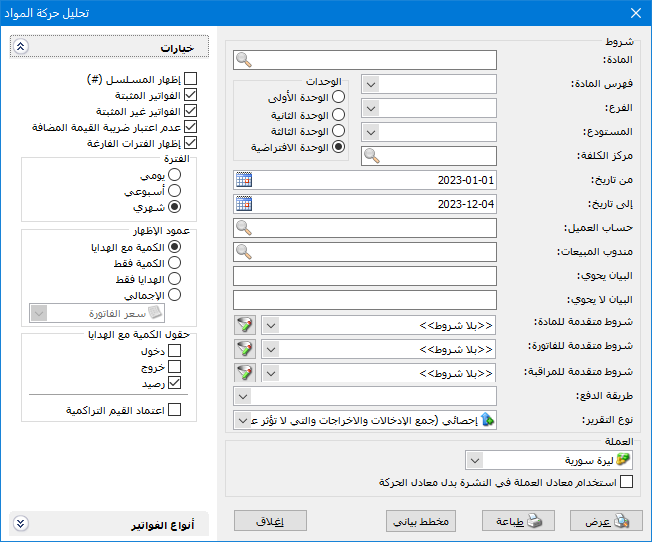
This report tracks changes in the activity of an item or group of items across periods specified by the user. Rows represent time periods rather than individual items, allowing you to analyze transactions over time. The criteria window contains the following fields:
.
Conditions: #
- Item: Select an item to analyze its transactions.
- Item Category: Select an item category to analyze its transactions.
- Branch: Select a branch to analyze item transactions in its warehouses.
- Warehouse: Select a warehouse to analyze item transactions in that warehouse.
- Cost Center: Select a cost center to analyze item transactions associated with it.
- From Date / To Date: Specify the report date range.
- Units: Select the unit used to display the report.
- Customer Account: Select a customer or supplier account to analyze item transactions from that account’s invoices.
- Sales Representative: Select a sales representative to analyze transactions from invoices associated with that representative.
- Description Contains: Enter text to include invoices whose description contains that text.
- Description Does Not Contain: Enter text to exclude invoices whose description contains that text.
Advanced Conditions: #
- Advanced Item Filters: Set item filters, such as specifications, class, source or origin, to include only matching items.
- Advanced Invoice Conditions: Set invoice header or invoice line filters to include only matching transactions.
- Advanced Audit Conditions: Set audit filters, such as invoice creation date or creator, to include only matching transactions.
- Payment Method: Select a payment method: Cash, Credit or Commercial Paper. Only invoices using that method are included.
Report Type: Two options are available: #
- Statistical (Add Receipts and Issues): Statistical mode adds receipt and issue quantities to measure transaction activity. For example, purchasing 3 units at 100 lira each and selling 1 unit at 200 lira produces a statistical quantity of 4 units. Their reported value is calculated using the price selected in the Inventory Valuation Price field.
- Inventory (Subtract Issues from Receipts): Inventory mode subtracts issues from receipts. For example, purchasing 3 units at 100 lira each and selling 1 unit at 200 lira produces an inventory quantity of 2 units. Their value is calculated using the inventory valuation price selected in the next field.
Currency: #
Select the currency in which the report should be displayed.
Exchange Rate: Specify the rate relative to the base currency. This field is available only for a secondary currency and offers two choices:
- Use the Exchange-Rate Schedule: Retrieve exchange rates automatically from the schedule, using the rate applicable on each transaction date.
- Use a Specified Exchange Rate: Enter a rate in the field that appears and use it to display the report.
- Use the Scheduled Currency Rate Instead of the Transaction Rate: Use the rate from the exchange-rate schedule instead of the rate entered in the original transaction. This option is used when requesting the report in the base currency.
Options: #
The options section contains:
- Show Sequence Number: Display sequential row numbers in the report.
- Finalized Invoices: Enable this option to include transactions from finalized invoices.
- Unfinalized InvoicesEnable this option to include item transactions from unfinalized invoices.
- Exclude Value Added TaxEnable this option to exclude VAT when calculating values.
- Show Empty Periods: Enable this option to display periods with no item transactions. Disable it to hide them.
Period: #
Choose the reporting interval. Daily results use one row per day; weekly results aggregate each week into one row; monthly results aggregate each month into one row:
(Daily, Monthly, Weekly)
Display Columns: #
The following quantity display options are available:
Quantity Including Free Units: Enable this option to combine the main quantity and free units in one column.
Quantity Only: Enable this option to display the main quantity separately from free units in the
report.
Free Units Only: Enable this option to display free units separately from the main quantity in the
report.
TotalEnable this option to display the Total column.
Inventory Valuation Price: Select the pricing method used to value the items in the Total column.
Total Fields: #
Choose which of the following three measures to display:
ReceiptsThe quantity or value of incoming transactions.
IssuesThe quantity or value of outgoing transactions.
BalanceThe difference between receipts and issues.
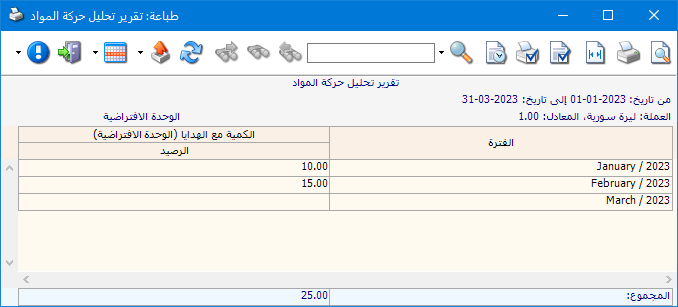
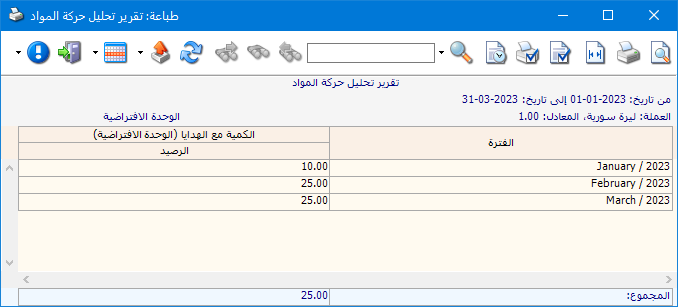
- When cumulative values are enabled, each period includes the quantities from preceding periods. For example, if issues are 10 units in the first month and 15 in the second, cumulative issues for the second month are 25 units. The following images illustrate the difference:
The report with Use Cumulative Values disabled
.
The report with Use Cumulative Values disabled
.
Invoice Types: #
Select the required invoice types. Choose only sales invoices to analyze sales transactions, or only purchase invoices to analyze purchases.
Show: #
Use this button to display the report using the selected criteria.
Print: #
Click this button to print the final report.
Chart: #
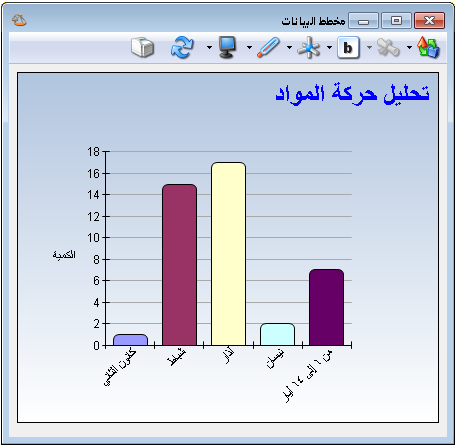
Use this button to display the report as a chart.
Close: #
Close the report conditions window.
The following images illustrate the available chart presentation:
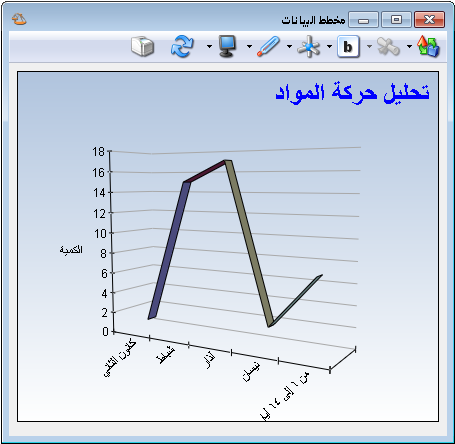
.
Practical examples of information available from the Item Transaction Analysis report:
- Monthly analysis of Cotton sales by value during the first six months.
- Weekly analysis of purchases in the Household Goods category by quantity during the first month.
- Analysis of Sugar sales quantities during the first six months, showing receipts, issues and balance.
- Analysis of Cotton sales quantities for the customer Tareq.
- A chart showing increases and decreases in Cotton sales during a one-month period.
.


