


The task list reminds users of tasks to complete and issues to resolve later. It also lets a user send a task or note to another user or a group. Choose Tools > Task List to open it.
The following window appears:
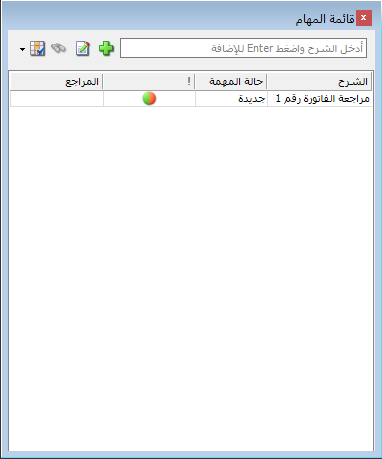
Enter a task description in the empty box and press Enter to add it. Open its record by double-clicking the row, or select the row and click Edit Task, as shown below:
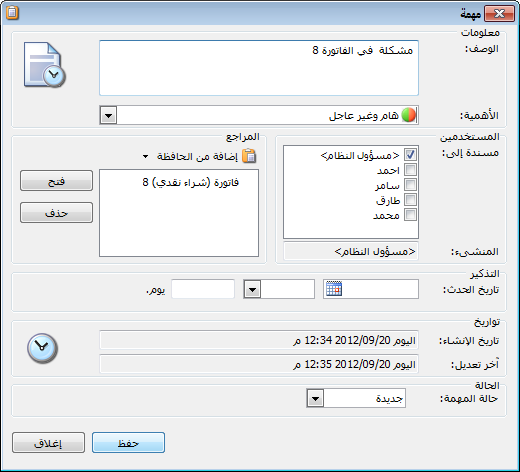
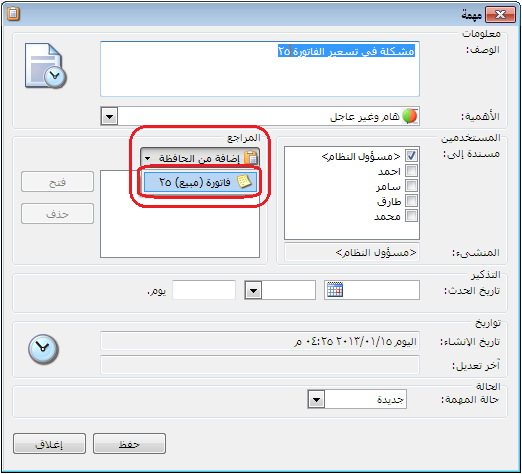
Clicking Edit Task opens the task record with these fields:
Information #
Description: Enter text identifying the task, such as an issue to resolve later or a task assigned to another user.
Importance: Arrange tasks by importance. Four levels are available: Important and Urgent, Important and Not Urgent, Not Important and Urgent, and Not Important and Not Urgent.
Users: #
Select the users whose task lists should display this task.
Created By: Displays the user who created the task.
Created On / Last Modified: Displays the task creation and last modification dates.
Task Completed: Enable this option when the task is finished and no longer needs attention.
Add from Clipboard: #
Clipboard links let you return directly from the task list to a related software record without searching for it. Consider the following example:
Suppose a user is preparing a customer sales invoice and needs to check an item price with a responsible person before finalizing it. To remember the issue and return easily to the invoice, proceed as follows:
Copy Shortcut #
Choose Operations > Copy Shortcut in the invoice, as shown below:
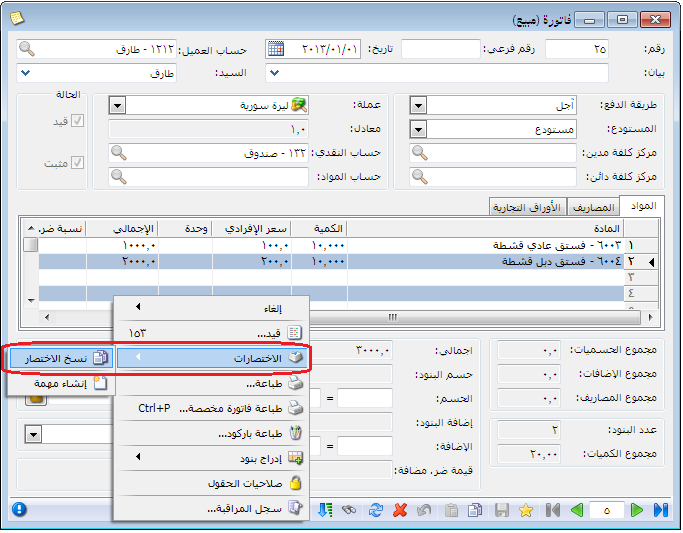
Return to the task list, enter a description such as Pricing Issue in Invoice 25 in the empty box and press Enter to add the task.
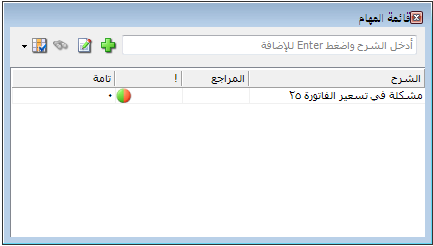
Open the task record, click Add from Clipboard and select the required invoice. It appears in the side panel, as shown below:
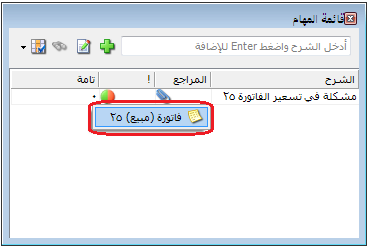
You can then return directly to the invoice from the main task list by clicking the attachment icon on the task row, as shown below:
Note: You can attach many types of records, including items, accounts, journal entries, invoices and commercial papers.


