


Importing item and account records from Excel is a useful Al Mizan .NET feature. The process is straightforward and flexible.
Suppose you want to import the item records shown below from Excel. Follow these steps:
First: #
Import item reference data, including Unit, Color, Class, Classification and Additional Properties.
For example, suppose the following item information is stored in an Excel file and you want to import it into Al Mizan .NET:
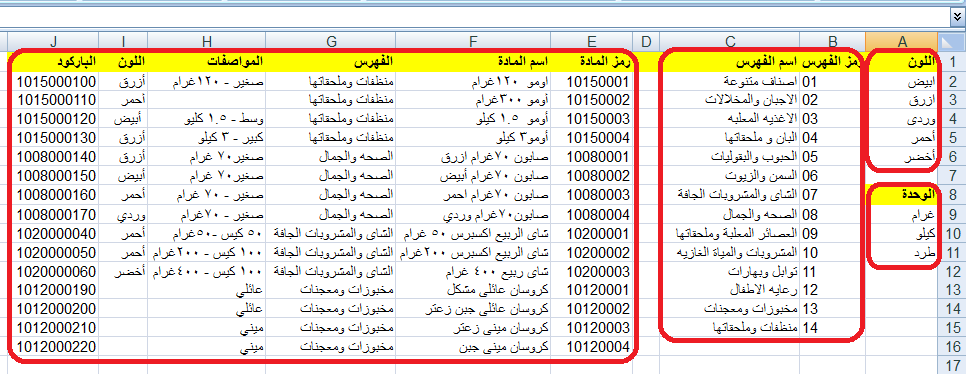
.
Import Reference Data: #
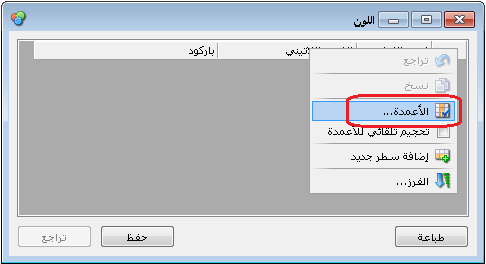
Start with information that must be defined in advance, such as item colors and categories. Copy the color information, then choose Items > Item Reference Data > Color. In the color record, choose Operations > View as Table, as shown below:

.
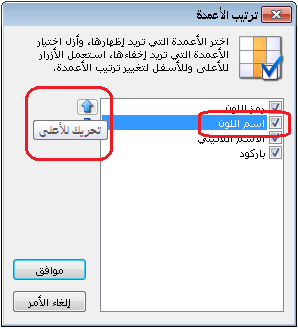
Open color records as a table so you can copy and paste from Excel. Make Color Name the first column by clicking the empty corner above the first row number and opening Columns. Select fields and move them with the blue arrow controls to arrange their order, as shown below:
.
Paste the Information: #
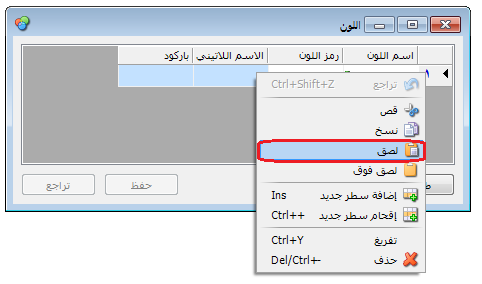
Copy the color information from Excel, select the entire first row of the color table and paste, as shown below:
.
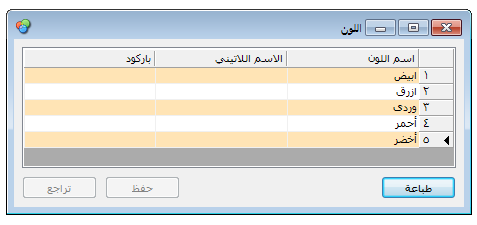
The colors are pasted into the table. Click Save, as shown below:
.
Color import is complete. Import units, sizes, classifications and other reference fields in the same way.
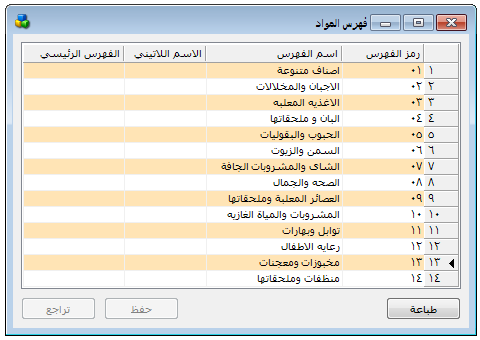
After importing item reference data, choose Items > Item Categories and use the same table method to paste categories copied from Excel. Distinguish parent and child categories: import parent categories first, then child categories, including the Parent Category field to identify each child category parent, as shown below:
.
Once Item Reference Data and Categories are imported, proceed to import the items themselves.
Use the same steps to import items, now that their categories and reference data have been prepared.
Second: #
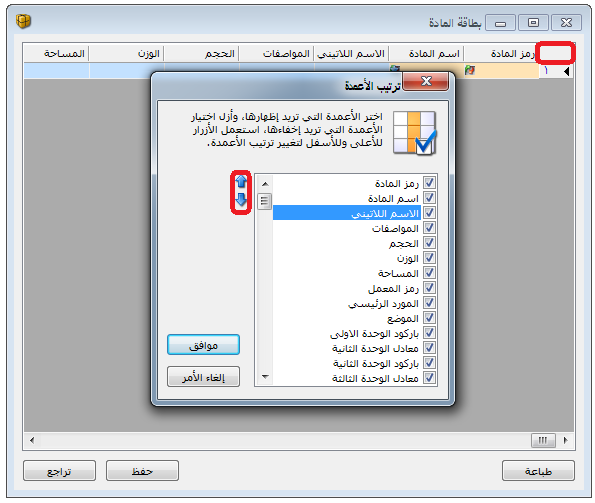
Import the items. Open an item record and choose Operations > View as Table. Arrange the software columns in the same order as the Excel columns. Click the table corner and open Columns, then enable the required fields and arrange them with the blue arrows, as shown below:
.
After arranging the columns, paste the data copied from Excel into the table, as shown below:

.


