


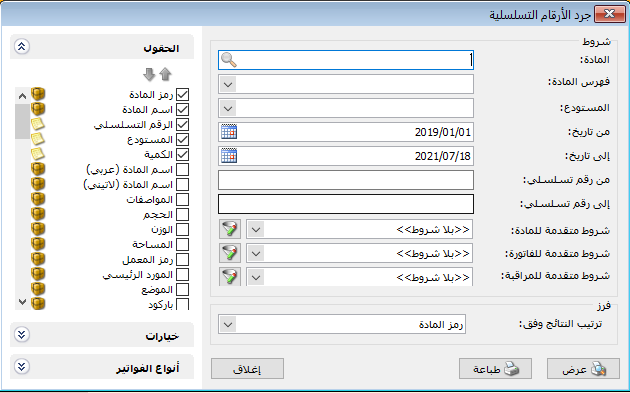
Review inventory balances for serial numbers. The report conditions window contains these options:
.
Conditions: #
- Item: Select an item to count only its serial numbers.
- Item Category: Select a category to count serial numbers for its items.
- Warehouse: Select a warehouse to display only transactions for the serial number in that warehouse.
- From Date / To Date: Specify a date range to display serial number transactions within that period.
- From Serial Number / To Serial Number: Specify a number range to include serial numbers within it.
- Advanced Item Conditions: Specify advanced item conditions to include only matching items. A preceding report guide explains how to define these conditions.
- Advanced Invoice Conditions: Specify advanced invoice conditions to include serial numbers only from matching invoices. A preceding guide explains these conditions.
- Advanced Audit Conditions: Specify audit conditions, such as items added or modified by a particular user, to include only matching records.
Sort: #
Sort Results By: Choose the order for item rows using these options:
- Item Code
- Item Name
- Category Code, Then Item Name
- Quantity Ascending
- Quantity Descending
- Category Code, Then Quantity Ascending
- Category Code, Then Quantity Descending
Fields: #
Choose and arrange final report fields using the arrows above the list. Fields include item-record information and additional fields such as Serial Number, Warehouse and Quantity.
Options: #
The following options are available:
- Show Sequence Number: Display sequential row numbers in the report.
- Show Positive-Balance Serial Numbers: Include serial numbers received into a warehouse and not yet issued.
- Show Negative-Balance Serial Numbers: Include serial numbers issued without corresponding warehouse receipts.
- Show Zero-Balance Serial Numbers: Include serial numbers both received and issued, with a remaining balance of zero.
- Combine Item Code and Name: Combine item code and name in one field.
Combining and Grouping Options: #
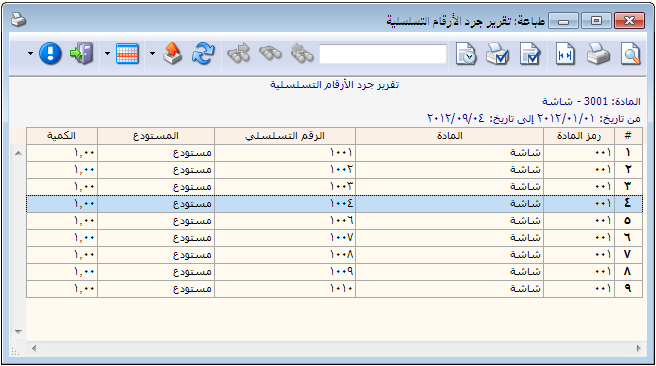
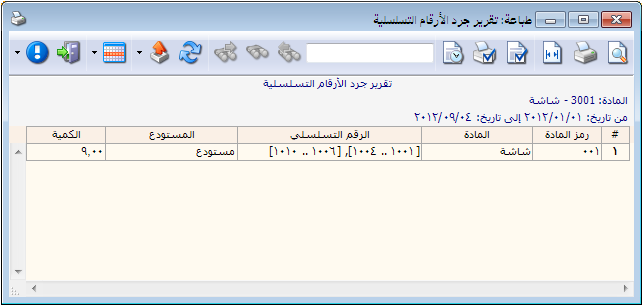
- Group Serial Numbers: Combine serial numbers for the same item on one row and display consecutive numbers as ranges. Consider the following example:
Suppose 10 Monitor items were received with these serial numbers:
1001, 1002, 1003, 1004, 1005, 1006, 1007, 1008, 1009 and 1010. After serial number 1005 is issued, a report without Group Serial Numbers appears as follows:
.
With Group Serial Numbers enabled, numbers are combined on one row and shown as ranges:
.
Invoice Types: #
Select the invoice types to include. For example, selecting only Purchases includes serial numbers received through purchase invoices only.
Show: #
Display the report using the preceding conditions.
Print: #
Click this button to print the final report.
Close: #
Close the report conditions window.
Examples of Information Available from the Serial Number Inventory Report:
- Remaining quantity for serial number 12345678910.
- Remaining serial numbers for the Monitor item.
- Serial numbers within the range 1 to 20,000.
- Serial numbers for items whose names contain Monitor.
- Serial numbers sold during the first month.
- Serial numbers sold to customer Tarek.
- Serial numbers issued from the company main warehouse.
.


