Skip to content
Contact Us
الميزان دوت نت للمحاسبة والمستودعات
  • Home
  • About the Software
    • About Us
    • Our Clients
  • Products
  • Services
  • Learning
    • Knowledge Base
    • Video Tutorials
  • Blog
  • Downloads
    • Al Mizan .NET
    • Updates
    • Utilities
  • العربية
  • Home
  • About the Software
    • About Us
    • Our Clients
  • Products
  • Services
  • Learning
    • Knowledge Base
    • Video Tutorials
  • Blog
  • Downloads
    • Al Mizan .NET
    • Updates
    • Utilities
  • العربية
  • Home
  • About the Software
    • About Us
    • Our Clients
  • Products
  • Services
  • Learning
    • Knowledge Base
    • Video Tutorials
  • Blog
  • Downloads
    • Al Mizan .NET
    • Updates
    • Utilities
  • العربية
Show Categories
  • Home
  • Knowledge Base
  • User Guide
  • Definitions Menu
  • Define Branch Records and Configure Their Options

Define Branch Records and Configure Their Options

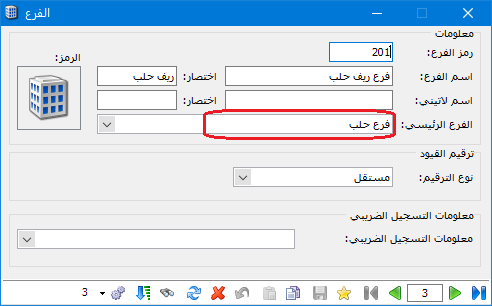
Choose Definitions > Branch Tree. The tree initially contains one default branch, Company, with one default warehouse, Warehouse. To add a branch such as Aleppo, right-click Branch Tree and choose Add Branch. Alternatively, select Branch Tree with the left mouse button and click Branch on the upper toolbar. The new branch record opens automatically. Enter its name and select a parent branch if it belongs to another branch, or leave the parent blank for an independent branch..

Important Note: #

Independent branches let the company request closing-account reports for the company as a whole, for each branch individually or for a group of branches.

 Example:

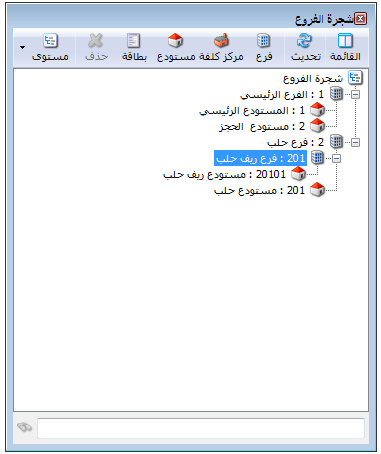
Suppose the company has a main branch and an Aleppo branch. The main branch has a main warehouse. The Aleppo branch has a warehouse and a subordinate Aleppo Countryside branch, which also has a warehouse. The branch tree and records appear as shown below. Note the difference between an independent branch record and a record for a branch under another branch.

.
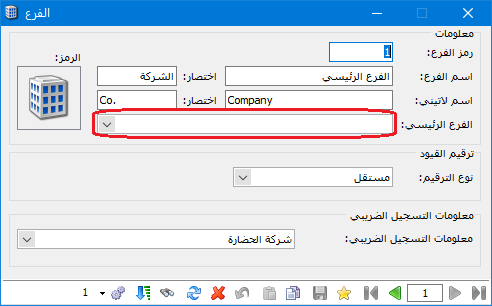
Illustration: the important branch note
008- P-010

.

Notes:

  • To add an independent branch, select Branch Tree and click Add Branch. To add a subordinate branch, select its parent branch and click Add Branch.Illustration: the important branch note
  • To change a branch image, double-click the following icon in the branch record, click Add and choose the desired image.
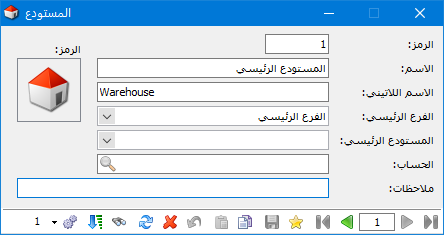
  • The same principles apply when defining warehouses, with one difference: a warehouse record also requires a main branch or main warehouse. Every warehouse must belong to a company branch; it cannot be added independently of a branch or another warehouse. If it belongs to another warehouse, it must still be associated with a company branch for accounting purposes, as shown below:

.

Illustration: the important branch note

.

Go to Warehouse Definitions

  • The branch record provides two journal numbering methods:

Independent: Journal entry numbers in each branch start at 1 and continue sequentially for new entries within that branch.

Example: If Hadara Company has three entries in each of the preceding branches, numbering is as follows:

Company: 1, 2, 3, and so on.

Aleppo branch: 1, 2, 3, and so on.

Aleppo Countryside branch: 1, 2, 3, and so on.

.
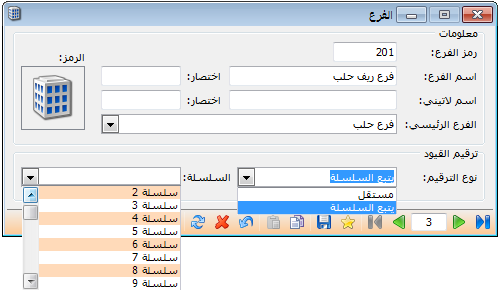
0011- P-012

.

Follow a Series: For example, assign the company to series 1 and the Aleppo and Aleppo Countryside branches to series 2. Numbering then becomes: #

Company: 1, 2, 3. Across the Aleppo and Aleppo Countryside branches: 1, 2, 3, 4, 5, 6.

Select the method as shown above:

Tax Registration Information: Select an entry defined in the Tax Information window containing company tax details. A separate guide explains that window in detail. #

Follow our YouTube channel

Share This Article

  • Facebook
  • X
  • LinkedIn
  • Pinterest
Could not find what you need? Contact us

How can we help you?

Updated on October 3, 2026
Sales Representatives: Journal Entry CommissionsPayment Methods in Al Mizan

Powered by BetterDocs

Contents
  • Important Note:
  • Follow a Series: For example, assign the company to series 1 and the Aleppo and Aleppo Countryside branches to series 2. Numbering then becomes:
  • Tax Registration Information: Select an entry defined in the Tax Information window containing company tax details. A separate guide explains that window in detail.
Mizan logo black1

Al Mizan .NET Accounting and Inventory: take the next step toward more effective business management

Quick Links

  • Knowledge Base
  • Privacy Policy
  • Terms and Conditions
  • Contact Us

Stay Informed

Get the latest news and offers from our website 

  • Abdurrahman Nafiz Gürman, No:05
    Güngören/İstanbul
  • +905360652643
  • info@hadarasoft.net
© 2026 Hadarasoft
Instagram Facebook-f Youtube Linkedin
Need help? Contact us