


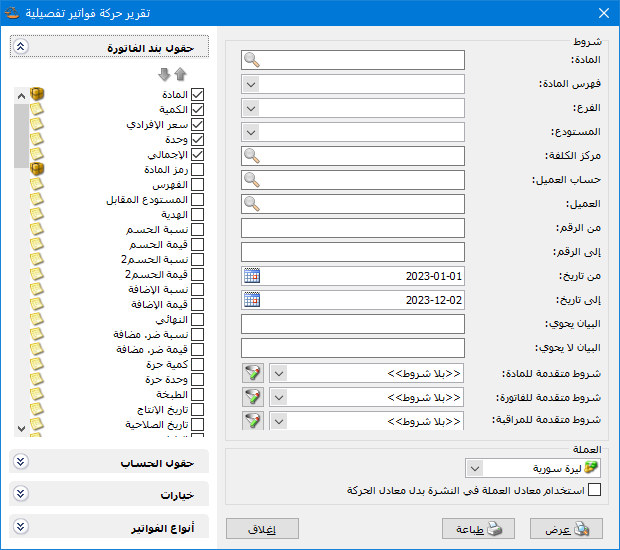
This report displays detailed information about invoices in the database using the criteria shown below:
.
Conditions: #
- Item: Select an item to include invoices containing it. Only that item’s quantities and prices are displayed within those invoices.
- Item Category: Select an item category to include invoices containing its items. Only quantities and prices for matching items are displayed; other items are excluded.
- Branch: Select a branch to include invoices issued within that branch.
- WarehouseSelect a warehouse to include invoices involving that warehouse.
- Cost CenterSelect a cost center to include invoices associated with it.
- Customer AccountSelect an account to display its detailed invoice transactions.
- CustomerSelect a customer to include invoices associated with that customer.
- From Number / To Number: Specify a number range to include invoice numbers within it.
- From Date / To Date: Specify a date range to include invoices dated within it.
- Description Contains / Does Not Contain: Enter text to include or exclude invoices according to their descriptions.
Advanced Conditions: #
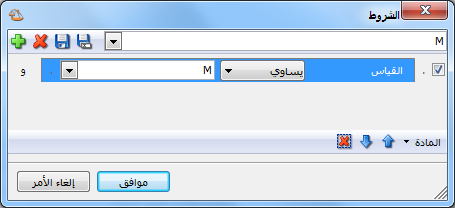
- Advanced Item Conditions: Use advanced item filters to select the required items. For example, to include size M items, click the funnel beside Advanced Item Filters. Open the Item section, select Size and add a condition where Size equals M. Click OK and save the filter. When the report is displayed, only invoice lines for size M items are included.
.
- Advanced Invoice Conditions: Set advanced invoice filters to include only matching invoices. For example, set Currency equal to US Dollar to include dollar-denominated invoices, as shown below:

.
- Advanced Audit Conditions: Specify audit conditions such as invoices added or modified by a particular user.
Note:
Disable a condition by clearing its checkbox, or choose No Filters in the Advanced Filters field to disable the filter, as in the default report settings.
Currency: #
Select the currency in which the report should be displayed.
Exchange Rate: Specify the rate relative to the base currency. This field is available only for a secondary currency and offers two choices:
- Use the Exchange-Rate Schedule: Retrieve exchange rates automatically from the schedule, using the rate applicable on each transaction date.
- Use a Specified Exchange Rate: Enter a rate in the field that appears and use it to display the report.
Use the Scheduled Currency Rate Instead of the Transaction Rate: Use the rate from the exchange-rate schedule instead of the rate entered in the original transaction. This option is used when requesting the report in the base currency.
Invoice Line Fields: #
Select the fields to display. Most come from the invoice; others include cost, profit and additional properties defined in Invoice Types.
Account Fields: #
Select fields from the account and customer records to display in the report.
Options: #
The Options section contains the following settings:
- Show Sequence Number: Enable this option to display a sequential number for each invoice.
- Finalized Invoices: Include finalized invoices.
- Unfinalized Invoices: Include unfinalized invoices.
- Quantities Only: Enable this option to focus on item details. Invoice totals, invoice payments, expense totals and separate line or invoice discount/addition summaries are not available in this mode. Disable it to display those summaries.
- Show Invoice Total: Enable this option to display the invoice total on a separate row after its details.
- Show Net Invoice Amount: Enable this option to display the net invoice amount on a separate row after its details.
- Separate Line Discounts from Overall Discount: Enable Separate Line Discounts from General Discount to display line discounts and the overall invoice discount separately. Otherwise they appear together on one row after the invoice total.
- Separate Line Surcharges from Overall Surcharge: Enable Separate Line Additions from General Addition to display line additions and the overall invoice addition separately. Otherwise they appear together on one row after the invoice total.
Total Options: #
- Show Total Expenses: Enable this option to display the sum of expenses recorded on the Expenses tab on a separate row.
- Show Total Additional Taxes: Enable this option to display the sum of taxes recorded on the Additional Taxes tab on a separate row.
Display Options: #
- Show Invoice Payment: Enable this option to display the payment recorded in the invoice’s Payment field on a separate row.
- Show Payment Method: Enable Show Payment Method to display the method beside the invoice payment, on the row created by Show Invoice Payment.
- Show Second Unit, Show Third Unit: Enable these options when
you want invoice item quantities displayed in more than one unit. - Show Invoice Subnumber: Enable this option to display the invoice subnumber.
- Show Invoice Payment: Enable this option to display the payment entered in the invoice’s Payment field on a separate row.
- Show Payment Methods: Enable this option to break the invoice payment down by method when more than one payment method was used, as described in the invoice Payment field guide.
- Show Payment Method: Whether the invoice uses Cash, Credit or Commercial Paper, such as a cheque.
- Show Customer: The customer whose account is selected in the invoice’s Customer Account field.
- Show Sales Representative: The representative selected near the bottom of the invoice.
- Show Invoice Description: Enable this option to display the text entered in the invoice header’s Description field.
Merge Options: #
Combine Item Code and Name: Combine item code and name in one report field.
Combine Gifts with Quantity: Enable this option to combine the main quantity and free units in one column. Otherwise free units appear in a separate field.
Invoice Types: #
Select the invoice types to include in the report.
- Show: Display the report using the preceding conditions.
- Print: Click this button to print the final report.
- Close: Close the report conditions window.
Practical examples of information available from the Detailed Invoice Transactions report:
- Detailed sales invoice transactions during the first month.
- Detailed sales invoice transactions for the customer Tareq.
- Detailed sales invoice transactions issued from the Main Warehouse.
- Detailed credit purchase invoice transactions.
- Detailed item issue invoice transactions allocated to the Building One cost center.
- Detailed invoice transactions for items in the Clothing category.
- Detailed sales invoice transactions for a customer account selected when requesting the report.
- Detailed purchase invoice transactions whose description contains “Al Haram Shipping”.
- Detailed sales invoice transactions valued in US dollars using an illustrative exchange rate of 70 Syrian pounds per dollar.
- Detailed sales invoice transactions from invoice number 25 to invoice number 180.
- Detailed sales invoice transactions in the main company branch across all its warehouses.
.


