


You can define cost centers under company branches when manufacturing activities require costs and expenses to be allocated to specific centers.
Example : A clothing manufacturer wants to track expenses for each production stage and creates cost centers such as Cutting and Sewing.
The Carry Forward Cost Center Balance During Database Rollover option transfers the center’s balance to the new database. If it is not selected, that balance is excluded from rollover.
.
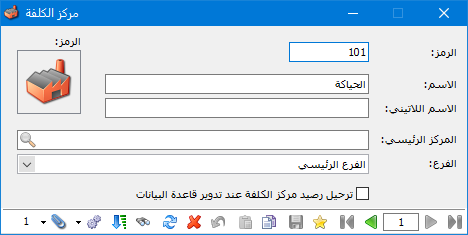
.
The Purpose of Cost Centers: #
Cost centers provide statistical information about company activities alongside accounting and inventory information. They can be used at different levels: in journal entries only, in invoices only, or in both.
The following sections explain how to define cost centers, use them in reports and apply them to practical business examples.
Define Cost Centers: #
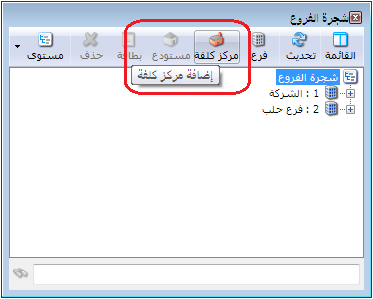
Open Definitions, select Branch Tree and click Add Cost Center, as shown below.
.
.
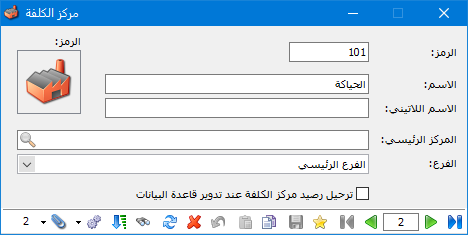
The Cost Center window opens, allowing you to define the center as illustrated below.
.
.
Note:
When multiple branches exist in the database, you can define either of two cost center types:
Independent Cost Center: #
This does not belong to a specific branch and can be used in any defined branch. Select the root of the Branch Tree and click Add Cost Center to create an independent center, as shown above.
Branch-Specific Cost Center: #
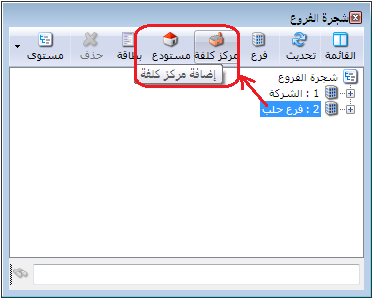
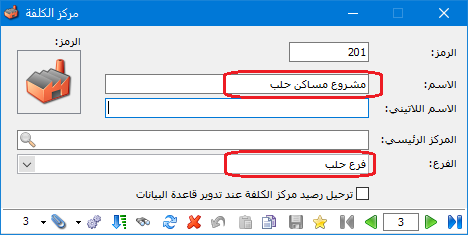
This belongs to one branch and can only be used there. Select that branch in the Branch Tree and click Add Cost Center, as illustrated below.
.
.
Enable Cost Center Fields in Journal Entries, Invoices and Commercial Papers: #
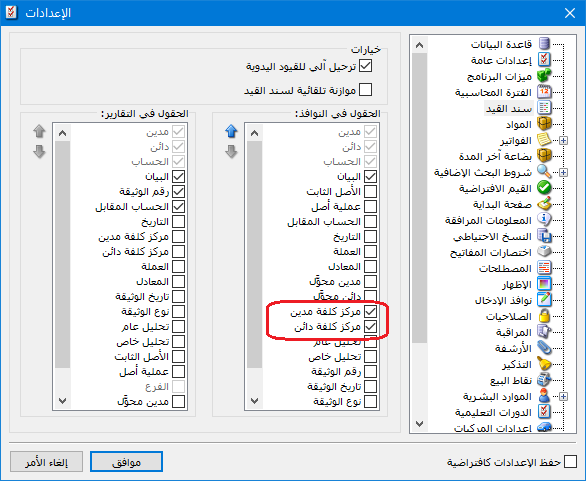
For standard journal vouchers, open Tools, select Settings, open the Journal Voucher tab and enable Debit Cost Center and Credit Cost Center, as shown below.
.
.
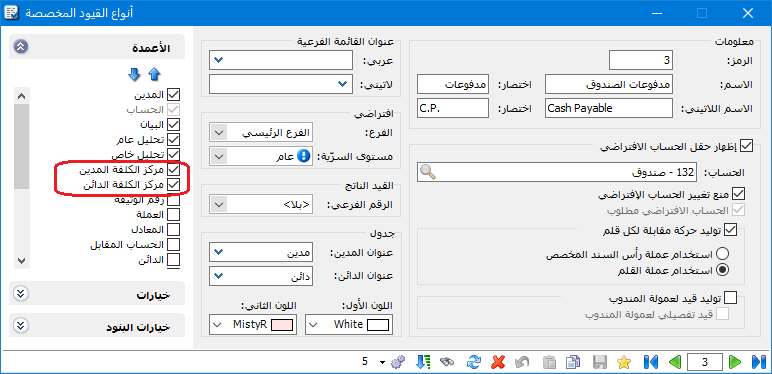
For custom vouchers, such as Cash Receipts and Cash Payments, enable the fields in Custom Voucher Types, as illustrated below.
.
.
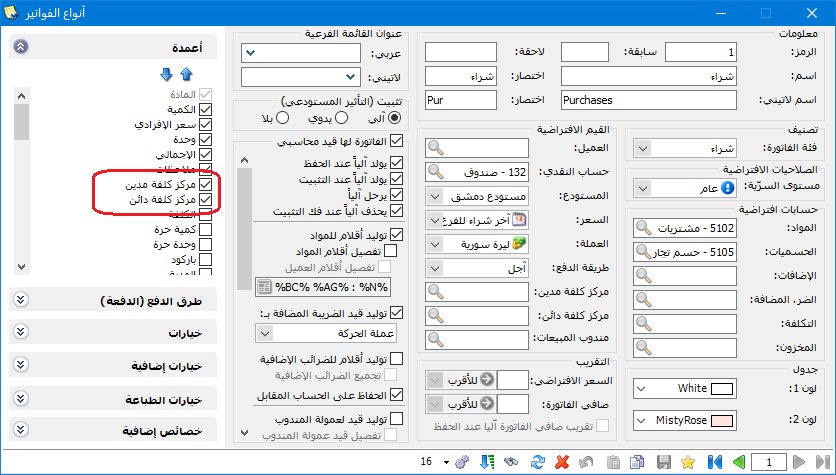
Invoices already contain cost center fields in the header. To display cost centers on individual invoice lines, configure the invoice in Invoice Types, as shown below.
.
.
Commercial papers display a cost center field by default, without additional configuration, as illustrated below.
.
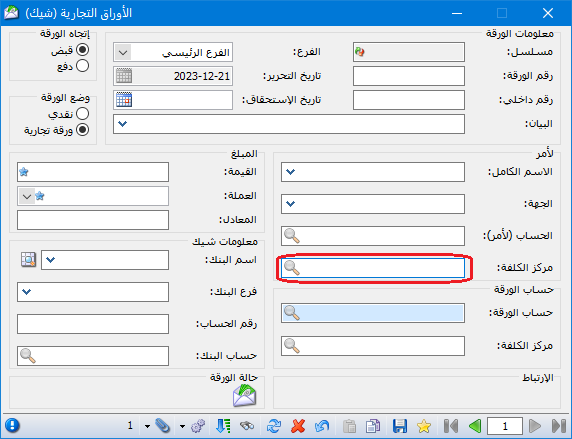
.
Use Cost Centers in Program Reports: #
Once cost centers are assigned to journal entries, they can be used as filters in most reports. For example, suppose several cash payments are posted to Miscellaneous Expenses and one is assigned to the Yaafour Project Tender cost center, as shown below.
.
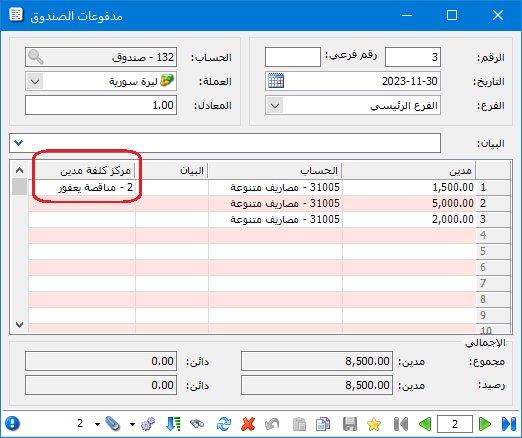
.
Request the General Ledger for Miscellaneous Expenses to see all movements, then filter it to display only movements assigned to Yaafour Project Tender, as illustrated below.
.
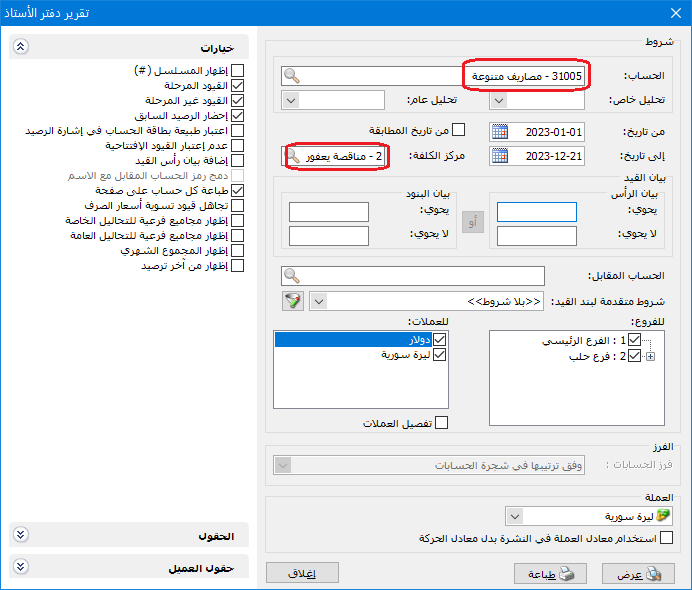
.
Only movements assigned to the selected cost center are then displayed.
.
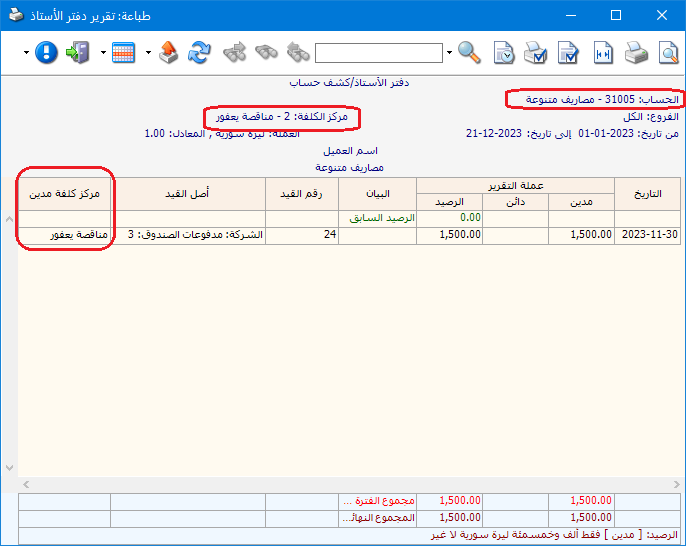
.
Cost Center Use Cases #
Case 1: A service company incurs expenses for several tenders and wants a separate expense report for each tender. Cost centers are entered in journal entries only. #
Use the following steps to handle this case:
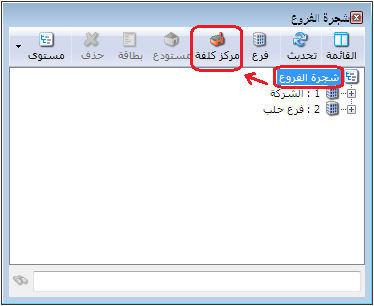
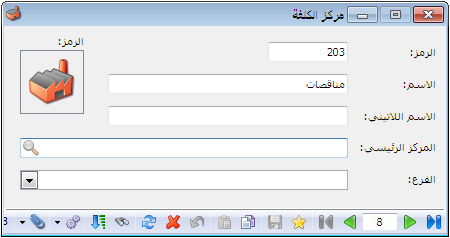
1. Define tenders as cost centers. Create a parent center called Tenders and add the individual tenders beneath it. Select the root of the Branch Tree and click Add Cost Center to define the parent center, as illustrated below.
.
.
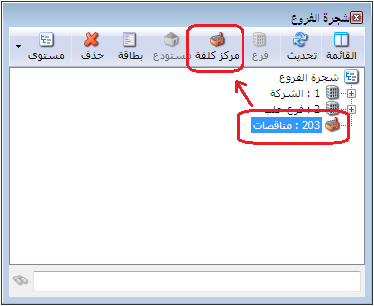
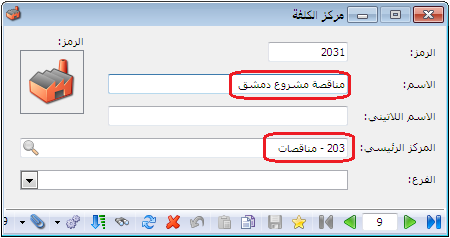
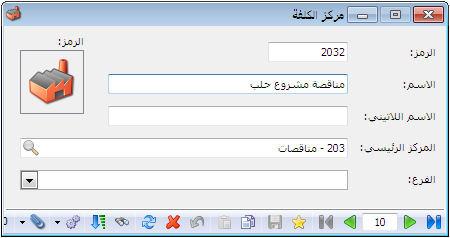
Select the Tenders parent center and add subordinate cost centers for the individual tenders, as shown below.
.
.
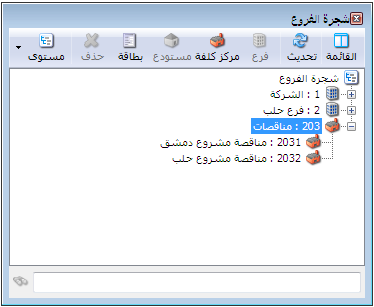
The Branch Tree then appears as illustrated below.
.
.
Enable the Cost Center Field #
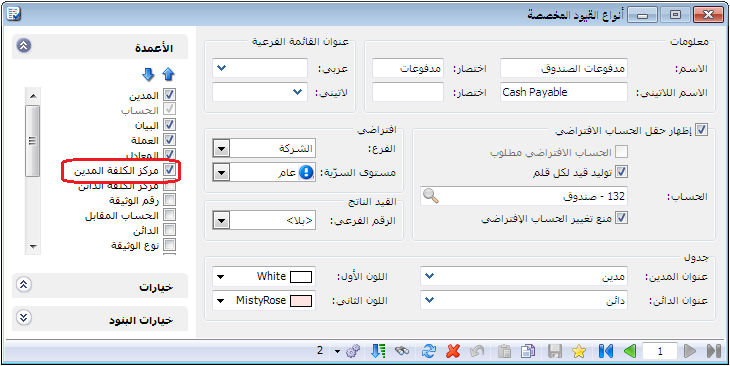
Enable the Cost Center field in Cash Payments, as shown below.
.
.
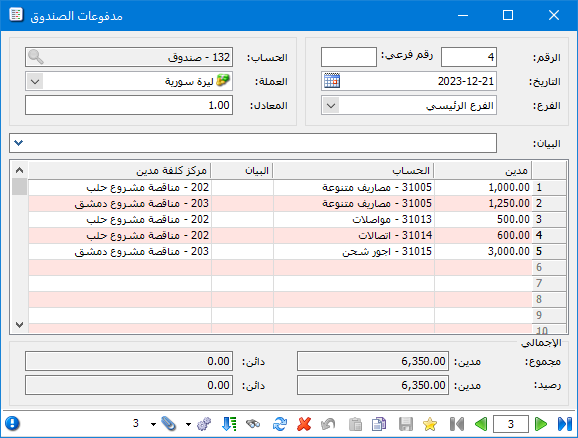
2. When entering expenses in Cash Payments, select the project associated with each expense, as illustrated below.
.
.
3. Request movements for Miscellaneous Expenses and show the Cost Center field to identify the tender associated with each amount, as shown below.
.
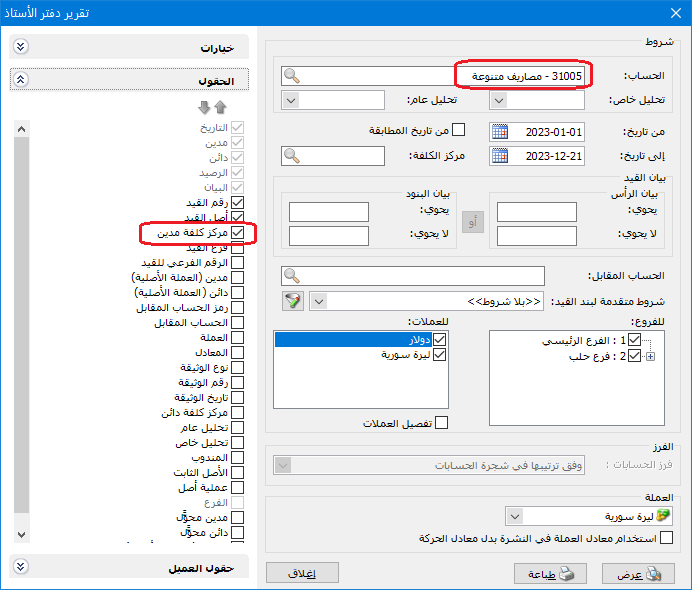
.
Click Show to display the following report.
.
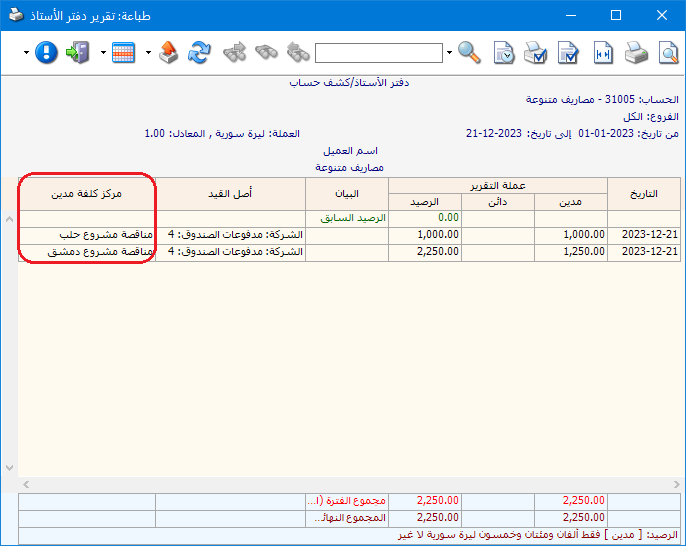
.
You can also request all accounts for a specific tender, as shown below.
.
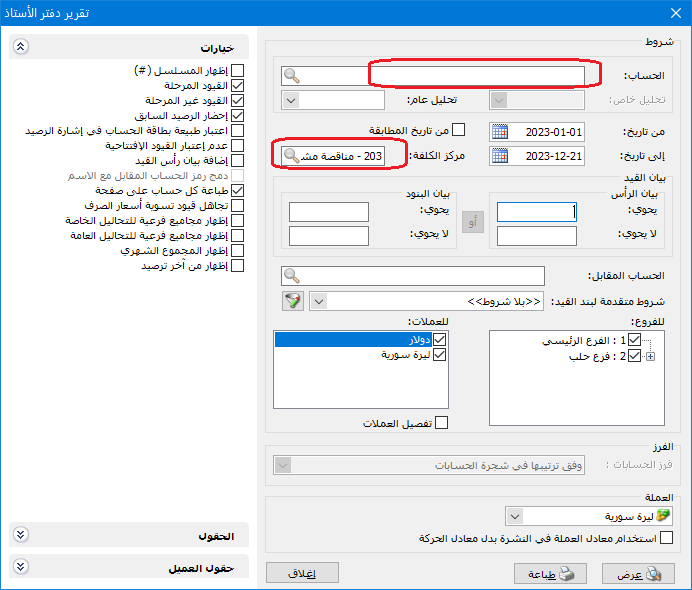
.
Click Show to display the resulting report.
.
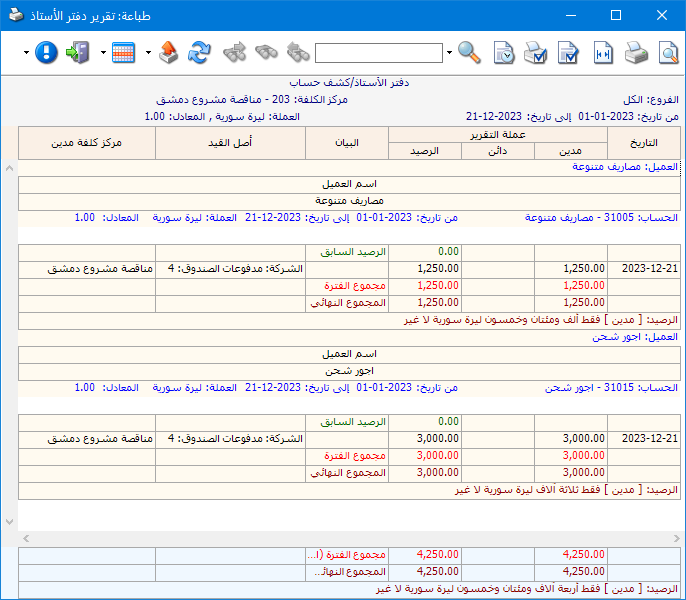
.
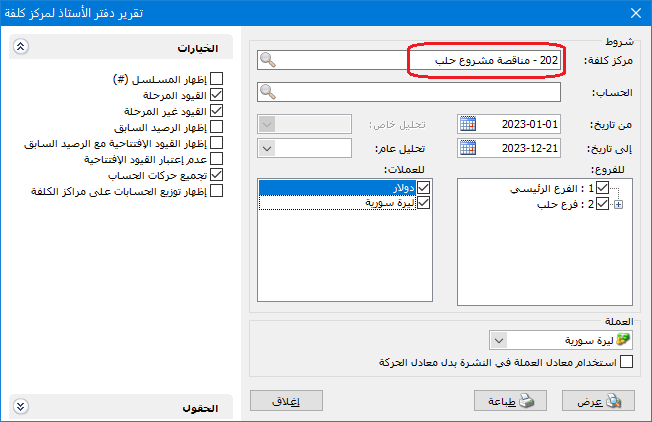
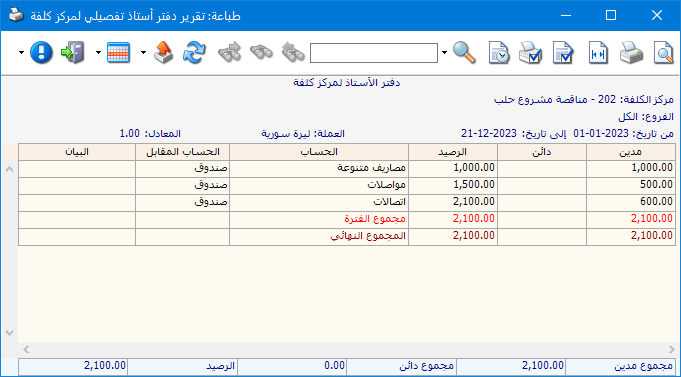
Alternatively, request the Cost Center General Ledger for a tender to see all movements assigned to it, as illustrated below.
.
.
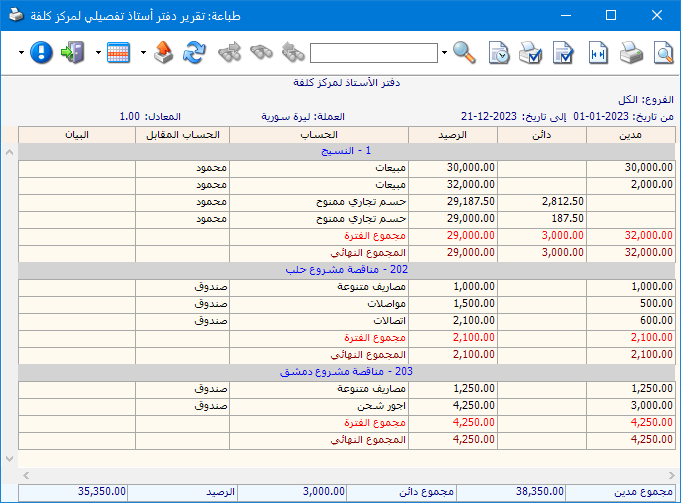
Leave the report criteria blank to display movements for all tenders, as shown below.
.
.
These report options provide detailed expense-account movements across the tenders.
Case 2: A construction company manages several projects, incurs material and other costs, and records contract revenue for each project. It wants to compare project costs with contract revenue to determine each project’s profit. Cost centers are entered in both journal entries and invoices. #
Use the following cost center setup for a construction company managing multiple projects:
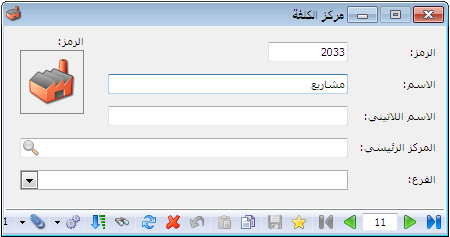
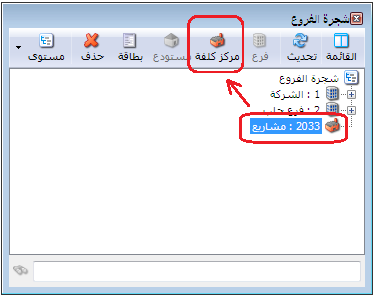
1. Define projects as cost centers. Create a parent center called Projects and add the individual projects beneath it. Select the root of the Branch Tree and click Add Cost Center to create the parent center, as illustrated below.
.
.
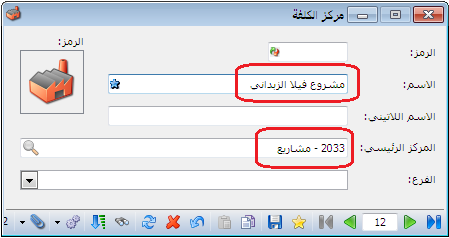
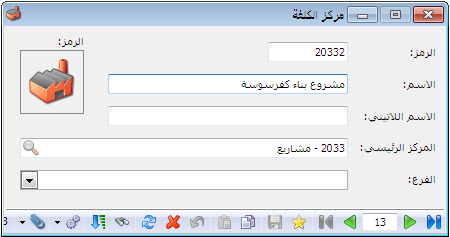
Select the Projects parent center and add subordinate cost centers for the individual projects, as shown below.
.
.
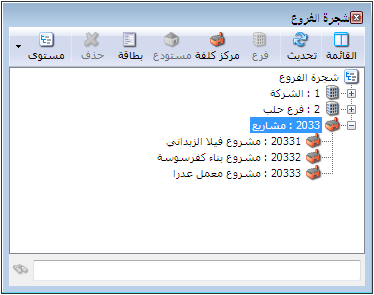
The Branch Tree then appears as illustrated below.
.
.
Enable the Cost Center field in Cash Payments, as shown below.
.
.
3. Define an invoice for issuing warehouse materials to projects. It generates a journal entry using Materials Issued to Projects as the item account and Offset for Materials Issued to Projects as the customer account. Both accounts are classified under the Trading Account, as illustrated below.
.
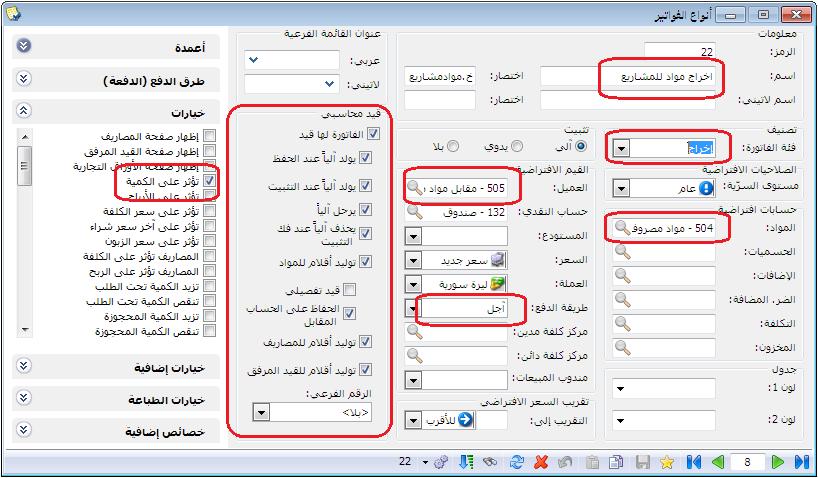
.
The required setup is now complete. The following example shows how to use it.
Practical Example: #
A construction company is established with SYP 20 million in capital, all deposited into the company cash account.
The company purchases SYP 10 million of materials for its projects.
It signs a contract for the Kafr Sousa Construction Project with a contract value of SYP 15 million.
The company completes the project, using SYP 7 million of materials and incurring SYP 5 million in other expenses.
Record these transactions in accounting and inventory, linking them to cost centers. Then generate the final accounts and the Kafr Sousa Construction Project General Ledger to show its profit.
Solution: To simplify the figures, all amounts below are in millions of Syrian pounds.
– Record Company Capital: #
Use the following opening journal entry.
.
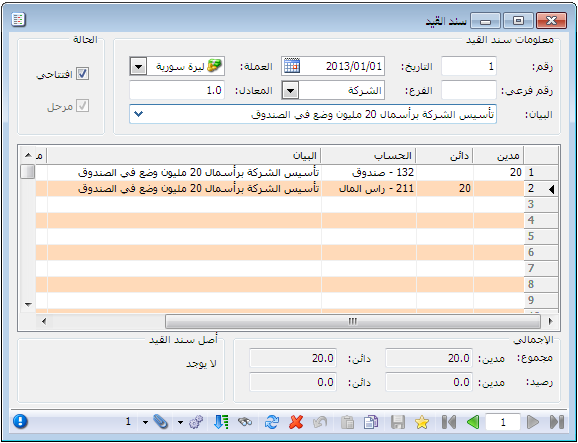
.
Record the Purchase of Project Materials: #
Use a purchase invoice, as shown below.
.
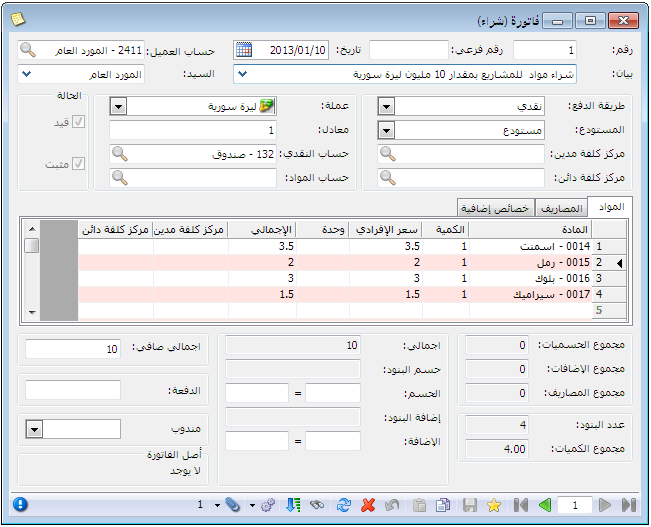
.
Record the SYP 15 million contract value for Kafr Sousa Construction Project using a standard journal voucher. Debit the customer and credit Project Revenue, classified under the Trading Account. Assign Kafr Sousa Construction Project in the Debit Cost Center field opposite Project Revenue, as shown below.
.
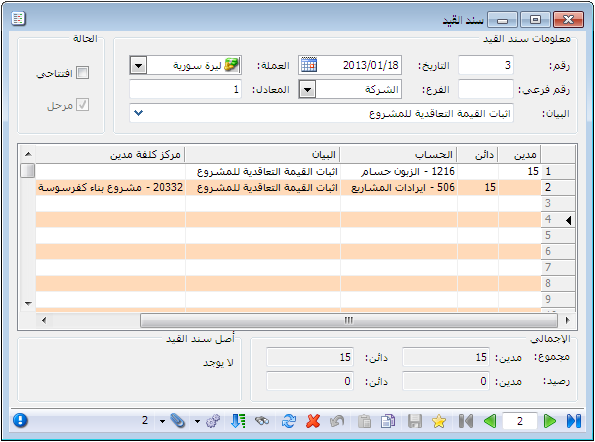
.
Record Expenses: #
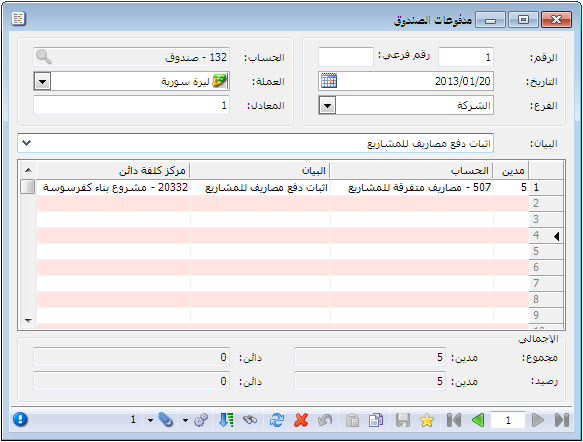
Record SYP 5 million of project expenses in Cash Payments, with Miscellaneous Project Expenses as the counterpart to Cash. Assign the project in the Credit Cost Center field opposite the expense account, as illustrated below.
.
.
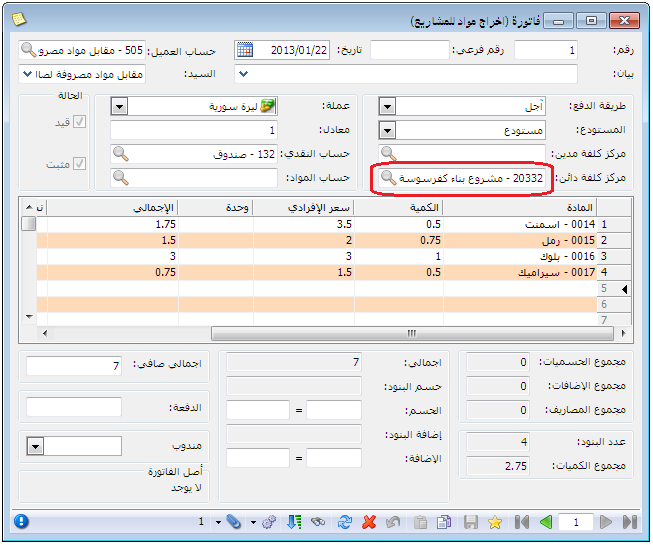
Record SYP 7 million of materials issued to the project using the Materials Issued to Projects invoice. Assign the project in the Credit Cost Center field in the invoice header, as shown below.
.
.
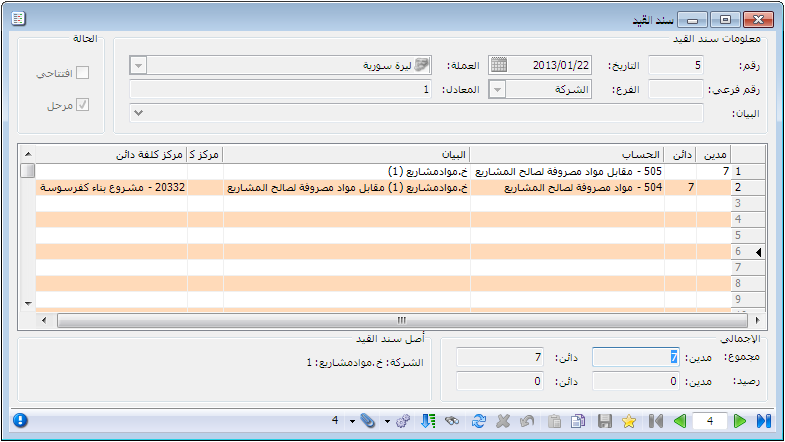
The journal entry generated by this invoice is illustrated below.
.
.
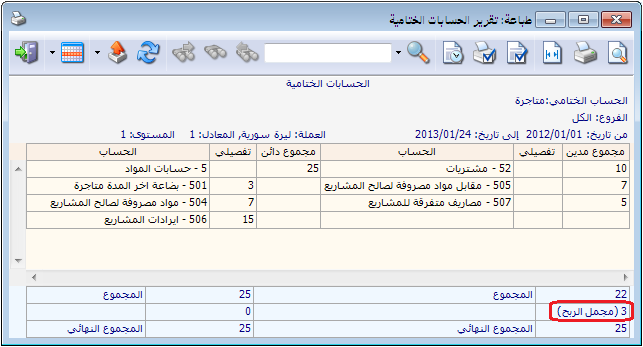
After recording these transactions, generate the company’s final accounts, including the Trading Account and Balance Sheet, as shown below.
Trading Account After These Transactions:
.
.
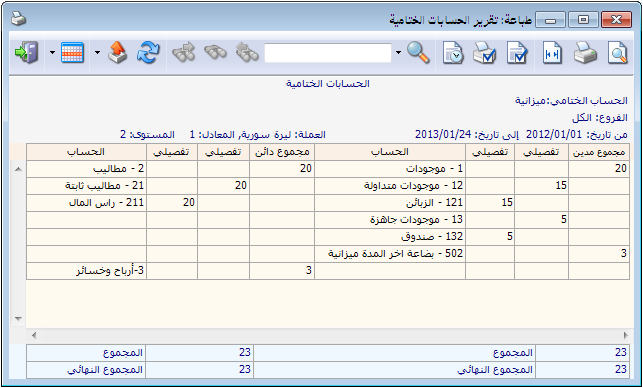
Closing Balance Sheet After These Transactions:
.
.
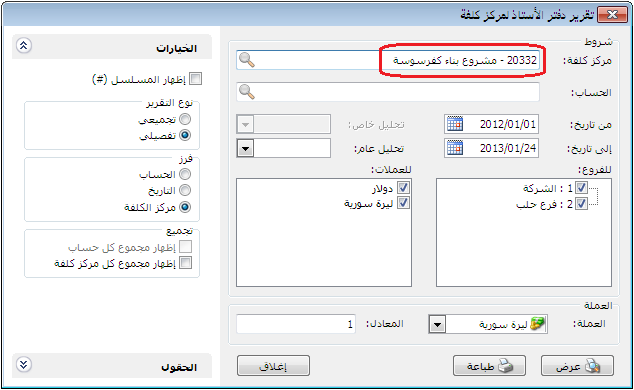
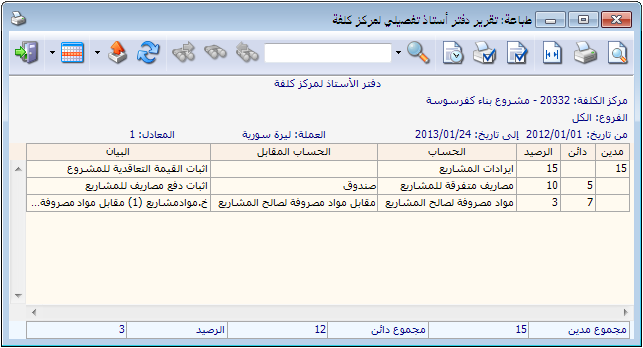
Request the Cost Center General Ledger for Kafr Sousa Construction Project. It shows the revenue recorded for the center, expenses charged to it and the balance representing its net profit or loss, as illustrated below.
.
.


