


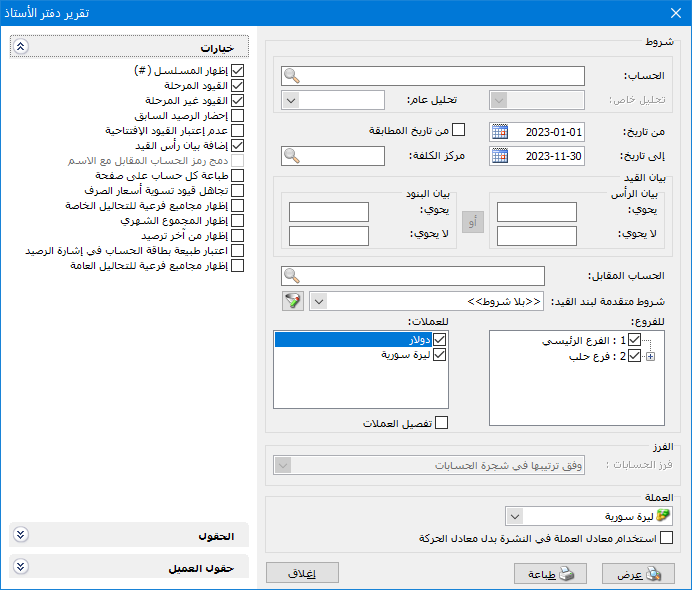
This report groups financial transactions by account and calculates each account’s balance. You can request the ledger for a subaccount or parent account. The criteria window contains the following options:
.
Conditions: #
Account: #
Enter the account whose financial transactions you want to review. Select a subaccount, such as Tareq, or a parent account, such as Customers.
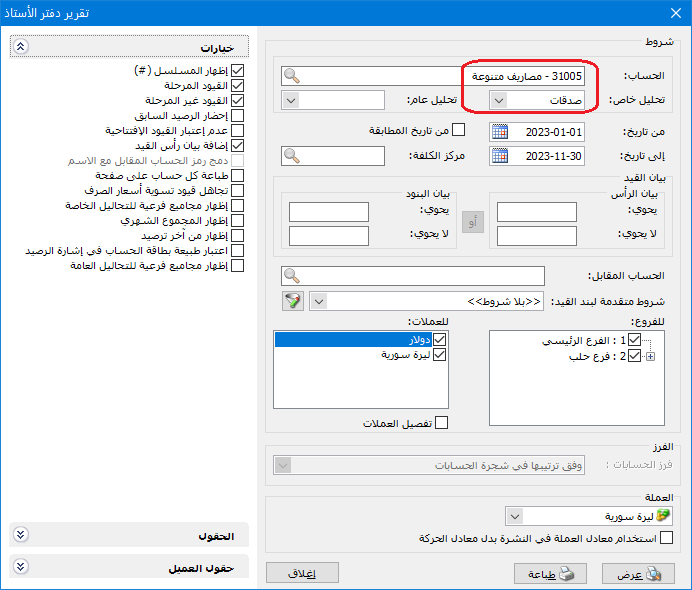
Account-Specific Analysis: #
Select an account-specific analysis defined for the account chosen above to review transactions assigned to that analysis, as shown below:
.
Note:
An account-specific analysis belongs to a particular account and cannot be requested independently of it. In this example, to report Charitable Donations, select the Miscellaneous Expenses account to which that analysis belongs.
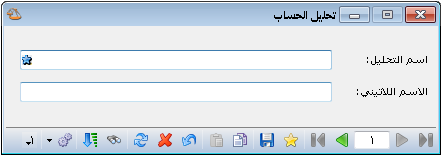
General Analysis: #
General analysis works similarly but is independent of individual accounts. Define general analysis records in Accounting / Account Analysis, as shown below:
.
Example:
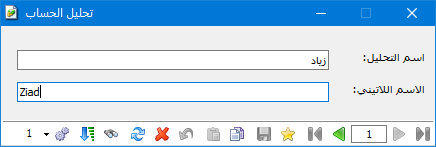
Continuing the previous example, assume three employees—Samer, Adel and Ziad—receive transport reimbursements. To track transport costs for each employee without creating separate accounts for each person or for transport, follow these steps:
Divide Miscellaneous Expenses into account-specific analyses, including Transport, as described earlier.
In Accounting / Account Analysis, define general analyses for the three employees, as shown below:
.
Enable the General Analysis and Account-Specific Analysis columns in the cash payment voucher, then enter each employee’s transport payment, as shown below:
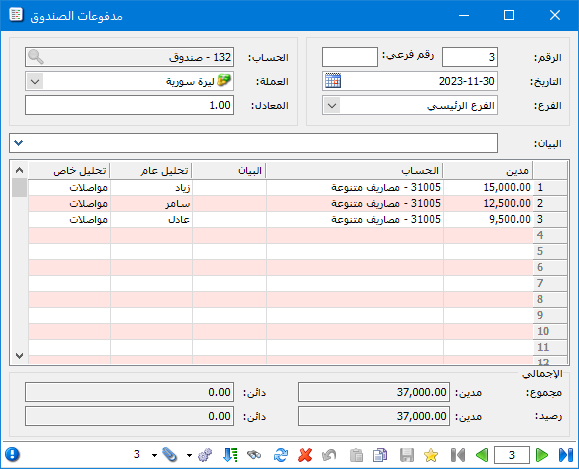
.
You can now request a general ledger report using only a general analysis item, without entering Miscellaneous Expenses or an account-specific analysis item. Selecting Ziad, for example, displays transport payments made for Ziad, as shown in the following two illustrations:
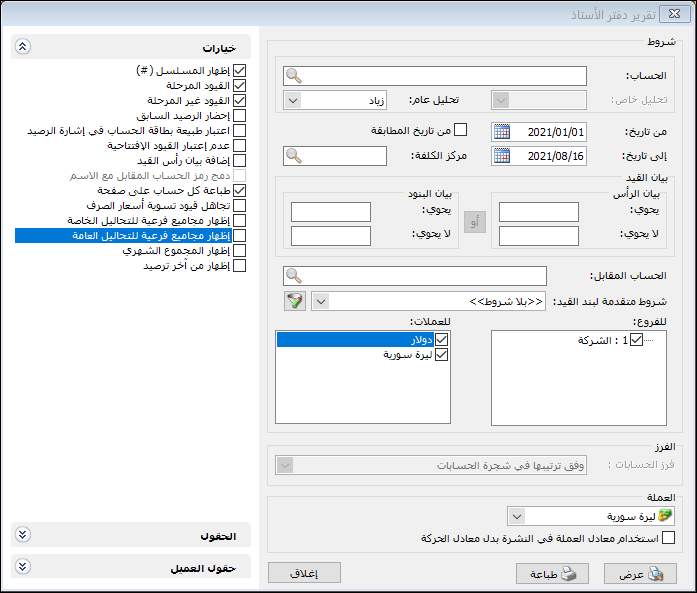
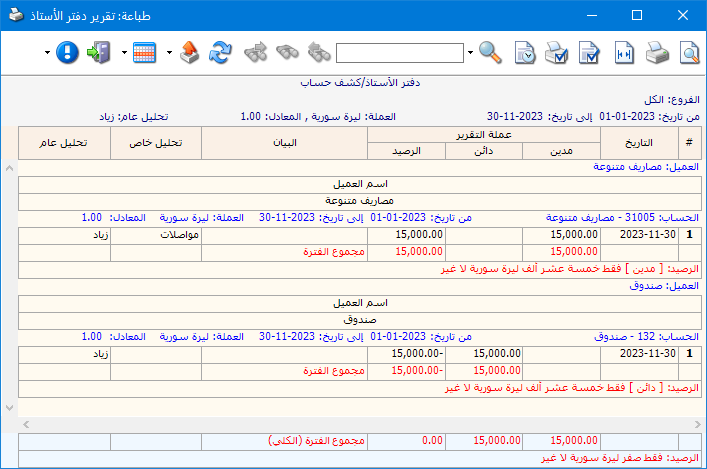
.
Cost Center: #
Select a cost center to include transactions for the selected account allocated to that center.
From Date / To Date: #
Specify the report date range.
From Reconciliation Date: #
Enable this option to display transactions from the account’s most recent reconciliation date to the selected end date or today. Set the reconciliation date in the account record’s Reconciliation Date field.
Entry Description #
- Line Description Contains: For example, receipts from the customer Tareq may be delivered by his employees Samer or Adnan. Record the delivering employee’s name in the receipt description. To total receipts from one employee, select Tareq as Account, Cash as Counterpart Account and enter that employee’s name in Description Contains.
- Line Description Does Not Contain: Include transactions whose description does not contain the entered text.
- Header Description Contains, Header Description Does Not Contain: These work like the line description filters, but apply to the description in the entry header, which covers the whole entry. Line description filters apply to the description recorded for each account line.
Note:
When both header and line description filters are entered, the OR/AND button becomes available. OR includes transactions matching either filter; AND includes only transactions matching both.
Counterpart Account: #
Use Counterpart Account to restrict the selected account’s transactions. For Tareq’s sales, select Tareq as Account and Sales as Counterpart Account. For discounts allowed to Tareq, use Discounts Allowed as the counterpart.
Advanced Entry Line Conditions: Set entry line filters, such as a specified debit amount, credit amount or document date.
Branches: #
Select the branches whose account transactions should be included.
Currencies: #
Select a transaction currency to include only transactions recorded in that currency. For example, selecting Syrian Pound excludes receipts recorded in Jordanian Dinar.
- Currency: Select the currency in which the report should be displayed.
- Exchange Rate: Specify the rate relative to the base currency. This field is available only for a secondary currency and offers two choices:
- Use the Exchange-Rate Schedule: Retrieve exchange rates automatically from the schedule, using the rate applicable on each transaction date.
- Use a Specified Exchange Rate: Enter a rate in the field that appears and use it to display the report.
- Use the Scheduled Currency Rate Instead of the Transaction Rate: Use the rate from the exchange-rate schedule instead of the rate entered in the original transaction. This option is used when requesting the report in the base currency.
Fields: #
Enable report columns in the Fields section and use the blue arrows to change their order.
Customer Fields: #
Select fields from the customer record, such as telephone, mobile number, fax or region.
Options: #
The options include:
- Show Sequence Number: Enable this option to display sequential transaction numbers, indicating the number of transactions in the report.
- Posted Entries: Enable this option to include transactions from posted entries.
- Unposted Entries: Enable this option to include transactions from unposted entries.
- Include Previous Balance: Enable this option to include the balance from transactions preceding the report’s starting date.
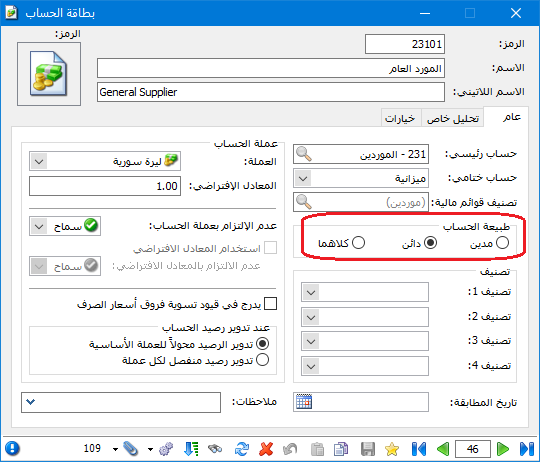
- Use Account Nature for the Balance Sign: By default, these reports display debit balances as positive and credit balances as negative. Enabling this option displays the sign relative to the account nature defined in the account record.
Note: Account Nature has three options: Debit, Credit or Both. If the user selects Both, its balance sign is treated in the same way as Debit.
Example:
For a supplier account in the General Ledger or Customer Statement report, the sign is handled as follows:
Advanced Options: #
- With Use Account Nature for the Balance Sign disabled,a supplier’s credit balance is negative and its debit balance is positive.
- With Use Account Nature for the Balance Sign enabled, a credit-nature supplier account shows its credit balance as positive and its debit balance as negative because the latter is opposite to the account’s nature.
As illustrated below:
.
- Ignore Opening Entries: Enable this option to exclude transactions originating from opening entries.
- Append Entry Header Description: By default, the Description field shows the transaction’s invoice type or entry line description with its number, such as Sale 4 or Purchase 6. Enabling this option also appends the invoice or entry header description.
- Combine Counterpart Account Code and Name: Enable this option to combine the counterpart account code and name in one field. Both Counterpart Account and Counterpart Account Code fields must be enabled.
- Print Each Account on a Separate Page: When requesting a ledger for a parent account such as Customers, the report includes all its subaccounts. Enable this option to print each account on a separate page rather than sharing pages.
- Ignore Exchange Rate Settlement Entries: Enable this option to exclude account transactions generated through Process Exchange Gains and Losses. It is useful when preparing a statement for a customer who trades in a foreign currency, so that internal exchange adjustments are not shown as customer transactions.
Total Options: #
Show Account-Specific Analysis Subtotals: #
Enable this option to display subtotals at the bottom of the report for each account-specific analysis. Consider the following example:
Assume Miscellaneous Expenses has transactions under several account-specific analyses, as shown below:
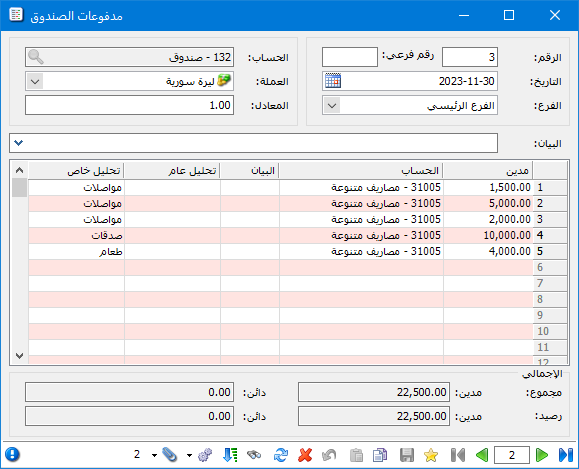
.
Without analysis subtotals, its ledger appears as follows:
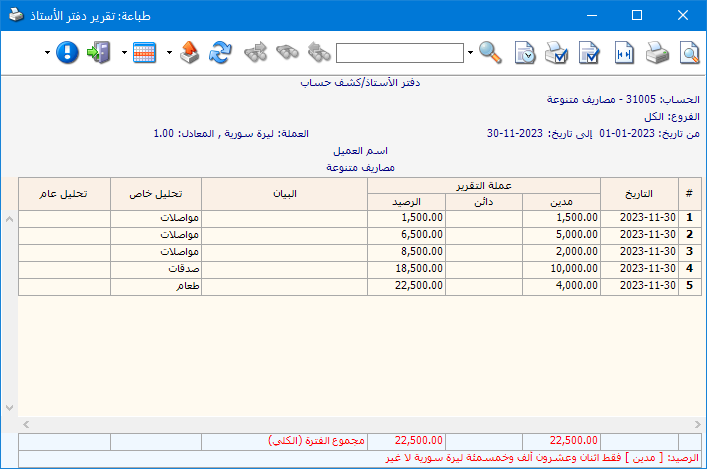
.
With this option enabled, analysis subtotal fields appear at the bottom of the report, as shown below:
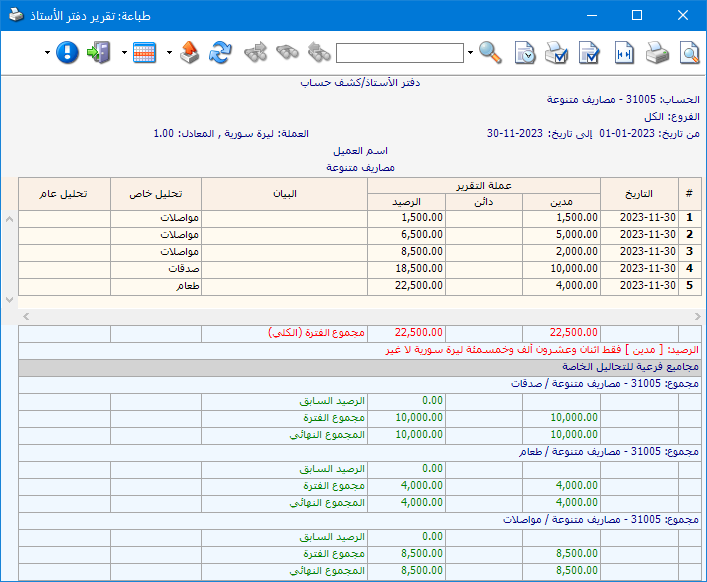
.
Show General Analysis Subtotals: #
Enable this option to display subtotals at the bottom of the report for each general analysis, as shown below:
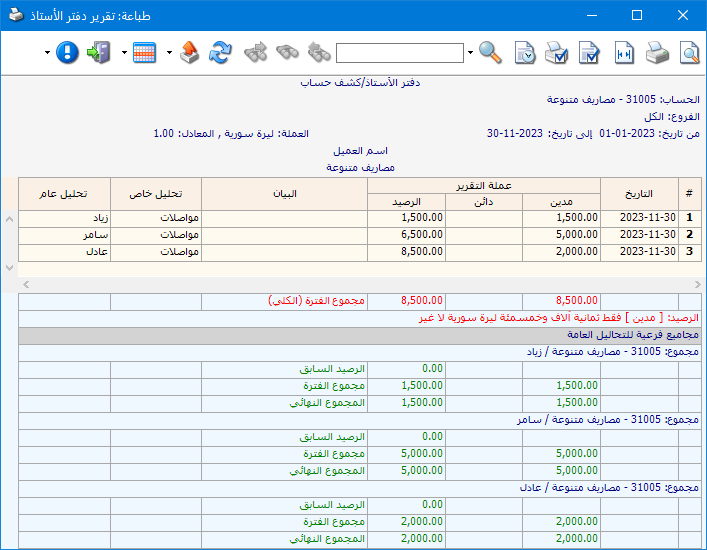
.
Show Monthly Totals: #
Enable this option to add a summary row at the end of each month, showing its total debits, credits and account balance.
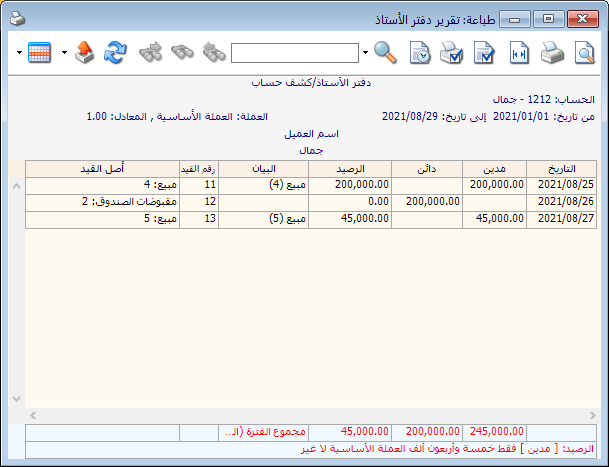
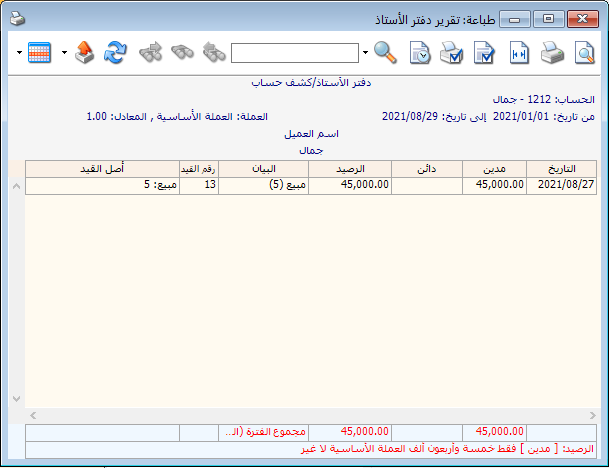
Show Since Last Zero Balance: Enable this option to display transactions after the account’s most recent zero balance.
Example: Jamal was issued a sales invoice for SYP 200,000 on 25 August 2021.
He paid the full invoice on 26 August 2021.
He was then issued a sales invoice for SYP 45,000 on 27 August 2021.
With Show Since Last Zero Balance enabled, clicking Display shows transactions after 26 August 2021, because the account balance was zero on that date.
The report before enabling Show Since Last Zero Balance:
.
The report after enabling Show Since Last Zero Balance:
.
Show: #
Display the report using the preceding conditions.
Print: #
Click this button to print the final report.
Close: #
Close the report conditions window.
Practical examples of information available from the General Ledger report:
- Cash account transactions during a specified period.
- A compact customer or supplier statement without invoice line details.
- Transactions for groups of accounts, such as Customers, Suppliers or Expenses, using specified filters.
- Cash transactions in one branch or across all company branches.
- Cash transactions in a selected currency or across all currencies.
- Cash transactions from posted entries, unposted entries or both.
- Transactions for a specified expense allocated to a company cost center.
- All account transactions allocated to a specified cost center.
- Transactions for a specified expense under one of its account-specific analyses.
.


