


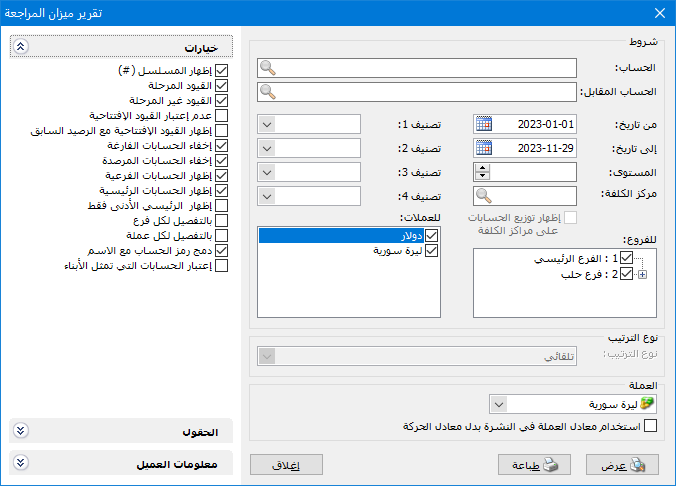
This report summarizes financial transactions for an account or group of accounts. Open it from the Reports menu to display the following criteria window:
.
Conditions: #
- Account: Enter the account whose financial transactions you want to summarize. You can
- select a subaccount, such as the customer Tareq, or a parent account, such as Customers, to summarize its subaccounts and their combined totals. Leave the field blank to include all accounts in the chart of accounts.
- Counterpart AccountUse this field to restrict the selected account’s transactions by their counterpart. For example, to summarize Tareq’s sales-related transactions, select Tareq as the Account and Sales as the Counterpart Account.
- From Date / To Date: Specify the report date range. Only transactions within that period are included.
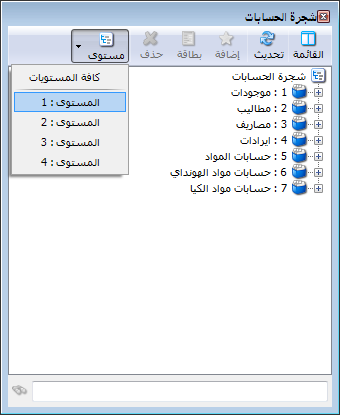
- Level: Set the account detail level. The number corresponds to the levels shown in the Chart of Accounts, as illustrated below:
.
- Cost CenterSelect a cost center to include account transactions allocated to that center.
- Classification 1, Classification 2, Classification 3, Classification 4: Use these fields to filter accounts by their classifications. For example, if Classification 1 represents Customer Location, selecting Damascus summarizes transactions for accounts classified as Damascus.
Branches: #
Select the branches whose account transactions should be included.
Currencies: #
Select a transaction currency to include only transactions recorded in that currency. For example, selecting Syrian Pound excludes cash receipts recorded in Jordanian Dinar.
Sort Order: #
Use this option to sort accounts by measures such as ending debit or credit balance, in descending order.
NoteThis sorting option is unavailable when Show Parent Accounts is enabled.
- Currency: Select the currency used to display report results.
- Exchange Rate: Specify the exchange rate relative to the base currency. This is available only for a secondary currency and offers two choices.
- Use the Exchange-Rate Schedule: Retrieve exchange rates automatically from the schedule, using the rate applicable on each transaction date.
- Use a Specified Exchange Rate: Enter a rate in the field that appears and use it to display the report.
- Use the Scheduled Currency Rate Instead of the Transaction Rate: Use the rate from the exchange-rate schedule instead of the original transaction rate. This option is used when requesting the report in the base currency.
Customer Information: #
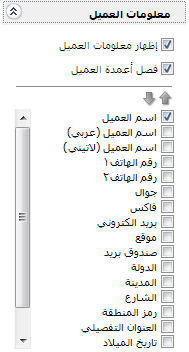
When reporting on customers or suppliers, you can display fields from their records as trial balance columns. Enable Show Customer Information and select the required fields.
Enable Separate Customer Columns to display each field separately, or disable it to combine the fields in one column. Use the up and down arrows to change field order.
Fields: #
The following report fields can be enabled:
- Account Code: The account code defined in the Chart of Accounts.
- Account: The account name, such as Tareq or Discounts Allowed.
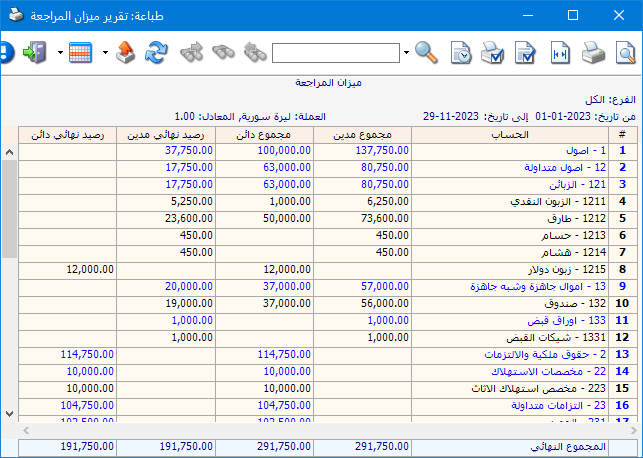
- Transaction Totals: This option displays Total Debits and Total Credits. These columns show the sum of debit and credit transactions for each account; their difference is its ending debit or credit balance, as shown below:
.
- Balance Totals: This option displays two columns:
Total Debit Balances and Total Credit Balances. For a parent account, these show the separate sums of its subaccounts’ debit and credit balances; their difference determines the parent’s net ending balance, as shown below:
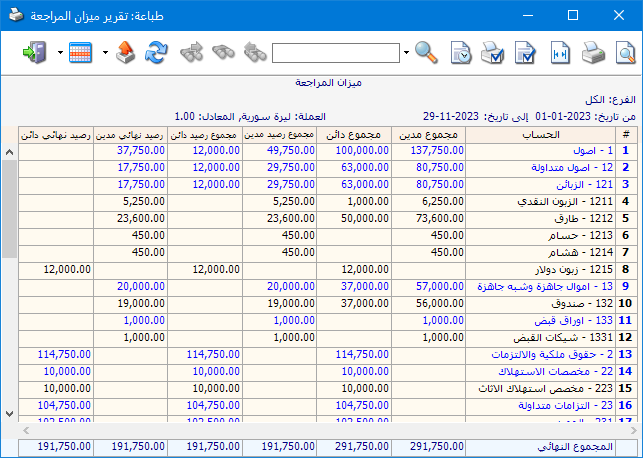
.
- Ending Balances: This option displays two columns:
Ending Debit Balance and Ending Credit Balance display the accounts’ final net balances, as shown above.
Note:
For individual subaccounts, Balance Totals and Ending Balances display the same amounts.
The difference is clear for parent accounts such as Customers. Total Debit Balances aggregates customers with debit balances, while Total Credit Balances aggregates those with credit balances. Ending Balance nets these two totals and displays the result as either a debit or a credit balance, as shown below:
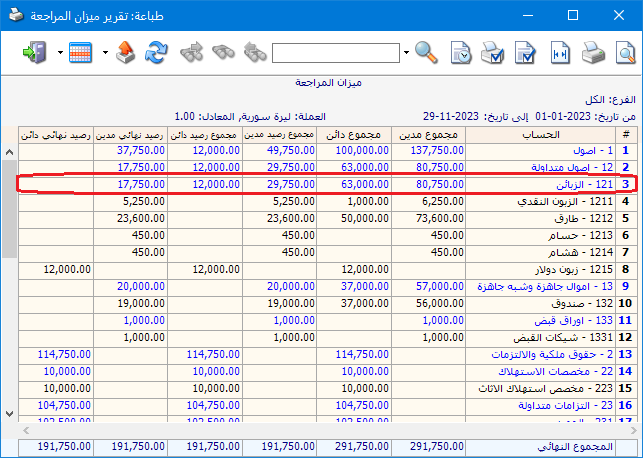
.
Display Options: #
- Show Last Debit Transaction: This option displays the amount and date of the account’s most recent debit transaction. For a supplier, this will often be the last payment made to that supplier.
- Show Last Credit Transaction: This option displays the amount and date of the account’s most recent credit transaction. For a customer, this will often be the last payment received from that customer.
- Show Previous Balance: Enable this field to show transactions between the start of the accounting period and the report’s starting date as a previous balance.
- Classification 1, Classification 2, Classification 3, Classification 4: Enable the required classifications to display each in a separate column beside the account.
Options: #
The options section contains:
- Show Sequence Number: Display sequential numbers for the accounts shown.
- Posted Entries, Unposted Entries: Select which entry posting statuses to include.
- Ignore Opening Entries: Enable this option to exclude opening entries from account transactions.
- Show Opening Entries with Previous Balance: This option combines the opening entry balance with the previous balance in one field. When reporting from the start of the accounting period, it separates opening amounts from current-period transactions. Show Previous Balance must also be enabled.
- Hide Accounts with No Transactions: Enable this option to hide zero-balance accounts that have had no transactions during the year.
- Hide Zero-Balance Accounts: Enable this option to hide accounts that have had transactions but now have a zero balance.
- Show Subsidiary Accounts: Display subaccounts such as Tareq or Discounts Allowed.
- Show Parent Accounts: Display
- parent accounts such as Customers.
- Show Only the Lowest Parent Level: Assume the Assets account appears in the Chart of Accounts as shown:
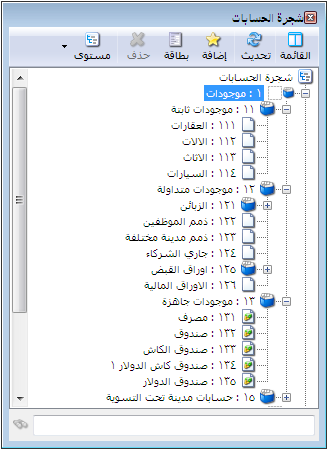
.
Without this option, an Assets trial balance appears as follows:
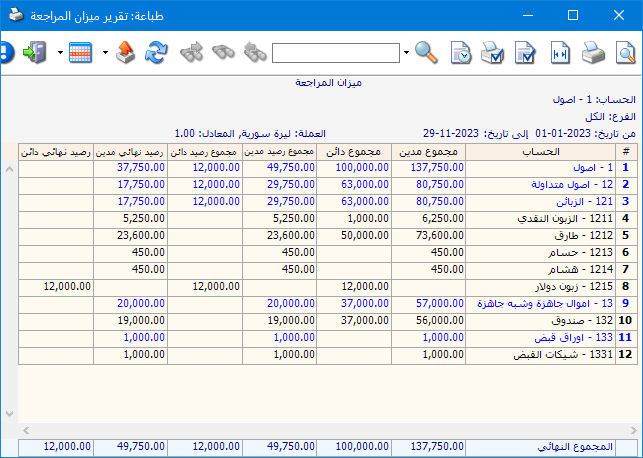
.
With Show Only the Lowest Parent Level enabled, the higher-level account 1 – Assets is omitted because it is above the lowest parent level, as shown below:
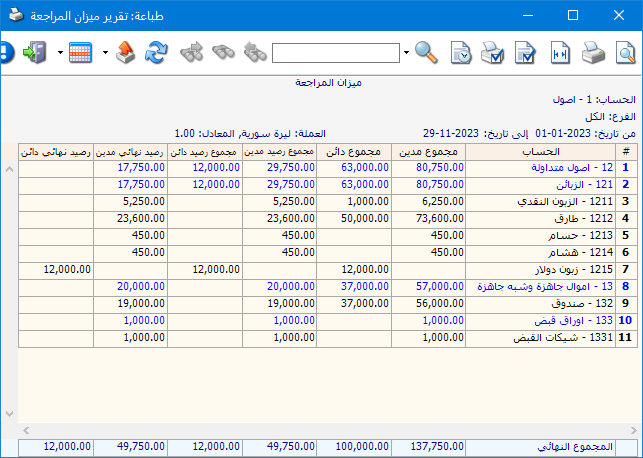
.
Currency Breakdown Options: #
- Break Down by Branch: When requesting a company-wide trial balance, enable this
- option to show each account’s balance for each branch on a separate row.
- Break Down by Currency: Enable this option to display a separate balance row for each currency used by the account.
- Combine Account Code and Name: Enable this option to combine account code and name in one field.
- Respect Accounts Representing Their Children: Enable Consider Accounts That Represent Their Subaccounts to replace subaccount detail with the parent account when that parent is marked Represents Its Subaccounts in Reports. Disable the report option to show the subaccounts again. To configure a parent, right-click it in the Chart of Accounts and select Represents Its Subaccounts in Reports.
See the Represents Its Subaccounts in Reports option.
Report Footer: #
Show: Display the report using the preceding conditions.
Print: Click this button to print the final report.
Close: Close the report conditions window.
Practical examples of information available from the Trial Balance report:
- Balances for all accounts.
- Customer or supplier balances.
- Expense account balances between two specified dates.
- Balances for accounts with transactions in a particular branch.
- Balances for accounts with transactions in the base currency or another currency.
- Customer balances with the date and amount of the most recent credit transaction, often the last receipt.
- Expense account balances broken down by company branch.
- Balances from posted entries, unposted entries or both.
- Balances for accounts with a specified classification in their account records.
- Balances for accounts with transactions allocated to a specified cost center.
.


