

Skip to content
Contact Us
الميزان دوت نت للمحاسبة والمستودعات
  • Home
  • About the Software
    • About Us
    • Our Clients
  • Products
  • Services
  • Learning
    • Knowledge Base
    • Video Tutorials
  • Blog
  • Downloads
    • Al Mizan .NET
    • Updates
    • Utilities
  • العربية
  • Home
  • About the Software
    • About Us
    • Our Clients
  • Products
  • Services
  • Learning
    • Knowledge Base
    • Video Tutorials
  • Blog
  • Downloads
    • Al Mizan .NET
    • Updates
    • Utilities
  • العربية
  • Home
  • About the Software
    • About Us
    • Our Clients
  • Products
  • Services
  • Learning
    • Knowledge Base
    • Video Tutorials
  • Blog
  • Downloads
    • Al Mizan .NET
    • Updates
    • Utilities
  • العربية

User Guide

  • Knowledge Base
  • Accounting Menu
    • Chart of Accounts and Account Cards in Al Mizan
    • Define Customer and Supplier Records
    • Budgets and Their Uses
    • Account-Specific Analysis in Al Mizan
    • Transfer Account Transactions in Al Mizan
    • Account Analysis: General Analysis
    • Allocation Accounts in Al Mizan
    • Aggregate Accounts
    • Allocate Accounts to Cost Centers
    • Closing Accounts in Al Mizan
  • Accounting Reports
    • Receivables and Payables Aging Report in Al Mizan
    • Customer Balances Report in Al Mizan
    • Customer Statement Report in Al Mizan
    • General Ledger Report in Al Mizan
    • Trial Balance Report in Al Mizan
    • Most Active Customers Report
    • Inactive Customers Report in Al Mizan
    • Journal Daybook Report in Al Mizan
    • Account Transaction Analysis Report in Al Mizan
    • Budget Report
    • Monthly Account Transactions Report
    • Closing Accounts Report in Al Mizan
    • Cost Center Ledger Report
    • Permissions Report: Options and Uses
    • Chart of Accounts Report
  • Archiving
    • Archiving Module in Al Mizan .NET
  • Definitions Menu
    • Invoice Type Settings in Al Mizan
    • Sales Representative Invoice Commissions in Al Mizan
    • Cost Centers in Al Mizan
    • Define Custom Journal Vouchers in Al Mizan
    • Define Commercial Paper Types in Al Mizan
    • Sales Representatives: Journal Entry Commissions
    • Define Branch Records and Configure Their Options
    • Payment Methods in Al Mizan
    • Define the Currency Exchange-Rate Schedule
    • Define Currencies and Configure Their Options
    • Define Bank Records in Al Mizan
    • Define Warehouse Records and Configure Their Options
  • Features
    • Start Page Settings and Panels in Al Mizan
    • Database Rollover in Al Mizan
    • Processing Import Transactions
    • Use Al Mizan Functions in Excel
    • Configure Perpetual Inventory in Al Mizan
    • Define and Use an Item Independent Unit
    • Use Item Subinventory in Invoices
    • Report Toolbar Options
    • Import Items and Accounts from Excel
    • Audit Log: Options and Uses
    • Task List: Options and Uses
    • Design Page and Report Headers and Footers
    • The Calculator in Al Mizan
  • File Menu
    • Delete a Database in Al Mizan
    • Create and Restore a Database Backup
    • Create and Set Up a New Database
    • Attach Database Files
  • Financial Statements
    • Financial Statements in Al Mizan
  • Fixed Assets
    • Fixed Asset Management in Al Mizan
  • Inventory Reports
    • Detailed Invoice Transactions Report
    • Item Inventory Report: Options and Uses
    • Minimum and Maximum Item Levels Report
    • Customer Transactions by Item Report
    • Item Expiry Dates Report
    • Horizontal Item Inventory Report: Options and Uses
    • Item Transaction Analysis Report: Options and Uses
    • Free Units Inventory Report: Options and Uses
    • Total Transactions Report for Items and Categories
    • Item Transactions Report: Options and Uses
    • Monthly Item Transactions Report
    • Inactive Items Report: Options and Uses
    • Invoice Line Profit Report
    • Most Profitable Items Report
    • Most Active Items Report
    • Invoice Profit Report
    • Invoice Totals Report: Options and Uses
    • Serial Number Inventory Report
    • Item and Category Profit Report
    • Quotation Comparison Report
    • Serial Number Transaction Report
    • Item List Report in Al Mizan
  • Invoices Menu
    • Detailed Invoice Fields and Settings in Al Mizan
    • Manage Invoices
  • Items Menu
    • Item Accounting Groups in Al Mizan
    • Define Item Cards and Categories in Al Mizan
    • Item Barcode Schemas in Al Mizan
    • Invoice Operations in Al Mizan
    • Compare Warehouse Stocktakes
    • Update Item Prices
    • Carried-Forward Item–Branch Statistics
    • Carried-Forward Item–Customer Statistics
    • Manage Items in Al Mizan
    • Transfer Item Transactions
    • Minimum and Maximum Item Levels
    • Arrange Invoices in Al Mizan
    • Update Information for a Group of Items
  • Journal Entries Menu
    • Use Custom Journal Vouchers in Al Mizan
    • Process Commercial Papers in Al Mizan
    • Define and Use Commercial Papers in Al Mizan
    • Manage Currency Exchange Differences
    • Manage Custom Journal Vouchers
    • Manage Journal Vouchers in Al Mizan
    • Journal Operations in Al Mizan
    • Enter Journal Data and Configure Entry Settings
  • Manufacturing
    • Manufacturing Management in Al Mizan
  • Orders
    • Order Management in Al Mizan
  • Permissions Menu
    • Permissions: Options and Uses
    • Posting Policies in Al Mizan
    • Field Permissions in Al Mizan
    • Confidentiality Levels and Password Changes
  • Point of Sale
    • Point of Sale in Al Mizan
  • Real Estate
    • Real Estate Management in Al Mizan
  • Tools Menu
    • General Program Settings in Al Mizan .NET
    • Print Designer in Al Mizan
    • Advanced Print Designer Properties
    • Manage Print Design Groups
  • Training Courses
    • Training Course Management in Al Mizan
Show Categories
  • Home
  • Knowledge Base
  • User Guide
  • Permissions Menu
  • Permissions: Options and Uses

Permissions: Options and Uses

Permissions are essential in accounting software, especially when several people use the same database. Give each user an individual account, password and defined permissions so that:

  • The user cannot perform database operations outside their permissions.
  • The user cannot alter another user’s work without authorization.
  • The user cannot view transactions classified as confidential for their access level.

The following sections explain how to define users and configure permissions:

1. User Management: #

Open Permissions / User Management to define users for the company database. The following window appears:
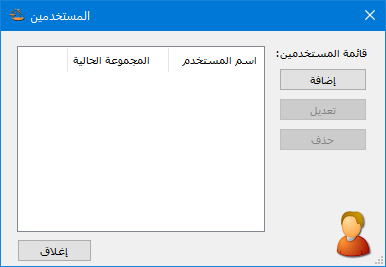
Illustration: user management

.

Click Add to create a new user. The following window contains these fields:

User Name: #

Enter the username, such as Tareq.
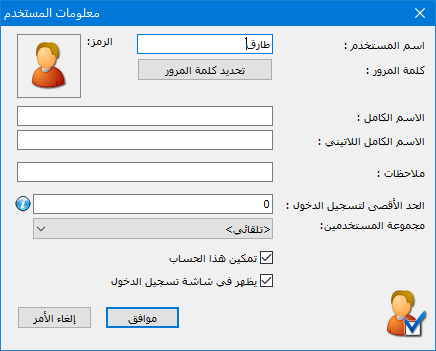
Illustration: username

.

Password: #

Click Set Password. In the password window, enter the old password if applicable, then enter and confirm the new password and click OK.
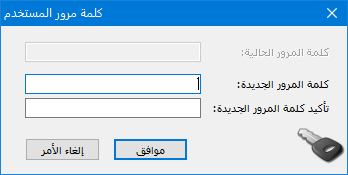
Illustration: set a password

.

Maximum Concurrent Logins: #

Set the maximum number of simultaneous logins allowed for this username.

Password Validity Period: #

Set how long the password may be used before it must be changed.

User Group: #

Select the group to which this user belongs if users are organized into groups.

Enable This Account: #

Disable this option to prevent the user from signing in to the database.

Show on the Login Screen: #

Disable this option to hide the username from the list displayed when signing in to the database.

2-User Groups: #

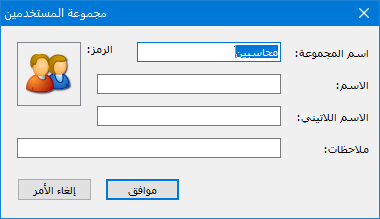
User groups let you configure permissions once for several users rather than separately for each user. Group users according to their required permissions: users in the same group share the group permission settings. Open Permissions / User Groups to create groups, as shown above:

Click Add to create a user group in the following window:
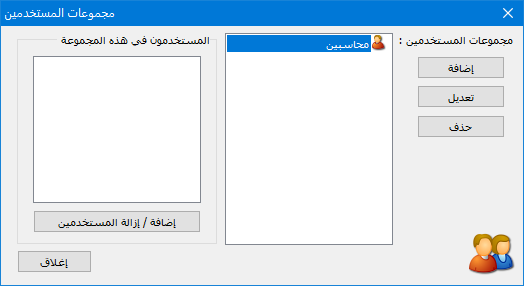
Illustration: user groups

.

To assign users to an existing group, click Add/Remove Users. Select a username on the left and click Add to include that user in the group, as shown:
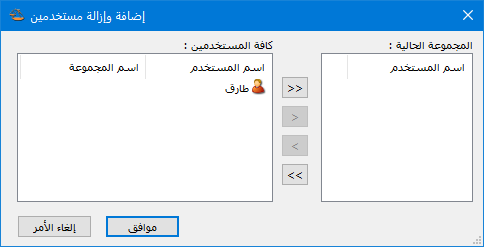
Illustration: user groups

.

3-Set Permissions: #

Open Permissions / Set Permissions and select the user or group to configure. By default, the permission tree is grouped by permission items. 

The following examples illustrate how to configure permissions.:
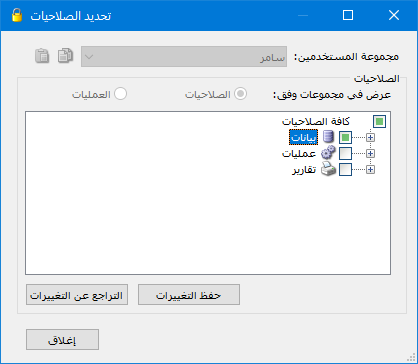
Illustration: set permissions

.

Example One: #

A user needs permission to perform all operations and view all database records, transactions and reports:

Click the empty checkbox beside All Permissions. Green checks appear throughout the tree, granting the available permissions, as shown below::
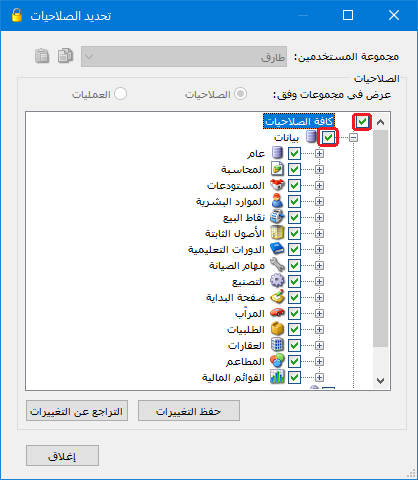
Illustration: example one

.

Note:

A newly defined user with full permissions still cannot perform these two administrator-only operations: Delete the Database, and Roll Forward the Database. These operations are reserved for the System Administrator, who alone is authorized to perform them.

Example Two: #

A user should perform purchases and sales only:

In Set Permissions, open Data / Invoices and enable the required permissions for Purchase and Sales invoices. Also grant item viewing permission so the user can insert items, and account viewing permission so they can select a customer account. The following image shows the available invoices: 
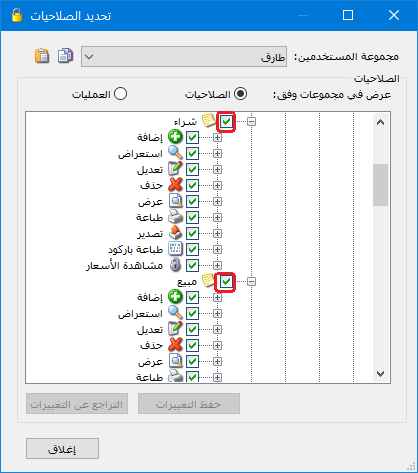
Illustration: example two

.

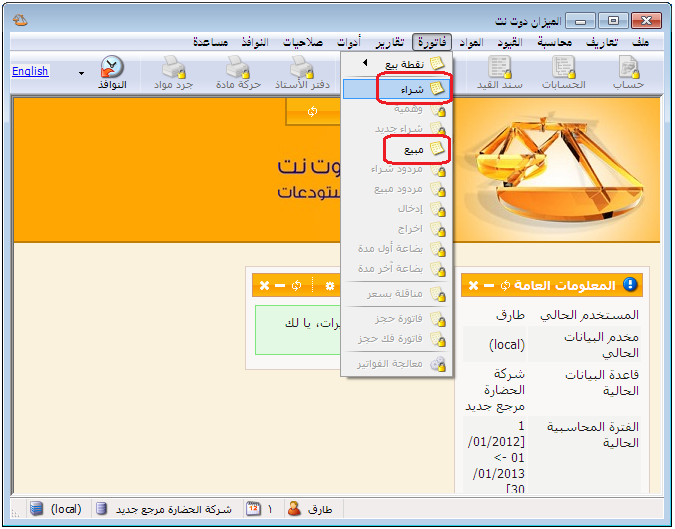
When this user signs in, other menus are unavailable while Purchase and Sales invoices remain accessible, as shown below::

Example Three: #

A user may create purchase invoices at every confidentiality level and browse only invoices classified as General. They may not edit, delete, preview, print, print barcodes or export existing invoices.

In Set Permissions, open Data / Invoices. Enable Add for Purchase invoices at all confidentiality levels, and enable View only for the General level, as shown below:
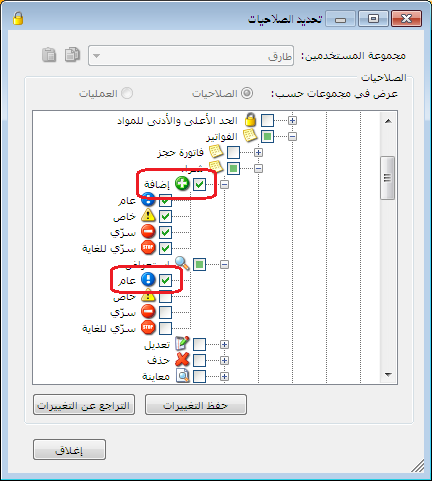
Illustration: example three

.

On returning to the purchase invoice screen, Add New Record is enabled. Navigation buttons allow browsing existing General invoices, but their fields are read-only because the user cannot edit them. Printing is also unavailable. The following image illustrates this:
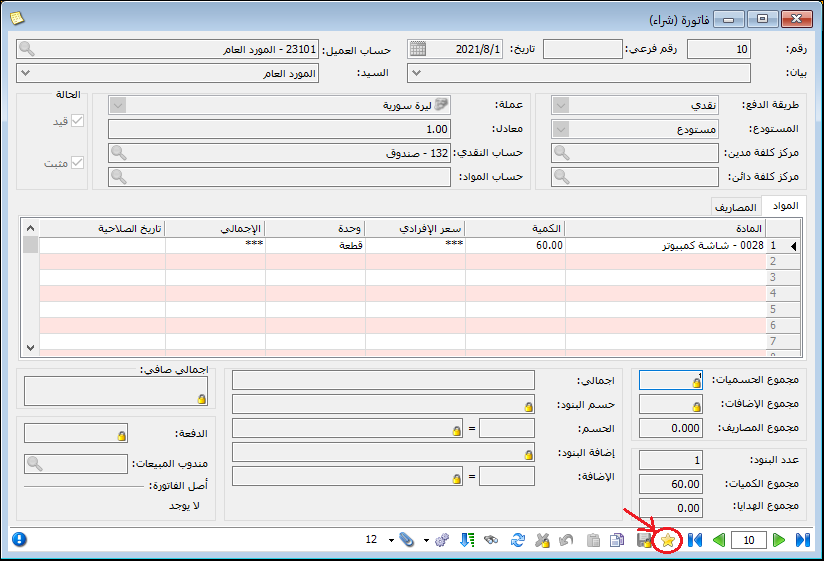
Illustration: example three

.

Example Four: #

A user should access all operations and accounts except selected confidential accounts, which must be hidden from the account tree and reports:

In Set Permissions, open Data / Accounts. Enable Add fully, but enable View, Edit and Delete only for General and Private confidentiality levels. In this example, set the customer Hisham’s account to Confidential, as shown below:
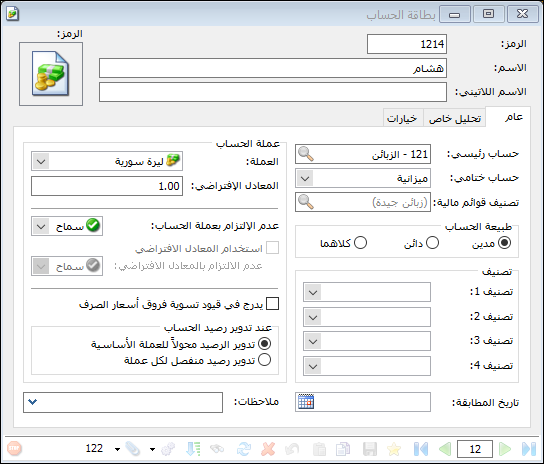
Illustration: example four

.

The user can no longer see Hisham’s account in the Chart of Accounts, as shown below:
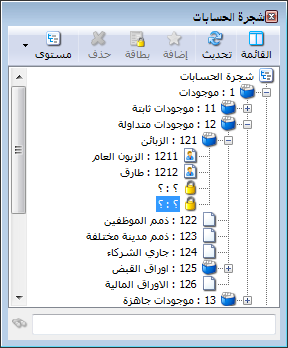
Illustration: example four

.

If the user requests a customer trial balance, Hisham’s account is also excluded from the report, as shown below:
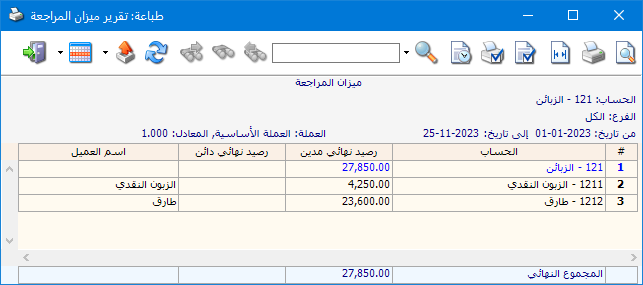
Illustration: example four

.

 Note:  #

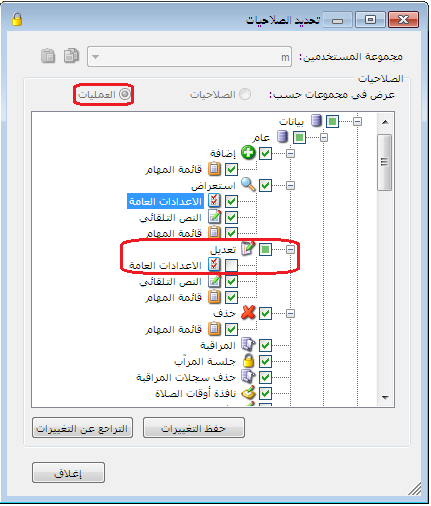
You can group the permission tree by Operations instead of permission items. This organizes permissions around actions such as Add, View, Edit and Delete.
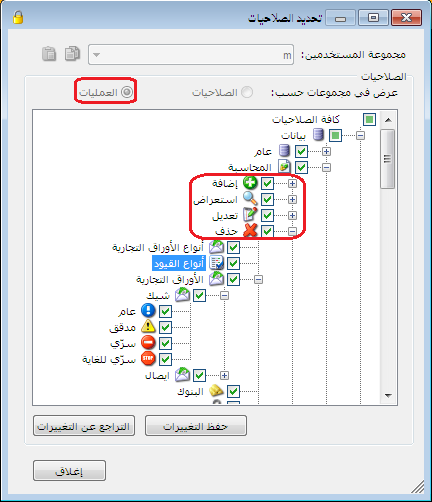
توضيح  ملاحظة: 

.

See: Confidentiality Levels

Example:

To prevent a user from modifying program settings, open Set Permissions / Operations / Data / General / Edit and disable General Settings. The user will then be unable to change those settings, as shown below: 
توضيح  ملاحظة: 

.

Important Note:

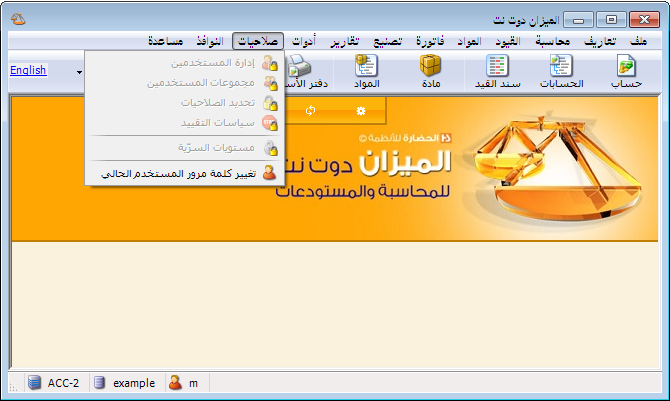
User and Permission Management is itself a permission, found under All Permissions / Operations / General / User and Permission Management. Do not grant it to users who should not change their own or other users’ permissions. It is disabled by default for a user.

The screen after applying the preceding change:
توضيح  ملاحظة: 

.

Follow our YouTube channel

Share This Article

  • Facebook
  • X
  • LinkedIn
  • Pinterest
Could not find what you need? Contact us

How can we help you?

Updated on October 2, 2026
Confidentiality Levels and Password ChangesPosting Policies in Al Mizan

Powered by BetterDocs

Contents
  • 1. User Management:
    • User Name:
    • Password:
    • Maximum Concurrent Logins:
    • Password Validity Period:
    • User Group:
    • Enable This Account:
    • Show on the Login Screen:
  • 2-User Groups:
  • 3-Set Permissions:
    • Example One:
    • Example Two:
    • Example Three:
    • Example Four:
      •  Note: 
Mizan logo black1

Al Mizan .NET Accounting and Inventory: take the next step toward more effective business management

Quick Links

  • Knowledge Base
  • Privacy Policy (Arabic)
  • Terms and Conditions (Arabic)
  • Contact Us

Stay Informed

Get the latest news and offers from our website 

  • Abdurrahman Nafiz Gürman, No:05
    Güngören/İstanbul
  • +905360652643
  • info@hadarasoft.net
© 2026 Hadarasoft
Instagram Facebook-f Youtube
Need help? Contact us