


Skip to content
Contact Us
الميزان دوت نت للمحاسبة والمستودعات
  • Home
  • About the Software
    • About Us
    • Our Clients
  • Products
  • Services
  • Learning
    • Knowledge Base
    • Video Tutorials
  • Blog
  • Downloads
    • Al Mizan .NET
    • Updates
    • Utilities
  • العربية
  • Home
  • About the Software
    • About Us
    • Our Clients
  • Products
  • Services
  • Learning
    • Knowledge Base
    • Video Tutorials
  • Blog
  • Downloads
    • Al Mizan .NET
    • Updates
    • Utilities
  • العربية
  • Home
  • About the Software
    • About Us
    • Our Clients
  • Products
  • Services
  • Learning
    • Knowledge Base
    • Video Tutorials
  • Blog
  • Downloads
    • Al Mizan .NET
    • Updates
    • Utilities
  • العربية

User Guide

  • Knowledge Base
  • Accounting Menu
    • Chart of Accounts and Account Cards in Al Mizan
    • Define Customer and Supplier Records
    • Budgets and Their Uses
    • Account-Specific Analysis in Al Mizan
    • Transfer Account Transactions in Al Mizan
    • Account Analysis: General Analysis
    • Allocation Accounts in Al Mizan
    • Aggregate Accounts
    • Allocate Accounts to Cost Centers
    • Closing Accounts in Al Mizan
  • Accounting Reports
    • Receivables and Payables Aging Report in Al Mizan
    • Customer Balances Report in Al Mizan
    • Customer Statement Report in Al Mizan
    • General Ledger Report in Al Mizan
    • Trial Balance Report in Al Mizan
    • Most Active Customers Report
    • Inactive Customers Report in Al Mizan
    • Journal Daybook Report in Al Mizan
    • Account Transaction Analysis Report in Al Mizan
    • Budget Report
    • Monthly Account Transactions Report
    • Closing Accounts Report in Al Mizan
    • Cost Center Ledger Report
    • Permissions Report: Options and Uses
    • Chart of Accounts Report
  • Archiving
    • Archiving Module in Al Mizan .NET
  • Definitions Menu
    • Invoice Type Settings in Al Mizan
    • Sales Representative Invoice Commissions in Al Mizan
    • Cost Centers in Al Mizan
    • Define Custom Journal Vouchers in Al Mizan
    • Define Commercial Paper Types in Al Mizan
    • Sales Representatives: Journal Entry Commissions
    • Define Branch Records and Configure Their Options
    • Payment Methods in Al Mizan
    • Define the Currency Exchange-Rate Schedule
    • Define Currencies and Configure Their Options
    • Define Bank Records in Al Mizan
    • Define Warehouse Records and Configure Their Options
  • Features
    • Start Page Settings and Panels in Al Mizan
    • Database Rollover in Al Mizan
    • Processing Import Transactions
    • Use Al Mizan Functions in Excel
    • Configure Perpetual Inventory in Al Mizan
    • Define and Use an Item Independent Unit
    • Use Item Subinventory in Invoices
    • Report Toolbar Options
    • Import Items and Accounts from Excel
    • Audit Log: Options and Uses
    • Task List: Options and Uses
    • Design Page and Report Headers and Footers
    • The Calculator in Al Mizan
  • File Menu
    • Delete a Database in Al Mizan
    • Create and Restore a Database Backup
    • Create and Set Up a New Database
    • Attach Database Files
  • Financial Statements
    • Financial Statements in Al Mizan
  • Fixed Assets
    • Fixed Asset Management in Al Mizan
  • Inventory Reports
    • Detailed Invoice Transactions Report
    • Item Inventory Report: Options and Uses
    • Minimum and Maximum Item Levels Report
    • Customer Transactions by Item Report
    • Item Expiry Dates Report
    • Horizontal Item Inventory Report: Options and Uses
    • Item Transaction Analysis Report: Options and Uses
    • Free Units Inventory Report: Options and Uses
    • Total Transactions Report for Items and Categories
    • Item Transactions Report: Options and Uses
    • Monthly Item Transactions Report
    • Inactive Items Report: Options and Uses
    • Invoice Line Profit Report
    • Most Profitable Items Report
    • Most Active Items Report
    • Invoice Profit Report
    • Invoice Totals Report: Options and Uses
    • Serial Number Inventory Report
    • Item and Category Profit Report
    • Quotation Comparison Report
    • Serial Number Transaction Report
    • Item List Report in Al Mizan
  • Invoices Menu
    • Detailed Invoice Fields and Settings in Al Mizan
    • Manage Invoices
  • Items Menu
    • Item Accounting Groups in Al Mizan
    • Define Item Cards and Categories in Al Mizan
    • Item Barcode Schemas in Al Mizan
    • Invoice Operations in Al Mizan
    • Compare Warehouse Stocktakes
    • Update Item Prices
    • Carried-Forward Item–Branch Statistics
    • Carried-Forward Item–Customer Statistics
    • Manage Items in Al Mizan
    • Transfer Item Transactions
    • Minimum and Maximum Item Levels
    • Arrange Invoices in Al Mizan
    • Update Information for a Group of Items
  • Journal Entries Menu
    • Use Custom Journal Vouchers in Al Mizan
    • Process Commercial Papers in Al Mizan
    • Define and Use Commercial Papers in Al Mizan
    • Manage Currency Exchange Differences
    • Manage Custom Journal Vouchers
    • Manage Journal Vouchers in Al Mizan
    • Journal Operations in Al Mizan
    • Enter Journal Data and Configure Entry Settings
  • Manufacturing
    • Manufacturing Management in Al Mizan
  • Orders
    • Order Management in Al Mizan
  • Permissions Menu
    • Permissions: Options and Uses
    • Posting Policies in Al Mizan
    • Field Permissions in Al Mizan
    • Confidentiality Levels and Password Changes
  • Point of Sale
    • Point of Sale in Al Mizan
  • Real Estate
    • Real Estate Management in Al Mizan
  • Tools Menu
    • General Program Settings in Al Mizan .NET
    • Print Designer in Al Mizan
    • Advanced Print Designer Properties
    • Manage Print Design Groups
  • Training Courses
    • Training Course Management in Al Mizan
Show Categories
  • Home
  • Knowledge Base
  • User Guide
  • Inventory Reports
  • Detailed Invoice Transactions Report

Detailed Invoice Transactions Report

This report displays detailed information about invoices in the database using the criteria shown below:
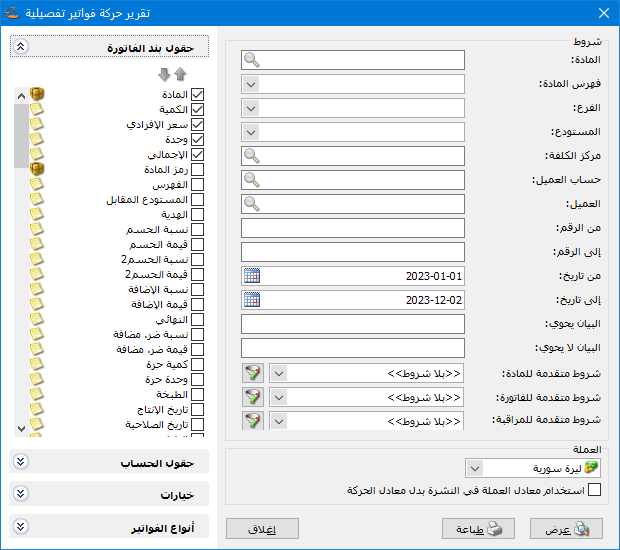
Illustration: Detailed Invoice Transactions report

.

Conditions: #

  • Item: Select an item to include invoices containing it. Only that item’s quantities and prices are displayed within those invoices.
  • Item Category: Select an item category to include invoices containing its items. Only quantities and prices for matching items are displayed; other items are excluded.
  • Branch: Select a branch to include invoices issued within that branch.
  • WarehouseSelect a warehouse to include invoices involving that warehouse.
  • Cost CenterSelect a cost center to include invoices associated with it.
  • Customer AccountSelect an account to display its detailed invoice transactions.
  • CustomerSelect a customer to include invoices associated with that customer.
  • From Number / To Number: Specify a number range to include invoice numbers within it.
  • From Date / To Date: Specify a date range to include invoices dated within it.
  • Description Contains / Does Not Contain: Enter text to include or exclude invoices according to their descriptions.

Advanced Conditions: #

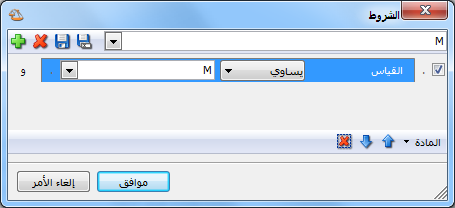
  • Advanced Item Conditions: Use advanced item filters to select the required items. For example, to include size M items, click the funnel beside Advanced Item Filters. Open the Item section, select Size and add a condition where Size equals M. Click OK and save the filter. When the report is displayed, only invoice lines for size M items are included.
0204- P-207

.

  • Advanced Invoice Conditions: Set advanced invoice filters to include only matching invoices. For example, set Currency equal to US Dollar to include dollar-denominated invoices, as shown below:
Illustration: advanced conditions

.

  • Advanced Audit Conditions: Specify audit conditions such as invoices added or modified by a particular user.

Note:

Disable a condition by clearing its checkbox, or choose No Filters in the Advanced Filters field to disable the filter, as in the default report settings.

Currency: #

Select the currency in which the report should be displayed.

Exchange Rate: Specify the rate relative to the base currency. This field is available only for a secondary currency and offers two choices:

  1. Use the Exchange-Rate Schedule: Retrieve exchange rates automatically from the schedule, using the rate applicable on each transaction date.
  2. Use a Specified Exchange Rate: Enter a rate in the field that appears and use it to display the report.

Use the Scheduled Currency Rate Instead of the Transaction Rate: Use the rate from the exchange-rate schedule instead of the rate entered in the original transaction. This option is used when requesting the report in the base currency.

Invoice Line Fields: #

Select the fields to display. Most come from the invoice; others include cost, profit and additional properties defined in Invoice Types.

Account Fields: #

Select fields from the account and customer records to display in the report.

Options: #

The Options section contains the following settings:

  • Show Sequence Number: Enable this option to display a sequential number for each invoice.
  • Finalized Invoices: Include finalized invoices.
  • Unfinalized Invoices: Include unfinalized invoices.
  • Quantities Only: Enable this option to focus on item details. Invoice totals, invoice payments, expense totals and separate line or invoice discount/addition summaries are not available in this mode. Disable it to display those summaries.
  • Show Invoice Total: Enable this option to display the invoice total on a separate row after its details. 
  • Show Net Invoice Amount: Enable this option to display the net invoice amount on a separate row after its details.
  • Separate Line Discounts from Overall Discount: Enable Separate Line Discounts from General Discount to display line discounts and the overall invoice discount separately. Otherwise they appear together on one row after the invoice total.
  • Separate Line Surcharges from Overall Surcharge: Enable Separate Line Additions from General Addition to display line additions and the overall invoice addition separately. Otherwise they appear together on one row after the invoice total.

Total Options: #

  • Show Total Expenses: Enable this option to display the sum of expenses recorded on the Expenses tab on a separate row.
  • Show Total Additional Taxes: Enable this option to display the sum of taxes recorded on the Additional Taxes tab on a separate row.

Display Options: #

  • Show Invoice Payment: Enable this option to display the payment recorded in the invoice’s Payment field on a separate row.
  • Show Payment Method: Enable Show Payment Method to display the method beside the invoice payment, on the row created by Show Invoice Payment.
  • Show Second Unit, Show Third Unit: Enable these options when
    you want invoice item quantities displayed in more than one unit.
  • Show Invoice Subnumber: Enable this option to display the invoice subnumber.
  • Show Invoice Payment: Enable this option to display the payment entered in the invoice’s Payment field on a separate row.
  • Show Payment Methods: Enable this option to break the invoice payment down by method when more than one payment method was used, as described in the invoice Payment field guide.
  • Show Payment Method: Whether the invoice uses Cash, Credit or Commercial Paper, such as a cheque.
  • Show Customer: The customer whose account is selected in the invoice’s Customer Account field.
  • Show Sales Representative: The representative selected near the bottom of the invoice.
  • Show Invoice Description: Enable this option to display the text entered in the invoice header’s Description field.

Merge Options: #

Combine Item Code and Name: Combine item code and name in one report field.

Combine Gifts with Quantity: Enable this option to combine the main quantity and free units in one column. Otherwise free units appear in a separate field.

Invoice Types: #

Select the invoice types to include in the report.

  • Show: Display the report using the preceding conditions.
  • Print: Click this button to print the final report.
  • Close: Close the report conditions window.

Practical examples of information available from the Detailed Invoice Transactions report:

  • Detailed sales invoice transactions during the first month.
  • Detailed sales invoice transactions for the customer Tareq.
  • Detailed sales invoice transactions issued from the Main Warehouse.
  • Detailed credit purchase invoice transactions.
  • Detailed item issue invoice transactions allocated to the Building One cost center.
  • Detailed invoice transactions for items in the Clothing category.
  • Detailed sales invoice transactions for a customer account selected when requesting the report.
  • Detailed purchase invoice transactions whose description contains “Al Haram Shipping”.
  • Detailed sales invoice transactions valued in US dollars using an illustrative exchange rate of 70 Syrian pounds per dollar.
  • Detailed sales invoice transactions from invoice number 25 to invoice number 180.
  • Detailed sales invoice transactions in the main company branch across all its warehouses.

.

See the Invoice Totals report section.

Follow our YouTube channel

Share This Article

  • Facebook
  • X
  • LinkedIn
  • Pinterest
Could not find what you need? Contact us

How can we help you?

Updated on October 2, 2026
Item List Report in Al MizanItem Inventory Report: Options and Uses

Powered by BetterDocs

Contents
  • Conditions:
  • Advanced Conditions:
  • Currency:
  • Invoice Line Fields:
  • Account Fields:
  • Options:
  • Total Options:
  • Display Options:
  • Merge Options:
  • Invoice Types:
Mizan logo black1

Al Mizan .NET Accounting and Inventory: take the next step toward more effective business management

Quick Links

  • Knowledge Base
  • Privacy Policy (Arabic)
  • Terms and Conditions (Arabic)
  • Contact Us

Stay Informed

Get the latest news and offers from our website 

  • Abdurrahman Nafiz Gürman, No:05
    Güngören/İstanbul
  • +905360652643
  • info@hadarasoft.net
© 2026 Hadarasoft
Instagram Facebook-f Youtube
Need help? Contact us