


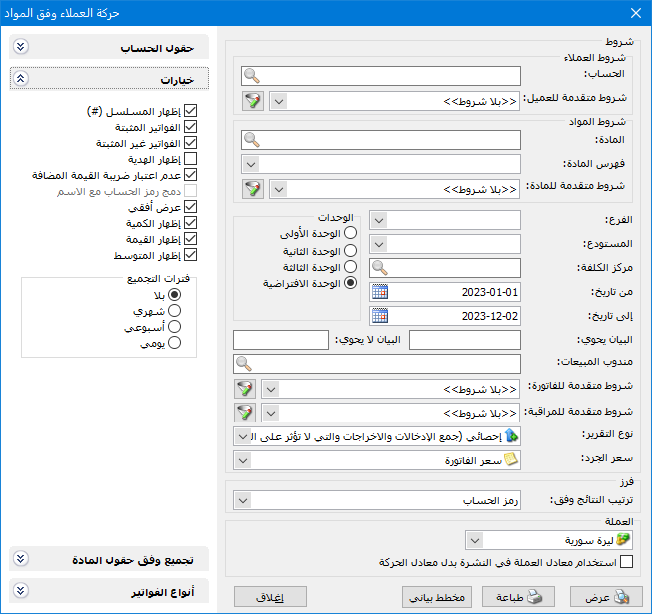
This cross-tab report combines customer and item information. Rows represent customers or suppliers, while columns represent items, giving a consolidated view of item transactions by trading partner. Flexible filters let you select the required scope. Choose Customer Transactions by Item from the Reports menu to open the following criteria window:
.
.
Customer Conditions: #
- Account: Select a subaccount or parent account, such as Customers or Suppliers, to report transactions for the selected accounts.
- Advanced Customer Conditions: Set advanced customer filters based on customer record fields, such as name, mobile number, telephone number or city.
Item Conditions: #
- Item: Select an item to restrict the report to that item.
- Item Category: Select a category to include its items.
- Advanced Item Conditions: Use item record fields to filter the items included in the report.
- Branch: Select a branch to include invoices involving its warehouses.
- Warehouse: Select a warehouse to include invoices involving that warehouse.
- Cost Center: Select a cost center to include invoices associated with it.
- From Date / To Date: Specify the report date range.
Units: #
The results are displayed using the selected unit. The following unit options are available:
- First Unit.
- Second Unit.
- Third Unit.
- Default Unit: This option uses the unit marked Default on the Units tab of the item record. It can be the first, second or third unit.
- Description Contains: Enter text to include invoices whose description contains that text.
- Description Does Not Contain: Enter text to exclude invoices whose description contains that text.
- Sales Representative: Select a sales representative to include invoices associated with that representative.
- Advanced Invoice Conditions: Set advanced invoice filters to include only matching invoices.
- Advanced Audit Conditions: Set audit filters, such as invoice creation date or creator, to include only matching customer transactions.
Report Type: #
Two options are available:
- Statistical (Add Receipts and Issues): Statistical mode adds receipt and issue quantities to measure transaction activity. For example, purchasing 3 units at 100 lira each and selling 1 unit at 200 lira produces a statistical quantity of 4 units. Their reported value is calculated using the price selected in the Inventory Valuation Price field.
- Inventory (Subtract Issues from Receipts):Inventory mode subtracts issues from receipts. For example, purchasing 3 units at 100 lira each and selling 1 unit at 200 lira produces an inventory quantity of 2 units. Their value is calculated using the inventory valuation price selected in the next field.
Inventory Valuation Price: #
Select the price method used to value the quantities displayed in the report.
Sort: #
Sort Results By: Choose the account sorting criterion: Account Code, Account Name, or Parent Account Code then Account Name.
Currency: #
Select the currency in which the report should be displayed.
Exchange Rate: Set the exchange rate against the base currency. This field is available when using a secondary currency and provides two options:
- Use the Exchange-Rate Schedule: Retrieve exchange rates automatically from the schedule, using the rate applicable on each transaction date.
- Use Conversion Rate: This option lets you enter a rate and display the report using that value.
- Use the Scheduled Currency Rate Instead of the Transaction Rate: Use the rate from the exchange-rate schedule instead of the rate entered in the original transaction. This option is used when requesting the report in the base currency.
- Account FieldsSelect account-related fields to display, such as Account Code, Parent Account and Closing Account.
Options: #
The options section contains:
- Show Sequence Number: Display sequential numbers for the accounts shown.
- Finalized Invoices: Include account transactions from posted entries.
- Unfinalized Invoices: Include account transactions from unposted entries.
- Show Free Units: Enable this option to display free units separately from the main quantity.
- Exclude Value Added Tax: Enable this option to exclude VAT from the report.
- Combine Account Code and Name: Combine the account code and name in one field.
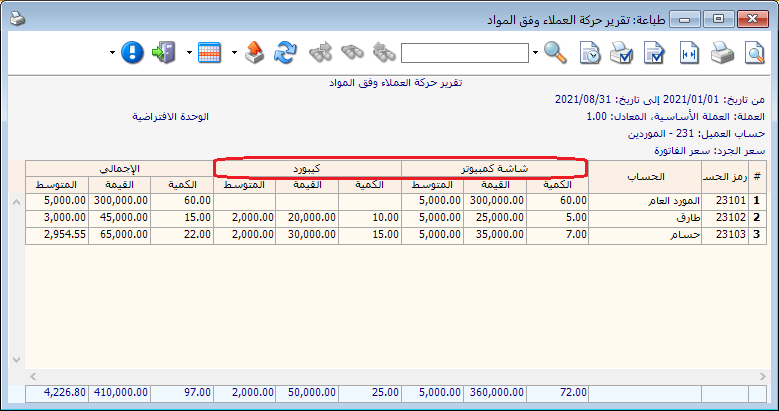
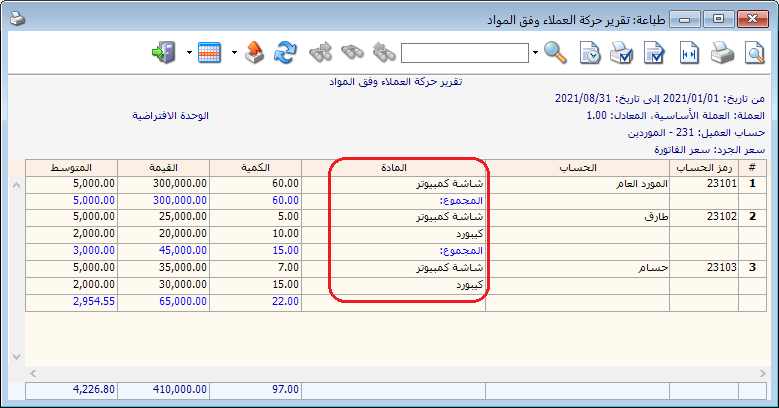
- Horizontal Display: This option changes the layout by showing items as rows under each account rather than as columns. The following images illustrate the difference:
With Horizontal Display enabled:
.
With Horizontal Display disabled (original layout):
.
Display Options: #
Show Quantity: Enable this option to display the quantity transacted for each item.
Show Value: Enable this option to display the value transacted for each item.
Show Average: Enable this option to display the average transaction value for the item or items.
Grouping Periods: #
Available options are None, Monthly, Weekly and Daily. Results are grouped by the selected period.
Group by Item Fields:
This option changes the item section of the report by grouping items according to selected fields. It lets you view consolidated quantities and values for each item group.
Invoice Types: #
Select the invoice types to include. Selecting only Sales invoices displays customer transactions for items sold on sales invoices.
Show: #
Display the report.
Print: #
Print the report.
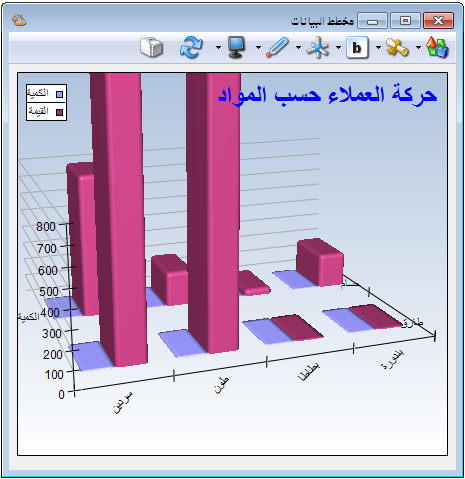
Chart: #
Display report information as a chart.
The following chart is based on the data in the preceding example:
.
Close: #
Close the report.
Practical examples of information available from the Customer Transactions by Item report:
- Items sold to the customer Tareq.
- Customer transactions for items sold during the first month.
- Customer transactions for the Canned Goods category.
- Customer item transactions from finalized invoices only.
- Item transactions for customers in Damascus during the first three months.
- Supplier transactions for items whose Source field is set to French.
- Customer item transactions grouped by item color.
- Customer item transactions from sales invoices only.
- Supplier item transactions in inventory mode, subtracting purchase returns from purchases to show the net quantity purchased for each item from each supplier.
- A chart of customer transactions for items sold during the first month.
.


