


Al Mizan provides Excel functions that retrieve database information without opening the main program. These include account codes, Arabic and Latin account names, account balances, opening balances, balances excluding opening entries, and item inventory. You can use them to build customized reports and apply Excel calculations to data retrieved from the database.
Enable the Excel Add-in: #
Complete this setup once after installing Al Mizan .NET on the computer:
- Open Excel.
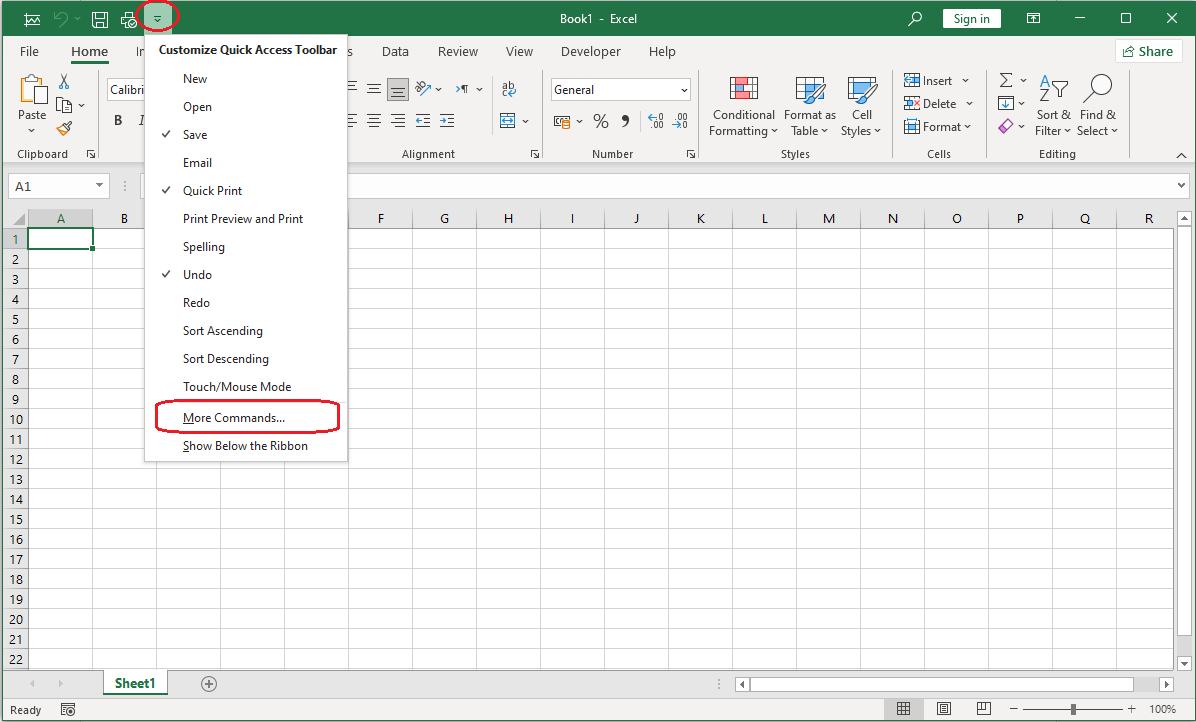
- From Customize Quick Access Toolbar, choose More Commands, as shown below:
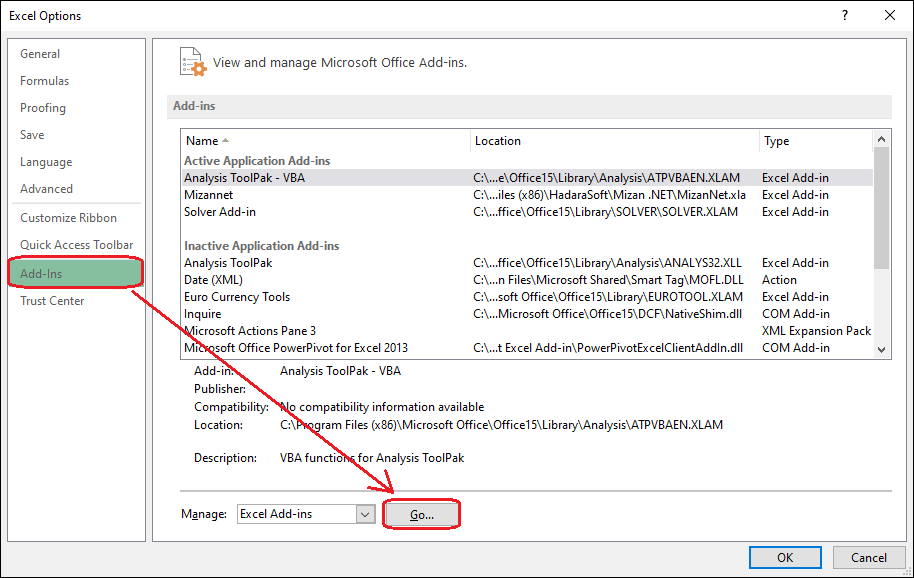
- Open the Add-ins section, then click Go, as shown below:
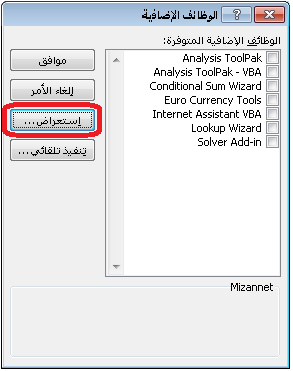
- In the Add-ins window, click Browse, as shown below:
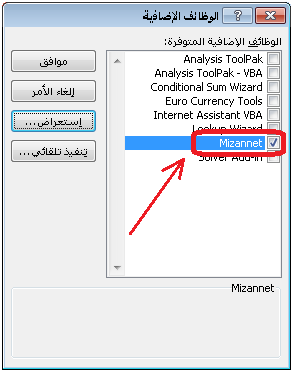
- Select the MizanNet.xla add-in file in the Al Mizan installation folder. The default path is usually C:\Program Files\HadaraSoft\Mizan .NET, as shown below:
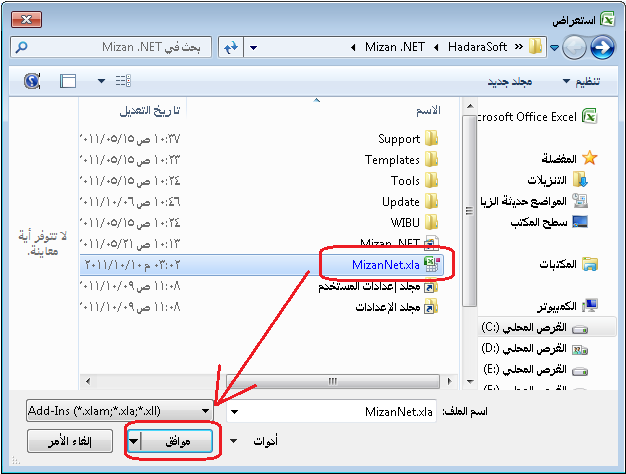
The MizanNet add-in now appears in the list, as shown below:
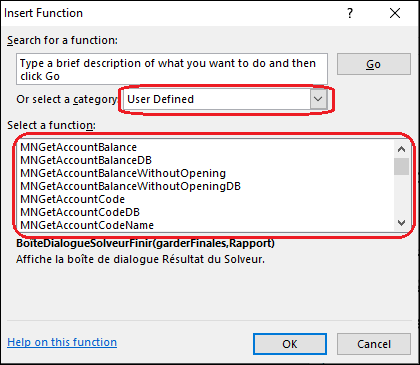
After enabling the add-in, Al Mizan .NET accounting and inventory functions appear in Excel’s User Defined function category, as shown below:
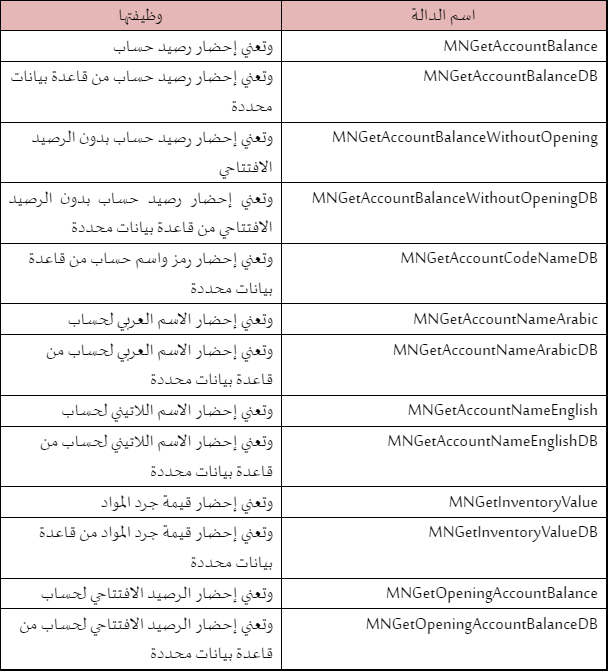
Basic Functions Available in Al Mizan: #
A Simple Example and Important Notes: #
To display the Cash account balance in an Excel worksheet, enter “Cash Balance” in a cell. In the next cell, insert MNGetAccountBalance and click OK. The function arguments window contains the following fields:
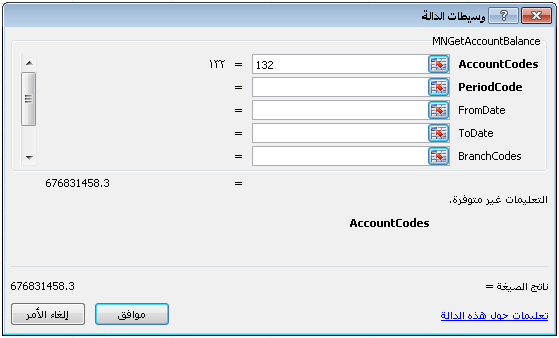
Account CodesEnter the required account code. This argument is mandatory.
Period CodeEnter the accounting period code if you want the balance for a specific period.
From DateEnter a starting date to retrieve the balance for transactions after that date.
To DateEnter an ending date to retrieve the balance for transactions up to that date.
Branch CodesEnter a branch code to retrieve the balance for transactions within that branch.
Cur CodeSelect the reporting currency.
Cur RateEnter the exchange rate for the selected currency.
Click OK to open the database server connection window. Select the server hosting the required database and click Connect. Then select the database on that server, as shown below:
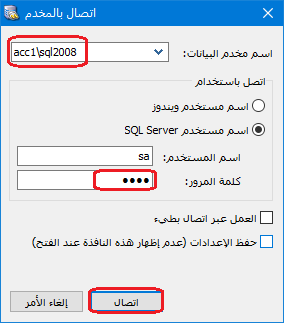
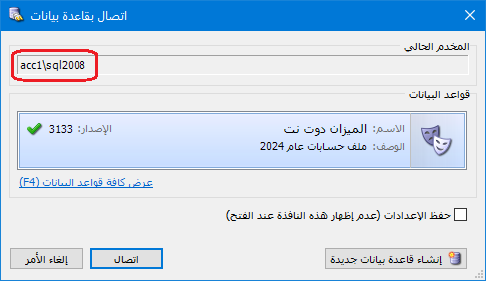
After connecting, the function returns the Cash account balance from the Hadara Company database on the local server.
Save the worksheet and reopen it later to retrieve the balance based on the latest database transactions.
Note 1: #
MNGetAccountBalance prompts for the server and database rather than fixing them in the formula. This is useful when working with several databases. To specify a fixed connection, use MNGetAccountBalanceDB. Its arguments include an additional DBConnection field, as shown below:
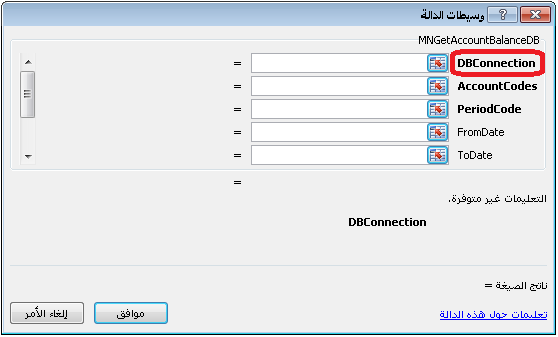
Configure DBConnection using the connection parameters required by the add-in:
The parameters identify the server, database, authentication method, SQL login and SQL password. Follow the argument order shown by your installed add-in.
Create and Set Up a New Database
Server NameThe computer or SQL Server instance hosting the database.
Database NameThe database from which the account balance will be retrieved.
Server Authentication MethodUse 0 for Windows authentication.
Use 1 for SQL authentication.
SQL UsernameUse a dedicated SQL login with only the permissions required for the reports. Avoid using the administrator account sa.
SQL PasswordThe password for the selected SQL login, which is distinct from a user password inside the accounting application. Protect the workbook because saved connection details may expose database access.
The following legacy screenshot illustrates the connection fields. Its credentials are examples and should not be reused:

Acc1\sql2008: example server instance.
Al Mizan .NET: example database name.
1: SQL authentication.
SA: administrator login shown in the legacy example; use a restricted reporting login instead.
Use a strong, nonempty password for the selected SQL login. Do not reuse the legacy example password.
Note 2: #
These functions can create financial statements, including the statement of financial position, income statement and cash flow statement. They can also calculate financial analysis ratios. An Excel workbook can illustrate how the functions are combined to build these statements.
Note 3: #
If an account code starts with a zero, enclose it in double quotation marks to preserve the leading zero, as in the following example:
012351
Enter it as follows:
“012351”
Note 4: #
Use the 32-bit edition of Excel for compatibility with this add-in.


