


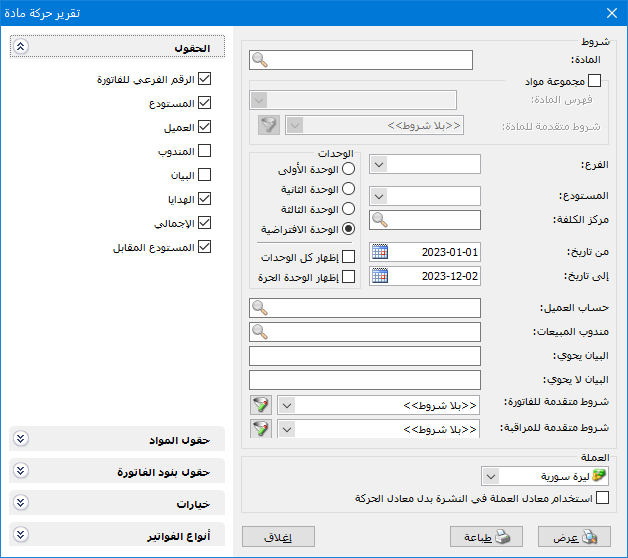
This report displays item receipts, issues, their prices and the remaining stock valued at cost. Open Item Transactions from the Reports menu or click Item Transactions on the main toolbar. The criteria window contains the following options:
.
Conditions: #
- Item: Select the item whose transactions you want to view. This field accepts a single item rather than an item category.
- Item Group: Enable this option to display transactions for multiple items. Select the group using either of the following options:
- Item Category: Select an item category to display transactions for its items.
- Advanced Item Conditions: Set an advanced item filter to display transactions for matching items.
- Branch: Select a branch to view item transactions within that branch.
- WarehouseSelect a warehouse to view item transactions within that warehouse.
- Cost Center: Select the cost center to which or from which items were allocated..
- From Date / To Date: Specify the date range for the item transactions.
- Customer Account: Select a customer account to display only that customer’s item transactions.
- Sales Representative: Select a sales representative to display item transactions associated with that representative.
- Description Contains / Does Not Contain: Enter text to match against the invoice description. Depending on the selected option, include or exclude invoices containing that text.
Advanced Conditions: #
- Advanced Invoice Conditions: Set advanced invoice filters to include item transactions only from matching invoices.
- Advanced Audit Conditions: Set advanced audit filters, such as creation or modification dates, to include transactions from matching invoices.
Currency: #
Select the currency in which the report should be displayed.
Exchange Rate: Specify the rate relative to the base currency. This field is available only for a secondary currency and offers two choices:
- Use the Exchange-Rate Schedule: Retrieve exchange rates automatically from the schedule, using the rate applicable on each transaction date.
- Use a Specified Exchange Rate: Enter a rate in the field that appears and use it to display the report.
- Use the Scheduled Currency Rate Instead of the Transaction Rate: Use the rate from the exchange-rate schedule instead of the rate entered in the original transaction. This option is used when requesting the report in the base currency.
Units: #
Select the unit used to display the report: First Unit, Second Unit, Third Unit or Default Unit.
- Show All Units: Enable this option to display the first, second and third units together.
- Show Independent Unit: Enable this option to display the independent unit in addition to the units selected above.
Fields: #
Select the fields to display in the final report: Invoice Subnumber, Customer, Warehouse, Sales Representative, Description, Free Units, Total and Counterpart Warehouse.
- Item Fields: Select additional report fields from the item record.
- Invoice Line Fields: Select additional report fields from invoice lines.
Options: #
The following options are available:
- Show Sequence Number: Display sequential report row numbers.
- Finalized Invoices: Enable this option to include item transactions from finalized invoices.
- Unfinalized Invoices: Enable this option to include item transactions from unfinalized invoices.
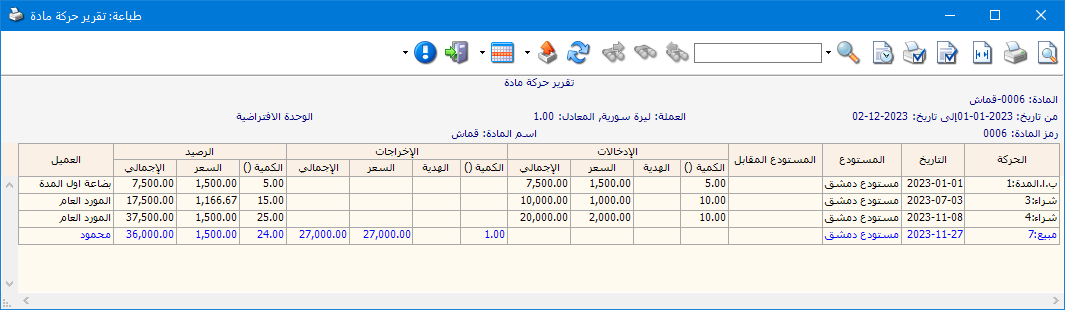
- Compact Report: When this option is disabled, the detailed report displays three column groups: Receipts, Issues and Balance, as shown below:
.
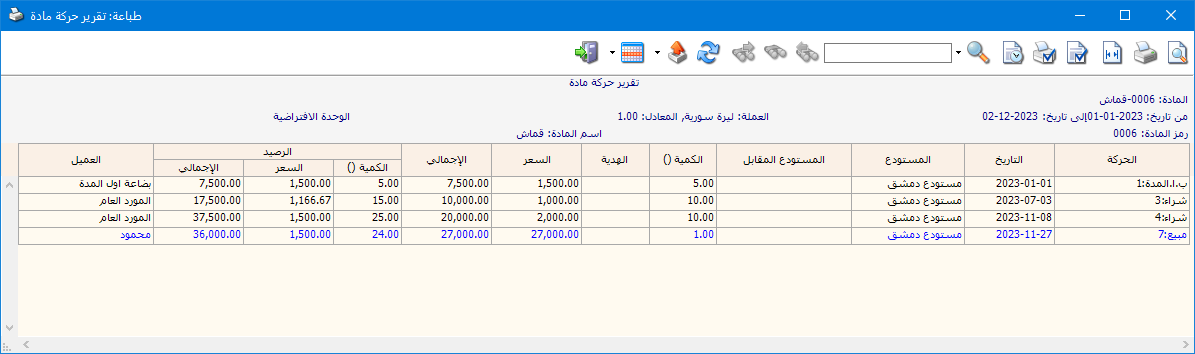
When Compact Report is enabled, receipts and issues are combined in the same column group, as shown below:
.
Display Options: #
Show Quantities Only: Enable this option to show quantity columns without Price or Total columns.
Exclude Value Added Tax: Enable this option to exclude VAT when calculating totals.
Print Each Item on a Separate Page: Enable this option to print each item’s transactions on a separate page when reporting on multiple items.
Hide Items with No Transactions: Enable this option to hide items without transactions during the current year when reporting on an item group.
Show Transactions Since the Last Zero Balance: Enable this option to show transactions after the most recent point at which the item’s stock quantity was zero.
Show Only Item Transactions from Date…Enable this option to display transactions for one or more items after the specified date and exclude earlier transactions.
Show Only Items with Transactions from Date…Enable this option to exclude items with no transactions after the specified date when reporting on a group.
Invoice Types: #
Select the invoice types to include. For example, to view Fabric item transactions from sales invoices, enable only the Sales invoice type.
Show: #
Display the report using the preceding conditions.
Print: #
Click this button to print the final report.
Close: #
Close the report conditions window.
Practical examples of information available from the Item Transactions report:
- Detailed Cotton item transactions from the start of the year to the present.
- Detailed Cotton item transactions from finalized invoices, unfinalized invoices or both.
- Detailed transactions for the Canned Goods category, printing each item on separate pages.
- Detailed transactions for the Canned Goods category, hiding items with no transactions.
- Detailed transactions for the Canned Goods category since each item’s most recent zero stock balance.
- Detailed transactions for the Canned Goods category, including only items with transactions from July to the present.
- Detailed Cotton item transactions from cash invoices only.
- Cotton item transactions from sales and sales return invoices only.
- Cotton item transactions from sales and sales return invoices associated with the sales representative Imad.
- Detailed Cotton item transactions for the customer Anas.
.


