


Perpetual inventory is a system that updates inventory records continuously as purchases, sales and other inventory movements occur. It is used where ongoing, accurate inventory tracking is required.
Under a perpetual inventory system, purchases and purchase returns are recorded through an Inventory account rather than separate Purchases and Purchase Returns accounts. A Cost of Goods Sold account records the cost of sales and its reversal for sales returns.
To configure perpetual inventory in Al Mizan, follow these steps:
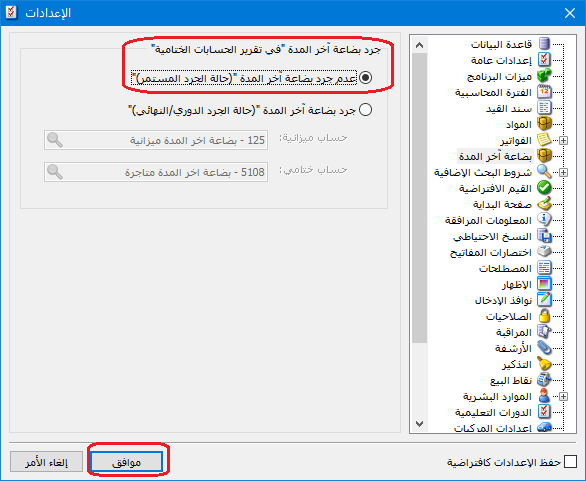
Open Program Settings from the Tools menu. In the Closing Inventory section, select Do Not Calculate Closing Inventory (Perpetual Inventory). Inventory is tracked throughout the period and its value appears in the Inventory account.
.
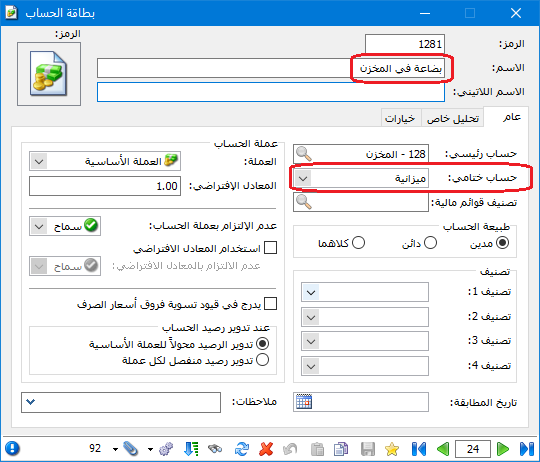
Define an Inventory Account #
In the Chart of Accounts, define an Inventory account and set its closing account to Balance Sheet, as shown:
.
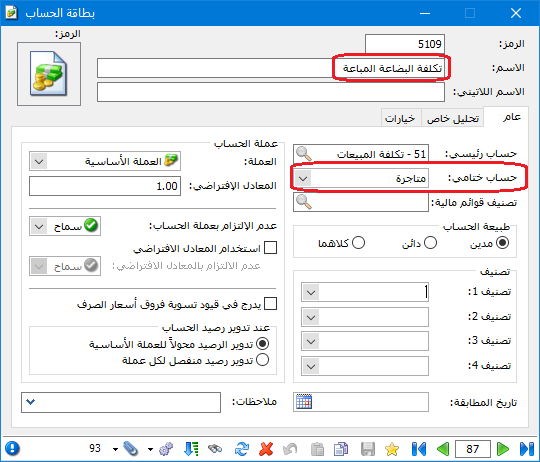
Define a Cost of Goods Sold Account #
In the Chart of Accounts, define a Cost of Goods Sold account and set its closing account to Trading or Profit and Loss, according to the company’s reporting policy, as shown:
.
This account records the cost of goods sold.
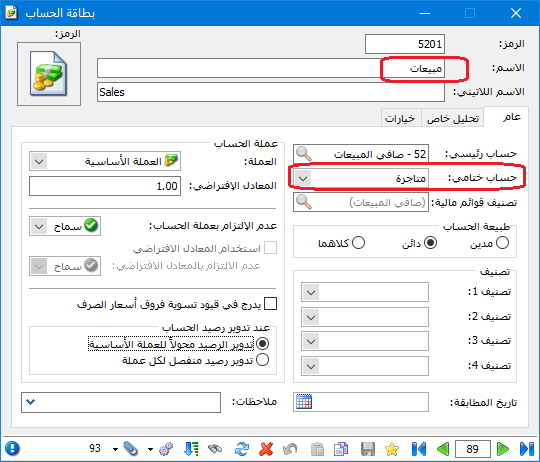
Define a Sales Account #
In the Chart of Accounts, define a Sales account. Set its closing account to Trading if the company uses a Trading account to calculate gross profit, as shown:
.
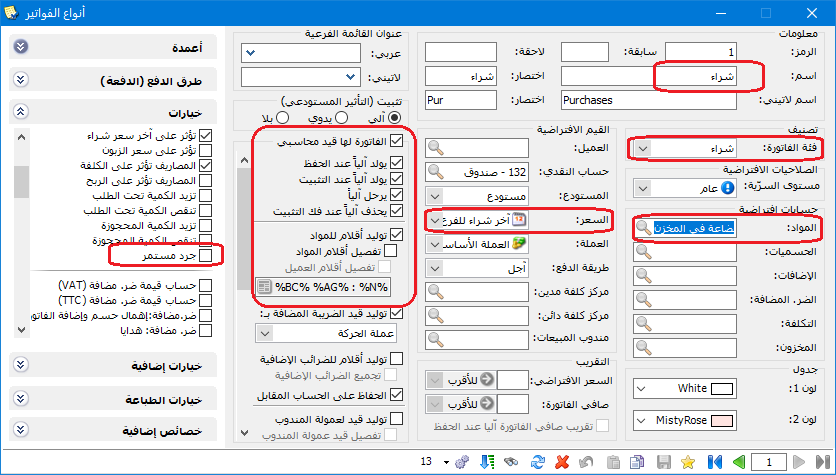
Define a Purchase Invoice Type #
From Definitions, select Invoice Types and configure the purchase invoice as shown:
.
Invoice Class: Purchase
Items Account: Inventory
Price: Last Purchase Price
The Invoice Has an Accounting Entry
Do not enable Perpetual Inventory for this invoice type: a purchase requires only its purchase journal entry.
For the invoice type configuration illustrated here, leave the Discounts and Additions account fields empty. The Inventory account should reflect the net inventory purchase value; invoice trade discounts and additions are distinct from early payment discounts.
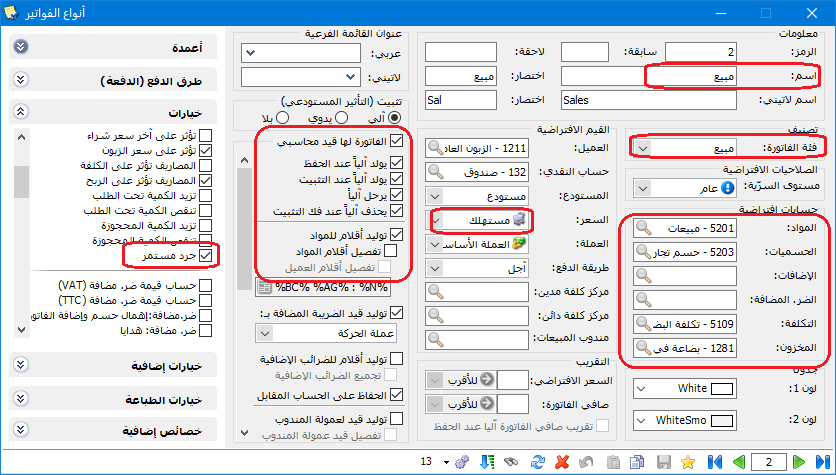
Define a Sales Invoice Type #
Configure the sales invoice type as follows:
.
Invoice Class: Sale
Items Account: Sales
Cost Account: Cost of Goods Sold
Inventory Account: Inventory
Price: Retail Price
The Invoice Has an Accounting Entry
Enable Perpetual Inventory because sales and sales returns generate two journal entries under this system.
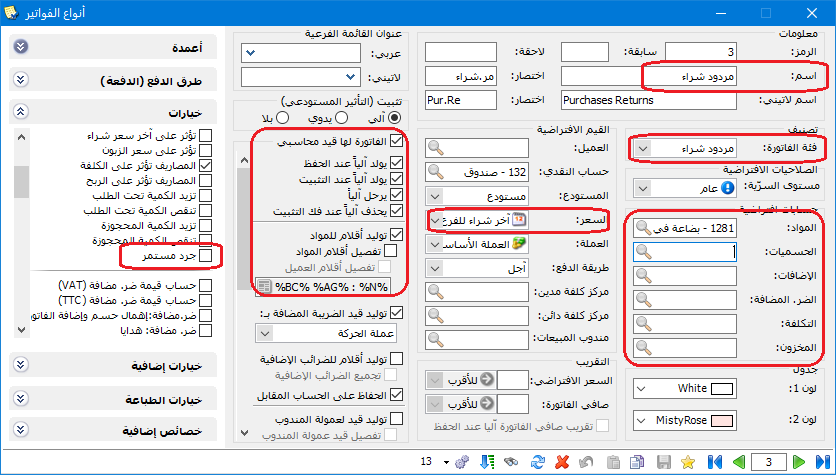
Define a Purchase Return Invoice Type #
Configure the purchase return invoice type as shown:
.
Invoice Class: Purchase Return
Items Account: Inventory
The Invoice Has an Accounting Entry
Do Not Enable Perpetual Inventory
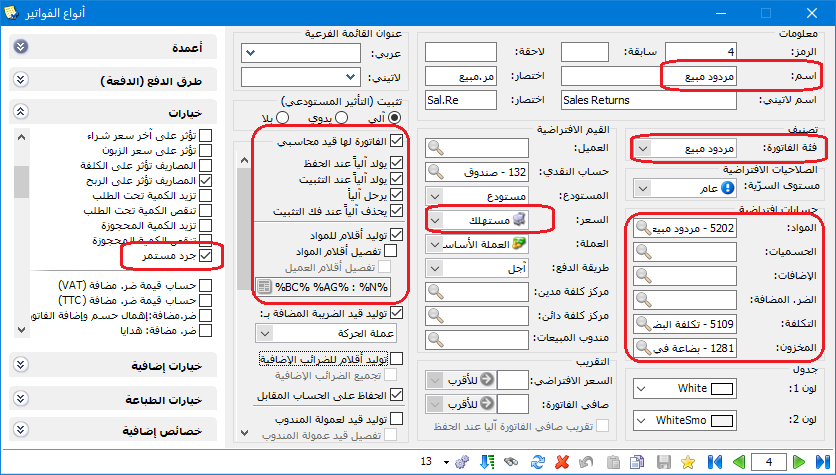
Define a Sales Return Invoice Type #
Configure the sales return invoice type as shown:
.
Invoice Class: Sales Return
Items Account: Sales Returns
Cost Account: Cost of Goods Sold
Inventory Account: Inventory
The Invoice Has an Accounting Entry
Enable Perpetual Inventory to generate both journal entries for the transaction.
Define an Opening Inventory Invoice Type #
Configure the opening inventory invoice type as shown:
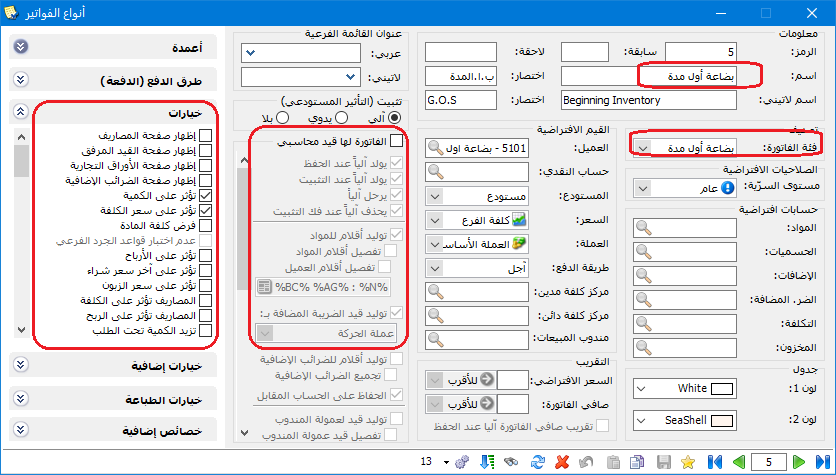
.
Invoice Class: Opening Inventory
No Accounting Entry; Affects Quantities and Cost
This invoice type supports warehouse movements when rolling accounts forward to a new period.
Configure the closing inventory invoice type as shown:
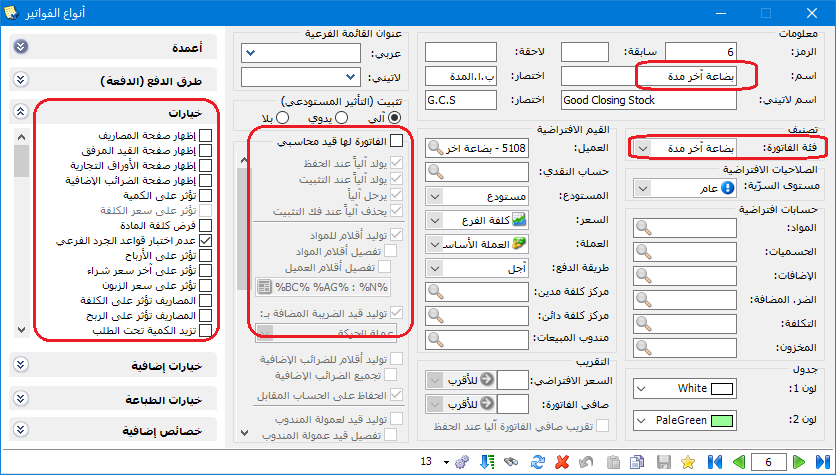
.
Define a Closing Inventory Invoice Type
Invoice Class: Closing Inventory
No Accounting Entry; No Effect on Quantities or Values
This invoice type supports warehouse movements when rolling accounts forward to a new period.
Convert the Inventory account into a customer-type account by opening its account record, clicking Operations and choosing Convert to Customer Account.
This conversion enables closing inventory invoices to be generated when accounts are rolled forward.
When rolling accounts forward, generate closing inventory invoices from Items / Invoice Operations / Generate Closing Inventory Invoices. Select the Inventory customer-type account as shown:
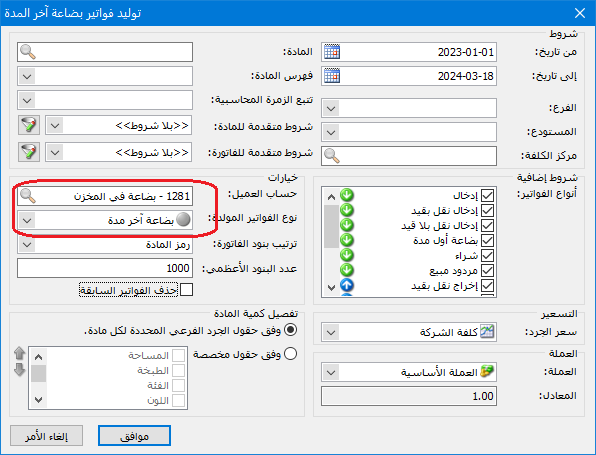
.


