


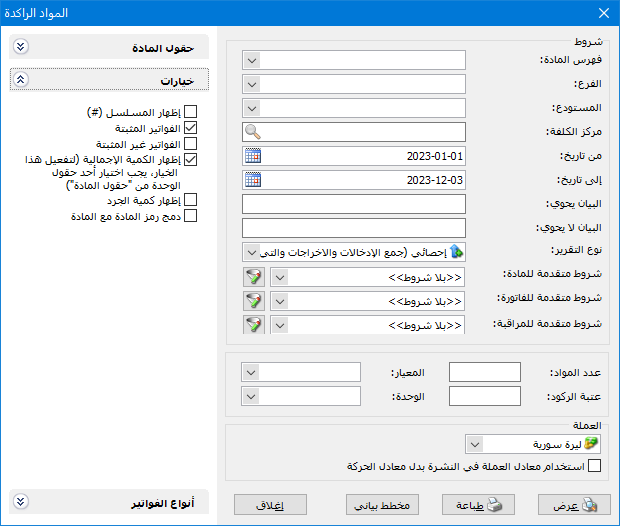
This report provides statistical information about slow-moving or inactive items. Set an inactivity threshold suited to your business. For high-value products, inactivity might mean no units sold during the report period; for inexpensive products sold in large quantities, it might mean fewer than 1,000 units sold. Choose Inactive Items from the Reports menu to open the criteria window shown below, which contains the following fields:
.
Conditions: #
- Item Category: Select a category to display inactive items within that category.
- Branch: Select a branch to display inactive items in warehouses belonging to that branch.
- Warehouse: Select a warehouse to display inactive items in that warehouse.
- Cost Center: Select a cost center to analyze item transactions on invoices associated with that cost center.
- From Date, To Date: Set a date range to include invoices dated within that period.
- Description Contains: Enter text to include invoices whose description contains that text.
- Description Does Not Contain: Enter text to exclude invoices whose description contains that text.
Report Type: #
Two options are available:
- Statistical (Add Receipts and Issues): Statistical mode adds receipt and issue quantities to measure transaction activity. For example, purchasing 3 units at 100 lira each and selling 1 unit at 200 lira produces a statistical quantity of 4 units. Their reported value is calculated using the price selected in the Inventory Valuation Price field.
- Inventory (Subtract Issues from Receipts): Inventory mode subtracts issues from receipts. For example, purchasing 3 units at 100 lira each and selling 1 unit at 200 lira produces an inventory quantity of 2 units. Their value is calculated using the inventory valuation price selected in the next field.
Advanced Conditions: #
- Advanced Item Conditions: Set an advanced item filter to include only inactive items matching that filter.
- Advanced Invoice Conditions: Set an advanced invoice filter to include item transactions only from matching invoices.
- Advanced Audit Conditions: Set an advanced audit filter to include transactions only from invoices matching that filter.
- Number of Items: Set the number of items to display. Entering 10, for example, displays the ten least active items according to quantity, value or invoice count.
Criterion: #
Choose the measure to which the inactivity threshold will apply:
- Total Quantity: This option ranks inactive items by their total quantity across the selected invoices, in ascending order.
- Number of Invoices: This option ranks inactive items by invoice count, in ascending order.
- Total Value: This option ranks inactive items by total value across the selected invoices, in ascending order.
Inactivity Threshold: #
Enter a quantity, value or invoice count threshold according to the selected criterion. Items with activity at or below that threshold are considered inactive. For example, selecting Invoice Count and entering 10 includes items appearing on ten invoices or fewer during the report period.
Unit: Select the unit used to display the report and calculate the inactivity threshold: First Unit, Second Unit, Third Unit or Default Unit.
Currency: #
Select the currency in which the report should be displayed.
Exchange Rate: Specify the rate relative to the base currency. This field is available only for a secondary currency and offers two choices:
- Use the Exchange-Rate Schedule: Retrieve exchange rates automatically from the schedule, using the rate applicable on each transaction date.
- Use a Specified Exchange Rate: Enter a rate in the field that appears and use it to display the report.
- Use the Scheduled Currency Rate Instead of the Transaction Rate: Use the rate from the exchange-rate schedule instead of the rate entered in the original transaction. This option is used when requesting the report in the base currency.
Item Fields: #
Choose the fields to display. Most come from the item record, alongside report fields such as Total Value and Invoice Count.
Options: #
The options section contains:
- Show Sequence Number: Display a Sequence field with sequential item row numbers.
- Finalized Invoices: Enable this option to include transactions from finalized invoices.
- Unfinalized Invoices: Enable this option to include transactions from unfinalized invoices.
- Show Total Quantity: Enable this option to display Total Quantity. To use it, select one of the item unit fields.
- Show Inventory Quantity: Enable this option to display the item’s inventory quantity. Unlike Total Quantity, Inventory Quantity includes free or bonus units. Total Quantity also follows the selected statistical or inventory report mode, whereas Inventory Quantity always shows the inventory balance.
- Combine Item Code and Name: Combine item code and name in one report field.
Invoice Types: #
Select the invoice types whose item transactions should be included.
Show: Display the report using the preceding conditions.
Print: Click this button to print the final report.
Chart: Display the results as a chart instead of numbers. See the chart section of the reports guide.
Close: Use this button to close the report criteria window.
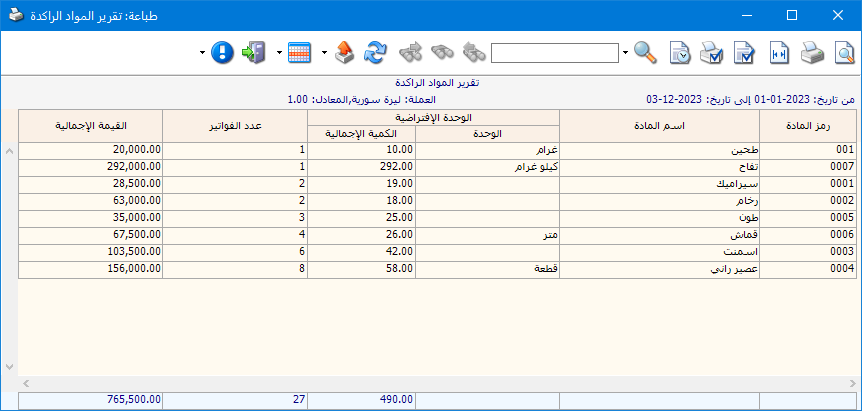
The following example shows a report ranked by invoice count, with an inactivity threshold of 9 invoices:
.
.
Practical examples of information available from the Inactive Items report:
- Items whose sales value is below 10,000 currency units.
- Items whose sales quantity is below 150 units.
- Items appearing on fewer than 25 sales invoices.
- The least active items based on finalized invoices, unfinalized invoices or both.
- Inactive items during the first three months or another specified period.
- The least active items in the Canned Goods category.
- The least active items for a specified customer account.
- The least active items for a specified branch, based only on transactions in its warehouses.
- The least active items for a specified warehouse, based only on its transactions.
.


