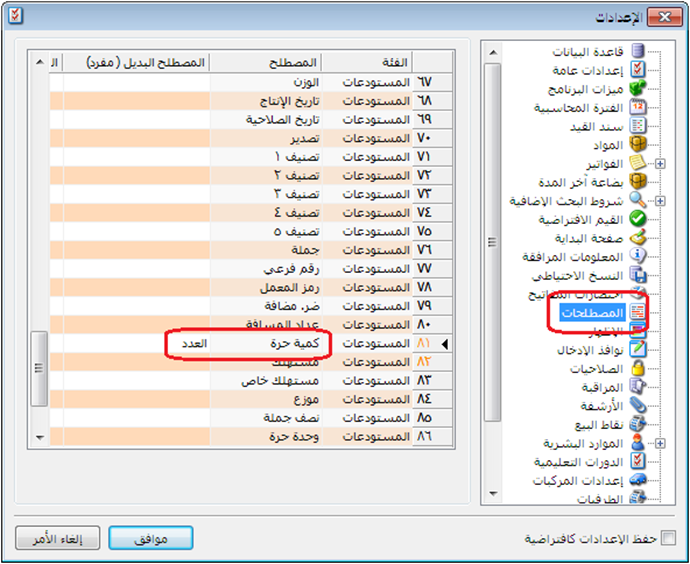
An independent unit measures an item without a fixed conversion to its first unit. It is used for inventory tracking rather than calculating value. For example, ceramics may be tracked in square meters as the main unit and boxes as the independent unit when boxes contain varying areas.
The invoice value is calculated using the square-meter quantity multiplied by its unit price. A uniform box price cannot be inferred when boxes contain different square-meter quantities. If every box contained a fixed area, such as 10 square meters, it could instead be defined as a secondary unit with a fixed conversion.
The independent unit is useful in inventory and item transaction reports, allowing ceramics to be counted both in boxes and in square meters.
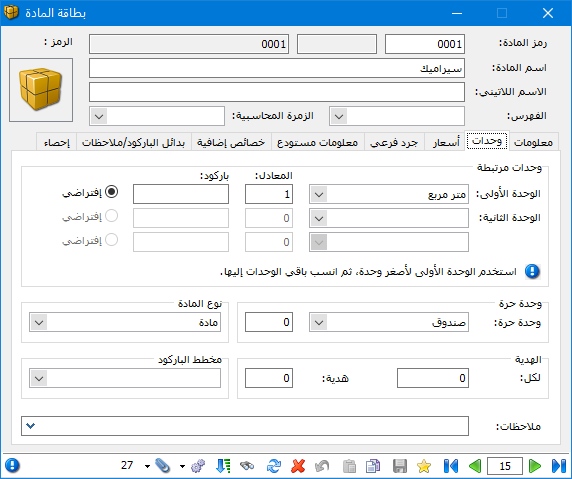
In this example, ceramics are sold by square meter but also tracked by box. Because box contents vary, define Box in Independent Unit rather than Second Unit, as shown in the item record below.
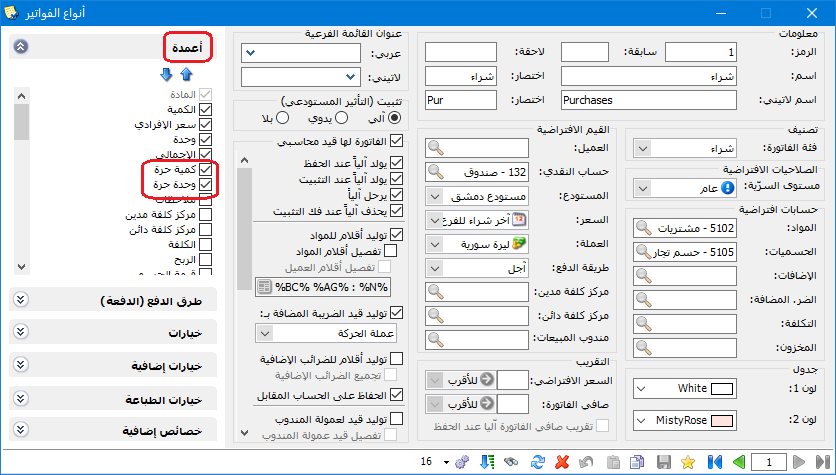
Choose Definitions > Invoice Types > Columns and enable Independent Unit and Independent Quantity, as shown below:
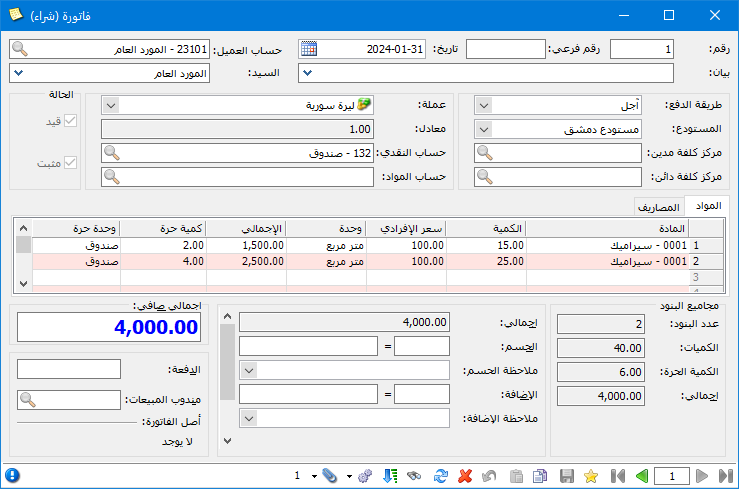
In the invoice, enter square meters in Quantity and the corresponding number of boxes in Independent Quantity, as shown below:
Request the Stocktake Report and enable Show Independent Unit, as shown below:
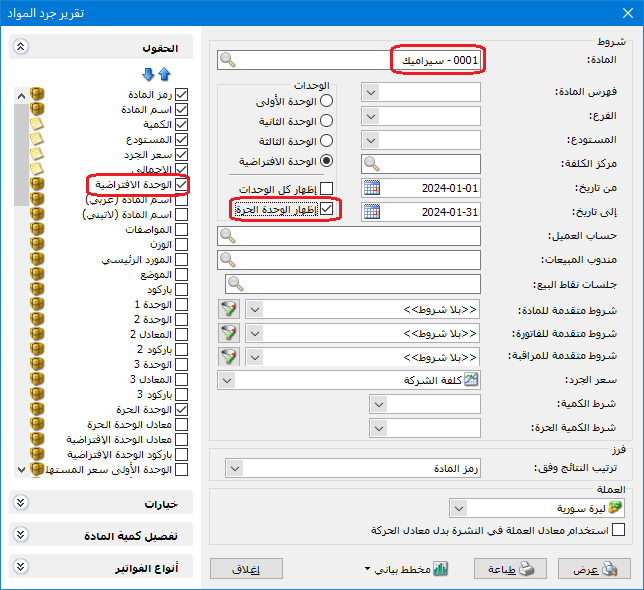
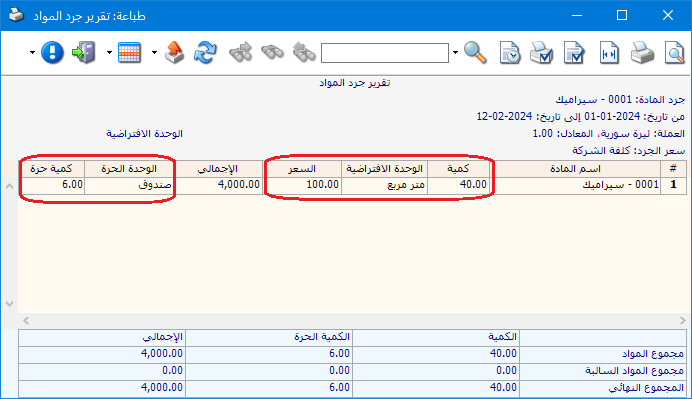
The report then displays ceramics stock in both square meters and boxes:
Define and Use Formulas for Invoice Item Quantity #
Item quantity can be entered directly as the amount sold or purchased. In some cases, it is easier to calculate that quantity through a formula.
Al Mizan .NET supports flexible quantity formulas using several fields and arithmetic operations. Advanced functions can round the result, divide it by a specified value or perform other calculations.
Consider the following example: #
Suppose a company buys and sells marble by square meter. Area is calculated as Length × Width × Number of Pieces of the same size. The user enters those values and the software puts the result in Quantity. Define the formula through the unit record as follows:
Choose Items > Item Reference Data > Unit and define Square Meter. In Formula, select Length × Width × Independent Quantity, as shown below:
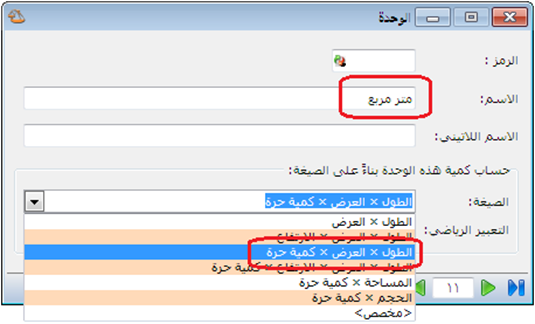
.
Modify Formulas: #
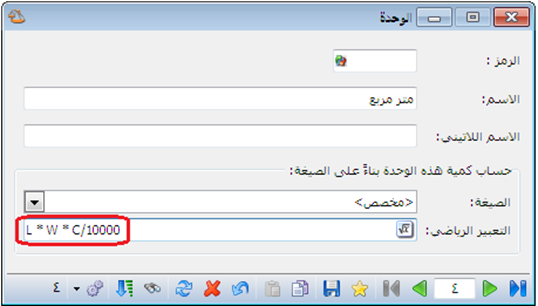
If lengths and widths are entered in centimeters but marble is sold in square meters, divide the area formula by 10,000. Choose Length × Width × Independent Quantity, then use Custom Formula to edit the Mathematical Expression and divide it by 10,000. The result is then in square meters, as shown below:
.
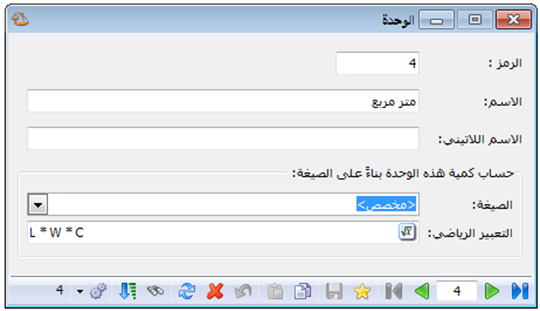
.
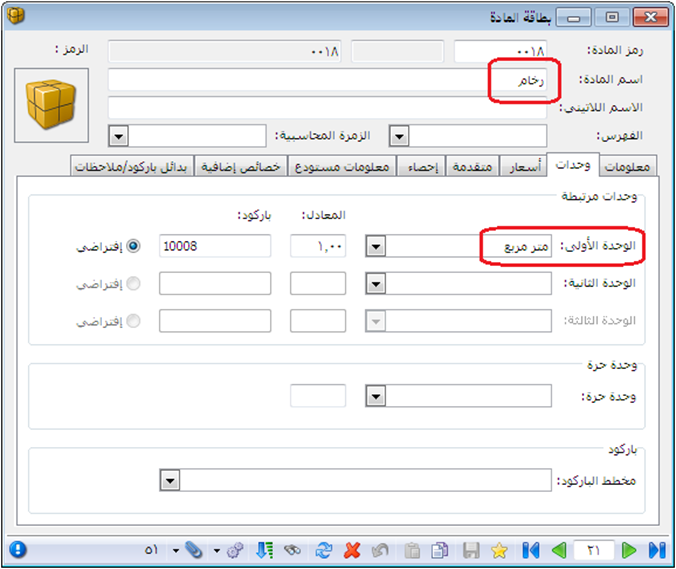
Define the Marble item and set its First Unit to Square Meter on the Units tab:
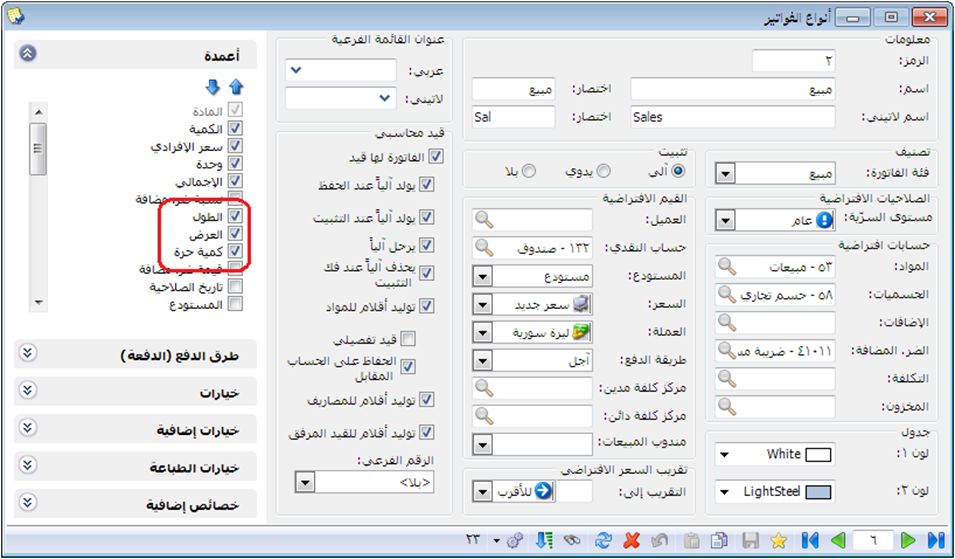
Enable Length, Width and Independent Quantity, representing the number of pieces, in Invoice Types:
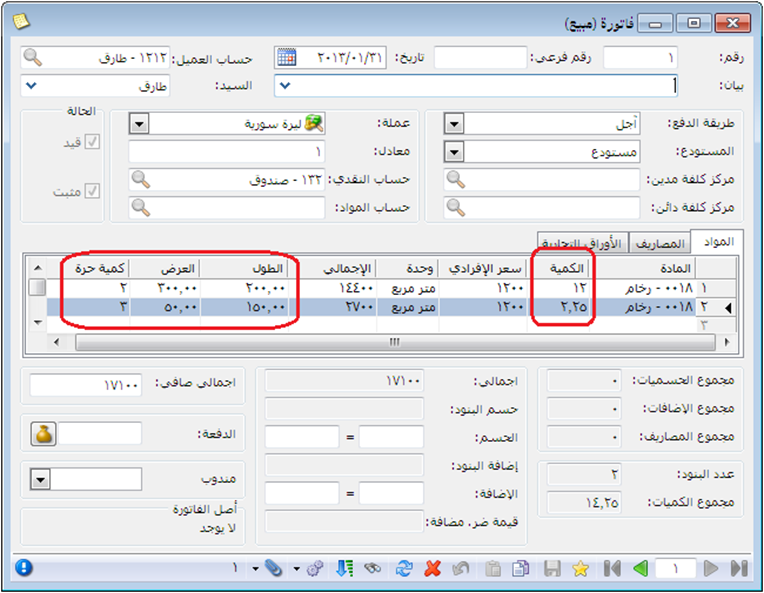
When Marble is added to an invoice, enter length, width and piece count. The area is calculated automatically and inserted in Quantity:
Note 1: #
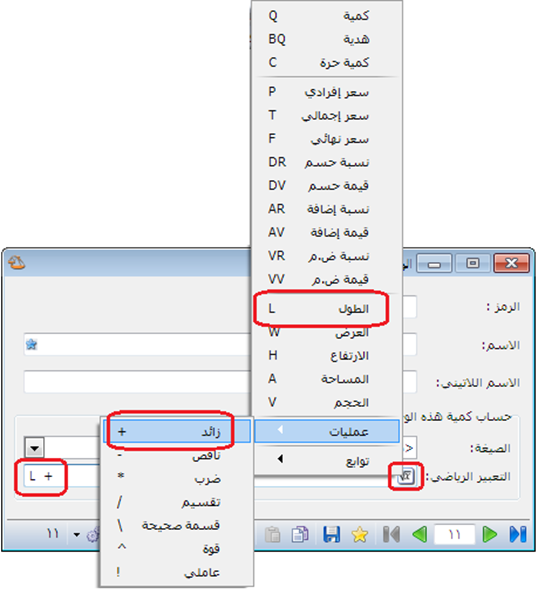
The example uses a predefined formula. If you need different variables, use the button in Mathematical Expression to insert the required variables and select arithmetic operations such as addition, multiplication or division, as shown below:
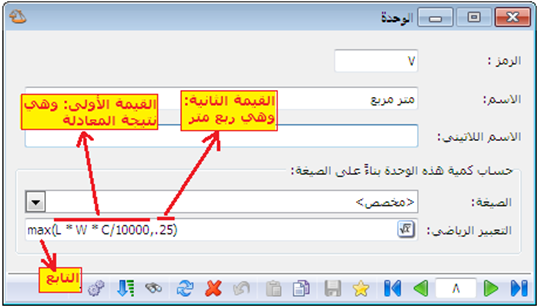
You can also use advanced functions. For example, to enforce a minimum billed area of 0.25 square meters, use MAX with the formula result and 0.25 as its two arguments. It returns the larger value: 0.25 for a smaller calculated area, or the calculated area when larger, as shown in the unit record below:
Note 2: #
Rename Independent Quantity to Number of Pieces in General Settings > Terminology, as shown below: