


Posting policies are user-specific operating settings for the database. Because these settings vary by user, they are managed in a separate window where the system administrator can configure them for everyone, for groups or for individual users.
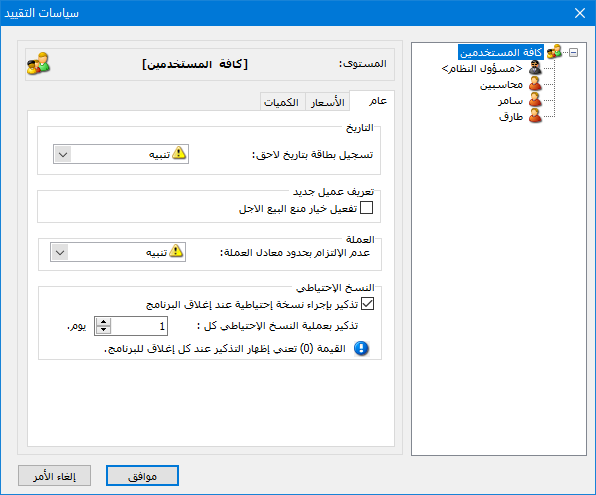
Choose Permissions > Posting Policies to open the following window:
.
Users: #
Defined users and user groups appear as a tree on the right.
General: #
Contains the option
- Enter a Future-Dated Record: Enter an invoice, journal entry or another operation with a future date.
The three possible responses are Allow, Warn or Block.
- Define a New Customer: –Enable Block Credit Sales: Enable Block Credit Sales automatically for newly defined customers.
- Currency — Ignore Exchange-Rate Limits: Applies when a rate is outside the defined currency minimum or maximum.
The three possible responses are Allow, Warn or Block.
- Backup — Remind to Back Up When Closing the Software: Display a backup reminder when the software is closed.
Remind about Backups Every: Enter how many days should pass between backup reminders.
Note: Entering 0 displays a reminder every time the software closes.
Prices: #
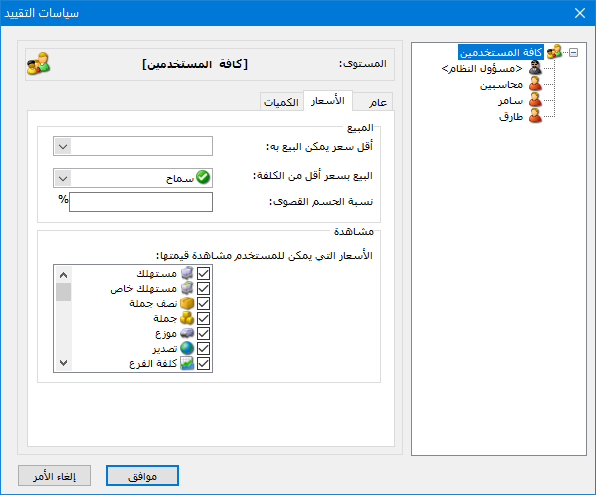
The following options are available:
.
- Lowest Permitted Selling Price: Select the lowest price type a user may sell at, such as Retail, Special Retail or Wholesale.
- Sell Below Cost: Choose how the software responds when a user sells below cost: Allow, Warn or Block.
- Maximum Discount Percentage: Set the highest discount percentage the user may enter in an invoice.
- Prices the User May View: Choose which prices the user may see in the item tree through the ruler button, and in an invoice through the button beside the item price field.
Quantities: #
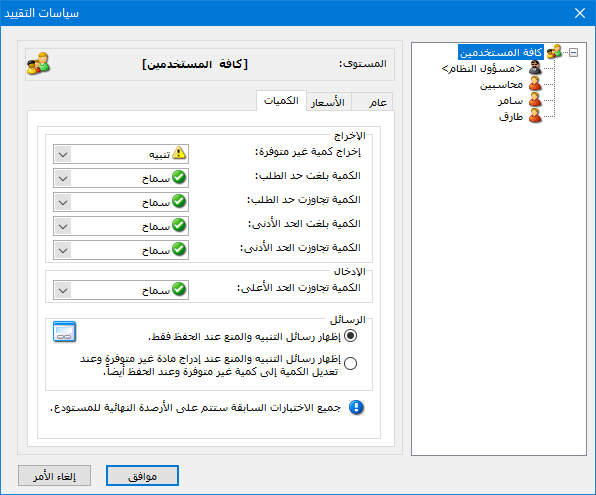
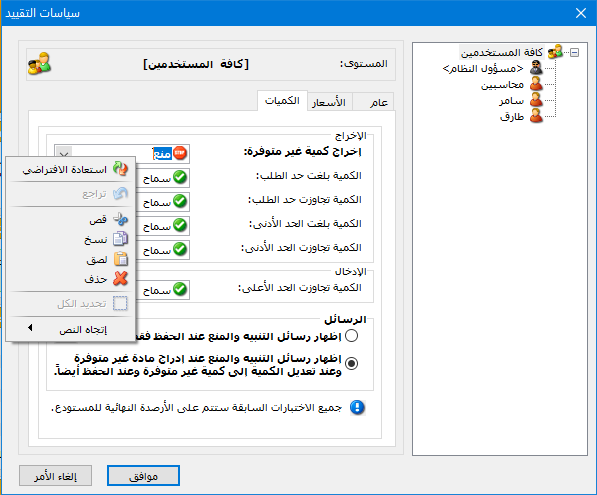
The following options are available:
.
Stock Out: #
- Issue an Unavailable Quantity: Choose how the software responds when the user tries to sell a quantity unavailable in the warehouse:
Allow, Warn or Block. - Quantity Reaches Reorder Point: Compare the item balance with its defined reorder point and choose Allow, Warn or Block when it reaches that point.
- Quantity Passes Reorder Point: Compare the item balance with its reorder point and choose Allow, Warn or Block when it crosses that limit.
- Quantity Reaches Minimum: Compare the item balance with its minimum and choose Allow, Warn or Block when it reaches the minimum.
- Quantity Passes Minimum: Compare the item balance with its minimum and choose Allow, Warn or Block when it crosses that limit.
Stock In: #
- Quantity Exceeds Maximum: Compare the item balance with its maximum and choose Allow, Warn or Block when it exceeds the maximum.
You can also choose when warnings appear:
- Show warning and blocking messages only when saving.
- Show messages when an unavailable item is inserted, when quantity is changed to an unavailable amount and when saving.
Note 1: #
Select an individual user to configure their policies, a user group to configure the group, or All Users to configure everyone.
Note 2: #
Group and All Users changes apply except where a user already has a custom setting. For example, if Tarek minimum selling price is set to Retail, then All Users is changed to Special Retail, the new setting applies to everyone except Tarek.
Note 3: #
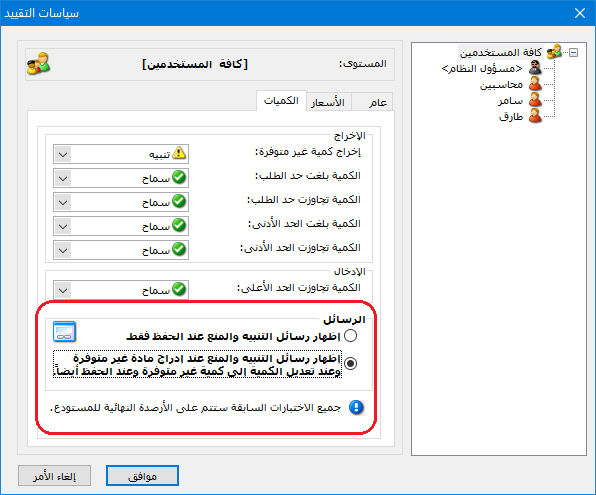
A setting still at its default appears in normal font, as shown below:
A modified setting appears in bold, as shown below:
.
The second option appears in bold to indicate that its message behavior has been customized for the selected user.
Note 4: #
To restore all default policies for a user, select the user, right-click and choose Restore Default, as shown below:
To restore one setting only, select it and choose Restore Default from its right-click menu.
.


