


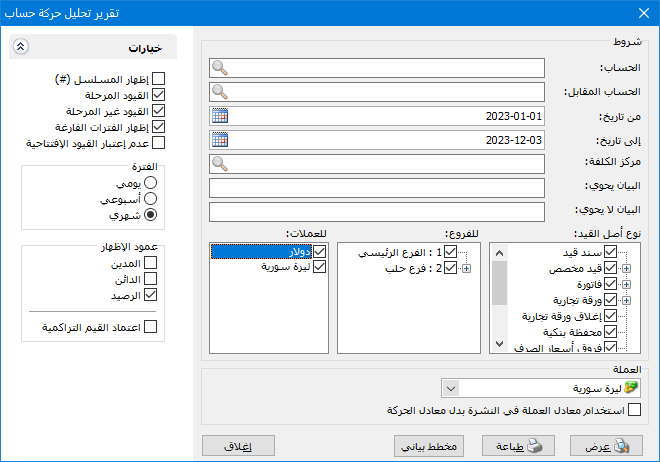
Analyze transactions for one account or a group of accounts over periods selected by the user. This report focuses on time: rows represent periods rather than individual accounts. Choose Reports > Account Transaction Analysis to open the conditions window with these fields:
.
Conditions: #
- Account: Select a subsidiary or parent account whose transactions should be analyzed.
- Counterpart Account: Select a counterpart account to analyze transactions between it and the account selected above.
- From Date / To Date: Specify the report date range.
- Cost Center: Select a cost center to analyze entries involving it.
- Description Contains: Enter text to analyze entries whose descriptions contain it.
- Description Does Not Contain: Enter text to analyze entries whose descriptions do not contain it.
Entry Source Type: #
Select the entry sources to analyze. For example, select only Invoice to include invoice-generated entries and exclude entries from other sources.
Branches: #
Select one or more branches to analyze their entries.
Currencies: #
Select transaction currencies to include. For example, selecting Syrian pounds excludes cash receipts recorded in Jordanian dinars.
- Currency: Select the currency in which the report should be displayed.
- Exchange Rate: Specify the rate relative to the base currency. This field is available only for a secondary currency and offers two choices:
- Use the Exchange-Rate Schedule: Retrieve exchange rates automatically from the schedule, using the rate applicable on each transaction date.
- Use a Specified Exchange Rate: Enter a rate in the field that appears and use it to display the report.
Use the Scheduled Currency Rate Instead of the Transaction Rate: Use the rate from the exchange-rate schedule instead of the original transaction rate. This option is used when requesting the report in the base currency.
Options: #
The options section contains:
- Show Sequence Number: Enable this option to display sequential numbers for the periods shown in the report.
- Posted Entries: Include account transactions from posted entries.
- Unposted Entries: Include account transactions from unposted entries.
- Show Empty Periods: Display all periods in the date range, even those without activity or values. When disabled, empty periods are hidden.
- Ignore Opening Entries: Exclude opening-entry amounts from the account analysis.
Period: #
Three period choices are available:
- Daily: Analyze account transactions by day within the report date range.
- Weekly: Analyze account transactions by week within the report date range.
- Monthly: Analyze account transactions by month within the report date range.
Display Columns: #
Enable one or more of these three fields:
Debit, Credit and Balance.
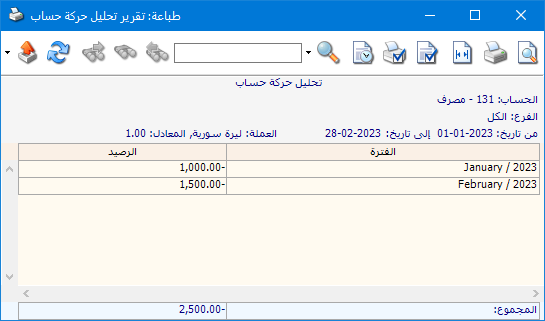
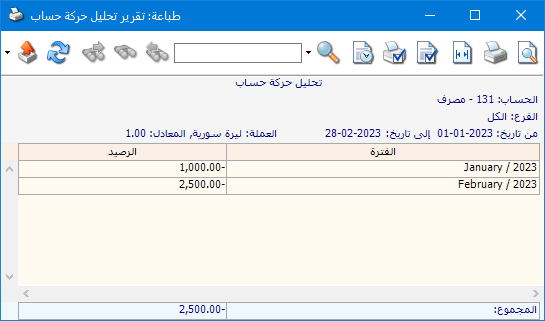
- Use Cumulative Values: Include preceding periods when calculating each period value. For example, outflows of 1,000 pounds in month one and 1,500 in month two produce a cumulative month-two value of 2,500 pounds. The following illustrations show the difference:
The report without Use Cumulative Values
.
The report with Use Cumulative Values
.
Show: Display the report.
Print: Print the report.
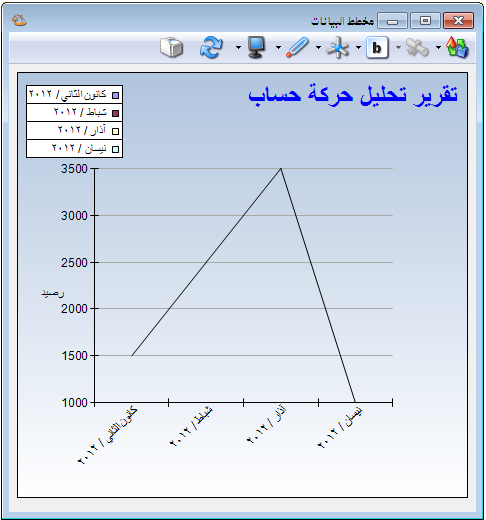
Chart: Display report information as a chart.
The following chart corresponds to the first case in the preceding example:
.
Close: Close the report.
Examples of Information Available from Account Transaction Analysis:
- Transactions for customer Tarek during the first six months, grouped by month.
- Customer transaction analysis during the first six months using posted entries only.
- Transactions for Tarek during the first month, grouped by week.
- Monthly debit, credit and balance values for Tarek during the first six months.
- A chart showing increases and decreases in the Cash account balance over a month.
.


