


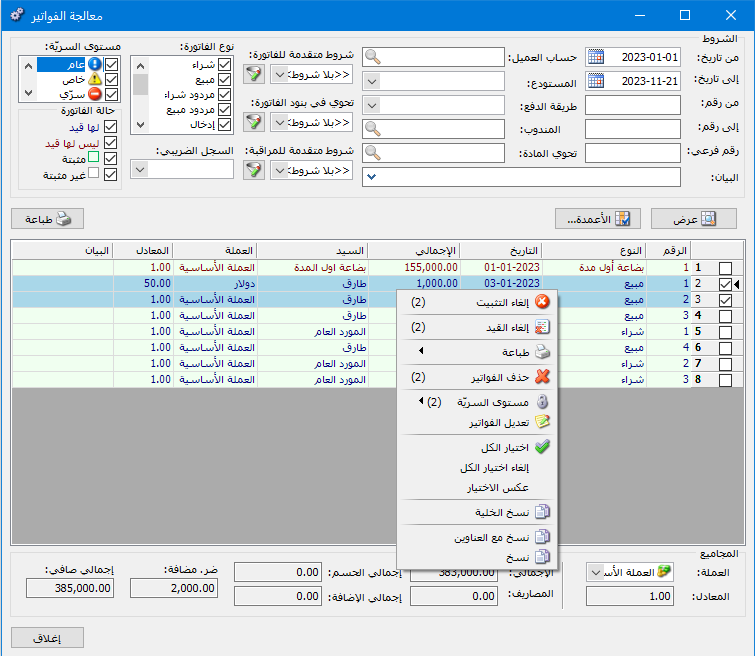
The Manage Invoices window displays invoices stored in the database. Use the upper fields to filter a subset and apply selected changes. Select invoices, right-click and choose Finalize or Undo Finalization to process them together. You can likewise delete invoices, generate or remove their journal entries, change confidentiality levels or print them in bulk.
Choose Invoices > Manage Invoices to open the window.
The window contains the following options:
.
.
Conditions: #
Condition fields filter the displayed invoices. By default, they include all database invoices. The conditions are:
- From Date / To Date: Specify a date range to display invoices dated within it.
- From Number / To Number: Specify a number range to display invoices numbered within it.
- Secondary Number: Enter a secondary number to display the invoice carrying that number.
- Description: Enter text to display invoices whose descriptions contain it.
- Customer Account: Select a customer account to display invoices for that account.
- Warehouse: Select a warehouse to display invoices recorded in it.
- Payment Method: Select a payment method to display invoices using it.
- Representative: Select a representative to display only invoices associated with that representative.
- Contains Item: Select an item to display invoices containing it.
Advanced Conditions:
- Advanced Invoice Conditions: Specify advanced invoice conditions, such as invoice type, warehouse or secondary number, to display matching invoices.
- Advanced Audit Conditions: Filter invoices by user actions such as addition, modification or printing.
- Contains in Invoice Lines: Specify advanced line conditions, such as item, production date or expiry date, to display matching invoices.
Invoice Status: #
Select invoices with or without journal entries, finalized invoices or unfinalized invoices.
Invoice Type: #
Select the invoice type to display, such as purchases or sales.
Confidentiality Level: #
Select the confidentiality level of invoices to display.
Currency and Exchange Rate: Select the currency and exchange rate for report totals, including invoice total, discount, surcharge, VAT and net total.
.Show: Display invoices matching the preceding conditions.
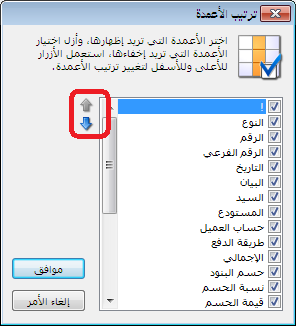
Columns: Choose which columns appear in the report and arrange
their order using the two blue arrows at the upper left of the window.
.
.
Print: Print the report information.
Totals: Total fields summarize the invoices displayed in the report.
Window Tables: #
Select one or more invoices and right-click to open a menu containing these operations:
- Open Invoice: Open the selected invoice. Available only when one invoice is selected.
- Finalize: Finalize the selected invoices.
- Undo Finalization: Undo finalization for the selected invoices.
- Generate Entry: Generate journal entries for the selected invoices.
- Remove Entry: Remove the generated journal entries for the selected invoices.
- Entry: Open the selected invoice journal entry. Available only when one invoice is selected.
- Print: Print selected invoices using Print Invoice, Print Custom Invoice or Print Barcode.
- Delete Invoice: Delete the selected invoices.
- Confidentiality Level: Change the confidentiality level of the selected invoices.
- Attachments: View attachments for each selected invoice. This requires the Archiving module, explained in a separate guide.
Additional Table Options: #
- Select All: Select all invoices matching the conditions for a bulk operation.
- Deselect All: Clear the selection of all selected invoices.
- Invert Selection: Select unselected invoices and deselect selected invoices.
- Copy Cell: Copy only the selected cell.
- Copy with Headers: Copy the selected invoices together with the column headers.
- Copy: Copy the selected invoices without column headers.
.


