


Sorting and Grouping Properties #
Print Designer sorting and grouping properties let you sort the lines in a record table, such as an invoice, journal voucher or custom entry, or group them by a selected field.
Consider the following example:
Suppose an invoice has several lines, each assigned to a warehouse. You want each printed page to contain lines for only one warehouse, with separate totals for that page. Use Sorting and Grouping Properties as follows:
First: Split the Printed Invoice by Warehouse #
Open the invoice print design, select the invoice lines table and click Sorting and Grouping Properties, as shown below:
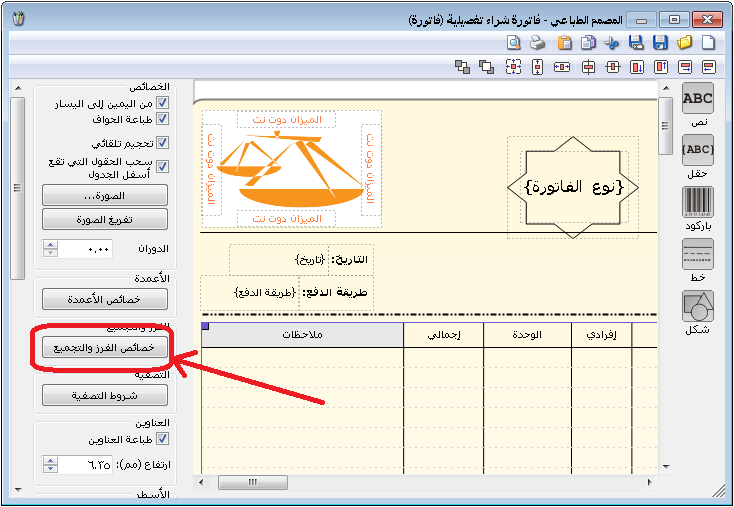
.
Enable Warehouse Name and Start a New Page for Each New Field Value. The invoice then prints each warehouse value on a separate page, as shown below:
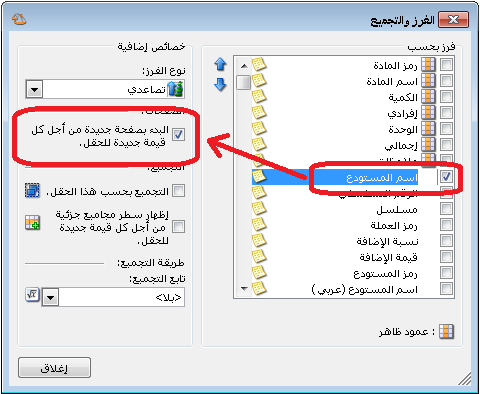
.
Second: Show Totals on Each Page #
Use Field to add Invoice Lines again, then enable the fields whose totals should appear below the invoice, as shown below:
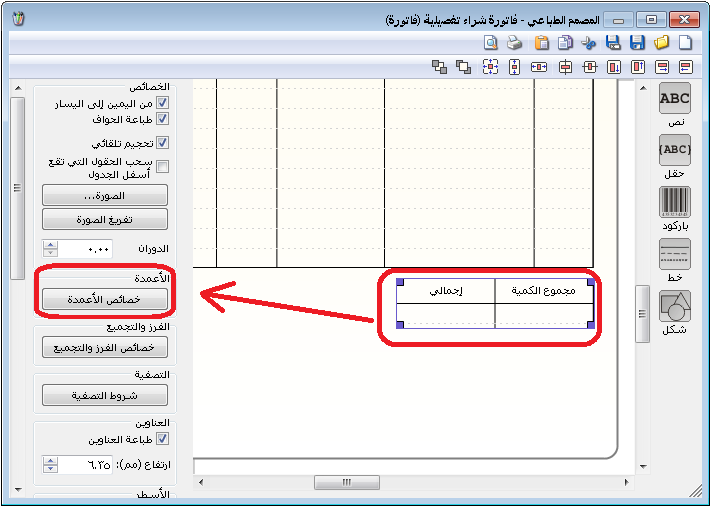
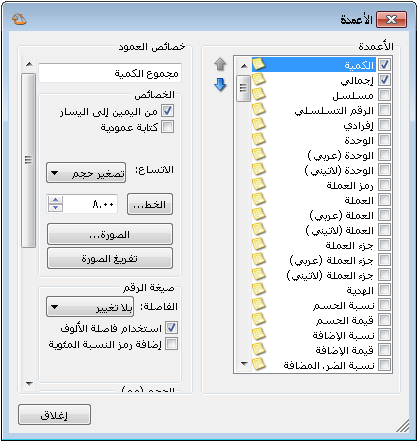
.
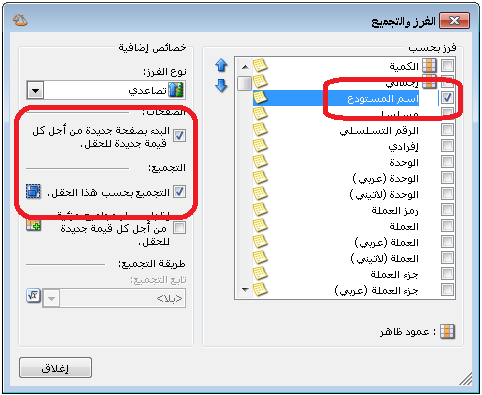
Select the totals table, click Sorting and Grouping Properties, enable Warehouse Name and these two options:
- Start a New Page for Each New Field Value
- Group by This Field
As shown below:
.
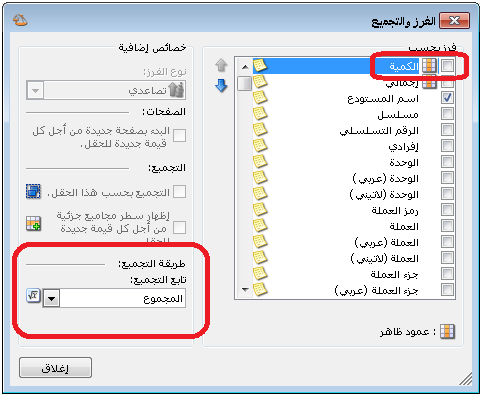
Select Quantity and Total, then set the aggregation function to Sum, as shown below:
.
Each printed page now shows one warehouse invoice lines and the Quantity and Total sums for those lines below them.
Note:
The totals normally appear together as a table. To display them separately, repeat the steps inSecond: Show Totals on Each Pagetwice: once for Quantity and once for Total.
Filter Conditions: #
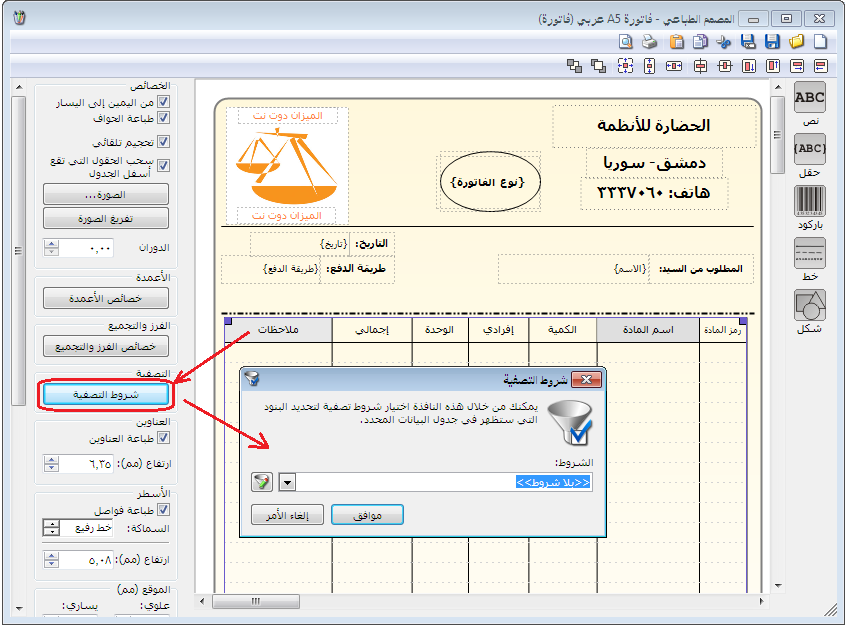
Filter conditions let you restrict printed lines according to conditions you define.
Click Filter Conditions to define a condition so that only matching invoice or journal voucher lines are printed.
.
Example of Filter Conditions: #
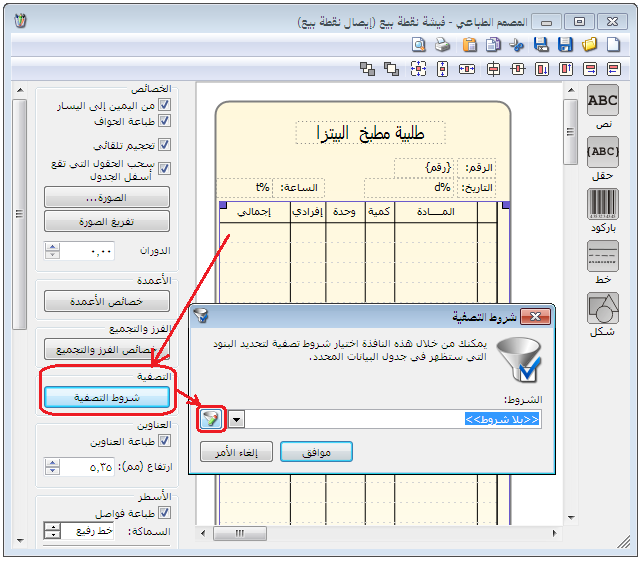
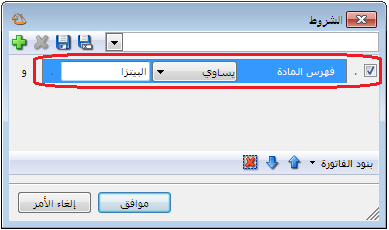
Suppose a fast-food restaurant has separate pizza and sandwich kitchens. Each kitchen needs a printed ticket containing only its own items. Define a Pizza item category containing all pizza items and a Sandwich category containing the sandwich items. Create a print design for the pizza kitchen and set the item table condition to Category Equals Pizza, as shown below:
.
Click the filter button in Filter Conditions to define the advanced condition Category Equals Pizza, as shown below:
.
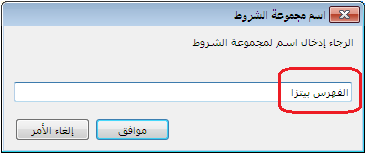
Click OK, then save the condition in the window shown below:
.
This design prints only items in the Pizza category, producing a ticket for the pizza kitchen order.
Similarly, create another print design for the Sandwich category. It prints sandwich items on a separate ticket for the sandwich kitchen.
.


