


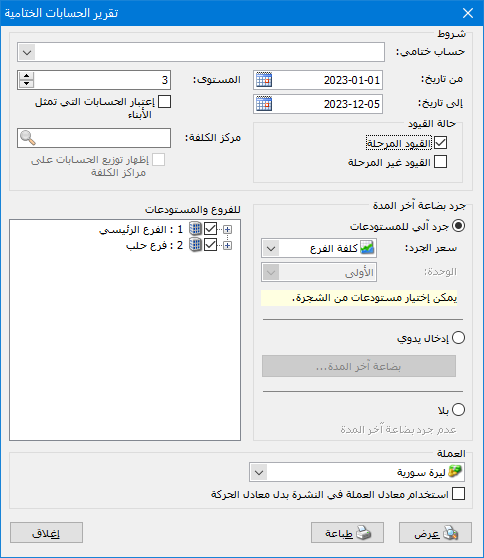
This report shows closing accounts and helps review business performance. Choose Reports > Closing Accounts to open the conditions window containing the following options:
.
Conditions: #
- Closing Account: Four main choices are available by default:
- Trading: Receives balances from trading-related accounts such as sales, purchases and purchase returns. Its balance represents the gross profit or gross loss on the company goods.
- Profit and Loss: Receives expense and income accounts outside Trading, such as salaries, utilities and rental income. Its balance represents the company net profit or loss.
- Balance Sheet: Shows the remaining chart-of-accounts balances: assets such as buildings, vehicles and customer receivables, together with liabilities and equity such as loans, supplier payables and owner capital.
- Operating: Used for manufacturing accounting. Manufacturing expenses and raw materials are charged to the Operating Account, then finished goods are transferred out at cost.
Additional closing accounts can be defined in the Closing Accounts window. See the Closing Accounts guide.
- From Date / To Date: Specify the report date range.
Level: #
Select the level of account detail to display. This corresponds to Level in the chart of accounts.
Cost Center: Select a cost center to display closing accounts for its financial transactions.
Respect Accounts Representing Their Children: When this option is enabled, the detailed report displays only a parent account if Represents Children in Reports is enabled in that parent account record. Its subsidiary accounts are hidden unless this behavior is disabled. To enable it for an account, open the chart of accounts, right-click the parent and select Represents Children in Reports.
Entry Status: #
Choose posted entries, unposted entries or both.
Branches: Select one branch, several branches or all branches to request closing accounts at the required company level.
Closing Inventory: #
Three closing-inventory choices are available:
None: Use this option with perpetual inventory, where closing stock already appears in the goods or inventory account, or when the company has no warehouse and does not deal in goods.
Manual Entry: Use this option when item records are not sufficiently accurate or warehouse records do not match the physical count. Enter the inventory value and the two closing-inventory accounts to which it should be posted.
Automatic Warehouse Stocktake: The software calculates warehouse stock automatically and directs its value to the goods accounts defined in General Settings, or to special accounts defined in each item accounting group.. Select the price used to value closing inventory, usually Company Cost.
Unit: Select the first, second or another unit. This matters when using a price from the item record: for example, Retail prices may differ by unit, affecting inventory value.
Currency: #
Select the currency in which the report should be displayed.
Exchange Rate: Specify the rate relative to the base currency. This field is available only for a secondary currency and offers two choices:
- Use the Exchange-Rate Schedule: Retrieve exchange rates automatically from the schedule, using the rate applicable on each transaction date.
- Use a Specified Exchange Rate: Enter a rate in the field that appears and use it to display the report.
- Use the Scheduled Currency Rate Instead of the Transaction Rate: Use the rate from the exchange-rate schedule instead of the rate entered in the original transaction. This option is used when requesting the report in the base currency.
- Show: Display the report using the preceding conditions.
- Print: Click this button to print the final report.
- Close: Close the report conditions window.
Examples of Information Available from the Closing Accounts Report:
- A company Trading Account report showing gross profit from its activities.
- A company Profit and Loss report showing net profit after all expenses.
- A Balance Sheet showing assets, liabilities and equity at the beginning of the year, at midyear or at year-end.
- Closing accounts for one branch, several branches or all company branches.
- A company Balance Sheet in the base currency or another defined currency.
- A Trading Account report for transactions involving a selected cost center.
- A Balance Sheet based only on posted entries, only on unposted entries or on both.
- A Balance Sheet with inventory valued at cost, last purchase price or another available price.
.


