


The Manage Custom Journal Vouchers window displays custom entries stored in the database. Use the upper filter fields to display a selected subset. After displaying the required entries, select them, right-click and choose Post or Unpost to process them together without opening each custom entry separately.
Choose Journal Entries > Manage Custom Journal Vouchers to open the window.
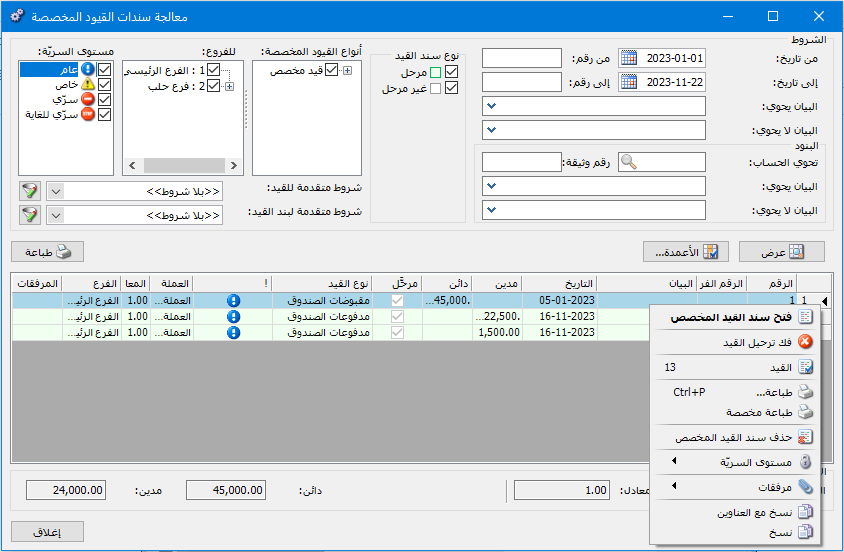
The following illustration shows the window, whose fields are largely the same as Manage Journal Vouchers:
.
.
Conditions: #
The condition fields filter the entries displayed. By default, the conditions display all journal vouchers in the database. They include:
From Date / To Date: Specify a date range to display journal vouchers dated within that period.
From Number / To Number: Specify a number range to display vouchers whose numbers fall within it.
Description Contains: Enter text to display vouchers whose descriptions contain it.
Description Does Not Contain: Enter text to display vouchers whose descriptions do not contain it.
Lines: Line conditions include:
Contains Account: Select an account from the chart of accounts to display vouchers containing that account on either side of the entry.
Document Number: Enter a document number to display entries with that document number.
Description Contains: Enter text to display vouchers whose line descriptions contain it.
Description Does Not Contain: Enter text to display vouchers whose line descriptions do not contain it.
Journal Voucher Type: #
The available options are:
- Automatic: A journal voucher generated by another operation, such as an invoice.
- Manual: An entry entered manually with debit and credit sides through the Journal Voucher window.
- Opening: A voucher with Opening enabled in its Status field.
- Posted: A voucher posted to its relevant accounts.
- Unposted: An entered journal voucher that has not been posted.
Automatic Entry Source Type: #
Select the source type for automatic entries. For example, selecting Invoice displays only entries generated from invoices.
Branches: Select a branch to display entries recorded in it.
Confidentiality Level: Select a confidentiality level to display entries with that level.
Advanced Entry Conditions: Filter entries by conditions such as number, secondary number, date, branch, description or currency.
Advanced Entry Line Conditions: Filter entries by line conditions such as debit, credit, account or description.
Show: Click this button to display vouchers matching the selected conditions.
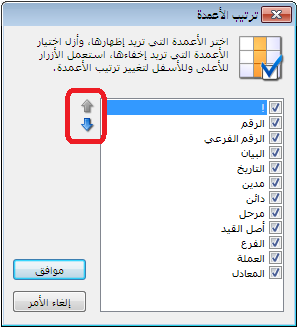
Columns: Click this button to choose report columns and arrange them using the two blue arrows on the left of the window, as shown below:
.
.
Print: Print the information displayed in the report.
Total Journal Vouchers: Displays the total amount of the displayed entries.
Currency and Exchange Rate: Select the currency for displaying journal voucher totals and its exchange rate relative to the base currency.
.


