


Budget windows let you divide an accounting period into stages and set a budget balance for each account at stage level or for the whole period. The software alerts you when the actual account balance exceeds the budget for that stage or period. Open Accounting > Budget. This submenu contains two windows:
Accounting Period Stages: #
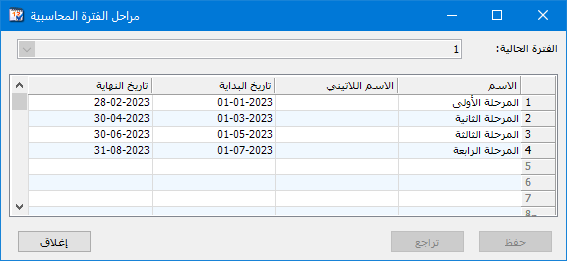
Define each stage with Arabic and English names and start and end dates. This organizes accounting and financial operations and helps track activity during each stage, as shown below.
.
.
Budget: #
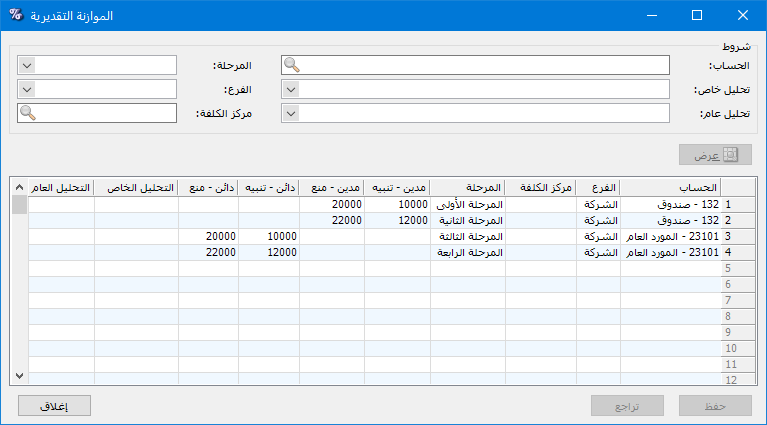
Use the Budget window to enter an account budget. It contains these fields:
.
.
- Account: Select the account for which to set a budget.
- Branch: Select the branch to which the budget applies. If no branch is selected, the account budget applies to the whole company.
- Cost Center: Select the cost center to which the budget applies. Click the magnifier to view available cost centers.
- Stage: Select the stage covered by the budget. If no stage is selected, the account budget covers the entire accounting period.
- Debit — Alert: Enter the debit balance at which the software should alert you when saving a record, such as a journal entry or invoice affecting the account debit balance.
- Credit — Alert: Enter the credit balance at which the software should alert you when saving a record.
- Debit — Block: Enter the debit balance at which the software should prevent the record from being saved.
- Credit — Block: Enter the credit balance at which the software should prevent the record from being saved.
- Account-Specific Analysis: You can define the account budget for a particular account-specific analysis item. The software then evaluates that component rather than the account as a whole.
- General Analysis: You can define the account budget for a particular general analysis item. The software then evaluates that general analysis together with the account rather than the account alone.
Condition Fields: #
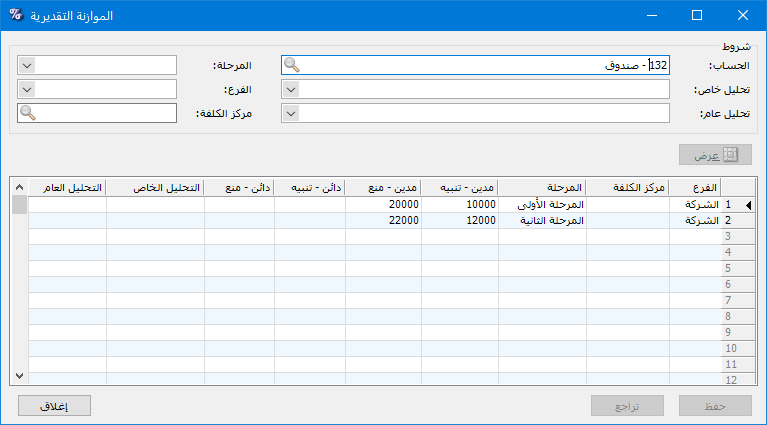
Use these fields to set search conditions. For example, enter the Cash account in Account and click Show to display its budget window.
.
.
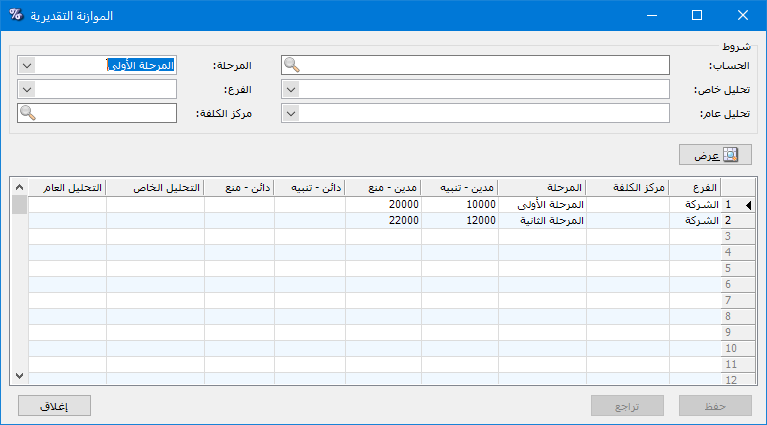
If you also select First Stage in Stage and click Show, the window appears as follows:
.
.


