


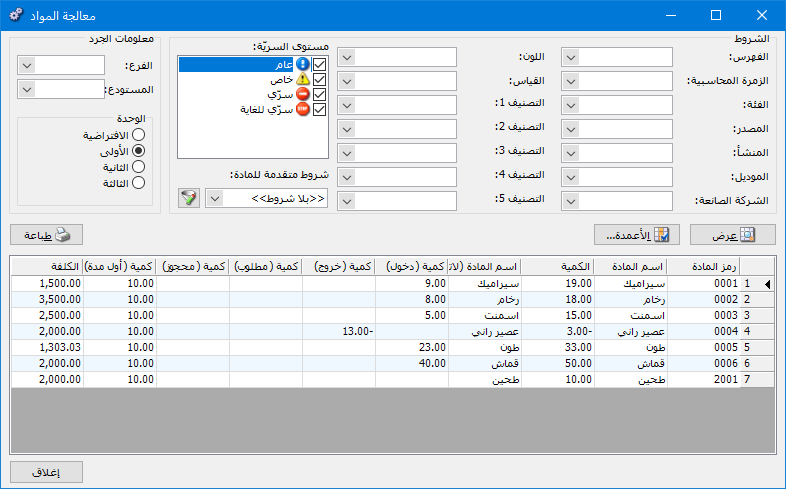
This window displays information about items in the database and lets you print it. Its condition fields restrict the displayed items to those matching the selected filters, as shown below:
.
.
Conditions: #
- Category: Displays items within the selected category.
- Accounting Group: Select the accounting group for the item, category or group of items to display.
- Class: Select the item class to display.
- Source: Select the item source to display.
- Origin: Select the item origin to display.
- Model: Select the item model to display.
- Manufacturer: Select the item manufacturer to display.
- Color: Select the item color to display.
- Size: Select the item size to display.
- Item Type: Select whether to display information for an item or a service.
- Classification 1 , Classification 2 , Classification 3 , Classification 4 , Classification 5: Use these fields to display items belonging to a selected classification.
- Volume: Select the item volume to display.
- Weight: Select the item weight to display.
- Area: Select the item area to display.
- Factory Code: Select the factory code for the items to display.
- Main Supplier: Select the main supplier for the items to display.
- Position: Select the item position to display.
- Specifications: Select the item specifications to display.
Advanced Item Conditions: #
These conditions use information in item records to select items appearing in opening-stock and purchase invoices for this report.
Confidentiality Levels: #
Select items to display according to their confidentiality level.
Inventory Information: #
- Branch: Displays quantities for the selected branch.
- Warehouse: Displays quantities for the selected warehouse.
- Unit: Displays quantities in the selected unit: first, second, third or default.
- Show: Display the report using the preceding conditions.
- Columns: Choose which columns appear in the report and arrange them using the two blue arrows at the upper left of the window.
- Print: Print the report information..
.


