


Create a New Database: #
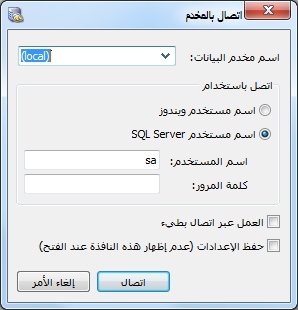
After installation, the Al Mizan icon appears on the desktop. Open the software by clicking this icon. The following window appears with these fields:
.
Database Server Name: This is the central computer that stores the company database, or the computer on which you want to create it. Enter the computer name followed by the separator and the server instance name specified during SQL Server installation. A separate video explains how to install the database server and connect the software to it.
Note:
To find the local computer name, right-click This PC or My Computer, choose Properties and locate the computer name.
Work over a Slow Connection: Enable this option when connecting to the database over a low-quality internet connection.
Save Settings: Enable this option to connect automatically to the server entered in Database Server Name whenever the software starts, without displaying this connection window again.
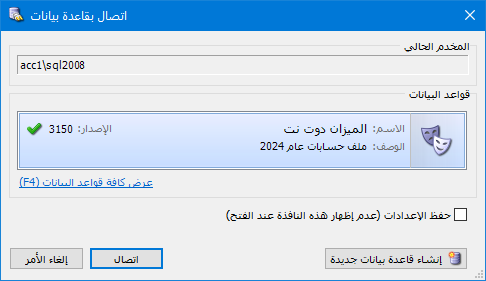
Click Connect in the preceding window to open Connect to Database, which contains these fields:
Current Server: This read-only field displays the server selected in the preceding window.
Databases: #
.
- “Name: Select the database to connect to, if one already exists.
- Description: This read-only value is entered when a new database is created.
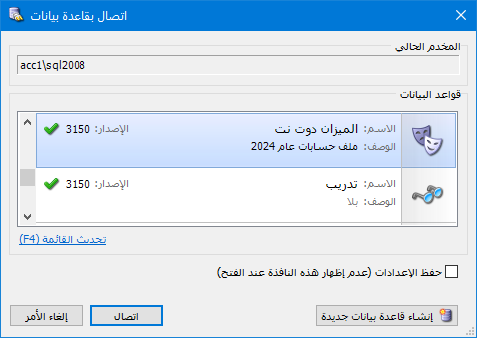
Save Settings: Enable this option to connect automatically to the database selected in Database Name whenever the software starts, without displaying this window again.
Show All Databases: Displays all previously created databases.
After selecting a database, click Connect. If the server has no database, click Create New Database, as shown below:
.
.
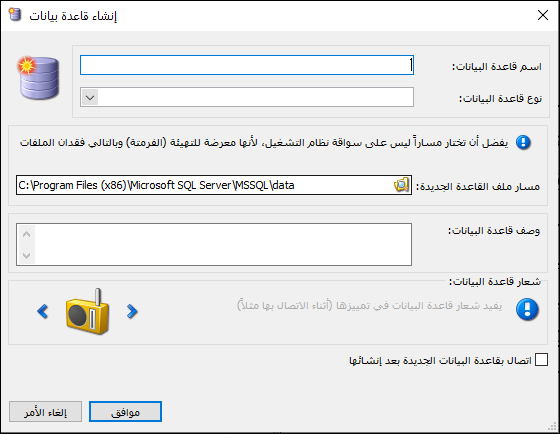
Clicking Cancel opens the software with its working windows disabled because no database is connected. Then choose File > Create New Database. The following window contains these fields:
Database Name: #
Enter a name for the new database.
.
.
Database Type: #
Select the database type. There are three options:
Empty:
Creates a completely empty database. You must define all accounts, invoices, currencies, items and other records yourself.
Example:
Creates a database with a simplified set of accounts, predefined items, invoices and journal entries, together with a numerical example.
Simple Acc Tree:
Creates a database with a standard chart of accounts covering most accounts required by small, medium and large companies, and predefined invoices and journal entries without numerical examples. This is the recommended type.
Click OK to create the database. Click OK again in Connect to Database or Connection Properties to open it.
New Database File Location: Select the folder where the database files will be created. Prefer a drive other than the Windows system drive, usually C, because reinstalling or formatting that drive could remove the files.
Database Description: Enter a description for the database.
Database Icon: Choose an icon to help identify the database.
Connect to the New Database after Creation: Enable this option to connect to the database immediately after creating it.
.


