To roll the database forward, follow these steps:
First: Steps in the Old Database #
Back up the database. #
Make sure all invoices are posted and finalized usingProcess Invoicesfrom theInvoices“. #
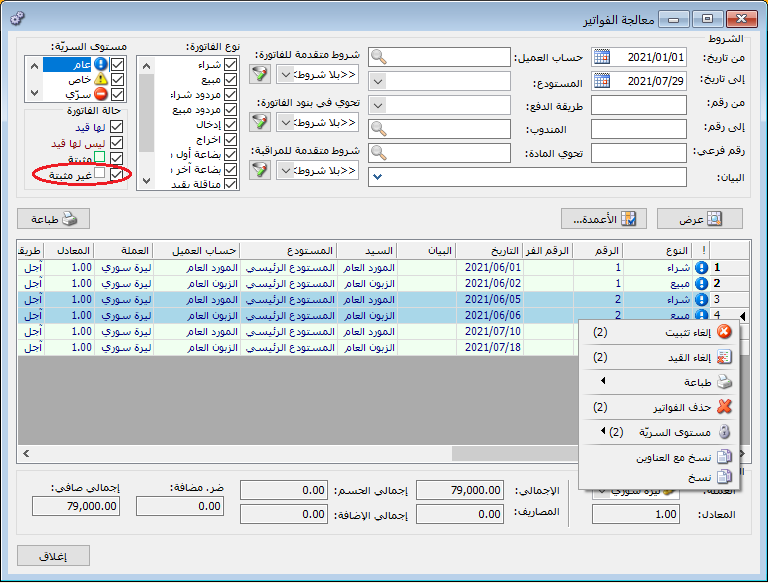
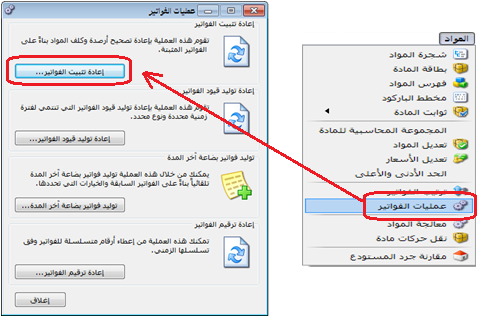
Re-finalize Invoices: #
Run Re-finalize Invoices fromItems” -” Invoice Operations” -” Re-finalize Invoicesto verify item cost calculations.
Process Journal Vouchers: #
Make sure all journal entries are posted using Journal Entries and Process Journal Vouchersas shown below.
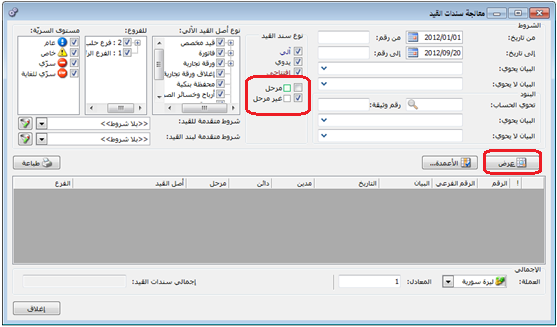
See Processing Journal Vouchers.
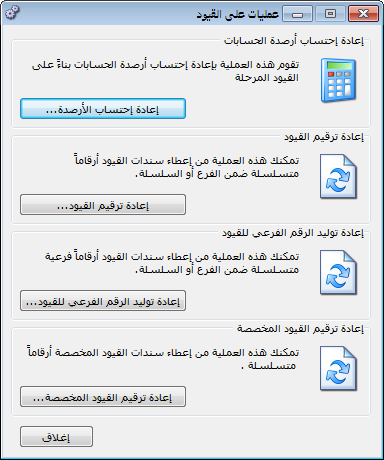
Recalculate Balances: #
- Request Recalculate Balances fromAccounting” -” Journal Entry Operations” -” Recalculate Balances“.
Item Inventory Report: #
Request an inventory report for each warehouse. Verify stock quantities and resolve any negative inventory. If program quantities differ from the physical count, useCompare Warehouse Inventoryfrom theItemsto correct each warehouse’s stock. The window displays all items and quantities. Enter the physical counts for items with differences, then generate receipt invoices to increase understated stock and issue invoices to reduce overstated stock.
Process Exchange Rate Differences: #
If the database uses multiple currencies, process exchange rate differences. See the corresponding guide for details. Update exchange rates in the Exchange Rate Bulletin because the new database’s opening entry uses those rates.
See Processing Exchange Rate Differences.
Closing Inventory Invoice: #
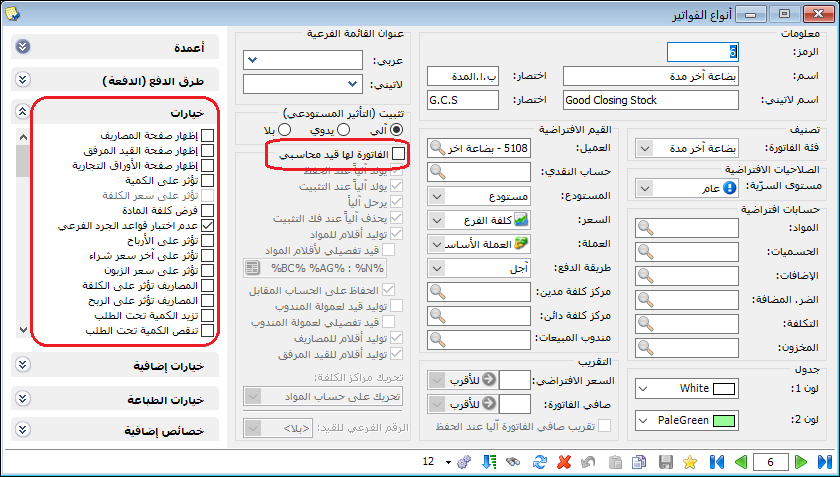
Make sure a Closing Inventory invoice type exists.
Open its type card and ensure its category is specifically Closing Inventory and that it does not generate a journal entry, as shown below.
.
Opening Inventory: #
Make sure an Opening Inventory invoice type exists, its category is Opening Inventory and it also does not generate a journal entry.
Generate Closing Inventory Invoices: #
After verifying inventory, generate closing inventory invoices fromItemsin theInvoice Operations” -” Generate Closing Inventory Invoicewindow, creating one closing inventory invoice for each warehouse.
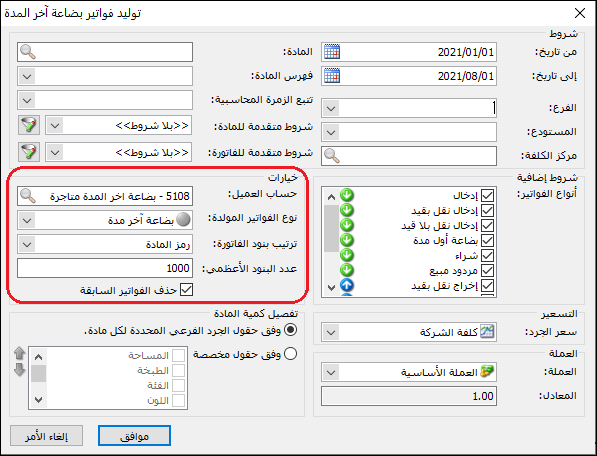
See Generating Closing Inventory Invoices.
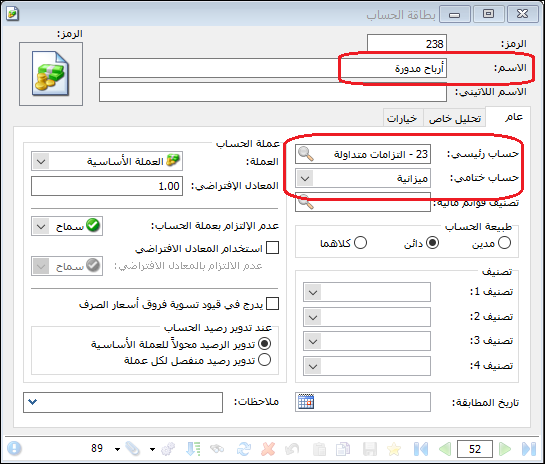
Define a Retained Earnings Account #
In the chart of accounts, define Retained Earnings alongside Capital within the applicable equity grouping and classify its final account under the Balance Sheet, as illustrated below.
Note:
If multiple branches exist, use a single Retained Earnings account to combine their profits, or define a separate account for each branch to keep their profits separate.
Create a database backup. #
Create a New Database: #
Create a new database fromFile” -” Create New Databaseusing the
Empty type and a suitable name for the new financial year, for exampleDATA2022“.
Second: Steps in the New DatabaseSecond: Steps in the New Database #
Connect to the database newly created. #
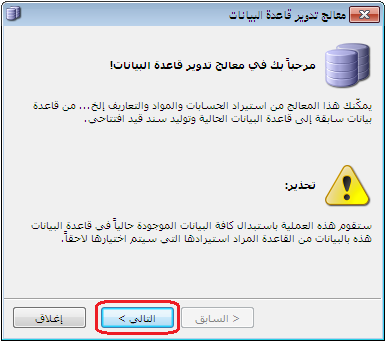
Open Tools, select Database Rollover and click Next, as shown below.
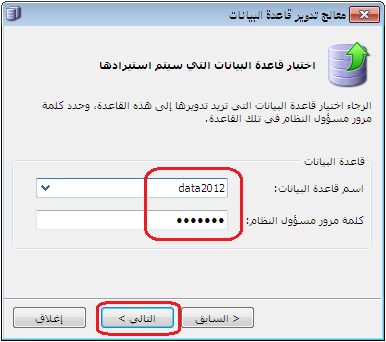
Select the old database whose accounts will be rolled forward, enter its password if one exists and click Next, as illustrated below.
Select the Database to Import: #
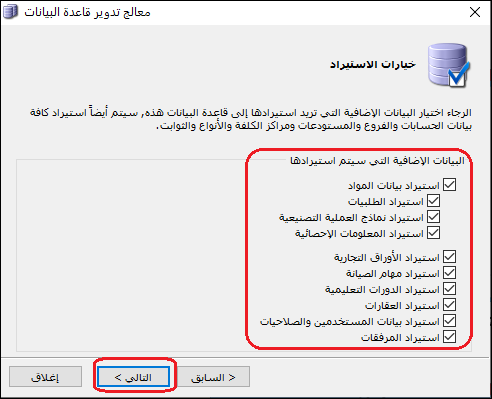
Select the information to import. Enable Import Item Data and, if users exist, Import Users and Permissions. Enable Import Manufacturing Templates if the company uses them. Enable Import Statistical Information to carry forward item statistics by branch and customer. Enable Import Attachments to transfer archived attachments from item, account and customer cards.
Then click Next, as shown below.
Import Options: #
.
Accounting Period: #
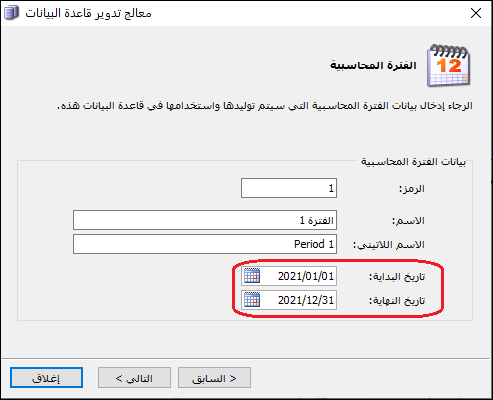
Set the new database’s accounting period, particularly its start and end dates, as shown below.
.
Currency Exchange Rate Bulletin: #
This read-only window displays the latest exchange rates from the old database’s bulletin. To change a rate, return to the old database and update it there. The following illustration shows the window.
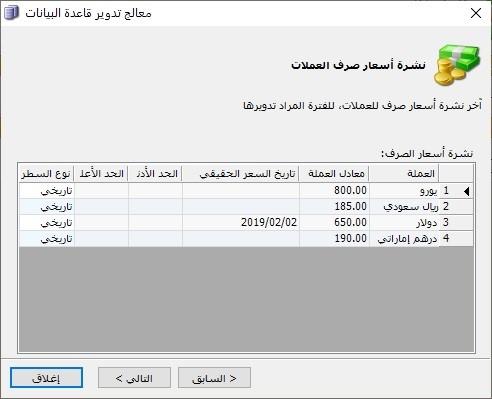
See the Exchange Rate Bulletin.
Opening Journal Voucher: #
Choose whether to generate an opening journal voucher, as shown below.
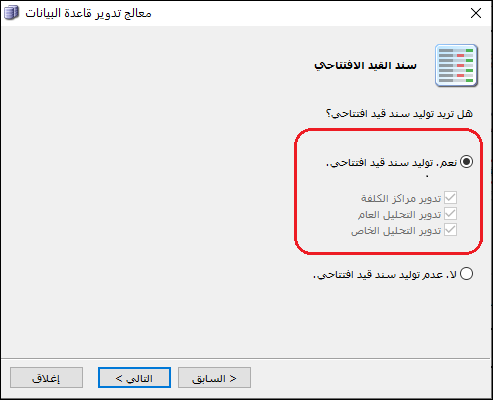
.
Balance Sheet Accounts: #
Select the final account classifications whose account balances should be transferred to the new database, usually Balance Sheet, as illustrated below.
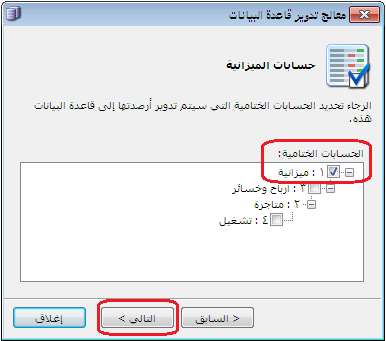
If the old database contains multiple company branches, select the branches whose data should be rolled forward.
Opening Journal Voucher Accounts: #
Select the profit or loss account, such as the Retained Earnings account defined earlier, into which the previous year’s net profit or loss will be closed. Select the Opening Inventory account and enter its value, equal to the total closing inventory invoices generated in the old database. Click Fetch Closing Inventory Invoice Value to fill it automatically, then click Next, as shown below.
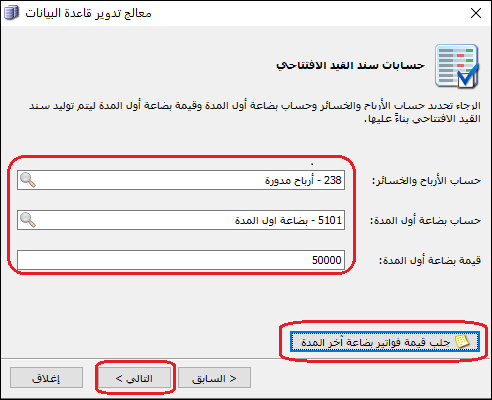
.
Opening Inventory Invoices: #
Choose whether to generate opening inventory invoices in the new database. Selecting Yes — Generate Opening Inventory Invoices transfers the old database’s closing inventory invoices into the new database as opening inventory invoices, as illustrated below.
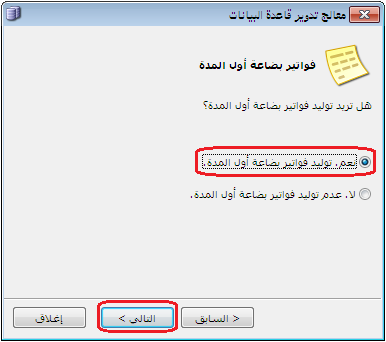
.
Confirm Rollover: #
A confirmation window appears. Click Next to complete the rollover, as shown below.
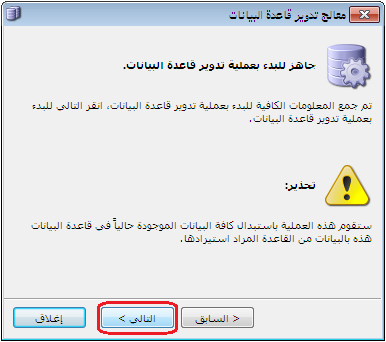
- Once rollover finishes, open Journal Entries and Opening Entry to view the generated opening voucher. It contains Balance Sheet account balances, Opening Inventory and Retained Earnings, forming the company’s opening balance sheet based on the previous year.
- Open Invoices and Opening Inventory to view warehouse item balances and cost prices transferred from the previous year’s closing inventory invoices.
- If you change item quantities or costs in an opening inventory invoice, adjust Opening Inventory in the opening entry by the same amount. The total of opening inventory invoices must equal the Opening Inventory balance in that entry.
Important Note: #
If an old database account has a balance that is not carried forward, check its final account classification in the account card. Customer accounts should normally be classified under the Balance Sheet. If a customer is incorrectly classified under Trading or Profit and Loss, its balance is closed into Retained Earnings like income and expense accounts instead of being carried forward.
Note: #
For fixed assets, the Opening Journal Voucher step in the Database Rollover wizard includes a Carry Forward Fixed Assets option, as shown below.
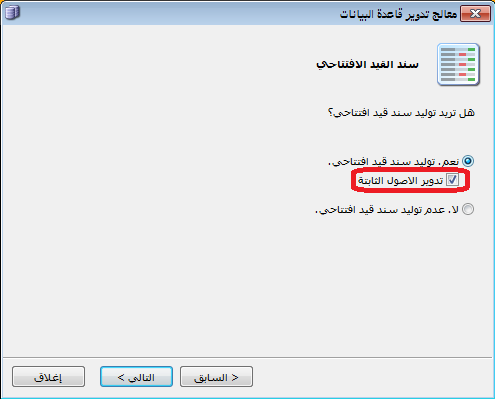
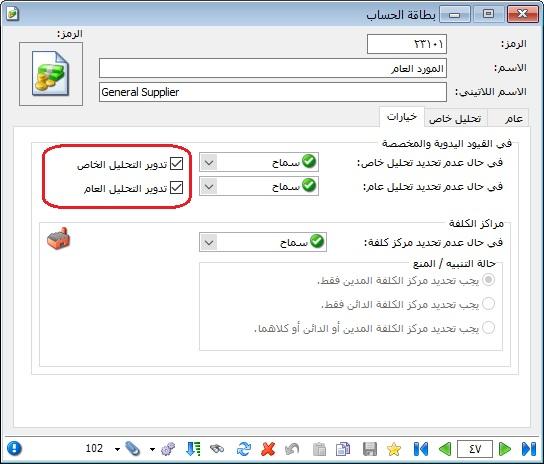
| Note: To carry general or account-specific analyses into the new year, enable Carry Forward General Analysis and Carry Forward Account-Specific Analysis in the account card. Also select the corresponding rollover options when generating the opening journal voucher. |
The following image illustrates the setting:
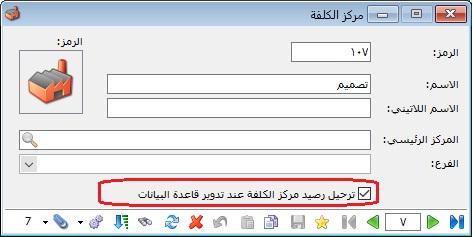
| To carry cost center balances into the new year, enable the option in each Cost Center card. |
The following image illustrates the setting: