


Add Categories and Items #
Open Items and select Item Tree to define the goods handled by your company. First add item categories by right-clicking or using the Category button on the Item Tree toolbar.
For example, the company may have two main categories: Food and Stationery. Food contains subcategories such as Canned Goods and Vegetables, while Stationery contains Notebooks and Pens. To add an item, select its category and click Add Item on the toolbar, or right-click and choose Add Item. The item card opens for entering its information.
To move an item to another category, change its category in the item card or drag it into the required category in the tree.
Note: Moving an item to another category changes its full item code, unlike moving an account. The full code consists of the category code and the item’s own code; only the category component changes when the item is moved.
.
.
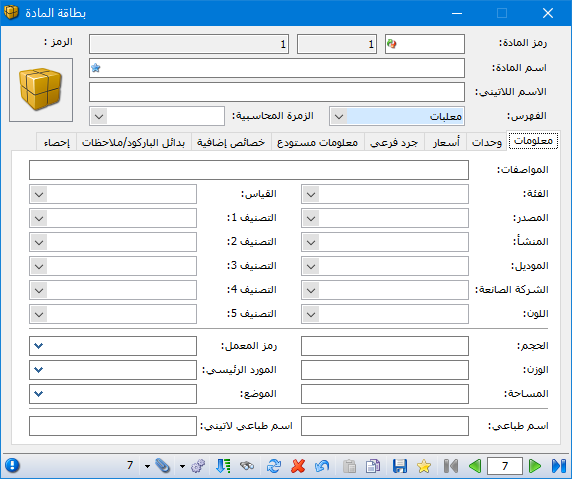
In the card above, the category was filled automatically because Canned Goods was selected before clicking Add Item. Adding an item under Uncategorized Items opens a blank card without a category. If you select a category there and refresh the Item Tree, the item appears under the selected category.
Item Card #
The item card contains the following main sections:
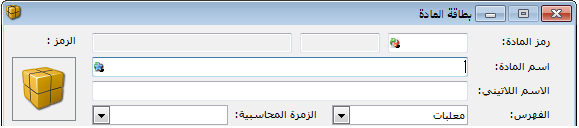
Card Header: Contains the item name, code, category and accounting group.
.
.
Accounting groups are explained in a later section.
Information Tab #
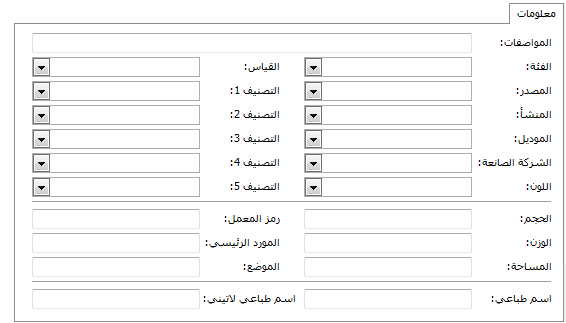
This tab contains the fields illustrated below.
Classification Fields: Data fields used as report criteria, including Specifications, Class, Source, Origin, Model, Manufacturer, Color, Size and Classifications 1–5.
.
.
Information Fields #
General item information, including Weight, Volume, Area, Factory Code, Main Supplier and Position.
Print Names #
Use these fields to print an item name different from its header name. Two fields are available: Print Name and Latin Print Name.
Units Tab #
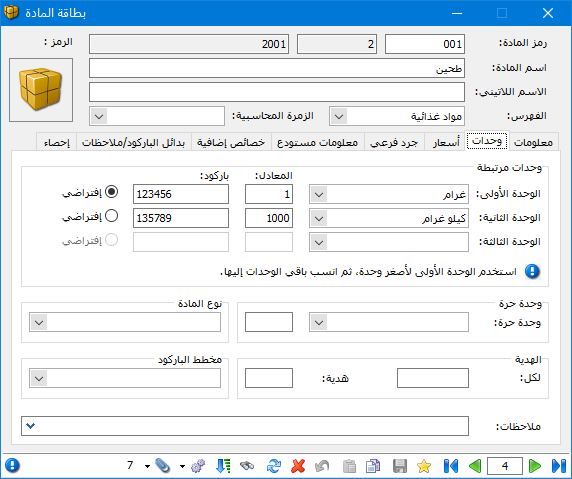
This tab contains the fields shown below.
These fields define how the item is measured. Two types are available.
Related units have fixed conversion factors and can each have a distinct barcode. For example, one dozen equals twelve pieces, or one kilogram equals one thousand grams. The smallest unit is generally best as the base unit. You can also set the default unit used in purchase and sales invoices when the item-card Default option is selected.
.
.
Independent Unit #
An independent unit may or may not have a fixed conversion to the related units; usually it does not. In an invoice, the item can be tracked with both related units and its independent unit, allowing movements to be reported using either.See Defining and Using Independent Units for a detailed explanation and practical example.
Barcode Schema #
Use this field to link an item to a barcode schema containing additional information such as color, size, weight or value.
See Defining and Using Barcode Schemas for a detailed explanation and practical example.
Item Type #
Choose Item for physical goods that can be counted, such as computers. Choose Service for nonphysical items that cannot be counted as stock.
Free Units #
Use this setting only when the free-unit ratio is fixed for the item across all invoices. In the example above, every ten invoiced units include one free unit.
.
.
Prices Tab #
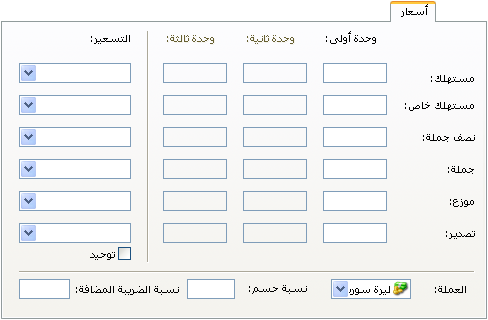
Set up to six default selling prices for each item. Each can be a fixed amount using Manual Pricing, or a percentage based on Company Cost, Highest Company Purchase Price, Latest Company Purchase Price, Branch Cost, Highest Branch Purchase Price or Latest Branch Purchase Price. Use one pricing policy for all prices or a different policy for each.
Currency #
This sets the currency of the item prices. The tab also contains the item’s default discount percentage and default added-tax percentage.
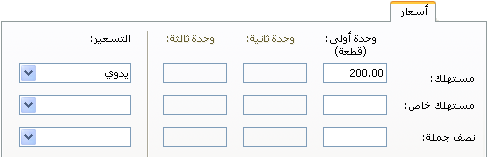
Manual and Percentage Pricing Example
Suppose the retail price should be fixed at SYP 200. Enter 200 for the first unit’s price and choose Manual Pricing, as shown below.
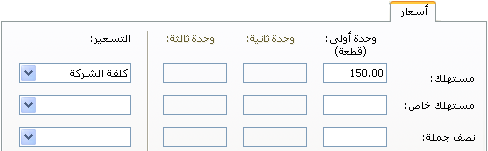
To sell the item at fifty percent above Company Cost, enter the percentage and select the corresponding pricing method, as illustrated below.
Sub-Inventory Tab #
This tab appears as shown below.
.
:
.
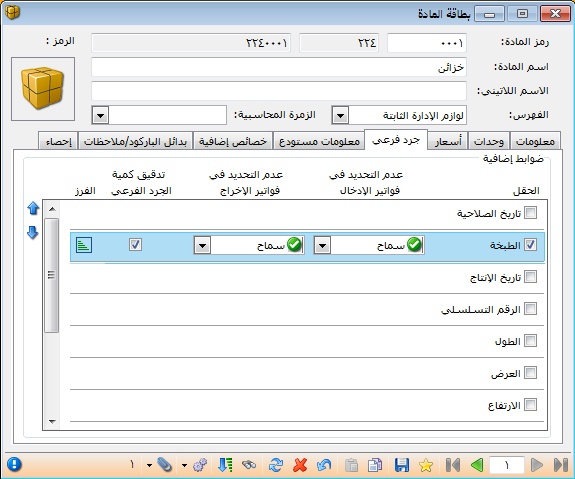
When sub-inventory is enabled for a field, inserting an item into an issue invoice opens a helper window showing its remaining quantity for each attribute value. See Defining and Using Item Sub-Inventory for a detailed explanation and example.
Sub-Inventory Fields #
Expiry Date, Batch, Production Date, Serial Number, Length, Width, Height, Area Options, Volume Options, Color Options, Size Options and Factory Code Options : Enable fields according to the item’s requirements. For example, use Expiry Date for medicines or food, and Serial Number to track sold items and warranty returns. For enabled fields left blank, choose how the program responds. For example, when Expiry Date is enabled in receipt or issue invoices:
Allow: Save the invoice without a warning or block when the expiry date is not entered.
Block : The invoice cannot be saved until the expiry date is entered.
Statistics Tab #
Click Save on the card toolbar to obtain a current item summary for a warehouse, branch or the whole company. It includes available quantity, unit cost, requested quantity and reserved quantity. Requested and reserved quantities depend on invoice settings; for example, a sales order type may affect them. The summary can be displayed using any unit previously defined on the Units tab.
.
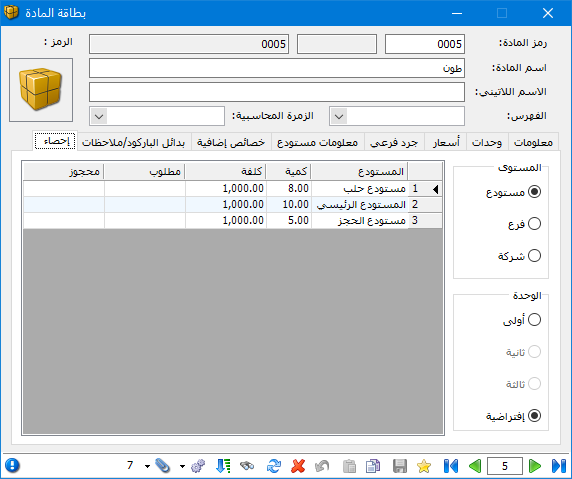
.
Warehouse Information Tab #
This tab contains:
Minimum Quantity: The lowest stock level the company accepts in the warehouse.
Maximum Quantity: The highest stock level the company accepts in the warehouse.
Reorder Level: The quantity at which a purchase request should be prepared. It exceeds the minimum enough to cover demand until the ordered goods arrive.
Ideal Quantity: The preferred stock level that meets business needs without tying up excessive funds in inventory.
Location: Where the item is stored in the warehouse, such as a shelf number.
Exclusive: The item must be stored only in this location.
Warehouse: The warehouse containing this item.
.
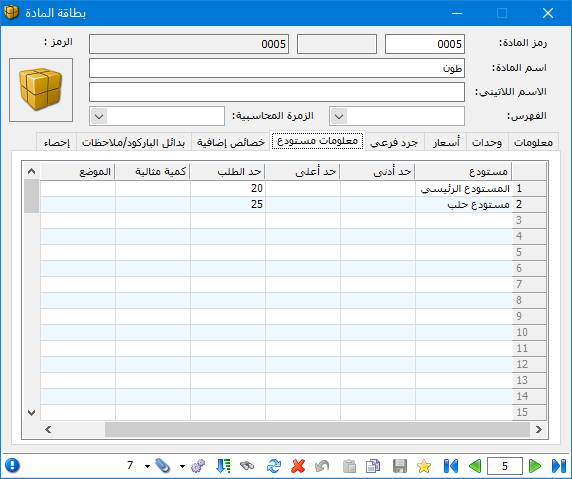
.
Additional Properties Tab: #
Items can have additional characteristics. For example, vehicles of brands such as Mercedes and Toyota may differ in electric windows, central locking or a sunroof. Define these characteristics in Additional Properties using a Property field and a Value field. Enter a property such as Electric Windows and press Enter to open the following window.
.
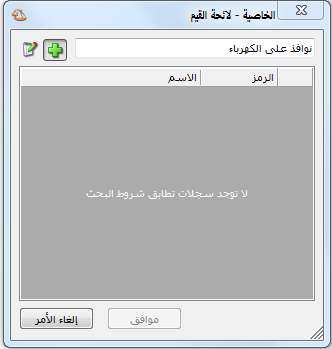
.
Click the green Add arrow to open the following window.
This window contains the following fields:
.
.
Add an Additional Property: #
Code : The property code.
Name : The property’s Arabic name.
Latin Name : The property’s English name, if available.
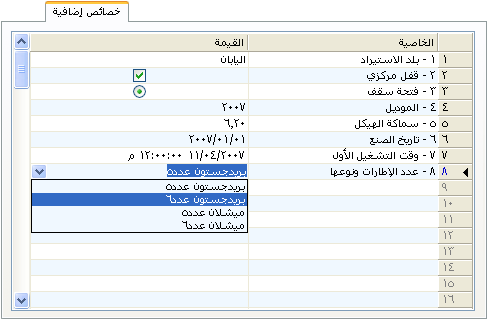
Value Type : This controls the value field on Additional Properties. Several formats are available, as shown above.
Default Value : The selected value is inserted by default into the item card. Available value formats are illustrated below in this order:
Text : The value field is blank so you can enter text, as in the Country of Import property.
Yes / No : A checkbox indicates whether the property applies. Select it if present or clear it if absent, as in Central Locking.
Present : The value is a fixed enabled indicator that cannot be cleared. Add the property only if it applies, as in Sunroof.
Integer : Enter a whole number in the blank value field, as in Model.
Decimal Number : Enter a number with decimal places, as in Body Thickness.
Date : Enter a date in the blank value field, as in Manufacture Date.
Time : Enter a time in the blank value field, as in First Operating Time.
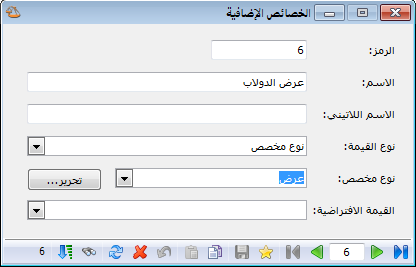
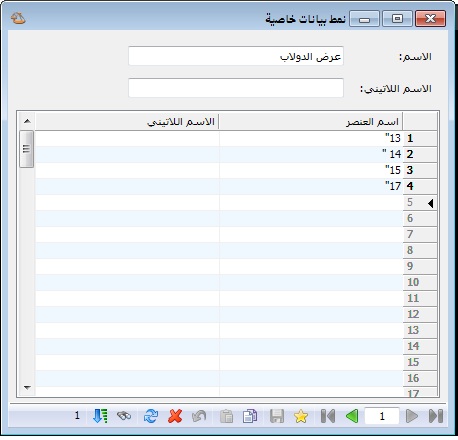
Custom : Choose Custom, click Edit and define the choices available for this property’s value.
This is illustrated in the following two images.
.
.
After defining and adding the property, its Value field displays the choices defined in the previous window.
Alternative Barcodes / Notes Tab: #
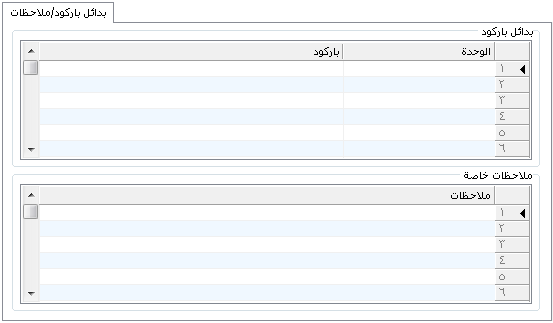
Enter alternative barcodes for the first, second or third unit. The item can then be identified using either its main barcode from Units or an alternative barcode. This tab also stores item notes used in Point of Sale, as explained later.
.
.


